How to Set Up and Optimize Orbi Mesh Wi‑Fi at Home
Learn how to set up and optimize an Orbi mesh Wi‑Fi system with a step-by-step guide, practical tips, and troubleshooting insights for a reliable home network.


With Orbi, you’ll deploy a mesh network, add satellites, and secure fast Wi‑Fi across your home. Before you begin, gather the router, at least one satellite, an internet connection, and a device to reach the admin page with the latest firmware. Then follow a step-by-step setup to place nodes, connect, configure security, and test coverage.
What Orbi is and why it matters
Orbi is Netgear's branded mesh Wi‑Fi system designed to blanket homes with consistent connectivity using a main router and one or more satellite nodes. For many homeowners, Orbi offers a practical path to reliable whole-home coverage without dead zones. According to WiFi Router Help, the strength of a mesh system is its ability to adapt as you add more nodes, preserving speed and signal quality rather than concentrating all traffic through a single point. This makes Orbi a popular choice for multi-story homes, large rooms, or spaces with thick walls that reduce signal strength. In practice, you’ll place the main router in a central location and position satellites to extend coverage toward far corners of your space. The goal is to create a single, seamless network with a consistent SSID so devices switch automatically as you move around the house.
Assessing your home network needs and prerequisites
Before you commit to an Orbi setup, assess your home's layout, internet speed, and device usage. Consider how many rooms you want to cover, whether you have thick walls, and if you need fast wireless for streaming, gaming, or video calls. Write down the approximate square footage and identify potential interference sources (microwaves, cordless phones). Ensure you have the hardware: the Orbi router, at least one satellite, a device to configure the system, and a stable internet connection. Plan to place the router near the center of your home, away from metal objects and large physical barriers, and to place satellites in hallways or open spaces that connect central areas to remote rooms. This planning reduces the need for excessive adjustments after you install.
Planning node placement for optimal coverage
Placement is the key to mesh success. The Orbi router should be within line of sight of the satellite for best backhaul, but avoid direct sight of walls or metal appliances that can block signals. A good rule is to place satellites at midpoints between the router and the farthest rooms, avoiding closets and cabinets. Use the Orbi app to run a quick signal check and reposition until the RSSI or signal strength indicators show robust connections. If you have a two-story home, place the router on the first floor and the satellite on the second floor near central corridors. If you must route cables, connect the router to the modem using Ethernet and then connect satellites wirelessly to test performance before running the full wired backhaul option.
Step 1: Prepare and connect the hardware
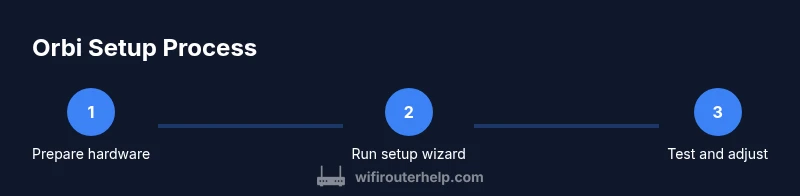
Unbox and inspect your devices; verify you have the router and satellites. Place the router near your modem and a power outlet, then connect the modem to the router's WAN port with an Ethernet cable. Plug in both units and wait for the lights to stabilize. If you have to work with a wired backhaul, you can connect satellites to the router with cables. The goal is to get a baseline connection to begin the initial setup.
Step 2: Use the setup wizard to pair satellites
Open a web browser or the Orbi app and follow the on-screen setup wizard. The wizard will guide you to sign in with your Netgear account or create one, then detect the router and satellites. Place satellites within range and press the sync button on each unit to pair them. The wizard will configure the mesh network and create a single SSID for all nodes.
Step 3: Configure wireless settings and security
Choose a unique network name (SSID) and a strong passphrase. Enable WPA3 if available; if not, use WPA2. Disable WPS to reduce risk. Update the firmware to the latest version via the app or web interface. Create separate guest networks for visitors, enable network isolation, and configure a firewall per your preference.
Step 4: Test coverage and fine-tune placement
Walk around the house with a phone or laptop to test signal while connected to the network. Use the Orbi app’s built-in signal test to identify weak spots. Move satellites as needed in increments (about a few feet) until the test results show stable signal in all critical areas. Run speed tests in different rooms to confirm performance.
Ongoing maintenance and security best practices
Schedule firmware updates monthly or as prompted by the app. Keep the admin password strong and unique, and enable two-factor authentication if offered. Regularly review connected devices and enable parental controls if needed. Document your network name and password in a safe location.
Common pitfalls and quick troubleshooting tips
Common issues include 'No Internet' after setup, satellites not syncing, or devices not roaming between nodes. If you see no internet, reboot the modem, router, and satellites in order. If satellites won’t sync, press the sync button on each unit and ensure they are within range. If roaming isn't smooth, run a signal check and adjust placement.
Advanced tips for optimized performance
If you need ultra-stable coverage in large homes, consider adding a second satellite and enabling a wired backhaul where possible. Use the App to balance band steering and ensure devices stay on the fastest band. For homes on gigabit plans, verify your ISP speed and ensure your router and satellites support that rate.
Tools & Materials
- Orbi router (main unit)(The primary hub in the mesh; connect to your modem via Ethernet.)
- Orbi satellite (mesh node)(One or more satellites to extend coverage.)
- Ethernet cable(Cat5e or better; useful for wired setup or initial configuration.)
- Smartphone or computer(Access the admin interface (app or web) during setup.)
- Active internet connection(Needed for firmware updates and testing connectivity.)
- Backup power source(Optional for uninterrupted setup during outages.)
Steps
Estimated time: 30-60 minutes
- 1
Prepare hardware and space
Unbox the units, place the router near the modem, and identify a central area for satellites. Keep distance from large metal appliances and thick walls. Ensure power and accessibility to configure the system.
Tip: Have the devices within sight of a power outlet and keep the router in a central but elevated position. - 2
Power up and establish baseline
Connect the router to the modem with Ethernet, then power on both the router and any satellites. Wait for status lights to indicate stability before proceeding.
Tip: If you see no lights, reseat cables and reboot devices in the order: modem, router, satellites. - 3
Launch the setup wizard
Open the Orbi app or a web browser and start the setup wizard. Sign in or create a Netgear account, and let the wizard detect the hardware.
Tip: Use a wired connection for the initial setup if possible to prevent dropouts. - 4
Pair satellites
Place satellites within range and press the sync button on each unit to pair. Follow the prompts to join them to the main network.
Tip: Avoid placing satellites behind doors or inside cabinets during pairing. - 5
Configure wireless settings
Set a unique SSID and strong password. Enable WPA3 if available; otherwise WPA2. Create a guest network if you have visitors.
Tip: Disable WPS to reduce the risk of unauthorized access. - 6
Update firmware
Check for and install the latest firmware from the app or web interface. Firmware updates improve security and performance.
Tip: Set automatic updates if the option exists to reduce manual maintenance. - 7
Test coverage
Walk the home with a connected device to check signal strength in key rooms. Move satellites if needed to even out coverage.
Tip: Aim for strong signal in living spaces and bedrooms first, then address corridors and corners. - 8
Enhance security and access control
Enable device screening, guest isolation, and firewall settings according to your needs. Review connected devices occasionally.
Tip: Change default admin password and enable two-factor authentication if offered.
People Also Ask
What is Orbi, and how does it differ from a traditional router?
Orbi is a mesh Wi‑Fi system that uses a main router plus satellites to blanket a home with wireless coverage. Unlike a single-router setup, Orbi creates a single network that hands off devices between nodes for seamless roaming. This helps reduce dead zones in larger or multi‑story homes.
Orbi is a mesh Wi-Fi system with multiple nodes that creates one seamless network, reducing dead zones in larger homes.
Can I integrate Orbi with an existing router?
Yes, you can set up a secondary router in bridge mode or configure Orbi as the primary network. In most cases, using Orbi as the main router provides the simplest, strongest mesh performance.
You can use Orbi as the main router for best mesh performance, or configure another router in bridge mode if needed.
Do I need a subscription for parental controls on Orbi?
Parental controls are commonly included with Orbi firmware updates and app features, but some advanced options may require a subscription. Check the current app features for your exact model and firmware version.
Parental controls are often included, but some advanced options may require a subscription depending on firmware.
What should I do if satellites won’t sync?
Ensure satellites are powered on, within range, and paired in proximity to the main unit. Press the sync button on each unit and follow the app prompts. If needed, reboot the modem, router, and satellites in sequence.
Make sure satellites are powered and within range, then use the sync button; reboot if issues persist.
How often should I update the firmware?
Check for updates regularly via the Orbi app or web interface; implement updates when available to improve performance and security.
Check for updates in the app and install them to keep performance and security current.
Watch Video
What to Remember
- Plan placement before powering on to minimize repositioning.
- Keep firmware up to date for security and speed.
- Test coverage in key areas and adjust satellites as needed.
- Use strong passwords and enable guest networks when appropriate.
- Regularly review connected devices and security settings.