Orbi Mesh Network Guide: Setup, Optimize, Troubleshoot
Learn how to install, optimize, and troubleshoot your Orbi mesh network for reliable whole-home WiFi. Step-by-step guidance on placement, backhaul, and security, with practical tips for peak performance.


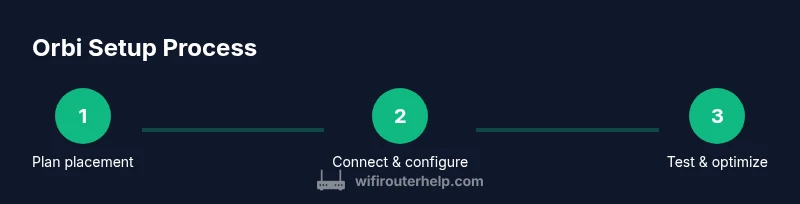
Goal: Set up a reliable Orbi mesh network that delivers strong, seamless WiFi across your home. You’ll start with central placement of the primary router, add satellites for far corners, and use the Orbi app or web portal to configure SSIDs, backhaul, and guest networks. Basic security and firmware checks are included.
Why Orbi Mesh Network Reliability Matters
A robust Orbi mesh network eliminates dead zones, maintains consistent speeds, and supports a growing array of smart devices throughout a home. For homeowners and tech enthusiasts, reliable coverage translates to smooth streaming, crystal-clear video calls, and fewer frustrating buffering moments. According to WiFi Router Help, careful planning of router placement and the use of a wired backhaul when possible significantly improves stability in multi-room layouts. The WiFi Router Help Team's analysis emphasizes that a dedicated backhaul and disciplined channel selection minimize interference and maximize throughput. In larger homes or multi-story environments, satellites extend coverage without sacrificing speed, provided you keep the backhaul strong or opt for devices with robust wireless links. Understanding roaming behavior and band steering helps you design a layout that minimizes handoffs and drop-offs. Start by mapping your space and identifying problem zones before adjusting placement; the result is a more reliable, easier-to-use network.
Top Features to Consider for the Orbi System
When evaluating an Orbi mesh setup, focus on three pillars: coverage, backhaul, and management. Look for tri-band designs that allocate a dedicated backhaul band to satellites, reducing congestion on a single frequency. Consider the number of satellites needed for your home size, floor plan, and wall materials; more isn’t always better if the backhaul is weak. The Orbi app provides centralized control: network names, guest access, parental controls, and firmware updates—key elements for long-term reliability. Security features matter too: automatic updates, firewall presets, and phishing protection help safeguard smart devices. Finally, plan for future needs such as higher-speed internet tiers or expanded coverage in new rooms. You’ll prefer systems that offer easy firmware upgrades, clear diagnostics, and reliable roaming between nodes. With these factors in mind, you can choose a configuration that fits both your current space and anticipated growth.
Planning Your Orbi Placement: Central Router, Satellite Spread, and Backhaul
Optimal placement starts with the main router; position it centrally and elevated to reduce obstruction. Satellites should be placed within a clear line of sight and no more than 30-40 feet apart, depending on walls and interference. Use the Orbi app’s heat map or signal strength indicator to visualize coverage, and adjust as needed. If your home has thick plaster walls or metal pipes, lean toward more satellites rather than pushing power through dense barriers. Wired backhaul (Ethernet) between router and satellites delivers the most stable results, especially in two-story homes; if wired backhaul isn’t feasible, aim for strong wireless links and avoid placing satellites behind large metal appliances. Finally, map high-usage zones (living room, home office, bedrooms) and ensure at least one satellite can reach each zone with a solid signal. Small tweaks in placement can unlock significant performance gains.
Performance and Networking Fundamentals: Backhaul, Band Steering, and Channel Selection
Performance hinges on backhaul quality, band steering, and channel selection. A wired backhaul provides the cleanest path for inter-node communication and leaves your client devices free to use the fastest wireless band. If wired backhaul isn’t possible, ensure nodes connect with a robust wireless link and avoid signaling conflicts by selecting a clear channel. For Orbi systems, band steering helps devices connect to the best band automatically, but it can cause handoffs that feel slow if signals are weak. In this section, we show how to verify backhaul status in the app, confirm roaming behavior, and run simple speed tests to confirm improvements. Regular firmware updates also improve stability, security, and performance. If you notice streaming stutters, try forcing a preferred band for gaming devices and enabling QoS for critical devices.
Security and Maintenance: Firmware, Passwords, and Network Segments
Keeping an Orbi mesh network secure requires a proactive maintenance routine. Start with automatic firmware updates to close vulnerabilities and improve compatibility with new devices. Use strong, unique admin credentials and avoid default passwords. Consider segmenting your network with a guest SSID and a separate IoT network for smart devices to minimize risk. Regularly review connected devices in the Orbi app and remove anything unfamiliar. If you enable parental controls, configure profiles for different family members to balance access with safety. Finally, back up your configuration after major changes so you can restore quickly if needed.
Troubleshooting Common Scenarios and Quick Fixes
If you still experience dead zones after adding satellites, re-check placement and confirm backhaul status in the app. Slow speeds on 2.4 GHz can be caused by interference from microwaves or cordless phones; try changing the channel or disable 2.4 GHz on some devices. If a device won’t connect, reset network settings on the device and rejoin the Orbi network. Roaming delays can be reduced by placing satellites in closer proximity and ensuring a healthy backhaul link. Firmware update failures are often caused by a poor internet connection; retry later or perform a manual update via the web portal. For persistent problems, perform a factory reset and reconfigure from scratch, keeping a documented plan handy.
Getting the Most from Your Orbi: Next Steps and Upgrades
After achieving solid coverage, you may want to scale further or upgrade for higher speeds. If your home is expanding or you’re moving to gigabit internet, consider adding satellites or upgrading the base router for improved processing power. Review compatibility with existing satellites before purchasing. Keep firmware up to date and monitor performance over time to adjust placement as you add devices.
AUTHORITY SOURCES
For regulatory and best-practice context, refer to authoritative sources such as the Federal Communications Commission (FCC) at https://www.fcc.gov, the National Institute of Standards and Technology (NIST) at https://www.nist.gov, and the Cybersecurity and Infrastructure Security Agency (CISA) at https://www.cisa.gov. These resources provide guidance on network reliability, security best practices, and incident response that underpin consumer networking guidance.
Tools & Materials
- Orbi router and satellites(Ensure you have the latest model you plan to use as the backbone and any satellite nodes)
- Ethernet cable(For wired backhaul or initial setup)
- Smartphone or computer(With the Orbi app installed or access to the web portal)
- Stable power outlets(Near the placement spots to avoid long cords)
- Room layout or measured map(Useful for planning satellite placement)
- WiFi analyzer app(Optional for measuring signal strength)
- Backup network plan(Sketch of preferred SSID and password scheme)
Steps
Estimated time: 45-60 minutes
- 1
Unbox and inspect your Orbi kit
Open the box and verify all components are present. Check for any cosmetic damage and familiarize yourself with each node’s location role.
Tip: Keep components separated during unpacking to avoid misplacing tiny accessories. - 2
Position the main router centrally
Place the primary router at a central, open location away from thick walls and metal appliances for best signal distribution.
Tip: If possible, elevate the unit off a shelf to reduce obstructions. - 3
Connect to power and your modem
Power up the router and connect the WAN/Internet port to your modem using an Ethernet cable. Wait for the status lights to stabilize.
Tip: Use a wired connection when first configuring to ensure stable setup. - 4
Launch the Orbi app and create your network
Open the Orbi app, follow the prompts to create your network, set a strong SSID, and configure security settings.
Tip: Choose clear, unique SSID names for each band if your model supports tri-band. - 5
Add satellite nodes and verify coverage
Place satellites in key areas to extend coverage. Use the app to run speed tests and map weak zones.
Tip: Aim for a single strong wireless link between router and satellite, not multiple weak links. - 6
Optimize settings for speed and stability
Adjust channel selection, enable wired backhaul if available, and update firmware.
Tip: Regularly check for firmware updates and reboot devices after updates. - 7
Set up a guest network and tighten security
Create a guest network with limited access and update admin credentials. Enable automatic firmware updates.
Tip: Disable remote management unless you need it, and use strong passwords.
People Also Ask
What is an Orbi mesh network and how does it differ from a traditional router?
An Orbi mesh network uses a central router with satellite nodes to extend coverage, creating a single seamless network. Unlike a single router, satellites communicate to blanket larger areas with consistent speeds.
Orbi uses a main router plus satellites to cover larger spaces with one network name.
Can I mix Orbi generations or satellites from different kits?
Some Orbi kits support mixed generations, but compatibility depends on firmware and model. Check the vendor guidelines for your specific devices.
Compatibility depends on firmware and model; review the setup notes.
How can I improve Orbi WiFi speed in a large home?
Place the router centrally, add satellites to cover dead zones, and enable wired backhaul if possible. Update firmware and choose appropriate channels.
Center the router, add satellites, keep firmware updated.
Is remote management safe on Orbi devices?
Remote management can expose the network if not secured. Disable it unless you need access from outside your home and use strong credentials.
Only enable remote management if you really need it and use strong security.
Do I need a paid subscription for Orbi features?
Most core features work without a subscription. Some advanced analytics or cloud features may require an account or service access.
Most features are built in; some extras may require an account.
Watch Video
What to Remember
- Plan placement for symmetry and minimal obstructions
- Use wired backhaul when possible for stability
- Secure the network with strong passwords and updated firmware
- Regularly monitor performance and adjust channels