Netgear Orbi Mesh: Setup, Optimize, Troubleshoot Guide
Learn how to deploy a Netgear Orbi mesh system for seamless whole-home WiFi, with step-by-step setup, optimization tips, and troubleshooting guidance from WiFi Router Help.


To deploy a Netgear Orbi mesh system, you will replace your existing router with the primary Orbi unit and place satellite nodes around your home to create seamless coverage. Key steps include connecting the router to your modem, running the Orbi app, and optimizing channel settings. According to WiFi Router Help, plan for logical placement and a wired backhaul where possible.
Understanding netgear orbi mesh for modern homes
Netgear Orbi mesh systems are designed to deliver uniform WiFi coverage across large or multi-story homes by distributing the network load across a main router and one or more satellite nodes. Unlike a traditional single-router setup, the Orbi mesh creates a dedicated backhaul channel that helps keep devices connected as they move around your space. In practice, you’ll notice fewer dead zones and more reliable streaming, gaming, and video calls. When planning a netgear orbi mesh deployment, think about how signals will traverse furniture, walls, and appliances, and how many nodes you’ll need to achieve smooth handoffs between coverage zones.
What you get in a Netgear Orbi mesh kit
A typical Netgear Orbi mesh kit includes a primary router (the main hub) and one or more satellite nodes that extend coverage. The design prioritizes ease of use, with LED indicators on each unit and a companion app to guide the setup. Expect a compact, modular system that can scale by adding satellites as needed. The kit may also include an Ethernet backhaul option, which can improve stability in homes with thick walls or interference from appliances. Overall, netgear orbi mesh provides a practical path to greater reliability without complex wiring.
Planning placement for best coverage
Placement is the single most impactful factor in mesh performance. Start by locating the primary Orbi router near the center of your home, ideally away from metal appliances and microwaves that can induce interference. Satellites should be placed in open areas roughly halfway between the router and distant rooms, avoiding closets and cramped corners. A good rule of thumb is to aim for a clear line of sight and avoid stacking units on top of one another. If you have a large home, consider two or more satellites to ensure consistent speed on every floor.
Network topology and backhaul options for netgear orbi mesh
Orbi supports both wireless and wired backhaul. A wired backhaul—connecting satellites with Ethernet cables—can dramatically improve stability, reduce latency, and maintain higher speeds, especially in busy households. If running cables isn’t feasible, the wireless backhaul will still provide robust coverage, but you may experience minor speed dips at the far edges of your home. In either case, ensure firmware is up to date to maximize compatibility and performance across all nodes.
Step-by-step setup in practice (high-level overview)
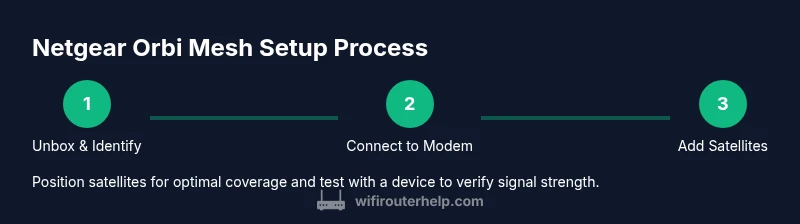
- Start with unboxing and identifying components. 2) Connect the primary Orbi router to your modem and power it on. 3) Use the Orbi app to configure the network name and password. 4) Add satellite nodes and pair them to the main router. 5) Run a coverage test and position satellites as needed. 6) Enable guest networks and basic parental controls if desired. 7) Fine-tune QoS and security settings for optimal performance.
This sequence keeps configuration focused and minimizes back-and-forth rework. The app-guided setup reduces the risk of misconfiguration and helps you verify connectivity at each stage.
Troubleshooting common issues with netgear orbi mesh
Most mesh issues fall into a few categories: connectivity between the main router and satellites, weak signals in certain rooms, or devices failing to obtain an IP address. Start by checking the indicator lights on each unit and ensuring firmware is current. If satellites won’t pair, reset them and re-add via the Orbi app. For stubborn dead zones, try relocating satellites or using the Ethernet backhaul option where practical. Regularly rebooting the network can also clear minor glitches.
Advanced features worth configuring in netgear orbi mesh
Take advantage of features like guest networks to separate visitors from your main network, QoS rules to prioritize gaming or conferencing, and firewall settings for added protection. You can also tailor parental controls, time-based access, and device-level restrictions. If you have a multi-user home, setting up separate SSIDs and device groups can simplify management while preserving security and performance across the mesh network.
Authority sources for mesh networking guidance
For readers seeking broader context on mesh networking and WiFi guidelines, consider consulting official resources from major publications. While product specifics come from Netgear Orbi documentation, staying informed about wireless standards and security best practices helps anchor your deployment in solid fundamentals. Access authoritative content from reputable sources to complement your setup journey.
Putting it into practice: turning knowledge into a working netgear orbi mesh
With the steps above, you can iteratively test and refine your mesh placement. After initial setup, sweep through each floor, verify coverage with a connected device, and adjust satellite locations for the final layout. By treating your Orbi deployment as an ongoing optimization task, you’ll sustain reliable performance as your home evolves and new devices join the network.
Tools & Materials
- Modem connected to Internet(Ensure your modem is compatible with your internet service and powered on)
- Netgear Orbi mesh kit (main router + satellites)(Check model count based on home size)
- Ethernet cable (Cat6 or better)(Optional for wired backhaul)
- Smartphone or tablet with the Orbi app(Needed for on-screen configuration)
- Reliable power outlets near each unit(Power stability helps maintain signal integrity)
- Printer or computer to verify network settings (optional)(Useful for testing advanced features)
Steps
Estimated time: 45-60 minutes
- 1
Unbox and identify components
Open the box and confirm you have the primary Orbi router, satellite nodes, power adapters, an Ethernet cable, and quick-start guides. Check for any visible damage and verify model numbers against your order. This first check prevents surprises during installation.
Tip: Lay components on a clean surface and group cables by length to speed up setup. - 2
Connect the primary Orbi to the modem
Plug the primary router into a power outlet, then connect its WAN port to the modem using an Ethernet cable. Power on the modem first, then the Orbi. Give the device a few minutes to initialize and reach the internet.
Tip: Use a short Ethernet cable for a cleaner setup and better signal stability. - 3
Power on and verify status lights
Check the LED indicators on the Orbi unit. A solid white or amber light typically indicates normal operation, while flashing or red lights suggest a connection issue. If needed, perform a soft reset before proceeding.
Tip: If lights remain abnormal, disconnect power for 10 seconds and reconnect to reboot the system. - 4
Install the Orbi app and create network
Download and install the Orbi app on your mobile device. Follow the on-screen prompts to create your network name (SSID) and password. The app will guide you through basic security settings and initial wireless configuration.
Tip: Choose a strong, unique password and enable automatic updates for security. - 5
Add satellites and pair them to the router
Place satellites around your home to maximize coverage and use the app to pair them with the main router. Start by placing them roughly midway between the router and the farthest rooms, then adjust position for best signal.
Tip: If pairing fails, move the satellite closer temporarily and retry; stability improves as distance reduces. - 6
Test coverage and optimize placement
Walk around with a connected device to verify signal strength in every room. If certain areas show weak performance, reposition the satellite or add another node. Re-run the app’s coverage test after any move.
Tip: Aim for a steady, strong signal on all floors; avoid placing satellites behind large appliances or inside cabinets. - 7
Enable guest network and parental controls
Create a guest network to separate visitors from your main network. Set basic parental controls and your preferred security posture. These options are accessible via the Orbi app.
Tip: Schedule usage windows and restrict devices that you don’t fully trust yet to protect your network. - 8
Fine-tune features and firmware
Check for firmware updates and enable features like QoS, firewall, and IP/DHCP settings as needed. Regular updates help maintain compatibility and performance.
Tip: Enable automatic updates to minimize manual maintenance.
People Also Ask
What is Netgear Orbi mesh?
Netgear Orbi mesh is a wireless system that uses a primary router plus satellite nodes to blanket a home with WiFi. It creates a dedicated backhaul between units to improve coverage and consistency, especially in larger spaces.
Orbi mesh uses a main router and satellites to extend WiFi throughout your home, with a dedicated backhaul for reliable coverage.
Do I need a separate modem with Orbi mesh?
Yes. Orbi mesh requires a modem provided by your internet service. The Orbi router connects to the modem to access the internet, after which satellites expand the signal.
Yes, you still need a modem from your ISP; Orbi sits between the modem and your devices.
Can I use Orbi with an existing router?
You can replace your existing router with the Orbi system or place Orbi in AP mode behind another router. Using Orbi as a pure mesh network offers easier management and potentially better coverage.
You can substitute your current router with Orbi and use AP mode if you want to integrate with an existing setup.
How do I update Orbi firmware?
Firmware updates are managed through the Orbi app. Check for updates regularly and enable automatic updates to keep devices secure and compatible.
Update through the Orbi app and enable auto-updates for ongoing security and performance improvements.
What if some rooms still have weak signal?
Reposition satellites for better line-of-sight and consider adding another satellite or enabling a wired backhaul if possible. Run the coverage test again after moving devices.
Relocate satellites or add another node; run the coverage test to confirm improvement.
How does Orbi model selection affect performance?
Different Orbi models offer varying coverage and speeds. Choose a model based on home size, internet speed, and whether you need additional features like advanced QoS or more robust security.
Model choice affects coverage area and features; match to your home size and speeds.
Watch Video
What to Remember
- Position central router for even coverage across floors
- Prefer wired backhaul for best stability
- Use the Orbi app to guide setup and troubleshooting
- Enable guest networks and parental controls for security
- Regularly update firmware to maintain performance