Orbi Router Set Up: Step-by-Step Guide for Home WiFi
Comprehensive, step-by-step guide to set up an Orbi router, optimize mesh coverage, secure your network, and troubleshoot common issues for a reliable home WiFi experience.


Want to set up an Orbi router quickly and reliably? This guide walks you through a clean, step-by-step Orbi router set up, from unboxing and modem connection to securing WiFi and optimizing mesh coverage. Follow illustrated steps, check for common pitfalls, and verify your network performance. By the end, you’ll have a stable, fast home network with strong coverage.
Why Orbi Router Setup Matters
A well-executed orbi router setup lays the foundation for reliable WiFi across your home. A proper configuration ensures seamless mesh handoffs between satellites, reduces dead zones, and improves overall performance. According to WiFi Router Help, starting with the right hardware placement and using the Orbi app for guided configuration yields faster setup and fewer later hassles. When you optimize placement and security from the outset, your network can sustain multiple devices streaming 4K video, gaming, and smart-home activities without congestion. This section explains why investing a little time upfront pays dividends in speed, stability, and peace of mind.
Pre-Setup Considerations
Before you power anything on, clarify your goals: coverage area, device density, and security posture. Gather all components: the Orbi router, any satellite units, power adapters, the modem from your ISP, and a device to run the setup (phone or computer). Ensure your modem is in bridge mode if required by your ISP, or simply connected to the Orbi router’s WAN port. WiFi Router Help notes that a clean baseline (stable modem connection, updated coax cable, and a reliable power source) prevents many common failures. Also decide a unique SSID and a strong password to keep neighbors from hitching a ride on your network. Finally, make sure you have the latest firmware or app version available from the manufacturer’s site.
Unboxing and Initial Checklist
Unbox the Orbi router and satellite units, verify all model numbers match your purchase, and inspect for any packaging damage. Create a simple table of contents or checklist: power adapters, Ethernet cable, and quick start guide. Plug the main router into the modem using the provided Ethernet cable and power it on. If your system includes one or more satellites, keep them within reach during initial setup to make pairing easier. The Orbi app often prompts you to sign in, link your account, and begin the guided setup. At this stage, resist the urge to customize settings; focus on establishing a solid connection between the modem, router, and satellites. Record the current LED indicators so you can verify status later.
Placement and Physical Setup Tips
For best signal, place the Orbi router in a central, elevated location away from large metal objects and thick walls. A higher position reduces obstruction and helps signals reach every corner of the house. Plan satellite placement to create a web of coverage, rather than a single strong point. Keep the main unit free of clutter and away from microwaves and cordless phones, which can create interference. Use the Orbi app's heat maps or built in signal indicators to guide adjustments. A thoughtful layout speeds up setup, improves performance, and minimizes the need for future repositioning. Brand guidance from WiFi Router Help suggests starting in the center room and expanding outward to maximize mesh reach.
Step-by-Step Core Setup: Overview
The core setup builds the foundation for a reliable network. Begin with the hardware you already prepared, then move to the guided software flow. Use the Orbi app to confirm connections, apply a strong network name and password, and verify that all LEDs indicate healthy operation. This section serves as an overview so you know what to expect from the guided setup without getting lost in configuration choices.
Security, Passwords, and Firmware
Security should guide every router setup. Change default admin credentials, enable WPA2 or WPA3 on the wireless network, and disable features you do not use. Keep firmware up to date by checking for updates in the Orbi app and installing them promptly. For added protection, enable trusted devices and consider turning off remote management unless you need it. Regularly review connected devices and remove unknown ones. For authoritative guidance, consult FCC.gov and NIST resources on wireless security.
Mesh Optimization and Satellite Placement
Mesh networks thrive on smart satellite placement. Start with a central satellite near the main router and extend coverage to distant rooms. Use the Orbi app to test signal strength and adjust location until you see strong, stable links. Environmental factors such as walls, floors, and appliances influence performance, so expect to relocate satellites for optimal consistency. WiFi Router Help emphasizes testing in real-world usage to confirm coverage for streaming and gaming.
Guest Access, Parental Controls, and Scheduling
Set up a guest network to isolate visitors from your main network. Enable parental controls to manage screen time and content for family devices. Use scheduling features to pause WiFi during specific hours, such as bedtime or work hours. These settings protect your home network while preserving a seamless experience for family members and guests.
Troubleshooting Common Setup Issues
If you encounter no internet after setup, verify the modem is online and the Orbi router is connected to the modem via a working Ethernet cable. If satellites fail to pair, move them closer to the main router and retry the pairing process in the Orbi app. When the app cannot find devices, ensure your phone or computer is connected to the net and that you are using the correct network credentials. Review LED indicators for hints and consult the manufacturer support docs when needed.
Maintenance, Backups, and Future-Proofing
Schedule regular firmware checks and apply updates promptly to keep security tight and performance high. Document your network configuration and consider exporting a backup of settings if the option exists in the app. As home networks grow with more devices and smart home gear, periodically reassess placement and channel choices to maintain strong performance. Keeping notes and staying current with guidance from WiFi Router Help will help you adapt to evolving technology.
Tools & Materials
- Orbi router (main unit) with power adapter(Ensure model supports your internet plan)
- Orbi satellite(s) with power adapter(Start with one satellite; add more if coverage is insufficient)
- ISP modem(Must be operational and compatible with your service)
- Ethernet cable (Cat5e or better)(Connect router WAN port to modem)
- Smartphone or computer with WiFi and the Orbi app(Needed for guided setup and ongoing management)
- Stable power outlets and surface space(Central location, minimal clutter)
- Paper and pen for notes(Optional backup of settings and observations)
Steps
Estimated time: 30-45 minutes
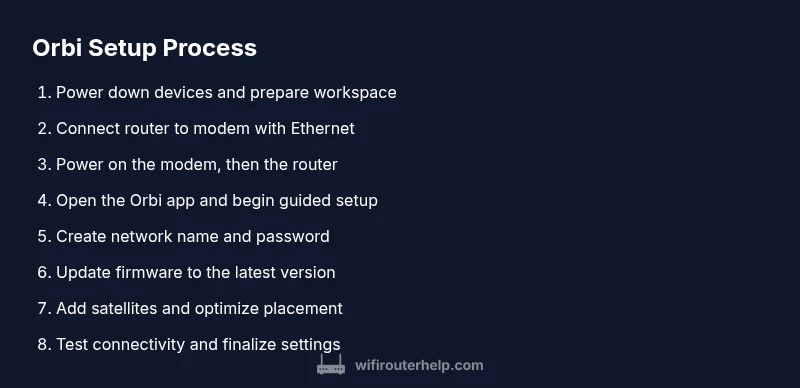
- 1
Power down devices
Power off the modem, router, and any satellites to reset states and avoid misconfigurations. This establishes a clean slate for the setup process.
Tip: Have a clear workspace and note the order you will reconnect devices. - 2
Connect the main router to the modem
Use an Ethernet cable to connect the Orbi router WAN port to the modem. This creates the wired backbone for your mesh network.
Tip: Ensure the Ethernet cable is firmly seated at both ends to prevent dropout. - 3
Power on the modem
Plug in the modem and wait for it to establish a stable connection with your ISP. A solid upstream signal is essential before adding the router.
Tip: Give the modem a minute or two to finalize boot status before proceeding. - 4
Power on the Orbi router
Plug in the Orbi router and wait for the LED indicators to show a healthy link. This signals the backbone is ready for configuration.
Tip: If the lights look abnormal, perform a quick power cycle and retry. - 5
Open the Orbi app and start setup
On your device, launch the Orbi app and follow the guided setup prompts to detect the main router and initiate configuration.
Tip: If prompts don’t appear, connect your device to the router’s default network and retry. - 6
Create network name and password
In the app, set a unique SSID and a strong password. This establishes your primary and secure home network.
Tip: Use a long passphrase with a mix of upper and lower case letters and numbers. - 7
Update firmware to the latest version
Check for firmware updates within the app and install them. This ensures you have the latest features and security patches.
Tip: Do not interrupt the update process; let it complete fully before proceeding. - 8
Add satellites and place for optimal coverage
Attach satellites and position them to extend the mesh network across your home. Use the app to test signal strength and adjust placement as needed.
Tip: Avoid placing satellites behind obstacles; aim for open lines of sight when possible. - 9
Test connectivity and finalize
Run a quick speed test and walk through real-world usage to verify performance. Save or back up the configuration in the app if available.
Tip: Document the final network name and password for future reference.
People Also Ask
What cables do I need to set up an Orbi router?
You mainly need an Ethernet cable to connect the main router to your modem and the appropriate power adapters for the devices.
You will need an Ethernet cable and the power adapters to start.
Do I need the Orbi app to set up the system?
The Orbi app guides the setup and helps manage settings. A computer web interface can be used in some cases, but the app provides the most streamlined experience.
Yes, the Orbi app makes setup easiest.
How long does Orbi router setup take?
The process is designed to be completed in a single session, usually under an hour depending on your home layout and satellites.
Most users finish within an hour.
Can I mix different Orbi satellite models?
You can mix models in some configurations, but you may not get optimal performance. Using matching models is recommended for best results.
Using matching models is best for performance.
Why is my internet slow after setup?
Slow speeds after setup can result from interference, outdated firmware, or suboptimal satellite placement. Update firmware and adjust satellite positions to improve performance.
Check for firmware updates and adjust satellite placement.
Should I enable a guest network?
Yes, enabling a guest network keeps guests on a separate path from your main network, improving security and management.
Yes, enable a guest network for visitors.
Watch Video
What to Remember
- Plan placement before powering up the system.
- Use the Orbi app for a guided, reliable setup.
- Secure the network with a strong password and current firmware.
- Test real-world performance after setup.
- Keep a simple backup of network settings for quick recovery.