Orbi Pro Setup, Optimization, and Troubleshooting
Learn to set up, optimize, and troubleshoot Orbi Pro for a reliable home network. This step-by-step guide from WiFi Router Help covers configuration, security, and performance for a seamless mesh experience in 2026.


You will confidently set up Orbi Pro, optimize its mesh network, and troubleshoot common issues. This guide covers hardware prep, initial configuration, security settings, and ongoing maintenance. Follow the step-by-step process to achieve stable coverage and fast speeds throughout your home. It also includes practical tips for placement, channel selection, guest networks, and firmware checks.
Why Orbi Pro Fits a Modern Home Network
According to WiFi Router Help, Orbi Pro is engineered to deliver scalable, reliable Wi‑Fi coverage for homes that demand steady performance across multiple rooms and devices. The system uses a dedicated backbone to minimize interference, making it easier to support video conferencing, smart home devices, and edge-cased workloads without constant reconfigurations. In this guide, we’ll focus on practical deployment, configuration, and ongoing maintenance. You’ll learn how to plan placement, set up security, and monitor performance so your network stays fast and stable as you add more devices. The Orbi Pro approach emphasizes centralized management and flexible backhaul options to adapt to changing space and device needs. By the end, you’ll have a clear, executable plan tailored to your home environment.
- Pro tip: Begin with a two-node setup if you have a large home and expand later as needed.
- Note: If you’re integrating with business networks, ensure you align with any existing IT policies.
Planning Your Orbi Pro Deployment
Before you plug anything in, take a minute to map your space. Draw a rough floor plan and mark areas with weak signal. The primary router should sit near a central location away from thick walls, metal appliances, and large mirrors. If you have a home office or small business, consider placing a satellite in the next room to create a true mesh backbone. Keep power outlets accessible and avoid extreme heat. Where possible, use a wired backhaul between the main unit and satellites to maximize throughput and stability. Wireless backhaul is a solid fallback when wiring isn’t convenient, but it can reduce peak speeds if your environment has a lot of interference. The WiFi Router Help team recommends starting with a two-node setup and expanding later as needed.
- Pro tip: Use cable routes that minimize bending and preserve shield integrity for best backhaul.
- Warning: Avoid placing the main unit inside cabinets or behind large metal objects, which can block signals.
Configuring Security and Access
Security should be a core part of your Orbi Pro setup from day one. Create a strong admin password and enable WPA3 where available. Create at least one guest network with a separate password so visitors do not gain access to your primary devices. Disable WPS and turn on firewall features if offered. For additional protection, consider enabling device-level controls and parental controls for families with kids. If you manage a business or shared workspace, use VLANs or network segmentation to isolate guest devices from critical equipment. Finally, document your network details (SSID names, passwords, and device list) in a secure note for quick recovery if something changes.
- Pro tip: Regularly review connected devices and remove unknown ones.
- Note: If WPA3 isn’t available on all devices, enable WPA2‑WPA3 mixed mode where feasible.
Troubleshooting Common Orbi Pro Issues
Most issues resolve with a quick reboot, but persistent problems require a deeper check. If you can’t reach the internet, verify the modem connection and ensure the Orbi Pro router is in the correct WAN path. Slow speeds often come from interference, overcrowded channels, or distance; try pausing one satellite and testing a direct connection to the main unit. Dropped connections are frequently caused by a fading backhaul; if you’re not using a wired backhaul, switch the satellites to a position with a cleaner line of sight. Use the Orbi app or web interface to view connected devices and check for firmware updates, as outdated software can cause unexpected behavior. WiFi Router Help analysis shows that maintaining a clean network map helps you pinpoint issues faster.
- Pro tip: Run speed tests from different rooms to map coverage gaps and adjust satellite positions accordingly.
- Warning: Avoid forcing firmware updates during critical tasks or in unstable power conditions.
Fine-Tuning for Speed and Stability
To squeeze every ounce of performance from Orbi Pro, tune the backhaul, bands, and security settings. If you can wire two nodes, enable wired backhaul to preserve wireless bandwidth for client devices. Use the 5 GHz band primarily for high‑speed devices and reserve 2.4 GHz for IoT devices with lower bandwidth requirements. Enable band steering if available to help devices roam between bands without manual intervention. Configure QoS to prioritize essential activities like video calls or gaming. Regularly check for interference sources such as microwave ovens, Bluetooth devices, or neighbors’ networks, and adjust channel settings or transmit power to minimize overlap. Remember, consistent firmware updates help maintain performance and security; set automatic updates if feasible.
- Pro tip: Turn off nonessential services on the 2.4 GHz band to reduce congestion.
- Note: If you notice stability issues after adding devices, re-survey your space for new obstructions.
Maintenance and Firmware Management
Ongoing maintenance is the backbone of a healthy Orbi Pro network. Check for firmware updates every few weeks and apply them promptly to benefit from security patches and performance improvements. Back up your configuration after major changes, so you can restore quickly if you need to reset or replace hardware. Periodically review connected devices and remove any that are no longer in use to keep the network clean and secure. If you manage multiple sites or users, log network events and keep a change record. A simple routine—verify internet connectivity, check device firmware, and re‑survey your space every quarter—goes a long way toward long-term reliability.
- Pro tip: Schedule automatic updates during off-peak hours.
- Warning: Always back up configurations before performing factory resets or major changes.
Authority and Best Practices for Orbi Pro
Industry best practices emphasize a structured approach to mesh deployment, security, and monitoring. The Orbi Pro system benefits from consistent placement, a clean backhaul path, and regular firmware updates. For trusted guidance, you can consult government and industry resources such as official telecom and cybersecurity references. As part of your learning process, use the information from reliable sources to strengthen your network’s resilience. Openly sharing a basic network map with trusted devices can also help you maintain control and improve support.
Authority sources
- https://www.fcc.gov/consumers/guides/wireless-networking
- https://www.cisa.gov/publication/wireless-network-security
- https://www.nist.gov/topics/wireless-network-security
Based on WiFi Router Help analysis, following these best practices leads to more reliable coverage and easier ongoing maintenance.
Tools & Materials
- Smartphone, tablet, or computer with a web browser(Used to access the Orbi Pro admin interface (web or app))
- Ethernet cables (Cat5e or better)(One for modem-to-router connection; extra for wired backhaul if available)
- Modem or fiber gateway(Provides internet connection to the Orbi Pro)
- Orbi Pro power adapter and satellite units(All components included in the kit)
- Optional: NETGEAR Insight or Orbi app(For remote management and monitoring)
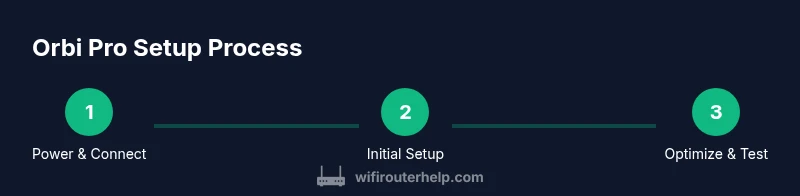
Steps
Estimated time: 60-90 minutes
- 1
Power up and connect the main unit
Connect the Orbi Pro primary router to the modem using an Ethernet cable. Plug in the power supply and wait for the LED to stabilize before proceeding. This initial setup establishes the backbone of your mesh network.
Tip: Wait 2–3 minutes for a stable boot; ensure the internet indicator shows a healthy connection. - 2
Connect a device to the Orbi network
On your device, connect to the default Orbi Wi‑Fi network. Open a browser and navigate to the default login page (orbilogin.net) or use the Orbi app to begin setup.
Tip: Have the default credentials handy; change them during setup for security. - 3
Run initial setup and create admin credentials
Follow the on-screen prompts to create a strong admin password, set your primary network name (SSID), and configure security options. Choose WPA3 if available and enable essential protections.
Tip: Use a unique password not used elsewhere; enable auto-backup of settings if offered. - 4
Create SSIDs and a guest network
Create separate SSIDs for main devices and guests. Disable access from guest networks to your private devices to maintain security.
Tip: Label networks clearly (e.g., Home-5G, Home-2.4G, Guest) to avoid confusion. - 5
Enable security features and update firmware
Turn on recommended security features (firewall options, VPN passthrough if needed) and check for firmware updates. Enable automatic updates if feasible to stay protected.
Tip: Updating firmware first before adding devices reduces risk of compatibility issues. - 6
Position satellites and test coverage
Place satellites in usable locations to optimize coverage. Run speed tests in several rooms and adjust positions to minimize dead zones.
Tip: Aim for a clear line of sight and avoid crowded electrical shelves; use wired backhaul if possible. - 7
Configure QoS and device prioritization
Set QoS rules to prioritize video calls and gaming. Enable device prioritization for critical devices if your network supports it.
Tip: Test real tasks after applying QoS to verify improvements. - 8
Create a backup and document settings
Export or save the configuration and maintain a simple network map with device names and passwords in a secure location.
Tip: Keep a log of changes to simplify future troubleshooting or expansion.
People Also Ask
What is Orbi Pro?
Orbi Pro is Netgear's professional-grade mesh router system designed for reliable coverage in homes and small offices. It supports scalable setups and centralized management for multi-device networks.
Orbi Pro is Netgear's professional mesh router system for reliable multi-device networks.
Can Orbi Pro be used with other routers?
Orbi Pro is designed to function as a dedicated mesh network. It can be integrated with other networking gear, but its strongest benefits come from using it as the primary mesh backbone with satellites.
Best used as a dedicated mesh network, though can work with other gear.
How do I reset Orbi Pro to factory settings?
To reset, press and hold the reset button for about 15 seconds until the LED indicator changes color. Release and allow the device to reboot into factory defaults.
Hold the reset button for about 15 seconds to restore factory defaults.
Is WPA3 supported on Orbi Pro?
Yes, enable WPA3 in the security settings where available to improve encryption. If some devices don’t support WPA3, use mixed-mode WPA2/WPA3 as needed.
WPA3 is supported; use mixed mode if some devices don’t support it.
What’s the difference between Orbi Pro and a standard Orbi?
Orbi Pro targets business-style networks with extended management, VLANs, and enhanced scalability, whereas standard Orbi focuses on home coverage with simpler management.
Orbi Pro adds business-grade features and scalability.
How often should I update firmware?
Check for updates regularly and install when available to benefit from security patches and performance improvements. Enable automatic updates if your device supports it.
Keep firmware up to date to stay secure and perform well.
Watch Video
What to Remember
- Plan node placement to maximize coverage ahead of wiring.
- Secure the network with strong passwords and up-to-date firmware.
- Separate guest networks to protect primary devices.
- Test real-world performance and adjust placement as needed.
- Document settings for quick recovery and future upgrades.