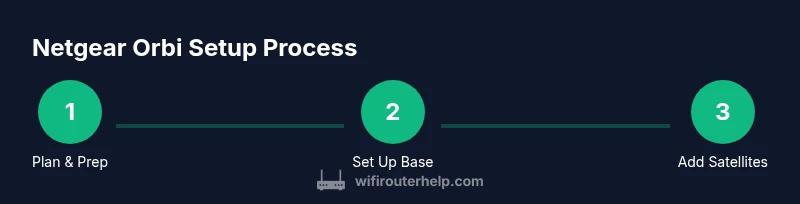
Netgear Orbi Router Setup and Troubleshooting Guide
Step-by-step instructions to install, optimize, and troubleshoot your Netgear Orbi router system with practical tips, app guidance, and reliable fixes for consistent home WiFi.


Goal: Set up and optimize your Netgear Orbi router system and quickly fix common connectivity issues. This guide walks you through unboxing to steady WiFi with satellite placement, dashboard tweaks, and essential troubleshooting. You’ll learn how to configure the base router, add satellites, test coverage, secure your network, and handle firmware updates. No prior networking expertise required.
Why Netgear Orbi is a strong choice for home WiFi
For homeowners seeking reliable whole-home WiFi, Netgear Orbi offers a mesh solution that expands coverage beyond a single router. When you search for network reliability, the Netgear Orbi system often leads in ease of use and scalable coverage. According to WiFi Router Help, a well-designed mesh setup reduces dead zones by distributing the workload across multiple nodes rather than forcing a single device to handle everything. The Netgear Orbi approach is especially appealing for larger homes or multi-story layouts where traditional routers struggle to blanket every room. The goal is simple: minimize buffering, maximize signal across living spaces, and keep configuration approachable for non-technical users. If you’re upgrading from a single-router setup, Orbi’s satellite-based architecture typically delivers stronger, steadier performance for everyday activities like streaming, video calls, and online gaming. For the target audience of homeowners and tech enthusiasts, the system provides a balanced mix of user-friendly setup and robust performance, making it a practical starting point for a mesh network in homes of varying sizes.
Planning your Orbi network: coverage, placement, and speed
Before you plug in devices, sketch a rough map of your home. Identify rooms with weak signals or dead zones—usually far corners of living rooms, basements, or upper floors. The Orbi architecture excels when satellites are placed to create multiple, overlapping signal paths, rather than focusing all load on a single point. Place the primary router near the modem, ideally in an open area away from thick walls and metal cabinets. Distances matter: the farther a satellite sits from the base, the more it needs a clear line of sight; avoid metal appliances and dense furniture that can attenuate signals. WiFi Router Help analysis shows that thoughtful placement dramatically improves coverage and reduces interference from devices like microwaves and Bluetooth gadgets. After planning, you’ll have a blueprint that informs where to position satellites for optimal speed and reliability, while still leaving room for future expansion if your home layout changes.
Unboxing, connecting, and first power-up
Unbox the Orbi system and confirm you have the base router, one or more satellites, power adapters, and the network cable. Connect the base router to your modem using an Ethernet cable, then power on both devices. Use a smartphone or computer connected to the router’s default network to access the setup interface. The onboarding experience via the Orbi app or web portal guides you through basic steps: create a network name, set a strong password, and confirm your internet status. If you’re replacing an old router, you may need to temporarily disable the old network or set the old device to bridge mode to avoid conflicts. This initial phase establishes a clean slate for the mesh network and gives you a baseline to measure coverage improvements as you add satellites.
Configuring the Orbi admin dashboard and initial setup
Access the Orbi admin interface to tailor settings beyond the basics. You can log in through orbilogin.com or http://192.168.1.1 and follow the prompts to customize your network name (SSID) and password. Enable WPA2 or WPA3 encryption for stronger security, and set up a guest network if you have visitors who need access without exposing your main network. The app provides a guided flow to optimize your mesh, including automatic firmware checks and device discovery. Keep the firmware current by enabling automatic updates, which help fix bugs and can improve performance. This stage is critical for establishing a secure, scalable, and manageable home network that can grow with your family’s needs.
Satellite placement and network optimization
With the base station configured, position satellites to fill gaps identified during planning. A common strategy is to place satellites halfway between the router and areas with poor reception, then adjust while testing. Use the Orbi app’s signal indicators to confirm solid links to the base unit. If a satellite shows a weak link, try moving it a few feet closer to the router or away from obstructions like walls, cabinets, or large metal appliances. Re-check signal strength room by room to ensure consistent coverage. For larger homes, consider a wired backhaul option where possible; it can dramatically stabilize backhaul traffic and reduce wireless bottlenecks, especially on high-speed internet connections.
Firmware updates, security, and performance tuning
Firmware updates are a steady power-up for mesh networks. In the Orbi app or admin page, check for firmware updates and install them to benefit from security patches and performance enhancements. Enable automatic updates if you want a hands-off approach. Review security settings: disable WPS, enable robust encryption, and ensure admin access uses a strong password. For households with heavy streaming or gaming, enable Quality of Service (QoS) rules or prioritize traffic to critical devices, ensuring smooth performance. Regularly reviewing connected devices and changing passwords every few months helps protect against unauthorized access and keeps your network resilient against evolving threats.
Troubleshooting common issues and quick fixes
Even with careful planning, you’ll encounter occasional hiccups. Recycle power on both the base and satellites if devices fail to connect, a simple restart can resolve most connectivity problems. If a device won’t join the network, forget and rejoin the network on that device. For dead zones that reappear after setup, re-scan the environment for interference sources and adjust satellite placement. If you experience slow speeds, run a built-in speed test and compare results to your ISP’s advertised plan. Ensure cables are secure and confirm the modem is functioning properly. When in doubt, consult the Orbi support resources from Netgear or the troubleshooting sections in the Orbi app to identify device-specific steps.
Advanced tips for performance and features
As you gain experience with netgear router orbi, you can unlock more advanced capabilities. Consider enabling a dedicated backhaul channel if your model supports wired connections between router and satellites, which stabilizes mesh networks in busy households. Use the guest network feature to provide temporary access without exposing your main network. If you’re integrating IoT devices, create a separate IoT network segment to minimize risk. For large homes, a mesh network is especially beneficial when combined with a properly planned layout and regular maintenance—like firmware updates and periodic channel checks—to maintain peak performance.
Tools & Materials
- Smartphone or computer(Used for initial setup via the Orbi app or web interface)
- Ethernet cable(One cable to connect the base router to the modem)
- Power adapters for base and satellites(Ensure reliable power supply during setup)
- Modem with active internet service(Baseline connectivity before mesh setup)
- Orbi app or web portal access(Needed for configuration, monitoring, and updates)
Steps
Estimated time: 45-60 minutes
- 1
Prepare the space and materials
Gather the base router, satellites, power adapters, and Ethernet cable. Ensure the modem is functioning and placed in an open area. Clear surfaces to avoid accidental disconnections during setup.
Tip: Keep the base near the modem and away from thick walls to maximize signal propagation. - 2
Connect the base router to the modem
Plug the modem into the router’s WAN port with the Ethernet cable. Power on the modem first, then the base router. Wait 2–3 minutes for the base to boot and reach a stable link.
Tip: Use a wired connection for the initial setup to reduce wireless interference. - 3
Power up and initialize via app/web
Open the Orbi app or login to the web portal. Create a new network name and a strong password. Choose the security protocol (WPA2/WPA3) and enable automatic firmware checks.
Tip: If you’re new to Orbi, follow the guided setup prompts for a smoother experience. - 4
Add satellites and calibrate
Power on satellites and place them roughly midway between the router and weak zones. Use the app to verify link quality and adjust position until all satellites show solid connectivity.
Tip: Test room-by-room coverage and move satellites in short increments for best results. - 5
Fine-tune network name, security, and access
Lock in a memorable SSID, configure guest access if needed, and review firewall settings. Consider enabling QoS rules for gaming or streaming devices.
Tip: Avoid reusing default credentials; always set a unique admin password. - 6
Update firmware and verify performance
Check for available updates in the app and install them. Run a quick speed test and compare against your plan. Address any discrepancies by repositioning satellites or adjusting channels.
Tip: Keep automatic updates enabled to protect against known vulnerabilities. - 7
Test, finalize, and document
Run another set of tests across multiple rooms and devices. Document your network name, password, and satellite placements for future reference or expansions.
Tip: Create a simple floorplan with labeled device locations for ongoing optimization.
People Also Ask
What is the best placement for Orbi satellites?
Place satellites halfway between the router and areas with weak signal, avoiding dense obstacles. Use the Orbi app to verify signal strength.
Place satellites halfway between the router and weak zones, and use the app to check signal strength.
How many satellites do I need for a typical home?
Two satellites often cover a typical home; larger homes may require more units arranged for overlapping coverage.
Two satellites cover many homes; adjust based on coverage maps.
Can I use Orbi with an existing router?
Orbi works best as a mesh system. It can be used alongside other routers if connected correctly, but you’ll lose some mesh features.
You can use Orbi with other devices, but the full mesh features work best when used as the main system.
How do I reset the Orbi system?
Use the reset button on the base for about 10 seconds or reset via the app to factory defaults.
Press the reset button for 10 seconds or reset from the app.
Why is my Orbi not connecting to the modem?
Check the Ethernet between modem and Orbi, power cycle both devices, and ensure the correct WAN port is used.
Check the modem connection and restart both devices.
How can I secure my Orbi network?
Change the admin password, enable WPA2/WPA3, and set up a guest network for visitors.
Change admin password, enable strong encryption, and use a guest network.
Watch Video
What to Remember
- Plan satellite placement before starting
- Keep firmware updated for stability
- Secure your network with a strong password
- Test coverage room-by-room after setup
- Use the app for ongoing optimization