Netgear Mobile Hotspot Guide: Setup, Optimization & Troubleshooting
Learn how to set up and optimize your Netgear mobile hotspot with step-by-step instructions, security tips, and troubleshooting insights from WiFi Router Help.


The goal is to help you set up a Netgear mobile hotspot, secure it, and optimize performance for home use. You’ll need a Netgear hotspot, a data plan, and a browser-enabled device to access the admin page. This guide covers setup, configuration, and basic troubleshooting. By following steps, you’ll protect privacy and improve reliability.
Understanding the Netgear Mobile Hotspot
Netgear mobile hotspots are portable Wi‑Fi devices that connect to cellular networks and broadcast a local Wi‑Fi network for your devices. They are ideal for homes with spotty fixed broadband, travellers who want reliable internet on the go, or as a backup connection during outages. Netgear offers a range of models from compact, battery-powered devices to more capable units with external antennas and longer battery life. When you set one up, you’re effectively turning cellular data into a private wireless network. For homeowners and tech enthusiasts, the key is to choose a model that matches your data needs and coverage area, configure a strong password, and keep the firmware up to date. According to WiFi Router Help, starting with a clean, password‑protected network saves you countless headaches later. The data plan you select will determine monthly costs and speeds; 4G and 5G networks offer different latency and peak download rates depending on your location and carrier. As a best practice, consider a data plan that includes roaming options if you travel, and enable a guest network for visitors. WiFi Router Help’s analysis highlights that often the difference between a smooth experience and buffering is a well‑secured network with the right channel and bandwidth management.
Choosing the Right Model and Data Plan
Netgear’s hotspot lineup ranges from compact pocket devices to higher‑end models that support more simultaneous connections and faster cellular modems. When choosing, assess your typical device count, streaming needs, and whether you’ll use the hotspot indoors, outdoors, or both. For frequent travelers, a model with long battery life and integrated antennas can provide a more stable experience. Check carrier compatibility and ensure your SIM has an active data plan with sufficient throttling limits. If you’re deploying for home use, consider a plan with a reasonable monthly cap and the option to add data boosters during peak video streaming periods. WiFi Router Help recommends comparing plans based on real‑world speeds in your area rather than list speeds.
Initial Setup: Unbox, Charge, and Prepare
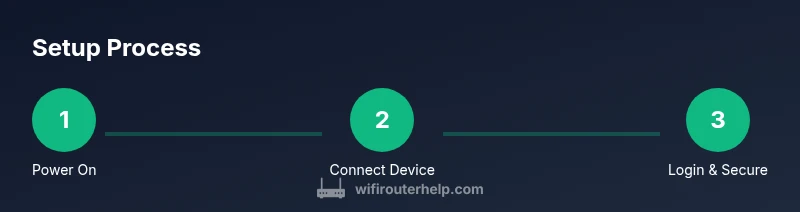
Before you power on, charge the unit fully if possible. Insert the SIM card if required and verify the device recognizes cellular data. Power on and wait for the indicator lights to stabilize. Use a smartphone or laptop to search for the hotspot’s Wi‑Fi name (SSID) in your settings, then connect using the default password found on the label or in the quick start guide. Open a browser and enter the hotspot’s admin IP address (commonly 192.168.0.1 or 192.168.1.1); log in with the default credentials, then immediately change the admin password to a unique, strong one. Disable remote administration unless you specifically need it, and enable HTTPS on the admin page if available. If you need to reset to factory defaults, use the reset button according to the user manual.
Accessing the Admin Interface
Once connected, you’ll reach the Netgear admin dashboard where you can customize network settings. The login username is usually admin and the password is the device’s current admin password or a PIN if the device is new. Change the admin password to something long and unique, and create a separate guest network with a different password. In the settings, you can configure the SSID name, security mode (prefer WPA2‑PSK or WPA3‑SA), and choose the appropriate Wi‑Fi channel to minimize interference in dense environments. If the device supports dual‑band networks, enable both 2.4 GHz and 5 GHz when your devices require higher throughput. Maintain firmware updates by checking the status page and applying updates promptly.
Optimizing WiFi Settings for Home Use
For most homes, a simple setup with a strong password and a single, clear SSID is enough. Consider enabling a guest network for visitors to keep your main network secure. Choose WPA2‑PSK or WPA3‑SA security and use a passphrase that is long and unique. If your hotspot supports band steering, enable it so devices can move between 2.4 GHz and 5 GHz without manual intervention. Position the hotspot centrally in your home away from thick walls or metal appliances that can block the signal. If you experience interference, try changing the channel or enabling a manual channel selection in the admin panel. Monitor connected devices and set bandwidth limits for devices that stream video or play online games to ensure a smooth experience for everyone.
Data Management and Security Best Practices
Regularly monitor data usage to avoid overage charges. The hotspot’s admin interface usually includes a data counter and per‑device usage details. Enable the device firewall if available and keep it updated along with firmware for security patches. Disable UPnP unless you specifically need it for gaming or peer‑to‑peer apps. Consider configuring a scheduled reboot to refresh the device’s cache and improve performance, especially if you notice slowdowns after long uptime. If you travel with the device, enable automatic updates so firmware stays current. WiFi Router Help emphasizes that keeping security features up to date is essential for protecting your personal information when using portable internet.
Troubleshooting Common Issues
If a device cannot connect to your hotspot, first confirm the hotspot is powered on and broadcasting the SSID. Check that the SIM card is active and that data is not exhausted. Reboot the hotspot and the connecting device, then re‑attempt the connection. If speeds are slow, verify you are on the correct network band and check whether the plan supports the speeds advertised by the manufacturer. Ensure you’re not in a location with weak cellular signal; move closer to a window or outdoor area if possible. For persistent issues, perform a factory reset and reconfigure from scratch, ensuring you use a strong admin password. If you have trouble with firmware updates, download the latest version from Netgear’s official site and apply it via the admin interface.
Maintaining Your Netgear Hotspot for Longevity
Keep the firmware updated to protect against vulnerabilities and to improve performance. Regularly check the battery and charging port for signs of wear, and avoid exposing the device to extreme heat or cold to preserve battery health. Store the hotspot in a cool, dry place when not in use, and consider a small protective case if you carry it in a bag. Clear the device’s cache or reset settings if you notice lingering issues after updates. If you rely on the hotspot daily, schedule periodic reboots to prevent slowdowns and to keep the device responsive over time.
Tools & Materials
- Netgear mobile hotspot device(Model should match your plan and region.)
- SIM with active data plan(Check carrier compatibility; ensure roaming if traveling.)
- Smartphone or computer with web browser(Used to access admin interface and test connectivity.)
- Charger or USB-C cable (if included)(Helpful but not essential for setup.)
- Stable data plan with sufficient data(Monitor usage and set limits if needed.)
- Protective case (optional)(Safeguards device during travel.)
Steps
Estimated time: 45-60 minutes
- 1
Power up and prep the device
Charge the hotspot fully, insert the SIM if required, and verify the device recognizes cellular data. Power on and wait for the indicator lights to stabilize. This foundation prevents setup delays.
Tip: Charge beforehand for a smooth first boot; a drained battery can delay setup. - 2
Connect a test device to the hotspot
Turn on the hotspot, locate the SSID on your smartphone or computer, and connect using the default password found on the label or in the quick start guide. This confirms basic connectivity before changing settings.
Tip: Use a second device to avoid changing the primary device’s settings during testing. - 3
Access the admin interface
Open a browser and enter the default IP address (e.g., 192.168.0.1 or 192.168.1.1); log in with the default credentials, then immediately change the admin password to a unique, strong one.
Tip: If the IP doesn’t load, check the manual for your exact model; models vary. - 4
Change admin credentials and enable HTTPS
Set a strong, unique admin password and enable HTTPS if the option exists to protect the management page from attackers.
Tip: Use a password manager to store credentials securely. - 5
Configure the Wi‑Fi network
Set an SSID, choose a security mode (WPA2‑PSK or WPA3‑SA preferred), and create a strong Wi‑Fi password.
Tip: Avoid common words; use a long passphrase with numbers and symbols. - 6
Set up a guest network and device limits
If available, enable a guest network with separate credentials and, where possible, set bandwidth limits per device to prevent congestion.
Tip: Guest networks protect your main network and data. - 7
Update firmware and test speeds
Check for firmware updates in the admin panel, install them, and run a quick speed test to confirm performance.
Tip: Update before heavy usage to ensure security and stability. - 8
Create a backup plan and routine maintenance
Document settings, back up configuration if supported, and schedule periodic reboots to keep the device responsive.
Tip: Regular maintenance prevents slowdowns and firmware drift.
People Also Ask
What is a Netgear mobile hotspot and how does it work?
A Netgear mobile hotspot is a portable Wi‑Fi device that uses cellular data to create a local wireless network. It turns mobile data into Wi‑Fi you can share with phones, tablets, and laptops. It’s ideal for travel, backup internet, or areas with weak fixed broadband.
A Netgear mobile hotspot turns cellular data into a shareable Wi‑Fi network, great for travel or backup internet.
Do I need a data plan to use it?
Yes. A data plan from a carrier is required to provide the cellular connection. Pick a plan based on your typical data usage, traffic patterns, and whether you’ll stream video or work online.
Yes, you’ll need an active data plan to use it.
How do I change the default password and SSID?
Log into the admin interface via the device IP, then update the admin password and set a new, unique SSID and Wi‑Fi password. Use WPA2‑PSK or WPA3‑SA for security.
Change the default credentials to keep your network secure.
What should I do if the hotspot won’t connect?
First confirm the device powers on and broadcasts the SSID. Check the SIM status, reset the hotspot if necessary, and ensure the correct security settings are used on connecting devices.
Check power, SSID broadcast, and SIM status, then try reconnecting.
Can I use a VPN with a mobile hotspot?
Yes, you can use a VPN with most mobile hotspots, but you may experience slightly reduced speeds. Ensure the VPN is configured on the device or a connected device.
You can, but it may slow things a bit.
How can I extend coverage in a large home?
Place the hotspot centrally and away from thick walls. For larger homes, consider a mesh system or a secondary hotspot to blanket the area.
Put it in a central location or pair with a mesh system for better coverage.
Watch Video
What to Remember
- Secure the admin page with a strong password
- Use a separate guest network for visitors
- Keep firmware up to date to reduce risk
- Position the hotspot for optimal coverage
- Monitor data usage to avoid overages