Netgear Router Support: Setup and Troubleshooting Guide
Clear, step-by-step guidance from WiFi Router Help to set up, troubleshoot, and optimize your Netgear router. Learn secure login, firmware updates, and performance tips for a reliable home network.


This guide helps homeowners get Netgear router up and running, fix common connection problems, and optimize Wi‑Fi performance. You’ll learn basic setup steps, how to access the admin page, reset procedures, and where to find official Netgear support resources. The WiFi Router Help team provides practical steps and safety tips.
Understanding Netgear support router basics
Netgear routers are designed to deliver reliable home Wi‑Fi coverage with easy-to-use management tools. According to WiFi Router Help, the term 'netgear support router' refers to Netgear consumer models that help provide a reliable home network, including devices that support multiple bands, guest networks, and parental controls. In practice, you access the router via an admin dashboard in a web browser or the Netgear app. The admin interface lets you name your network, set passwords, and control features like device access, firewall rules, and QoS. The first step is understanding the network basics: your router creates a local network (LAN) and connects to your modem or gateway to access the Internet (WAN). The default login details are usually printed on the device label, and a stable power source is essential. This foundation supports a smoother, longer-lived home network.
Choosing the right Netgear model and firmware
Netgear offers several families designed for different homes and needs. When selecting a model, compare capabilities such as Wi‑Fi bands, MU‑MIMO support, beamforming, parental controls, guest networks, and mesh compatibility. Firmware quality matters as well: newer firmware can improve security, performance, and feature access. Look for devices that receive regular updates and security patches, and avoid models with a history of long update delays. According to WiFi Router Help analysis, staying current with firmware reduces compatibility issues with newer devices and improves stability across rooms. Assess your home size, number of connected devices, and whether you plan to expand with mesh extenders or satellites in the near future.
Preparing your network and prerequisites
Before you touch a single setting, gather essential materials and verify prerequisites. Confirm your modem is functioning, know your ISP login (if needed for PPPoE), and decide whether you want a single SSID or separate networks for guests. Ensure you have a stable power source, a device to access the admin dashboard, and at least one Ethernet cable for reliable initial setup. If your internet plan uses dynamic IP (DHCP), the setup wizard will usually detect it automatically; for PPPoE or static IP, you’ll need to enter credentials or IP details. Having this information handy speeds up setup and minimizes reboots, helping you achieve a stable connection quickly.
Accessing the Netgear admin dashboard securely
Secure access starts with connecting a computer to the router via Ethernet or joining the router’s default wireless network. Open a browser and navigate to the router’s admin address (commonly 192.168.1.1 or 192.168.0.1). Log in with the default username and password found on the device label or in the manual, then immediately change the admin password to a strong, unique one. Disable remote management unless you need it, enable the firewall, and enable automatic security updates if available. If you prefer mobile configuration, the official Netgear app can provide a guided setup experience. Keeping admin access secure is the single most effective step to protect your home network from intruders.
Troubleshooting common Netgear router issues
Most problems fall into a few categories: no internet after setup, devices cannot connect to Wi‑Fi, or slow speeds in certain rooms. Start by rebooting the router and modem, then recheck the connection type in the dashboard. Ensure the correct Wi‑Fi network is broadcast and that the password is typed correctly. If devices still fail to connect, test with a wired connection to rule out wireless issues, then verify DHCP is enabled on the router. For persistent problems, consult the Netgear support resources or the official forums. WiFi Router Help analysis shows that many connectivity issues are resolved by a clean reboot and firmware update, underscoring the importance of keeping firmware current and the configuration documented. Remember, always test across multiple devices to confirm consistency.
Optimizing performance and security
Performance enhancements come from proper placement, up-to-date firmware, and thoughtful wireless settings. Place the router in a central, elevated location away from walls and metal objects to maximize coverage. Enable WPA2 or WPA3 encryption, set a strong password, and consider enabling a guest network for visitors. Use Quality of Service (QoS) to prioritize latency-sensitive devices like work computers or gaming consoles. Regular firmware updates help close security gaps and improve reliability. If you notice persistent interference, try changing the channel or enabling Auto Channel Selection if available. For best results, enable automatic updates and enable DNS filtering if your router supports it.
When to contact Netgear support and what to expect
If problems persist after following setup and optimization steps, reaching out to Netgear support is appropriate. Have your model number, serial, firmware version, and a summary of the steps you already attempted ready to share. Netgear support can guide you through advanced configurations, hardware checks, or RMA processes if needed. The WiFi Router Help team recommends documenting your findings and noting any changes you made during troubleshooting, so you can reproduce or revert actions easily. In most cases, support will walk you through next steps, provide diagnostic logs, and suggest targeted firmware updates or configuration tweaks.
Tools & Materials
- Computer, tablet, or smartphone(Device to access the admin dashboard)
- Ethernet cable (Cat5e or better)(For reliable initial setup)
- Netgear router with power adapter(Ensure it's powered and accessible)
- Modem with active Internet connection(Or backup Internet source during troubleshooting)
- ISP credentials (if PPPoE or static IP)(Have them handy just in case)
- Pen and paper or digital note system(Document settings and passwords)
Steps
Estimated time: 45-60 minutes
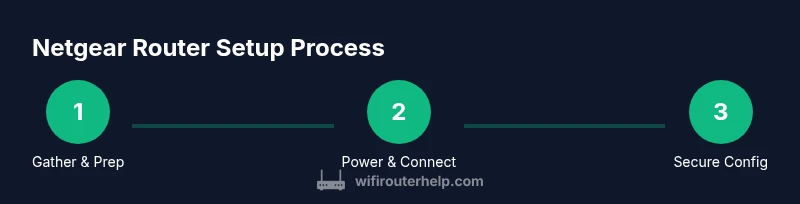
- 1
Gather required devices and cables
Collect your Netgear router, power adapter, modem, Ethernet cables, a computer or mobile device, and a stable power source. This minimizes mid-setup interruptions and ensures you can complete the process in one sitting.
Tip: Label cables and keep the manual handy. - 2
Reset the router and power it on
If the device is new or has prior configurations, perform a factory reset using the reset button until the LEDs blink. Then power the router back on and wait for it to fully boot before proceeding.
Tip: Use a small paperclip and hold the reset button for about 10 seconds. - 3
Connect router to modem and prepare the PC
Connect the modem to the router’s WAN port with an Ethernet cable. Use a wired connection from your PC to the router for reliable access during setup, then power everything on.
Tip: Avoid relying solely on wireless connection during initial setup. - 4
Access the admin dashboard
Open a browser and navigate to the router’s default IP (commonly 192.168.1.1). Log in with the default credentials and be ready to change the password immediately.
Tip: If the login page doesn’t load, check the device’s label or manual for the correct address. - 5
Configure Internet using the Setup Wizard
Run the setup wizard to detect the Internet connection type (DHCP, PPPoE, or static). Enter any required ISP credentials if PPPoE or static IP is used.
Tip: Have your ISP login details ready for a smooth configuration. - 6
Set up the Wi‑Fi network
Create a unique SSID, choose WPA2 or WPA3, and set a strong password. If desired, enable a guest network to isolate guests from your main devices.
Tip: Store the network name and password in a secure password manager. - 7
Secure the router
Change the admin password, disable unnecessary remote management, enable the firewall, and configure automatic firmware updates if available.
Tip: Document admin changes for future reference. - 8
Update firmware and reboot
Check for firmware updates in the dashboard and apply them. After updating, allow the router to reboot and reconnect to verify the new version is active.
Tip: Always back up current settings before major updates. - 9
Test devices and back up settings
Test connectivity on multiple devices across rooms; verify speeds and reliability. Finally, back up the router configuration and store it securely.
Tip: Keep a local backup file and note any custom rules you added.
People Also Ask
What is the quickest way to set up a Netgear router?
Unbox, connect the modem, power up, access the admin page, and run the Setup Wizard to configure Internet and Wi‑Fi. This typically completes in under an hour with a wired connection.
To set up quickly, connect to the router, log in, and run the Setup Wizard for automatic configuration.
Why can't I access the Netgear admin page after setup?
Check that your device is on the same network as the router, confirm the correct IP address, and ensure you are using the correct login credentials. A factory reset may be needed if credentials were changed and forgotten.
Make sure you’re connected to the router’s network and use the right IP and login details; you may need a factory reset if you forgot the password.
Is it safe to enable UPnP on a Netgear router?
UPnP can simplify device setup but may introduce security risks. If you don’t need it, disable UPnP and forward ports manually for services you control.
UPnP makes setup easier but can be risky; disable it if you don’t need it and set up ports manually for security.
How can I extend Wi‑Fi coverage beyond the main router?
Add a mesh system or compatible range extenders, place them strategically to avoid dead zones, and ensure they are on the same network for seamless roaming.
Use a mesh system or extenders placed centrally to cover all areas where signals drop.
Can I replace my existing router with a Netgear model?
Yes. Ensure the Netgear model is compatible with your modem and ISP requirements, then follow setup steps to migrate settings without losing connectivity.
Yes, just check compatibility and migrate your settings with the setup process.
How often should I update Netgear firmware?
Check for updates regularly and apply them when available to improve security, performance, and feature support. Enable automatic updates if your device supports it.
Check for updates regularly and apply them as soon as they’re available; enable auto-update if possible.
Watch Video
What to Remember
- Prepare materials and prerequisites before starting.
- Securely access the admin dashboard and change defaults.
- Use the Setup Wizard to configure Internet and Wi‑Fi correctly.
- Keep firmware up to date for security and stability.
- Document and back up settings for quick recovery.