Netgear wifi Setup Guide: Speed, Security, and Troubleshooting
Step-by-step Netgear wifi setup to maximize speed, security, and reliability. Learn router placement, SSID naming, QoS, firmware updates, and common troubleshooting for a robust home network.


Set up a Netgear wifi network by connecting the modem to the router, running the setup wizard, configuring a strong network name and password, enabling security features, and keeping firmware up to date. This guide walks you through the essential steps for a smooth Netgear wifi install.
Why Netgear wifi Reliability Matters
A stable netgear wifi connection is the backbone of everyday life at home. When your router delivers consistent coverage, you can stream, game, work, and learn without constant buffering or dropped connections. In practical terms, a reliable netgear wifi network reduces frustration and increases productivity, especially in households with multiple devices. The placement of your router, the quality of the modem, and the radio channels you use can dramatically influence performance. According to WiFi Router Help, a well-placed router in a central, elevated spot minimizes dead zones and helps your devices connect more reliably to the network. In addition, understanding how your home’s layout affects signal strength enables smarter decisions about where to place extenders or mesh units. In this guide, we’ll translate these concepts into actionable steps you can follow day by day to keep netgear wifi performing optimally, even as new devices join the network.
Key Netgear wifi Features to Know
Netgear wifi devices come with a range of features designed to improve speed, coverage, and security. Understanding these basics helps you tailor your network to your home. Dual-band routers broadcast 2.4 GHz and 5 GHz signals, while newer models may offer tri-band options for busy homes with many devices. A strong focus on security includes WPA2/WPA3 encryption and a built-in firewall, plus options for guest networks that isolate visitors from your main devices. Beamforming directs signals toward connected devices to improve range, and MU-MIMO allows multiple devices to communicate simultaneously without choking bandwidth. QoS lets you prioritize critical tasks such as video calls or gaming, while parental controls provide age-appropriate filters. Many Netgear models also support easy app-based setup, remote management, and auto firmware updates—features that reduce maintenance overhead and help keep netgear wifi performing at its best.
Step-by-Step: Set Up Your Netgear Router
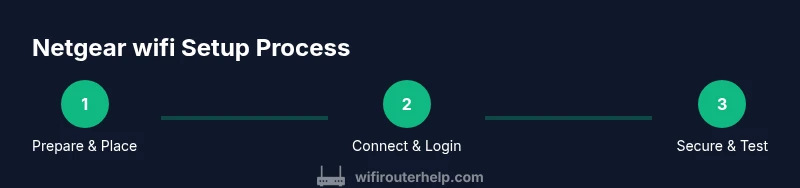
Setting up a Netgear router starts with a solid plan. Begin by choosing a central location free from obstructions. Then connect the modem to the router’s WAN port with an Ethernet cable and power on both devices. Use a computer or phone to access the router’s admin page (the address is usually 192.168.0.1 or 192.168.1.1). The on-screen setup wizard will guide you through naming your network, choosing a strong password, and enabling essential security features. After the initial setup, update the firmware to the latest version and back up your configuration in case you need to restore settings later. Finally, test the connection with a quick speed test and verify coverage in different rooms. If you have a mesh system, place satellites to fill gaps where signals are weak. The key is consistency: complete each step before moving to the next.
Optimizing Your Netgear WiFi for Speed and Coverage
To get the most out of netgear wifi, start with proper placement. Place the router in a central, elevated location away from large metal appliances and thick walls. Use the 5 GHz band for nearby devices and the 2.4 GHz band for longer range, unless your router supports band steering to automatically balance devices. Run a quick wireless site survey in the router app to identify interference sources, and switch channels if you notice slowdowns on one band. Enable beamforming to focus signals toward active devices and consider enabling the guest network feature to keep your primary network uncluttered. If you live in a multi-story home, add one or more range extenders or a mesh node to eliminate dead zones. Regularly check for firmware updates that unlock new performance options and security improvements.
Troubleshooting Common Netgear wifi Issues
Netgear wifi issues typically fall into a few categories: no internet, weak signal, slow speeds, or devices not joining the network. Start by confirming the modem is online and the router’s status lights indicate a healthy connection. If you see a red or amber light, reboot the router and modem in a 30-second sequence to re-establish the link. For slow speeds, run a speed test and compare results to your ISP plan; adjust QoS settings to prioritize traffic that matters most. If devices can’t connect, re-enter the WiFi credentials, check for MAC filtering, and consider resetting the router to factory defaults if needed (and reconfigure from scratch). When using third-party extenders, ensure they’re compatible with your Netgear model and placed within range of the main router.
Security and Maintenance for Netgear wifi
Security should be part of every Netgear wifi routine. Change the default admin password immediately and use a unique, strong password for the wireless network. Enable WPA3 where available and keep the firewall active. Set up a guest network to isolate visitors from your main devices, and disable WPS to close a common attack vector. Regularly update firmware to patch vulnerabilities and improve stability. Back up your configuration after major changes, and periodically review connected devices to spot unfamiliar entries. For families with kids, use parental controls to manage screens time and app access. These practices help keep netgear wifi safer and more reliable over time.
Using Netgear Mesh and Satellite Extenders
If your home has dead zones, mesh devices like Netgear Orbi or compatible extenders can dramatically improve coverage. Place satellites within a reasonable distance of the main router so the backhaul link remains strong, and avoid stacking multiple devices in a single bookshelf or cabinet. Enable seamless roaming so devices switch automatically as you move around the house. When expanding, ensure firmware is up to date across all nodes and create a unified SSID for handoffs. Mesh systems are particularly effective in multi-story homes or spaces with many barriers, delivering a more consistent netgear wifi experience throughout the living area.
Advanced Settings: QoS, Guest Networks, and Firmware Updates
Advanced users can fine-tune netgear wifi using QoS rules, bite-sized prioritization, and careful channel management. Set up a dedicated guest network to keep visitors off sensitive devices and configure IP address ranges to segment traffic effectively. Review the router’s logs and security events, enable automatic firmware updates, and consider enabling UPnP only if required by your devices. If you have networking needs beyond basic home use, explore features like VPN passthrough, static routes, and custom DNS. Remember to document changes so you can revert if something disrupts your network. The goal is a stable, fast, and secure netgear wifi environment that scales with your household.
Authority Sources
For best-practice guidance, refer to official guidelines and security recommendations. National standards organizations like NIST provide information on wireless security and password hygiene. Government and public safety agencies offer consumer guidance on securing home networks. See these resources for further context:
- https://www.nist.gov/topics/wireless-security
- https://www.fcc.gov/public-safety-and-security
- https://www.fcc.gov/consumers/guides/wireless-wifi-security
These references help validate the setup and security steps outlined in this guide and offer additional context for maintaining a robust home network.
Tools & Materials
- Netgear router (latest model recommended)(Ensure compatibility with your ISP and device needs)
- Modem(Provided by your internet service provider or rented)
- Ethernet cable (Cat5e or better)(One end to modem, one end to router WAN port)
- Computer or mobile device(For initial setup and ongoing management)
- Power supply and surge protector(Protects equipment from surges; use a basic surge strip if needed)
- Optional mesh satellite or extender(Use if you have dead zones or a large home)
Steps
Estimated time: Total: 45-60 minutes
- 1
Prepare and position the router
Choose a central, elevated spot away from thick walls, metal appliances, and microwaves. This improves signal distribution and reduces dead zones. Clear the area of obstructions before you power up.
Tip: A tall shelf or high table near the center of the home works best. - 2
Connect the modem to the router
Plug the modem into power and wait for it to boot. Connect the modem’s Ethernet output to the router’s WAN port using a solid Ethernet cable. Verify the router power indicator lights up after connection.
Tip: Use a wired connection from your computer to the router for the fastest initial setup. - 3
Access the router admin page
From a computer or phone, open a browser and enter the router's default IP (commonly 192.168.0.1 or 192.168.1.1). Log in with the default credentials found in the manual. If you can’t reach the page, reset the router and try again.
Tip: If you can’t log in, try a different device or use the reset button as a last resort. - 4
Run the setup wizard
Follow the on-screen wizard to name your network (SSID) and set a strong password. Enable WPA3 if available, otherwise WPA2. Create a separate guest network if you expect visitors.
Tip: Choose a long, unique password with a mix of letters, numbers, and symbols. - 5
Update firmware and secure settings
Check for firmware updates and install them. This improves safety and stability. Back up your current configuration so you can restore if needed.
Tip: Enable automatic updates if your model supports it. - 6
Test the network and adjust
Run speed tests in different rooms to gauge coverage. If you notice weak spots, reposition the router or add a mesh node/extender. Re-run speed tests after changes.
Tip: Test on both 2.4 GHz and 5 GHz bands to see which devices perform best where. - 7
Document and maintain
Record your network name, password, admin login, and firmware version. Regularly review connected devices and update passwords if needed.
Tip: Keep a simple network sheet accessible to trusted household members.
People Also Ask
What is the best Netgear router for a small apartment?
For compact spaces, a dual-band model with solid antenna design typically suffices. Prioritize models with strong beamforming and easy setup to maximize performance in limited square footage.
For small apartments, choose a dual-band Netgear router with good beamforming and simple setup for best performance.
How do I reset my Netgear router password?
Log in to the router's admin page, navigate to Advanced Settings > Administration > Set Password, and follow the prompts to create a new admin password. Then update your wireless password as needed.
Open the router admin page, reset the password, and save.
Why is my Netgear wifi slow?
Common causes include interference, outdated firmware, and crowded channels. Run a speed test, update firmware, and switch channels or enable band steering to improve speeds.
Check for interference, update firmware, and adjust channels to improve speeds.
Can I mix Netgear mesh with non-Netgear extenders?
Some Netgear extenders are designed to work with Netgear routers, but compatibility varies. For best results, use devices that support the same standard and keep firmware up to date.
Mixing can work if devices are compatible and updated, but keep it simple.
How often should I update Netgear firmware?
Check for updates monthly or enable automatic updates if your model supports it to stay protected and performant.
Check monthly or enable automatic updates to stay protected.
What is the difference between Netgear Nighthawk and Orbi?
Nighthawk refers to the traditional router line and related extenders, while Orbi is a dedicated mesh system. Choose based on home size, footprint, and desired seamless coverage.
Nighthawk is a router line; Orbi is mesh; pick based on home size and coverage needs.
Watch Video
What to Remember
- Position router centrally and elevated for best coverage.
- Use strong, unique SSID and admin passwords.
- Regularly update firmware for security and stability.
- Test coverage across rooms and adjust with extenders if needed.
- Isolate guests with a separate network to protect main devices.