How to Set Up a Netgear Router: The Complete Tutorial
Learn how to set up a Netgear router with a clear, step-by-step process. From unboxing to securing your network, this guide covers all you need for reliable home Wi-Fi.


Goal: set up netgear router and get your wireless network online with minimal hassle. This guide walks you from unboxing to securing a reliable home Wi-Fi. Gather a modem, Ethernet cable, power adapter, and a device to configure settings. Then follow the step-by-step setup to connect, name, password-protect, and tune your network for best performance.
Why a solid Netgear router setup matters
A robust Netgear router setup is the foundation of a fast, stable home network. When you configure a router correctly, you reduce dead zones, minimize interference, and improve overall device performance—from streaming to gaming and smart-home automation. The WiFi Router Help team emphasizes that a thoughtful setup goes beyond plugging in the device; it includes securing access, choosing a strong Wi- Fi password, and keeping firmware current. A well-planned installation also makes it easier to manage guest networks, parental controls, and device-specific QoS rules that prioritize important traffic. In short, a careful setup saves time later and delivers predictable results for all connected devices across every floor of your home.
Prerequisites and context for Netgear setups
Before you start, take a moment to map your space and understand typical usage. Identify where your modem lives, the furthest room where Wi‑Fi is needed, and any areas with thick walls or metal appliances that could block signals. A central, elevated location usually yields better coverage. Gather your modem, Netgear router, Ethernet cable, power adapter, and a device to configure the settings. If you’re upgrading from an old router, note any existing network names or credentials you’ll want to migrate. This planning helps prevent later reconfigurations and ensures your network is ready for devices like TVs, laptops, and smart speakers.
Understanding Netgear models and home layout considerations
Netgear offers a range of models from entry level to high-performance tri-band units. Your choice should reflect home size, number of connected devices, and internet speed. For multi‑story homes or spaces with many walls, a more capable router or a mesh system may be beneficial. Consider placement: high, open shelves near the center of your home, away from metal objects and microwaves. If you already own a certain Netgear line, many setup steps are similar, but feature sets (guest networks, QoS, firewall) may differ. This guide aims to cover common ground so you can adapt quickly to your exact model.
Step-by-step overview to set up a Netgear router
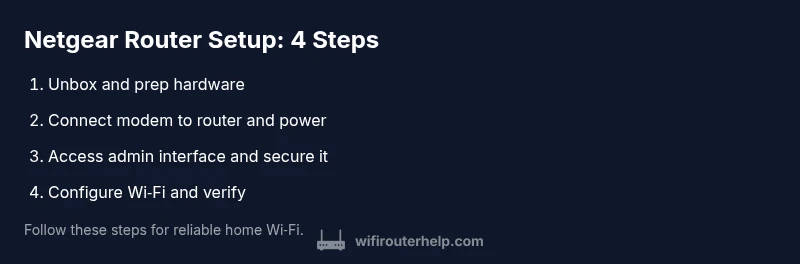
The core process includes unboxing, connecting the modem to the router, configuring the admin interface, naming and securing the Wi‑Fi network, enabling extra features like guest networks, and performing final tests. While steps can vary slightly by model, the general workflow remains consistent. You’ll adjust settings through a web browser or Netgear’s mobile app, then verify connectivity on multiple devices. Throughout, focus on clear credentials, updated firmware, and a network layout that ensures strong coverage in high-traffic areas.
Step 1: Unbox and prepare your hardware
Start by removing the router, power adapter, Ethernet cable, and any quick-start guides. Check that the package includes all items and inspect for any visible damage. Place the router in a central, elevated position to maximize signal reach. If you’re upgrading from an old router, keep a note of your current SSID and password if you intend to migrate. This step sets up the foundation for a smooth configuration experience, and taking a moment to plan placement pays off with stronger, more reliable coverage.
Step 2: Connect the modem to the router and power up
Connect the modem’s Ethernet cable to the router’s WAN/Internet port. Then plug in the router’s power adapter and switch it on. Wait 1–2 minutes for the router to boot and initialize its LEDs. A successful boot typically means the power light is steady and the Internet light becomes stable. If you don’t see solid indicators, re-check connections and ensure the modem is providing an active internet signal. This physical link is the essential bridge between your ISP and your home network.
Step 3: Access the admin interface and secure admin access
From a connected device, open a web browser and enter the router’s default IP address or the recommended setup URL from the user manual. You’ll be prompted to log in with the default credentials, then immediately change the admin username and password to something strong. Enabling two-factor authentication where available adds an extra layer of security. Save changes before proceeding to Wi‑Fi configuration. Keeping admin access secure prevents unauthorized network changes and protects attached devices.
Step 4: Name your network and set a strong password
Create a unique SSID (the network name) that won’t reveal personal information. Use a strong WPA2 or WPA3 security setting and a password that’s long, random, and unique to this network. Avoid reusing passwords across sites or devices. If you have a guest network, enable it with its own password to protect your main network. This step directly affects both usability and security, making it much harder for intruders to access your home network.
Step 5: Enable key features (guest network, QoS, firewall, firmware updates)
Configure your router’s essential features to enhance security and performance. Turn on a guest network for visitors, enable QoS (Quality of Service) to prioritize important traffic for video calls or streaming, and verify the firewall is active. Check for and install the latest firmware to fix bugs and improve security. If your model supports parental controls, set rules for children's devices or schedule internet access, helping maintain healthy screen time habits.
Step 6: Test, save, and monitor your network
After configuration, test connectivity on smartphones, tablets, and laptops across multiple rooms. Check speed tests to verify expected performance and adjust placement if needed. Save a backup of the configuration if your model offers it, enabling quick recovery after power outages or resets. Monitor connected devices and examine logs for unusual activity. Regular checks ensure your Netgear router remains secure and performing well over time.
Final checks and optimization tips
Do a final sweep to confirm all devices connect reliably, switch to a stable 2.4 GHz or 5 GHz band as appropriate, and verify that firmware is up to date. Consider creating a dedicated IoT network for smart devices, with strict access controls. If you run into interference, try changing channels or enabling band steering. For stability, ensure the router has adequate ventilation and isn’t tucked behind furniture. The WiFi Router Help team also recommends periodic reboots and firmware updates to keep performance and security up to date.
Tools & Materials
- Netgear router (model/domain unspecified)(Choose a model that fits your home size and ISP speed.)
- Modem(Ensure it’s compatible with your ISP and active service.)
- Ethernet cable (Cat5e or better)(Used to connect the modem to the router's WAN port.)
- Power adapter(Keep the original power supply for reliability.)
- Computer or mobile device(Needed to access the admin page or setup app.)
- Active internet connection(Modem must be online during setup.)
- Optional: spare Ethernet switch(Helpful for wired devices in a home office.)
Steps
Estimated time: 45-60 minutes
- 1
Unbox and prep hardware
Remove all components from the box, verify contents, and place the router in a central, elevated spot. Check for any damage and read the quick-start guide. This reduces the need for repositioning later and helps maximize signal reach.
Tip: Take a photo of the box contents for future reference. - 2
Connect the modem to the router and power
Plug the modem into the router’s WAN port with the Ethernet cable, then connect the router to power and switch it on. Wait for boot and indicator lights to stabilize before continuing.
Tip: If the Internet LED stays off, reboot both devices and verify ISP status. - 3
Access the admin interface
On a connected device, open a browser and enter the router’s default IP or setup URL. Log in with default credentials and immediately set a strong admin password.
Tip: Disable remote administration unless you need it; use a VPN for extra security if possible. - 4
Configure Wi‑Fi name and password
Create a unique SSID and a strong passphrase. Enable WPA2 or WPA3 security, avoid common names, and consider separate guest networks for visitors.
Tip: If devices struggle to reconnect, temporarily disable and re-enable the network name to force a clean reconnect. - 5
Enable features and update firmware
Turn on guest network, QoS, and firewall features as needed. Check for firmware updates and apply them to close security gaps and improve performance.
Tip: Set up automatic firmware updates when available to keep protection current. - 6
Test, backup, and monitor
Test connections on multiple devices, save a configuration backup, and monitor device activity. Address any weak spots by adjusting placement or channels.
Tip: Document your settings so you can restore quickly after a reset.
People Also Ask
Do I need a modem to use a Netgear router?
Yes. A Netgear router connects to your modem to access the internet. If you only have a standalone router, you’ll need a modem or a modem-router combo from your ISP. Ensure the modem is active and compatible with your service.
Yes—your Netgear router needs a modem to access the internet; if you don’t have a modem, you’ll need one to proceed.
What is the easiest way to set up a Netgear router?
Most users start by connecting the modem to the router, accessing the admin page, and following on-screen prompts to configure the network name and password. Using the Netgear app can simplify steps for some models, but a web browser works reliably for most setups.
Most people connect the modem, log into the admin page, and set up their Wi‑Fi name and password. The app can help some models, but a browser is reliable.
What if I forget the router’s admin password?
Use the reset procedure described in your manual to restore factory defaults, then immediately reconfigure with a new admin password. For many models, holding the reset button for about 10 seconds will reset settings.
If you forget the admin password, reset the router to factory defaults and set a new password during setup.
How long does setup typically take?
A typical home setup takes about 30 to 60 minutes, depending on the complexity of features you enable (guest network, QoS, parental controls) and how many devices you’re configuring.
Most setups take about half an hour to an hour, depending on features you enable.
How can I improve Wi‑Fi coverage after setup?
Place the router centrally, elevate it, and reduce obstructions. If coverage remains poor, consider a mesh system or a secondary access point. Use channel optimization and band steering to balance devices across bands.
To improve coverage, place the router centrally and consider a mesh system if needed; optimize channels and bands.
Should I enable a guest network by default?
If you have visitors frequently, enabling a guest network is wise. It protects your main network by limiting guest access to the internet only, while you retain control over main devices.
Yes, a guest network is a good default for visitors to keep your main network secure.
Watch Video
What to Remember
- Plan placement for best coverage and minimal interference
- Secure admin access and use strong Wi‑Fi credentials
- Keep firmware updated for security and stability
- Enable guest networks and QoS to optimize traffic