Netgear Nighthawk M6 Setup, Optimize, and Troubleshoot
Learn how to set up the Netgear Nighthawk M6 mobile hotspot, optimize speeds, configure security, manage data usage, and troubleshoot common issues with practical steps and best practices for your home network.


Learn how to set up, optimize, and troubleshoot the Netgear Nighthawk M6 mobile hotspot for reliable home Wi‑Fi. This guide covers power-on basics, admin security, Wi‑Fi configuration, performance tuning, data management, and common fixes, with practical steps that homeowners and tech enthusiasts can follow. According to WiFi Router Help, following a structured setup reduces common connectivity problems and helps protect your data.
What is the Netgear Nighthawk M6 and who should use it
The Netgear Nighthawk M6 is a portable 5G/4G mobile hotspot that creates a WiFi network from cellular data. It’s a flexible solution for homes without fixed broadband, travelers needing internet on the go, or as a backup link during outages. This guide explains how to set up, optimize, and troubleshoot the M6, with practical steps designed for homeowners and tech enthusiasts. According to WiFi Router Help, the M6 excels when you plan coverage and data needs around your household usage, ensuring fewer dead spots and more reliable connections.
Prerequisites and planning before you start
Before you begin, confirm you have a data plan that matches your household usage, as speeds and data caps vary by carrier and plan. Ensure you have a SIM card or eSIM activated for the device and a compatible smartphone or computer for setup. Consider measuring your typical device count and identifying areas in the home where signal is strongest to tailor placement and optional accessories accordingly. WiFi Router Help analysis shows that a quick data-usage forecast helps prevent unexpected limits and excessive roaming charges.
Unboxing, charging, and first power-on
Unbox the Nighthawk M6 and connect the included USB-C cable to a power source. Charge for at least 30 minutes before first use to ensure stable startup. When powered, the device should emit a ready indicator; if not, reconnect the power and verify the SIM is properly inserted. After power-on, identify the default network name (SSID) and note the default admin credentials that you will change during setup. Pro tip: have your data plan active before proceeding to reduce setup retries.
Accessing the admin interface and initial security
Connect a device to the M6’s network and open a browser to the admin page or use the official Netgear app. Change the default admin password to a strong, unique credential and enable at least WPA3 encryption if available. Verify that remote management is disabled unless you specifically need it, as keeping it off reduces potential exposure. This step is essential for ongoing security and helps prevent unauthorized access.
Configuring Wi‑Fi network: SSID, password, and security
Create a unique, easy-to-identify SSID and a long, complex password. Consider using a separate guest network to limit device access. Enable WPA3 (or at least WPA2) and adjust settings to auto-update security features if available. If you have a mixed device environment, ensure compatibility by testing with both older and newer devices. A strong, distinct password reduces risk of unauthorized usage.
Optimizing performance: bands, data planning, and QoS
Understand how 2.4 GHz and 5 GHz bands behave in your home and assign devices accordingly. Use QoS (Quality of Service) rules to prioritize video calls or gaming devices when multiple users are on the network. If you notice slowdowns, reposition the hotspot away from reflective surfaces and electronics. Regularly reviewing plan data and network load helps maintain consistent speeds.
Troubleshooting common issues and quick fixes
If devices won’t connect, restart the M6 and rejoin the network. For weak coverage, relocate the hotspot to a higher, central location and check for firmware updates. If you experience frequent drops, verify SIM status, re-seat SIM, and perform a factory reset if necessary. When in doubt, consult the manufacturer’s support resources and WiFi Router Help’s troubleshooting tips.
Security, privacy, and ongoing maintenance
Change passwords every few months and monitor connected devices for unfamiliar accounts. Disable unnecessary features like remote management and UPnP if not needed. Keep firmware up to date to protect against vulnerabilities and optimize performance. Schedule periodic reviews of data usage, device connections, and network settings to maintain a secure, stable setup.
Tools & Materials
- Netgear Nighthawk M6 mobile hotspot(Primary device for setup and testing)
- Active data SIM/eSIM with a plan(Must be activated and compatible with the M6)
- Smartphone or computer for setup(Used to access admin interface or Netgear app)
- USB-C charging cable(For charging and potential tethering power)
- Ethernet cable (optional)(Use for wired devices or future expandability)
- Stable power source(Ensure uninterrupted setup and operation)
Steps
Estimated time: 45-75 minutes
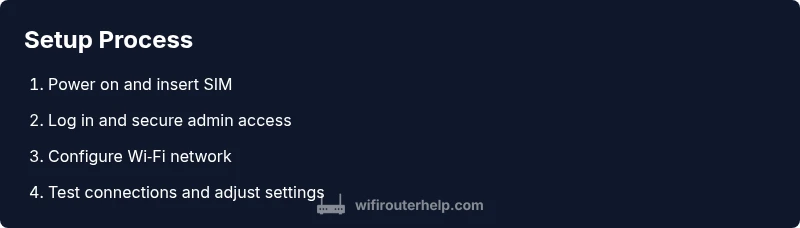
- 1
Power on and insert SIM
Insert the SIM/eSIM if required and power on the M6. Give the device a moment to initialize and establish a cellular connection. If you’re using an eSIM, confirm it is enabled in the device settings.
Tip: Make sure the SIM is active and data-enabled before proceeding. - 2
Connect a setup device
Connect a smartphone or computer to the M6’s default network to access the admin interface or Netgear app. Use the default SSID and password from the label on the device.
Tip: If you don’t see the network, check the device’s Bluetooth/Wi‑Fi switch settings. - 3
Log in and secure the admin panel
Open the browser to the router’s IP address or launch the Netgear app, then change the admin password to a strong, unique credential and disable remote management if not needed.
Tip: Use a password manager to generate and store the credentials. - 4
Configure Wi‑Fi network
Create a unique SSID, set a strong password, and select WPA3 if available. Consider enabling a guest network for visitors to protect your main network.
Tip: Test both 2.4 GHz and 5 GHz connections with a few devices. - 5
Set security and updates
Enable automatic firmware updates if available and enforce the strongest supported encryption. Review privacy settings and restrict features you won’t use.
Tip: Keep the device within reach of a power source during updates. - 6
Optimize performance
Assign bandwidth to critical devices via QoS and place the hotspot in a central location. Test speeds using multiple devices to confirm consistent performance.
Tip: Reposition the device to reduce interference from walls and appliances. - 7
Test connectivity and data usage
Connect typical household devices and run a speed test. Review data usage settings to avoid overages by setting alerts or caps.
Tip: Enable data usage alerts if supported by your carrier plan. - 8
Update firmware and back up settings
Check for the latest firmware, install it, and back up your configuration. Document settings for quick restoration if needed.
Tip: Regular backups save time during future troubleshooting.
People Also Ask
How do I log into the Netgear Nighthawk M6 admin page?
To access the admin page, connect a device to the M6 network and open a web browser to the router IP address or use the Netgear app. Enter the default credentials and immediately change the password to a strong one.
Open a browser, go to the router address, log in with the default credentials, and update your password.
Can I use a data-only SIM with the M6?
Yes, the M6 supports cellular data plans via SIM or eSIM. Ensure your plan includes data and is compatible with the device’s bands for best performance.
Yes, you can use a data SIM or eSIM as long as it’s activated and compatible with the M6.
How do I reset the device to factory settings?
Locate the reset button, press and hold for 10-15 seconds until the LEDs flash. This restores default settings, so you’ll need to reconfigure the device afterward.
Hold the reset button for about 15 seconds, then reconfigure the hotspot from scratch.
What’s the best way to improve Wi‑Fi coverage in a large home?
Position the M6 centrally, use a guest network for guests, and consider a mesh system or a larger antenna if needed. Adjust placement to reduce walls interfering with signals.
Put the hotspot in a central spot and, if needed, pair with a mesh system for wider coverage.
What is the difference between 2.4 GHz and 5 GHz bands on the M6?
2.4 GHz covers longer distances but can be slower and more crowded; 5 GHz offers higher speeds but shorter range. Place high-band devices on 5 GHz and use 2.4 GHz for farther rooms.
2.4 GHz travels farther; 5 GHz is faster but shorter in range.
How do I update firmware on the M6?
Check for updates in the admin page or Netgear app, then install any available updates. Keeping firmware current improves security and performance.
Look for updates in the app or admin page and install them when available.
Watch Video
What to Remember
- Set up securely with a strong admin password
- Configure a unique Wi‑Fi SSID and strong encryption
- Test speeds across bands and optimize with QoS
- Keep firmware updated and monitor data usage