Netgear Nighthawk WiFi 7 Router: Setup, Optimization, and Troubleshooting
A thorough how-to guide for setting up and optimizing the Netgear Nighthawk WiFi 7 router for reliable home networking, including installation, security, performance tuning, and common troubleshooting.


You will set up and optimize your netgear nighthawk wifi 7 router to deliver reliable, high‑performance home Wi‑Fi. This quick setup will cover unboxing, modem compatibility, optimal placement, secure configuration, firmware updates, and basic troubleshooting. Before you start, make sure you have the router, a working modem, an Ethernet cable, and a device to configure the settings.
Why upgrading to a netgear nighthawk wifi 7 router matters for modern homes
For many households, the shift to WiFi 7 isn't just about bragging rights—it's about reliable, high-throughput connections for multiple devices, 4K streaming, gaming, and smart home ecosystems. The netgear nighthawk wifi 7 router represents a practical way to upgrade your home network without sacrificing ease of use. According to WiFi Router Help, upgrading to WiFi 7 can help reduce buffering and latency when many devices compete for bandwidth. You can expect better performance when you have many devices online at once, as well as improvements in range and stability if the router is properly placed and configured. The WiFi Router Help team found that real-world gains come from a combination of features, including multi-band operation, smarter channel management, and robust security options. In this guide we will discuss how to set up, optimize, and troubleshoot this router to maximize your home network.
Key to understanding is that the netgear nighthawk wifi 7 router supports multiple frequency bands, a high-speed wired port, and advanced software features designed to simplify network management. While models differ slightly, the core idea is to give you more control and better consistency across devices. If you're moving from a WiFi 5 or WiFi 6 setup, you should plan for new naming conventions (SSID), reconfigured guest networks, and updated security settings. The goal is to create a stable baseline that can handle streaming, video calls, and online gaming without constant manual tuning. In short, this router is a practical choice for households that want reliable performance without learning a full IT curriculum.
Understanding WiFi 7 and what it means for your home network
WiFi 7 introduces higher throughput, lower latency, and smarter spectrum management to support busy households with many connected devices. With the netgear nighthawk wifi 7 router, you can expect improved performance when multiple devices are active, especially for bandwidth-intensive tasks like 4K streaming, cloud gaming, and large file transfers. Real-world gains come from features such as multi-band operation, improved channel management, and enhanced security. WiFi Router Help emphasizes that the most noticeable improvements occur when you optimize placement, use strong security settings, and keep firmware current. This section will translate those concepts into practical steps you can take as a homeowner to ensure your network remains fast, stable, and secure as you add devices over time.
Planning placement and network layout
Placement is critical for maximizing the netgear nighthawk wifi 7 router’s performance. Aim for a central, elevated location away from physical barriers like walls, metal appliances, and large frames. Avoid corners and closets where signal can become trapped. If possible, position the router at a higher height (shelf or wall mount) to improve line-of-sight with most devices. Plan for a strong 2.4 GHz footprint for basic compatibility and a robust 5 GHz/6 GHz presence for high-speed tasks. Map out the areas where you expect the most traffic—living room, home office, bedrooms—and consider a mesh extender or additional access points if your home spans multiple floors. This strategic layout helps ensure the netgear nighthawk wifi 7 router delivers consistent coverage and minimizes dead zones.
Security and privacy basics for your Netgear Nighthawk
Security should be a primary consideration from day one. Change the default admin password and enable multi-factor authentication if available. Create a unique SSID for guests and enable separate guest network isolation so visitors cannot access your main devices. Use WPA3‑personal where possible and disable WPS to reduce attack vectors. Regularly review connected devices and remove unfamiliar ones. Keeping firmware up to date is a critical defense against emerging threats, and enabling automatic updates helps ensure you always have the latest protections. The Netgear Nighthawk line typically includes the ability to schedule reboots and monitor traffic, which can help you maintain a secure, stable home network.
Wired connections and modem compatibility
Wired connections are often the fastest and most stable path to peak throughput. Use the router’s WAN/Internet port to connect to your modem via a Cat6 or better Ethernet cable. If you’re substituting an ISP gateway, consider placing the modem in bridge mode to avoid double NAT issues, which can degrade performance. Check your ISP's compatibility list and ensure the router firmware supports PPPoE or DHCP configurations as required. If you plan to run a local network with a separate switch or NAS, make sure you allocate a dedicated VLAN or appropriate LAN ports to support traffic segregation. Properly configuring wired links reduces bottlenecks and helps your wireless network stay responsive.
Step-by-step: initial setup considerations
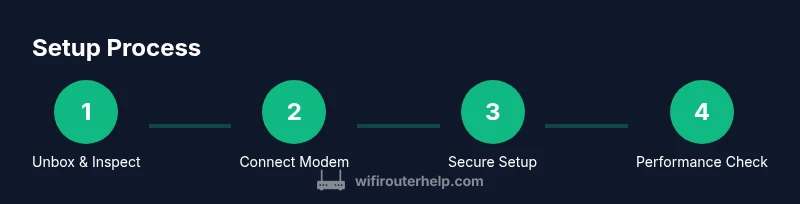
This section provides a practical overview of the setup journey, from unboxing to a secure, optimized network. You'll connect the router to your modem, access the admin interface either via app or web portal, configure Internet settings, customize the wireless network names and passwords, and verify connectivity. Each action should be performed with care to avoid misconfigurations that could leave devices exposed or parts of your network unreachable. After the setup, run basic speed tests on both wired and wireless connections to confirm performance aligns with your expectations. The goal is a stable baseline before you fine-tune advanced features.
Performance tuning: optimizing QoS, bands, and roaming
WiFi 7 and the Netgear Nighthawk router bring advanced features like adaptive QoS, band steering, and smart roaming. Start by naming your networks clearly (2.4 GHz, 5 GHz, 6 GHz) and enabling a strong password with WPA3. Configure QoS to prioritize latency-sensitive traffic such as video calls and gaming over bulk file transfers. If your devices support it, enable smart roaming so clients switch to the strongest signal without manual intervention. Consider enabling explicit band assignments for critical devices to maintain consistent performance. Finally, use a wired backhaul where possible for devices like gaming consoles or desktop PCs to maximize throughput and minimize interference.
Troubleshooting common issues and quick fixes
Even a well-planned setup can experience hiccups. Common issues include slow performance, dropped connections, and devices failing to obtain an IP address. First, reboot the entire network stack—modem, router, and connected devices. Check for firmware updates and apply them if available. Verify that the router’s DHCP server is enabled and that the connected devices are on the correct SSID. If you encounter persistent issues, reset the router to factory settings and reconfigure from scratch, ensuring you secure the device with a strong admin password and updated firmware. For intermittent Wi‑Fi, inspect placement and consider a site survey to identify interference sources (microwaves, cordless phones, or dense walls).
Advanced tips for future-proofing and maintenance
To keep your netgear nighthawk wifi 7 router performing at its best, schedule periodic maintenance, monitor connected devices, and document your network configuration. Regular firmware updates are essential to patch security vulnerabilities and unlock new features. Back up your configuration after major changes, so a quick restore brings your network back online with minimal downtime. If you have a growing smart-home ecosystem, consider adding a dedicated IoT VLAN and enabling device-level firewall protections. Staying proactive with these practices helps ensure your network remains fast, secure, and ready for upcoming devices.
Tools & Materials
- Netgear Nighthawk Wifi 7 Router(Ensure model supports WiFi 7 and has latest hardware revision.)
- Modem (if separate from ISP gateway)(Check compatibility and bridge mode if needed.)
- Ethernet cable (Cat6 or better)(For wired connections and hard-wiring a computer during setup.)
- Device to configure the router (smartphone, tablet, or PC)(Used to access the router's web interface or app.)
- ISP credentials (if PPPoE or special config required)(Needed if your service requires authentication.)
- Notebook or paper for documenting SSIDs and passwords(Helpful for quick reference after setup.)
Steps
Estimated time: 60-90 minutes
- 1
Unbox and inspect
Inspect the package contents against the packing slip. Verify the router, power adapter, one or more Ethernet cables, and quick start guide are present. Look for any visible damage and set the box aside for warranty reference if needed.
Tip: Photograph the box contents before unboxing to simplify returns or claims. - 2
Connect the router to the modem
Power off the modem and the router. Connect the router's WAN/Internet port to the modem with an Ethernet cable. If you use a separate switch, connect it to a LAN port on the router.
Tip: Use a wired connection for the initial setup to avoid wireless configuration hiccups. - 3
Power on and access the admin interface
Turn on the modem, then the router. On a connected device, open a browser or the Netgear app and follow the onboarding prompts to reach the admin interface.
Tip: Note the default IP and login credentials from the quick start guide; change them during setup. - 4
Configure Internet settings and admin credentials
Enter your Internet settings (DHCP by default; switch to PPPoE or static IP if your ISP requires it). Create a strong admin password and enable two-factor authentication if available.
Tip: Keep a backup of the configuration in a secure location. - 5
Set up Wi‑Fi networks and security
Create named SSIDs for 2.4 GHz, 5 GHz, and 6 GHz if supported. Use WPA3 security with a long, unique passphrase. Disable WPS and enable guest network isolation.
Tip: Document each SSID and password for future reference. - 6
Test connections and update firmware
Run speed tests on wired and wireless devices. Check for firmware updates in the admin interface and install them.
Tip: Allow the router to reboot after firmware updates to complete the installation.
People Also Ask
What is WiFi 7 and how does it differ from previous generations?
WiFi 7, or IEEE 802.11be, aims to deliver higher throughput, lower latency, and smarter spectrum management to support busy homes with many devices. It builds on WiFi 6/6E by improving efficiency and concurrent connections. Real-world benefits depend on device support and network planning.
WiFi 7 offers higher speeds and lower latency, especially when many devices are online. Its benefits depend on device compatibility and proper network setup.
Is the Netgear Nighthawk WiFi 7 router backward compatible with older devices?
Yes. The router maintains compatibility with older WiFi standards, so devices that don’t support WiFi 7 can still connect using 2.4 GHz or 5 GHz bands. You may not see the full performance benefits on legacy devices.
Yes, it works with older devices, but the best performance comes from WiFi 7-compatible devices.
Where should I place the router for best coverage?
Aim for a central, elevated location away from walls and large metal objects. Avoid placing it in cupboards or behind entertainment centers. If you have a multi-story home, consider a secondary access point or a mesh extender.
Place it high and central, avoid enclosed spaces, and add extenders if you have dead zones.
Do I need a new modem to use the Netgear Nighthawk WiFi 7 router?
In many cases you can pair the router with your existing modem, but some setups benefit from bridging or upgrading modem hardware to achieve optimum speeds. Check with your ISP for compatibility and bridging options.
Most setups work with your current modem, but bridging might improve performance in some cases.
How do I update firmware on the Netgear Nighthawk WiFi 7 router?
Open the router’s web interface or app, navigate to Firmware Update, and apply available updates. Enable automatic updates if your model supports it to stay current.
Update via the app or web interface and enable automatic updates if possible.
How can I secure a guest network effectively?
Create a separate guest SSID, enable network isolation, and limit access to your main devices. Rotate the guest password periodically and monitor connected devices.
Set up a separate guest network with isolation and a strong password.
Watch Video
What to Remember
- Plan central placement to maximize coverage.
- Secure the network with WPA3 and strong admin passwords.
- Keep firmware up to date for security and features.
- Test wired and wireless performance to verify improvements.
- The WiFi Router Help team recommends following a structured setup for reliability.