Router Netgear Nighthawk: Setup, Optimize, and Troubleshoot
A comprehensive, step-by-step guide to setting up, optimizing, and troubleshooting your Netgear Nighthawk router for fast, secure home WiFi.


In this guide, you will learn to set up, optimize, and troubleshoot your router netgear nighthawk. You’ll access the admin interface, secure your network, configure QoS, and troubleshoot common issues. This step-by-step tutorial covers model variations, firmware checks, and best practices for a fast, stable home network. It explains home network basics and common pitfalls.
Understanding the router netgear nighthawk ecosystem
The router netgear nighthawk line is designed for high-performance home networks, combining dual-band or tri-band WiFi, advanced QoS, and robust security features. According to WiFi Router Help, choosing a Netgear Nighthawk model depends on coverage needs, number of connected devices, and whether you need features like multi-user MIMO or beamforming. For homeowners, the Nighthawk family offers flexible placement, easy setup, and reliable firmware updates. This guide focuses on practical steps to get the most from your router netgear nighthawk, including setup, optimization, and troubleshooting. By understanding the core components—the modem (if you use one), the router, and the devices that connect—you can maximize speeds, reduce dead zones, and keep your network secure. The Netgear Nighthawk ecosystem is built to scale with your home, so expect changes in performance as you add devices or upgrade internet plans.
Why Netgear Nighthawk is a popular choice for home networks
Netgear Nighthawk routers are popular for their combination of strong signal coverage, easy setup, and ongoing firmware support. Modern models support fast wireless speeds, multiple antennas, beamforming, and user-friendly management interfaces. Users often appreciate features like separate guest networks, parental controls, and QoS controls that can prioritize gaming or video streaming. When evaluating a router netgear nighthawk, consider your household’s device count, the size of your home, and whether you want advanced tools such as traffic analytics or wired backhaul support. WiFi Router Help’s guidance emphasizes balancing coverage with security and reliability, so you can enjoy reliable internet without constant tinkering.
Getting started: login and first-time setup
To begin, connect a device to the router via Ethernet or WiFi. Open a web browser and navigate to the router’s admin page using the address printed on the device label or in the manual. Log in with the default credentials, and immediately change the admin password to a strong, unique one. If your model supports it, enable HTTPS for admin access and disable remote management on WAN. The initial setup should include naming your networks clearly (for 2.4 GHz and 5 GHz) and choosing secure encryption (WPA2 or WPA3). If you encounter login issues, ensure you’re connected to the router’s network and retry. This first phase lays the foundation for a reliable, secure home network.
Securing your router: passwords, updates, and settings
Security is critical in any home network. Change all default passwords, disable default accounts, and enable automatic firmware updates when available. Turn on a firewall, review remote management settings, and consider enabling a security feature like a VPN pass-through if you use a VPN service. Regularly back up your configuration after major changes to simplify recovery. WiFi Router Help emphasizes keeping firmware current to patch vulnerabilities and improve stability, especially on high-traffic networks with many devices.
Wireless optimization: bands, channels, and QoS
Optimizing wireless performance starts with understanding your bands and channels. Use both 2.4 GHz and 5 GHz bands separately with distinct SSIDs to prevent devices from jumping between bands excessively. Enable automatic channel selection, or manually choose channels with the least interference in your area. Adjust channel width (20/40/80 MHz) based on your interference environment and supported devices. Implement QoS rules to prioritize latency-sensitive applications like gaming or video calls, and test bandwidth allocation to verify improvements. The goal is a stable, fast experience across devices without manual micromanagement.
Guest networks, parental controls, and safety nets
Guest networks provide a separated access point for visitors, keeping your main network private. Enable client isolation on guest networks to prevent guests’ devices from communicating with your home devices. Parental controls can help manage content filters and time limits, while security settings like network-level firewalls reduce exposure to threats. When configured properly, these features enhance safety without compromising performance. WiFi Router Help recommends testing guest access and parental controls to ensure they function as intended.
Troubleshooting common issues: diagnostics, fixes, and when to reset
Common issues include slow speeds, intermittent drops, and devices failing to connect. Start with basic checks: verify cables, reboot the router, and ensure your ISP service is stable. If problems persist, run through diagnostics in the admin interface, clear caches, and check for firmware updates. For stubborn issues, perform a factory reset and reconfigure, but back up your current settings first. WiFi Router Help analysis shows that most problems stem from misconfigured settings or outdated firmware rather than faulty hardware, so verify both before replacing hardware. After adjustments, re-test across multiple devices to confirm stability.
WiFi Router Help verdict: best practices for Netgear Nighthawk
The WiFi Router Help team recommends a disciplined setup routine: keep firmware current, use strong credentials, separate guest networks, and balance performance with security through QoS and channel optimization. The verdict emphasizes monitoring coverage as devices are added, and maintaining backups for quick recovery. Following these guidelines helps you maintain a fast, secure home network with fewer headaches.
Authority sources
- https://www.fcc.gov
- https://www.cisa.gov
- https://www.consumer.ftc.gov
Tools & Materials
- Ethernet cable (Cat5e or newer)(For reliable initial configuration and troubleshooting.)
- Smartphone or computer with a web browser(Used to access the router's admin interface.)
- Router and power outlet(Ensure the router is powered during setup.)
- Stable internet connection (ISP modem or similar)(Useful for real-time testing after setup.)
- PIN/passwords and SSID details(Keep network identifiers handy for reconfiguration.)
Steps
Estimated time: 45-60 minutes
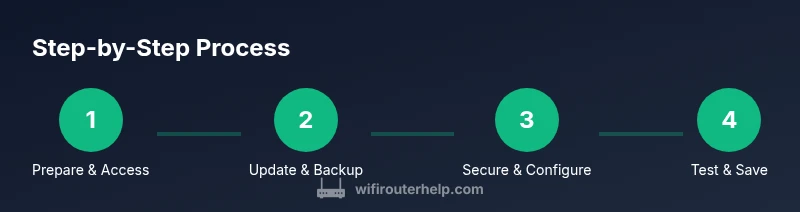
- 1
Gather materials and access the admin interface
Collect the items listed in Tools & Materials and connect a device to the router via Ethernet or WiFi. Open the router's admin page using the address printed on the device label or in the manual, then log in. If you can't access the UI, double-check connections and try again. Rationale: a stable connection is necessary to perform all configuration changes.
Tip: If you can't access the UI, try a different browser or clear cache before retrying. - 2
Update firmware and back up current settings
Check for the latest firmware in the admin interface and perform an update if available. Back up your current configuration before making major changes. This protects you from losing settings if something goes wrong during the update or reconfiguration.
Tip: Always save a backup file after major changes—store it securely. - 3
Secure the router and set admin credentials
Change the default admin username/password and enable HTTPS if possible. Disable remote management via WAN to reduce exposure. Strengthening access controls is critical for preventing unauthorized changes to your network.
Tip: Use a long, unique password and consider a password manager to keep track. - 4
Configure WAN/internet settings
Set the correct WAN connection type (DHCP, PPPoE, or static) as required by your ISP. Ensure the router is obtaining an IP address and that DNS settings are functioning. This establishes reliable internet connectivity for all devices.
Tip: If you have PPPoE, enter your username and password exactly as provided by your ISP. - 5
Set up WiFi networks and security
Create clear SSIDs for 2.4 GHz and 5 GHz bands, or enable a combined solution if supported. Choose WPA2 or WPA3 encryption with a strong passphrase. Verify devices connect to the appropriate band and that guests can access the guest network if enabled.
Tip: Avoid using obvious names tied to your address or personal info. - 6
Enable guest network and QoS rules
Turn on a guest network with client isolation and assign a separate password. Create QoS rules to prioritize important traffic such as gaming or video conferencing. This balances performance and security across devices.
Tip: Test QoS by streaming video while gaming to ensure priority is working as intended. - 7
Test, save, and document the configuration
Test all connected devices for speed and stability. Save changes and export a configuration backup. Document any custom settings (names, passwords, port forwards) for future reference.
Tip: Keep a simple network map or notes to speed future troubleshooting.
People Also Ask
What is the best use case for a Netgear Nighthawk router?
Netgear Nighthawk routers are well-suited for households with many devices and bandwidth-heavy activities like streaming and gaming. They offer robust wireless performance, multiple bands, and strong management features to keep traffic smooth.
Ideal for homes with many devices and high-bandwidth needs, including gaming and streaming.
How do I reset my Netgear Nighthawk router to factory settings?
Locate the reset button on the back of the router, hold it for about 10 seconds until the lights blink, then release. Reconnect to the default network and reconfigure from scratch.
Use the reset button for a full factory reset and reconfigure from the start.
How can I determine which Netgear Nighthawk model I have?
Check the model number printed on the label on the bottom or back of the router, or in the admin interface under system information. This helps you locate the correct user guide and firmware.
Find the model on the device label or in the router’s system info.
How do I update the firmware on my Netgear Nighthawk router?
Open the admin page, navigate to the firmware or firmware update section, and check for updates. If available, follow prompts to install. Always back up your settings first.
Update firmware from the admin page and back up settings first.
Can I use bridge mode with a Netgear Nighthawk router?
Bridge mode can allow your router to behave as a access point under certain configurations. Check the model’s manual for compatibility and exact steps, as options vary by model.
Bridge mode availability varies by model; consult your manual.
Watch Video
What to Remember
- Secure admin access with a strong password.
- Separate 2.4 GHz and 5 GHz networks for reliability.
- Keep firmware updated for security and performance.
- Use QoS to prioritize latency-sensitive apps.
- Back up configuration after major changes.