Netgear Internet Setup: A Step-by-Step Guide for Home Networks
Step-by-step instructions to set up Netgear internet, secure Wi-Fi, optimize speeds, and troubleshoot common home network issues for reliable home networking.


By the end you’ll have a stable Netgear internet network with a secure password, optimized performance, and a clear troubleshooting plan for common home network problems. You’ll need a Netgear router, a compatible modem, at least one Ethernet cable, a computer or phone to access the admin interface, and a stable power supply.
Understanding Netgear Internet: Roles of Router and Modem
Netgear internet is a typical home network setup where a router from Netgear creates a local Wi-Fi network and distributes internet access to all connected devices. The router connects to a modem, which translates your internet service provider's signal into something your devices can use. Understanding this relationship helps you plan coverage, security, and performance. The Netgear ecosystem often combines advanced features like QoS, guest networks, and parental controls that improve usability and control. When you choose a Netgear router, you are selecting a device stack designed for straightforward setup, robust firmware updates, and a familiar management interface. As you configure, remember that the network’s reliability hinges on both a solid modem connection and a well-placed router—ideally central, elevated, and away from interference.
According to WiFi Router Help, a properly configured Netgear internet setup minimizes dropouts and ensures consistent speeds across your home. The WiFi Router Help team found that many households underestimate placement impact and password strength, which can dramatically affect performance and security. By focusing on the foundational roles of the router and modem, you’ll reduce common frustrations and set up a solid network environment.
"## Prep: What You Need Before You Begin"...
Tools & Materials
- Netgear router(Choose a model with the latest firmware and support for WPA3)
- Modem (cable/DSL/fiber compatible)(Ensure compatibility with your ISP and plan)
- Ethernet cable (Cat5e or better)(Use at least a 1-meter cable for convenient placement)
- Power adapters for router and modem(Keep them near power outlets; avoid daisy-chaining)
- Computer or smartphone(Needed to access the router admin interface)
- ISP credentials or PPPoE details (if required)(Have them handy in case your ISP uses PPPoE)
Steps
Estimated time: 60-75 minutes
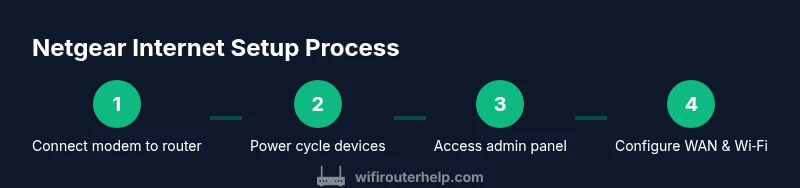
- 1
Connect modem to router WAN port
Plug the Ethernet cable into the modem’s Ethernet port and the other end into the Netgear router’s WAN (Internet) port. This establishes the primary data path from your ISP to your router. The goal is to have a clear, physical link so the router can hand out IP addresses and route traffic.
Tip: Confirm the modem is online before linking to the router; a lit status LED helps verify readiness. - 2
Power on and wait for initialization
Turn on the modem first, then the router. Wait about 2–3 minutes for both devices to initialize and acquire a stable connection. You should see steady indicator lights on both devices indicating a healthy link.
Tip: Avoid rebooting multiple times in quick succession; give devices time to negotiate a clean connection. - 3
Access the router admin page
From a connected computer or mobile device, open a web browser and enter the router’s default IP (commonly 192.168.1.1) or use the Netgear genie/app. Log in with the default credentials unless you’ve changed them previously. This access allows you to configure internet settings and security.
Tip: If you don’t know the password, check the label on the router or the manual; never leave the default credentials unchanged. - 4
Run Quick Setup for WAN configuration
Use the Quick Setup wizard to configure the WAN connection type (DHCP, PPPoE, or static). This ensures your router correctly obtains an IP from the modem or ISP and starts distributing IPs to devices on Wi‑Fi.
Tip: Choose DHCP if your ISP assigns dynamic IPs; PPPoE requires your username/password from the ISP. - 5
Set a strong admin password
Change the router’s admin password to a unique, strong password and note it in a secure place. This protects the configuration from unauthorized changes and improves overall security.
Tip: Do not reuse passwords from other sites; enable two-factor authentication if the option exists. - 6
Configure Wi‑Fi network name and security
Create a unique SSID (network name) and enable WPA3 security if supported; otherwise use WPA2. Set a long, random password and consider disabling WPS to reduce risk of unauthorized access.
Tip: Avoid obvious names that reveal personal info; use a separate guest network for visitors. - 7
Update firmware and enable essential features
Check for firmware updates and install them. Enable features like automatic security updates, guest network, QoS for prioritizing traffic, and parental controls if needed for your family.
Tip: Firmware updates often fix known vulnerabilities and improve performance; don’t skip them. - 8
Test connectivity and save settings
Reboot the router, then test Wi‑Fi on multiple devices and verify internet access. Save or export the configuration profile if your router supports it so you can restore quickly after a reset.
Tip: Run a speed test on wired and wireless devices to benchmark performance and detect bottlenecks.
People Also Ask
What is Netgear internet and how does it differ from basic Wi‑Fi?
Netgear internet refers to a home network built with Netgear hardware that provides Wi‑Fi access and internet connectivity. It differs from generic Wi‑Fi by using Netgear’s management interfaces and features for easier control, security, and optimization.
Netgear internet uses Netgear devices to create and manage your home wireless network, with features designed for easier setup and security.
Do I need a modem with a Netgear router?
Most homes require a modem to connect to an ISP. Some ISPs offer gateway devices that combine modem and router functions; if you have a standalone modem, connect it to your Netgear router.
Usually you need a separate modem, but some providers supply a gateway that includes a router.
How can I secure my Netgear network?
Enable WPA3 or WPA2, set a strong password, keep firmware updated, and consider disabling the WPS feature for added security. Regularly review connected devices and guest access.
Use a strong password, enable up-to-date security, and keep firmware current.
What should I do if speeds are slow after setup?
Check placement to reduce interference, verify firmware is current, test speeds on multiple devices, and adjust Wi‑Fi channels if you’re in a crowded area. If speeds remain low, contact your ISP.
First check placement and firmware, then test speeds and consider channel changes.
Can I extend Netgear Wi‑Fi coverage easily?
Yes. Use Netgear‑compatible mesh satellites or extenders designed for your router to widen coverage without creating dead zones. Match the expansion devices to your existing model for best results.
Use Netgear mesh satellites for best results to expand coverage.
What safety precautions should I take during setup?
Work on a stable surface, avoid power surges, don’t expose the admin interface publicly, and back up configurations when possible. Maintain a secure, private network during setup.
Stay secure by using private networks and keeping firmware up to date.
Watch Video
What to Remember
- Secure your Netgear network with WPA3 and a strong password.
- Keep firmware up to date to improve security and performance.
- Place the router centrally for balanced coverage.
- Test both wired and wireless speeds to identify bottlenecks.
- The WiFi Router Help team recommends documenting credentials and maintaining a regular update cycle.