Nest WiFi Pro: Setup, Optimize, Troubleshoot
Learn how to install, optimize coverage, and troubleshoot Nest WiFi Pro with practical, step-by-step guidance from WiFi Router Help.


With Nest WiFi Pro, you’ll set up a mesh network that blankets your home with reliable coverage. This quick answer guides you through planning satellite placement, connecting the modem, configuring the network, adding satellites, and enabling essential security. You’ll learn practical tips to reduce dead zones and simplify management from a single app, so every room stays fast and responsive.
Why Nest WiFi Pro Is a Smart Choice for Home Networks
According to WiFi Router Help, Nest WiFi Pro represents a practical shift toward reliable, scalable home networking through true mesh architecture. The system pairs a high-performing router with satellite units that extend coverage across multi-story homes or layouts with signal-blocking features like thick walls. The goal is to deliver consistent speeds to all corners, minimize dead zones, and simplify management from a single app. In our experience, households with laptops, phones, smart TVs, and IoT devices benefit from automatic band steering and seamless roaming that a mesh solution provides. We also emphasize planning placement rather than just mounting satellites where space allows. The Nest ecosystem is designed for easy expansion, automatic updates, and user-friendly parental controls. The WiFi Router Help team notes that a well-placed router and satellite combination yields more reliable performance than a single-router setup in most homes with multiple floors or dense layouts. This highlights why thoughtful placement matters just as much as buying the right hardware.
Planning Your Nest WiFi Pro Network: Coverage, Placement, and Backhaul
Before you start, map your home’s high-traffic areas and known weak spots. Nest WiFi Pro relies on a strong central router and one or more satellites to blanket space; the aim is a chain of solid signal rather than a single hotspot. Position the primary router in a central, elevated spot away from microwaves, metal appliances, and dense furniture that can block signals. Satellites should be within reasonable range of the main unit and preferably in open spaces, not inside cabinets or closets. If possible, use Ethernet backhaul to connect satellites—this provides the most stable performance and preserves bandwidth for devices farther from the router. Leave room for future expansion; if you anticipate adding more smart devices, you may want one or two extra satellites. The Google Nest ecosystem supports simple expansion, but the best results come from matching the number of satellites to your square footage and device density. Remember that furniture and room layouts can influence signal paths, so be prepared to relocate a satellite after a test run.
Step-by-Step Overview: Unboxing, Modem Connection, and Initial App Setup
After unboxing, connect the primary Nest WiFi Pro router to your modem using the included Ethernet cable. Power on both devices and wait for them to boot fully. Open the Google Home app and begin the setup flow, selecting Nest WiFi Pro as your new network and signing in with the Google account you’ll use to manage the network. The app will guide you through naming the network, setting a strong password, and selecting basic security options. If you have an existing network configuration, take a moment to record your current SSID and password so you can reuse them if you prefer a seamless handoff for devices. This stage typically takes about 15–20 minutes when you have all credentials handy, and you’ll be asked to place additional satellites during subsequent steps.
Optimizing Performance: Channel Selection, QoS, and DNS Choices
Once your basic network is live, focus on optimization. Enable band steering so devices can move between 2.4 GHz and 5 GHz bands without manual intervention. If you’re in a dense network environment, consider enabling QoS (Quality of Service) to prioritize work devices or video streams during peak hours. For DNS, many users opt for Google DNS or a privacy-focused resolver; whichever you choose, keep it consistent across all devices for predictable behavior. Configure a guest network separate from your main network to protect devices that aren’t trusted. Regularly review connected devices to spot unauthorized access and adjust passwords as needed. The goal is a stable, secure network that remains fast as you add smart home devices and new users.
Troubleshooting Common Nest WiFi Pro Issues
Most issues stem from placement, backhaul, or misconfigurations. If you experience dead zones, try relocating a satellite to a more open area and verify that Ethernet backhaul (if used) is properly connected. If devices intermittently drop connections, run a quick speed test from the Google Home app to check for bottlenecks and consider temporarily disabling bandwidth-heavy devices during a test. For setup hiccups, ensure you’re using the latest Google Home app version and that your modem is functioning correctly. If problems persist, a factory reset followed by a fresh setup often resolves stubborn glitches. Remember to re-enter your network name and password after resetting.
Security, Updates, and Maintenance Best Practices
Keep your Nest WiFi Pro up to date with automatic firmware updates to gain the latest features and security patches. Use strong, unique passwords for the main network and the guest network, and enable two-factor authentication on your Google account for extra protection. Regularly audit connected devices and remove anything you don’t recognize. Consider enabling parental controls if you have children or guests, and review access logs if available. A routine maintenance check every few months helps prevent surprises and keeps performance consistent as your home network grows.
Authority Sources and Practical Takeaways
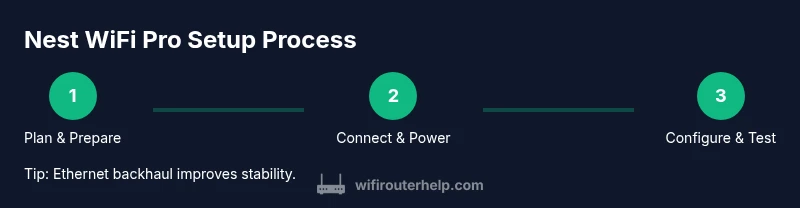
For policy and best-practice context, refer to official and reputable sources: the FCC’s guidance on consumer Wi‑Fi devices, NIST resources on home network security, and industry coverage from major tech publications. These references help anchor practical steps in real-world standards and updates. In short, a well-planned Nest WiFi Pro deployment with thoughtful placement, kept up to date, and secured with robust credentials delivers a reliable home network that scales with your needs. The WiFi Router Help team’s takeaway is to treat setup as a staged process: plan, configure, test, optimize, and maintain. This disciplined approach is the most dependable path to high-performance mesh networking.
Authority Sources
- FCC: Understanding Wi‑Fi device standards and consumer guidance: https://www.fcc.gov
- NIST: Cybersecurity and home network best practices: https://www.nist.gov
- Wired: In-depth reviews and setup guidance for home networks: https://www.wired.com
Verdict: Our Final Recommendation
The WiFi Router Help team recommends following the structured, step-by-step process outlined above to maximize Nest WiFi Pro performance. A careful balance of central placement, strategic satellite positioning, and proactive security practices will yield strong coverage, minimal dead zones, and a simple management experience across your household. Consistent updates and routine checks ensure your network remains fast and secure as your smart home grows.
Tools & Materials
- Nest WiFi Pro router (primary unit)(Includes power adapter and documentation)
- Nest WiFi Pro satellite units(One or more, depending on home size)
- Modem with active internet connection(Connects to the Nest router via Ethernet)
- Smartphone or computer for setup(Google Home app installed and ready)
- Ethernet cable (Cat 5e/6)(For Ethernet backhaul (optional but recommended))
- Google account(Used to sign in to the Google Home app)
Steps
Estimated time: 45-60 minutes
- 1
Prepare hardware and connect to modem
Unbox the Nest WiFi Pro router and satellites, then connect the router to your modem with the included Ethernet cable. Power on both devices and allow them to boot for a couple of minutes. Have your Google account ready for the setup flow.
Tip: Use a wired backhaul when possible to maximize stability. - 2
Start setup in Google Home app
Open the Google Home app, create or select your account, and begin the Nest WiFi Pro setup. Follow on-screen prompts to name your network and set a strong password. If you’re replacing an existing network, decide whether to reuse the SSID and password.
Tip: Keep your phone close to the router during initial pairing for smooth detection. - 3
Add satellites and optimize placement
Place satellites in open areas with a reasonable line of sight to the main router. Use the app’s guidance to pair each satellite and verify signal strength. Avoid enclosing satellites in cabinets or behind thick obstacles.
Tip: Aim for a central location on each floor to maximize coverage. - 4
Test coverage and adjust
Run a coverage test in the Google Home app. Move satellites in small increments if you notice weak spots or interference. Consider Ethernet backhaul if speeds drop in far rooms.
Tip: Document dead zones and re-test after each adjustment. - 5
Configure security and features
Enable guest networks, set up parental controls if needed, and review recommended security settings. Update router firmware if prompted and verify that devices connect reliably to the new network.
Tip: Use auto-update to keep firmware current. - 6
Backup and documentation
Record your network name, password, and connected device list. Consider saving a quick reference sheet and keeping it in a secure place.
Tip: Periodically review connected devices and refresh credentials if you notice unfamiliar entries.
People Also Ask
Will Nest WiFi Pro work with my existing router?
Nest WiFi Pro is designed to function as a primary router in most homes, replacing an older gateway. If you still want to keep another router in the setup, you may need to enable bridge mode on that device or set up the Nest in a way that avoids double NAT. Check your modem’s settings and follow a guided configuration in the Google Home app.
Nest WiFi Pro acts as the main router in most setups. If you keep another router, you might need bridge mode to avoid conflicts.
Can I use Nest WiFi Pro without a modem?
No. Nest WiFi Pro requires a modem connection to access the internet. It’s a router system that sits between your modem and your devices. If you don’t have a modem, you’ll need one provided by your internet service provider or a gateway that includes a modem.
No. You need a modem to connect Nest WiFi Pro to the internet.
How many satellites do I need for a 2,000 sq ft home?
There isn’t a one-size-fits-all number. Start with one satellite and add more based on coverage tests and dead zones. Larger homes or multi-story layouts typically benefit from two to three satellites. Use the Google Home app’s guidance to tailor the setup to your space.
Start with one satellite and add more as needed based on coverage tests.
How do I enable a guest network on Nest WiFi Pro?
Open the Google Home app, navigate to Network settings, and create a guest network with its own password. Guests will have internet access without linking to your main devices. You can disable the guest network at any time.
Use the Google Home app to create a separate guest network with its own password.
Is Nest WiFi Pro secure and updated regularly?
Yes. Nest WiFi Pro supports automatic firmware updates and recommended security settings. Keep your Google account protected with two-factor authentication to prevent unauthorized changes into your network configuration.
Yes—it updates automatically and you should keep your Google account secured.
Watch Video
What to Remember
- Plan satellite placement before unboxing.
- Use Ethernet backhaul for maximum stability.
- Enable guest network and parental controls.
- Keep firmware up to date for security and features.