Nest Wifi Setup and Optimization: A Complete Guide
Learn how to install, optimize, and secure your nest wifi system with practical steps, expert tips, and troubleshooting guidance for reliable home networking today.


According to WiFi Router Help, you will learn how to install, optimize, and secure your nest wifi system, troubleshoot common issues, and maximize coverage. The process requires a compatible modem, the Nest Wifi router, optional satellites, and the Google Home app for configuration. This article is designed for homeowners and tech enthusiasts seeking reliable, step-by-step router guidance.
Nest Wifi: Understanding the Basics
Nest Wifi is a modern mesh networking system designed to blanket a home with reliable, seamless wireless coverage. Unlike a single-router setup, Nest Wifi uses a primary router plus one or more satellite nodes to create a single, cohesive network. This architecture reduces dead zones, improves signal in hard-to-reach rooms, and makes it easier to manage bandwidth across devices. In everyday terms, think of Nest Wifi as a smart, flexible web of signals that adapts to your home layout. The system works with the Google Home app to simplify setup, monitoring, and parental controls. When you place satellites in strategic rooms, you’ll notice faster speeds in areas that used to struggle with weak reception. For homeowners and tech enthusiasts, this means fewer dropped streams, smoother gaming, and a more predictable home network. Throughout this guide we’ll use the term nest wifi to refer to the entire setup and its components—router, satellites, and control app.
Installing a mesh network like Nest Wifi can be a game changer for multi-floor homes or spaces with thick walls. A well-designed mesh network eliminates the need for a single “best spot” and instead relies on optimized node placement. By understanding how mesh backhaul works and how to test coverage, you can maximize performance while keeping your network secure. The WiFi Router Help team emphasizes that proper planning and a clear layout map are the foundations of a strong nest wifi deployment.
Nest Wifi: Understanding the Basics
Nest Wifi is a modern mesh networking system designed to blanket a home with reliable, seamless wireless coverage. Unlike a single-router setup, Nest Wifi uses a primary router plus one or more satellite nodes to create a single, cohesive network. This architecture reduces dead zones, improves signal in hard-to-reach rooms, and makes it easier to manage bandwidth across devices. In everyday terms, think of Nest Wifi as a smart, flexible web of signals that adapts to your home layout. The system works with the Google Home app to simplify setup, monitoring, and parental controls. When you place satellites in strategic rooms, you’ll notice faster speeds in areas that used to struggle with weak reception. For homeowners and tech enthusiasts, this means fewer dropped streams, smoother gaming, and a more predictable home network. Throughout this guide we’ll use the term nest wifi to refer to the entire setup and its components—router, satellites, and control app.
Installing a mesh network like Nest Wifi can be a game changer for multi-floor homes or spaces with thick walls. A well-designed mesh network eliminates the need for a single “best spot” and instead relies on optimized node placement. By understanding how mesh backhaul works and how to test coverage, you can maximize performance while keeping your network secure. The WiFi Router Help team emphasizes that proper planning and a clear layout map are the foundations of a strong nest wifi deployment.
Tools & Materials
- Modem(Must be compatible with your internet service provider and provide an ethernet port for connection.)
- Nest Wifi Router (primary)(This is the main node that connects to your modem via Ethernet.)
- Nest Wifi Satellite(s) (optional)(Use if you need to extend coverage to distant rooms or multiple floors.)
- Ethernet cable(Used to connect the primary router to the modem for initial setup.)
- Smartphone or tablet(With the Google Home app installed for setup and ongoing management.)
- Google Home app(Account with Google to access Nest Wifi setup and controls.)
- Power outlets(Ensure stable power sources near each device.)
Steps
Estimated time: 45-60 minutes
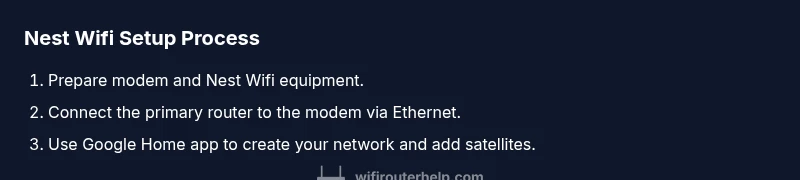
- 1
Unbox and verify components
Open the box and confirm you have the Nest Wifi router, any satellites, power adapters, and an ethernet cable. Inspect for any shipping damage and ensure all parts are present before starting.
Tip: Keep a clean workspace and start with a fully charged phone for faster setup. - 2
Connect the modem to the primary router
Power off the modem, connect an ethernet cable from the modem to the Nest Wifi router’s WAN/Internet port, then power both devices on in sequence. Wait 60–90 seconds for the router to boot and for lights to stabilize.
Tip: Place the router where it’s accessible by a short ethernet run from the modem for a clean setup. - 3
Open Google Home and begin setup
Open the Google Home app, sign in, and select Set up device > New device. Follow prompts to scan the router’s QR code and attach it to your Google account.
Tip: Keep your phone near the router during the initial scan for faster linking. - 4
Create your network name and password
Enter a unique network name (SSID) and a strong password. The app lets you enable guest access and set up parental controls if desired.
Tip: Choose a password that is long, random, and not reused elsewhere. - 5
Add Nest Wifi satellites if needed
Place satellites in strategic rooms to fill coverage gaps, ideally within 30–40 feet of the main router and away from obstacles.
Tip: Test signal strength in common living spaces and adjust locations if you see weak areas. - 6
Run a network test and optimize
Use the app’s built-in speed test to verify performance and tweak placement or add a satellite as needed.
Tip: Aim for consistent speeds across high-use rooms before finalizing the layout.
People Also Ask
What is Nest Wifi and how does it work?
Nest Wifi is a mesh networking system that uses a central router and optional satellites to extend coverage throughout a home. It provides a single network, improved signal, and easier management via the Google Home app.
Nest Wifi creates a mesh network with a main router and satellites for broad coverage managed through the Google Home app.
How do I reset Nest Wifi if something goes wrong?
If you encounter issues, you can perform a factory reset on the router and satellites, then set them up again from scratch in the Google Home app.
Factory reset and re-setup via the Google Home app can resolve many connectivity issues.
Can I use Nest Wifi with my existing router?
Nest Wifi can be used in bridge mode with other routers, but you will typically get the best experience when used as the primary router with satellites running in mesh mode.
Yes, but it’s often best used as the main router with mesh satellites for optimal performance.
What can I do to improve Nest Wifi coverage in a large home?
Add satellites in strategic locations, ensure line of sight where possible, and use the app’s coverage map to identify weak zones.
Place satellites in weaker zones and test coverage with the app’s built-in tools.
Is Nest Wifi secure and how are updates handled?
Nest Wifi uses WPA3-capable security features where available and receives firmware updates automatically through the Google Home app.
It uses current security standards and updates automatically via the app.
Watch Video
What to Remember
- Plan coverage before placement
- Use satellites to extend reach
- Secure with strong password and guest network
- Update firmware via the app