Google Nest Wifi 6: Setup, Optimization & Troubleshooting
Learn how to set up Google Nest Wifi 6, optimize mesh coverage, and troubleshoot common issues. This step-by-step guide from WiFi Router Help covers placement, app setup, security, and maintenance.


You will set up a Google Nest Wifi 6 mesh system and optimize your home network for stable coverage. This guide covers initial unboxing, core setup, router placement, and basic performance tweaks to maximize speed and reliability across multiple devices. It assumes you have a broadband modem, a supported internet plan, and access to your WiFi credentials. You'll learn how to run a quick speed test, enable guest networks, adjust QoS if needed, and confirm your network is secured.
Why Nest Wifi 6 Mesh Makes Sense for Modern Homes
A Google Nest Wifi 6 mesh system delivers consistent coverage, simple management, and scalable performance for busy households. According to WiFi Router Help, a mesh approach reduces dead zones and provides seamless handoffs as you move through rooms. With the Nest ecosystem, you can control devices, run speed tests, and tweak settings from a single app. This section explains why mesh networks beat traditional single-router layouts in typical homes, apartments, and open-plan living spaces. It also sets expectations about coverage limits depending on walls, furniture, and interference from neighbors' networks. You’ll learn how a properly placed Nest Wifi 6 setup can deliver reliable experiences for streaming, video calls, and smart-home devices while maintaining security and privacy.
Understanding Wi‑Fi 6 Basics in Simple Terms
Wi‑Fi 6 delivers higher efficiency and better performance in environments crowded with devices. In plain language, it means your network can handle more phones, tablets, laptops, and smart home gear at the same time without slowing down. Nest Wifi 6 takes advantage of beamforming, improved multi-user handling, and target wake time to conserve energy on battery-powered devices. For homeowners, this translates to smoother 4K streaming, faster file transfers, and more reliable online gaming in busy households. While the jargon can be dense, think of Wi‑Fi 6 as a smarter highway that reallocates lanes to active devices. The goal is lower latency, better range, and more consistent speeds across rooms and floors.
Planning Placement for Optimal Coverage
Placement is the single most impactful factor for mesh performance. Start with the main hub roughly centered on the floor above your internet entry point, away from thick walls and metal appliances. Position satellites within a few rooms of central locations to extend the signal rather than chase the far corners of the house. Avoid placing units behind large furniture, inside cabinets, or near microwaves and Bluetooth devices that cause interference. If you have a multistory home, placing nodes on alternate floors often yields the best handoffs as you move throughout the house. Finally, run a quick measurement with the Nest app to verify coverage and identify dead zones.
Quick Setup Guide: Unboxing, App, and Initial Connection
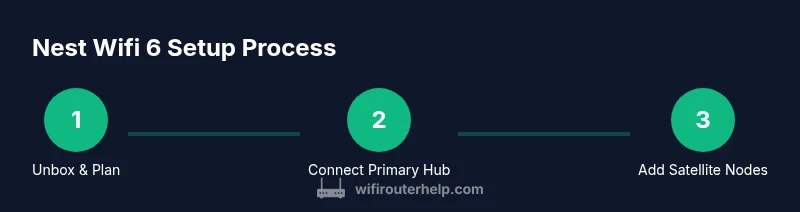
Unbox the Nest Wifi 6 system and verify each satellite is present. Connect the primary hub to your modem using the included Ethernet cable and power it up. Open the Google Home app, sign in, and follow the on-screen prompts to add a new device. Give your network a name and set a strong password. Add satellite nodes one by one as instructed by the app and confirm they join the mesh. Finally, test basic connectivity on multiple devices to confirm coverage throughout the home.
Advanced Features You Should Enable
Set up a guest network to segregate visitors’ devices from your main network. Use parental controls to filter content for kids and schedule downtime if needed. For bandwidth-sensitive activities, enable any QoS or device priority options available in the Google Home app. Enable automatic firmware updates to keep security current. If you run a small home office or gaming setup, consider assigning high priority to work or gaming devices while leaving others on standard priority.
Troubleshooting Common Issues
If coverage is spotty, try moving satellites closer to the main hub or removing obstacles. If devices can't connect, check that the primary hub is online and that your modem is in bridge mode if your ISP requires it. Reboot nodes in a staggered sequence to rejoin the mesh. Use the Nest app's diagnostics to identify interference, channel congestion, or outdated firmware. If speeds drop substantially, run a speed test near the main hub and again from a satellite to locate bottlenecks.
Performance Maintenance and Security
Regularly check the Nest app for firmware updates and security alerts. Run periodic speed tests to confirm throughput across rooms. Keep your network name unique and avoid default credentials; use a strong password and enable two-factor authentication for your Google account. Review connected devices in the app and remove unknown clients. Consider enabling parental controls or guest networks to maintain privacy when friends visit.
Compatibility and Future-Proofing with Nest Wifi 6
Nest Wifi 6 systems are designed to work with a wide range of home networks and a growing ecosystem of Google smart devices. They support standard Wi‑Fi features like WPA3 security and can integrate with other Nest products and third‑party accessories. If you plan to upgrade to Wi‑Fi 6E devices in the future, assess your home's demand in terms of speed, latency, and interference. For households with gigabit internet, ensure the gateway modem and plan can sustain the higher speeds and that the mesh is upgraded to compatible hardware.
What to Expect After a Successful Setup
After a complete Nest Wifi 6 deployment, you should see broad coverage, fewer buffering episodes, and more stable connections across rooms. A healthy mesh reduces dead zones and provides seamless roaming as you move around the house. With the Google Home app, you can easily manage devices, set up guest access, and monitor network activity. If you encounter issues, refer back to the troubleshooting tips and firmware updates to maintain peak performance. This is how a well-implemented mesh network enhances home connectivity for streaming, gaming, and smart devices.
Tools & Materials
- Google Nest Wifi 6 router system (primary hub and satellites)(Ensure all units are included in the box.)
- Broadband modem(Connected to the Internet via coax/cable/DSL as provided by your ISP.)
- Ethernet cable(Cat6 recommended for future-proofed wired backhaul.)
- Smartphone or tablet with Google Home app(iOS or Android; keep the app updated.)
- Power adapters for each Nest device(Use included adapters; avoid third-party chargers.)
- Active Google account credentials(Needed to sign in and manage devices.)
- Spare Ethernet switch (optional)(Useful if you want wired backhaul or additional wired devices.)
Steps
Estimated time: 25-40 minutes
- 1
Prepare hardware and space
Unbox everything and verify all components are present. Clear a central area where the main hub will live; avoid cramped spaces that block airflow or hide behind furniture.
Tip: Keep cables organized with twist ties to prevent tangling during setup. - 2
Connect the primary hub to the modem
Plug the primary Nest hub into the modem’s LAN port using the Ethernet cable. Power on the modem first, then the Nest device to ensure clean boot.
Tip: If the modem has a separate battery backup, ensure it’s temporarily disengaged during boot. - 3
Launch Google Home app and start setup
Open the Google Home app, add a new device, and select Nest Wifi 6. Follow prompts to connect to the hub’s temporary network and then configure your home network name and password.
Tip: Sign in with your Google account and enable two-factor authentication for security. - 4
Add satellite nodes
Place satellites according to your plan and add them in the app. Ensure each unit shows solid connectivity before moving to the next.
Tip: Avoid placing satellites immediately behind large walls or appliances that can block the signal. - 5
Test coverage and performance
Connect devices in multiple rooms to confirm stable roaming. Run a quick speed test near the main hub and at satellite locations to gauge throughput.
Tip: If you see weak areas, reposition satellites incrementally and re-test. - 6
Fine-tune settings
Explore guest networks, parental controls, and device prioritization in the Google Home app. Enable automatic updates and review connected devices periodically.
Tip: Document your network details and security settings for future reference.
People Also Ask
What is Google Nest Wifi 6?
Nest Wifi 6 is a mesh router system that leverages Wi‑Fi 6 technology to improve efficiency, speed, and capacity across multiple devices in a home. It provides seamless roaming, easy management through the Google Home app, and scalable coverage with satellite nodes.
Nest Wifi 6 is a mesh system that uses Wi-Fi 6 to improve coverage and capacity, with easy setup through the Google Home app.
Can I mix Nest Wifi 6 with older Nest Wifi models?
Yes, Nest Wifi 6 devices can operate alongside older Nest Wifi units within the same network. The system will manage handoffs and routing automatically. You may not unlock all Wi‑Fi 6 features on older units, though.
Yes, you can mix Nest Wifi 6 with older Nest units; the system handles handoffs automatically.
How many satellites do I need for a 2,000 sq ft home?
The number depends on layout and obstacles. Start with one satellite and add more if you notice dead zones or weak signals in key rooms. Use the Nest app diagnostics to guide placement.
Start with one satellite and add more as needed based on coverage in the house.
Is Nest Wifi 6 more secure than a traditional router?
Yes. Wi‑Fi 6 includes improved encryption support and Nest handles automatic firmware updates, helping keep devices protected with less manual effort.
Wi‑Fi 6 improves security features and Nest updates automatically for protection.
Do I need a separate modem for gigabit speeds?
A compatible, gigabit-capable modem is typically required from your ISP. The Nest Wifi 6 acts as the router; ensure the modem supports your internet plan’s speed.
Yes, ensure your modem supports gigabit speeds; Nest Wifi 6 is the router part.
Watch Video
What to Remember
- Plan central placement for maximum coverage
- Add satellites to fill coverage gaps
- Secure with a strong password and 2FA
- Keep firmware up to date
- Use guest networks to protect main devices