Netgear Mesh WiFi 6 Guide: Setup, Optimize, and Troubleshoot
A complete how-to for Netgear mesh WiFi 6: planning, setup via the Netgear app, performance optimization, security practices, and common troubleshooting tips for a reliable whole-home network.


With this guide, you will learn how to set up Netgear mesh wifi 6 systems for seamless, whole‑home coverage, optimize performance, and troubleshoot common issues. Gather your modem, a Netgear mesh kit, a phone or laptop, and the Netgear app. Follow the step-by-step instructions below to achieve fast, reliable Wi‑Fi across your home.
Understanding Netgear Mesh WiFi 6
Netgear mesh wifi 6 refers to a multi-unit home networking system that uses the Wi‑Fi 6 (802.11ax) standard to deliver fast, reliable wireless coverage across multiple rooms. In a typical Netgear mesh kit, a primary router connects to your modem, and one or more satellites extend coverage to hard-to-reach areas. The result is a single network name (SSID) that automatically directs devices to the best signal. According to WiFi Router Help, WiFi 6 introduces features like OFDMA and MU‑MIMO that improve efficiency when many devices share the same space. Real-world speeds depend on your ISP plan, home layout, and the placement of satellites. Netgear’s kits emphasize simple setup, app-driven configuration, and automatic firmware updates, reducing the need for manual tuning. The WiFi Router Help team found that users often notice fewer dropouts once a mesh WiFi 6 system is correctly deployed.
Why Mesh Networking Beats Traditional Routers for Home
In many homes, a single traditional router leaves gaps in coverage, especially behind walls, stairs, and large furniture. Mesh networks like Netgear WiFi 6 kits use multiple nodes that communicate with each other, forming a unified network that adapts as you move. This approach reduces buffering in video calls, improves gaming latency, and minimizes hotspots in large living spaces. WiFi Router Help's experience shows that mesh systems excel when the Wi‑Fi signal must reach multiple floors or thick stud walls. The trade-off is cost and the need to manage several devices, but the payoff is fewer manual reboots and better reliability for smart home devices, streaming, and work-from-home tasks.
Choosing the Right Netgear Mesh WiFi 6 Kit
There are several Netgear options that support WiFi 6 mesh, including base units and satellite nodes. When selecting a kit, consider the size of your home, the number of floors, and the number of devices you routinely connect. A larger home may benefit from an additional satellite, while a smaller apartment can often cover with a two‑unit setup. Look for features like app-based setup, strong backhaul performance, and compatibility with your current modem. The Netgear ecosystem is designed to be scalable, so you can expand later if you add more devices or start streaming in more rooms. Always compare the total coverage claims to your home's real-world layout to avoid overestimating need.
Planning Your Layout for Optimal Coverage
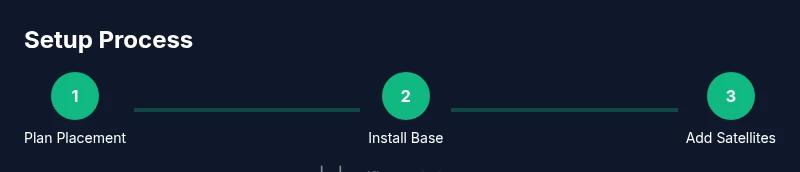
Position the base router in a central, open area away from metal appliances, microwaves, and thick walls. Satellites should be placed within line-of-sight or with a short distance from the base unit, ideally halfway between the base and the farthest rooms. Avoid stacking devices in cabinets or closets, which can dampen signals. If your home has a basement or multiple levels, place at least one satellite on each floor for consistent roaming. For most households, a simple triangle or linear layout yields the best results, but you may need to adjust after testing with your mobile devices. WiFi Router Help notes that a quick roaming test—moving through key rooms—helps identify weak zones quickly.
Setting Up with the Netgear App
The Netgear app guides the initial pairing, firmware updates, and network customization. Start by connecting the base router to the modem with an Ethernet cable, then power it on and open the app. The app will prompt you to create your network name (SSID) and a strong passphrase. You can add satellite nodes by following the on-screen steps; the app tests backhaul quality and helps you choose placement. For households with guests, create a guest network and configure parental controls as needed. The app also surfaces recommended settings for performance and security.
Optimizing Performance with QoS, Band Steering, and Backhaul
WiFi 6 mesh kits improve efficiency, but you can squeeze more performance with a few settings. Enable QoS to prioritize critical devices or applications (work video calls or gaming). Band steering helps devices switch between bands for optimal speed, while a wired backhaul (Ethernet) between base and satellites can dramatically improve stability. If your home has coax or fiber, consider using a separate backhaul switch to keep traffic separated from the main network. Keep firmware updated to benefit from the latest optimizations.
Security, Updates, and Guest Network
A secure network starts with a unique, strong password and WPA3 when available. Enable automatic firmware updates so your network receives the latest protections against threats. Create a separate guest network for visitors and IoT devices, and disable remote management if you don’t need it. Regularly review connected devices in the app to spot unfamiliar nodes. These steps help maintain a resilient home network.
Common Problems and Troubleshooting Steps
If devices report weak coverage, try relocating satellites or adding another unit. If the app can’t locate a satellite, check power connections and proximity to the base. Slow speeds may result from ISP issues, outdated firmware, or congested channels; run a speed test and switch channels or enable 5 GHz optimization. Reboot the system or reset to factory settings as a last resort. This is where the Netgear help community and brand resources can be handy.
Real-world Use Cases and Performance Expectations
For most households, Netgear mesh WiFi 6 delivers smoother 4K streaming, reliable video conferencing, and responsive smart-home devices across a typical multi-room home. In larger residences, you’ll notice fewer buffering events and more consistent roaming as you move between rooms. Remember that actual speeds depend on your internet plan and internal layout; WiFi 6 provides more efficient use of spectrum, but it doesn't create bandwidth out of thin air. By following this guide and using the Netgear app, you’ll be prepared to manage a modern home network in 2026.
Authority sources
- Federal Communications Commission (FCC): Wireless networking consumer guidance. https://www.fcc.gov
- National Institute of Standards and Technology (NIST): Wireless networking security notes. https://www.nist.gov
- CISA: Cybersecurity best practices for home networks. https://www.cisa.gov
Tools & Materials
- Netgear mesh WiFi 6 kit (base router + satellites)(Confirm WiFi 6 capability and compatibility with your ISP modem.)
- Modem (ISP-provided or standalone)(If using a gateway modem, consider bridge mode to avoid double NAT.)
- Ethernet cables (Cat5e or newer)(At least one for backhaul between base and modem; additional cables optional.)
- Smartphone or computer with Netgear app(iOS/Android; keep the app updated for guided setup.)
- Power outlets near base and satellites(Ensure steady power supply for uninterrupted setup.)
- Optional Ethernet switch for multiple backhauls(Useful in large homes to keep backhaul traffic separate.)
Steps
Estimated time: 30-60 minutes
- 1
Prepare your gear
Gather the Netgear mesh WiFi 6 kit, modem, Ethernet cables, and a mobile device with the Netgear app. Verify that firmware on the base router and satellites is up to date. This preparation minimizes trips back to the closet during setup.
Tip: Have the modem powered off when you begin unpacking to avoid stray network activity. - 2
Place the base router centrally
Choose a central, open location away from metal appliances and thick walls. This starting point determines how effectively satellites extend coverage. A good base location reduces dead zones later.
Tip: Aim for a roughly 2–3 meter radius from the farthest rooms you want to cover. - 3
Connect the base router to the modem
Use an Ethernet cable to connect the base router’s WAN port to your modem. Power on both devices and wait for the status indicators to stabilize before moving forward.
Tip: Use a dedicated Ethernet cable rather than a phone line for stable connectivity. - 4
Set up using the Netgear app
Open the Netgear app and follow on-screen prompts to create your network name and password. The app will walk you through pairing satellites and testing backhaul quality.
Tip: Choose a strong, unique password and enable WPA3 if available. - 5
Add satellites and optimize placement
Place satellites at midpoints between the base and far rooms, testing signal strength as you go. The app can guide you to ideal spots and confirm backhaul health.
Tip: Avoid placing satellites behind large obstacles like closets or appliances. - 6
Test coverage and adjust
Walk through key rooms with devices to verify signal strength and speeds. If coverage is weak, relocate satellites or add another unit until roaming is smooth.
Tip: Use a roaming test by moving from the living room to bedrooms while streaming a video for real-world feedback.
People Also Ask
What is Netgear mesh WiFi 6 and why should I consider it?
Netgear mesh WiFi 6 uses multiple devices to create a single, seamless Wi‑Fi network across your home. WiFi 6 improvements (OFDMA, MU‑MIMO) help handle many devices efficiently. It’s ideal for larger homes, streaming, gaming, and smart-home setups.
Netgear mesh WiFi 6 uses several devices to cover your home with one network. It handles many devices better than a single router, making streaming and gaming smoother.
Can I use my existing modem with Netgear mesh WiFi 6?
Yes, as long as your modem (or gateway) can route traffic to the Netgear base router. If you use a gateway, consider placing the modem in bridge mode to avoid double NAT, which can cause connectivity issues.
Yes, you can use your current modem. If it’s a gateway, put it in bridge mode to prevent double routing.
Do I need to replace all my equipment to upgrade to WiFi 6 mesh?
You don’t have to replace everything. You can add a Netgear WiFi 6 mesh kit to your existing setup. For peak WiFi 6 performance, ensure your client devices support WiFi 6.
You can upgrade gradually by adding a WiFi 6 mesh kit; your old devices will still work, but won’t get WiFi 6 speeds on their own.
How long does setup usually take?
A typical setup takes about 30 to 60 minutes, depending on home size, number of satellites, and how quickly you optimize placement.
Plan for about half an hour to an hour for setup, depending on your home.
What maintenance is required after setup?
Keep firmware updated, manage connected devices, and periodically test coverage as your home layout changes or new devices are added.
Just keep the firmware current and run quick roaming tests if you rearrange rooms.
Is Netgear mesh WiFi 6 secure?
Yes. Enable WPA3 when available, use strong passwords, and keep devices updated to protect against threats.
Yes, with WPA3 and regular updates for better security.
Watch Video
What to Remember
- Plan your base and satellites for centered, obstacle-free coverage.
- Use the Netgear app to guide setup and placement, not guesswork.
- Enable WPA3 and keep firmware updated for security and performance.
- Test roaming room-by-room and adjust satellite positions as needed.
- The WiFi Router Help team recommends verifying coverage with roaming tests after setup.