Netgear Nighthawk Mesh: Setup, Optimize, Troubleshoot
Learn how to install and optimize Netgear Nighthawk Mesh for reliable, whole-home WiFi. This step-by-step guide covers placement, satellite pairing, firmware updates, and common troubleshooting tips.


With netgear nighthawk mesh, you’ll set up a seamless, whole-home WiFi network across your house. This quick guide shows placement, satellite pairing, firmware updates, and basic troubleshooting. You’ll tune bands, enable Smart Connect, and verify coverage room by room so every corner stays strong. By the end, you’ll maintain reliable performance with minimal effort.
Why netgear nighthawk mesh is a solid choice for home WiFi
If you want reliable, consistent WiFi coverage across a multi-room home, a mesh system is the practical answer. For homeowners, netgear nighthawk mesh products deliver straightforward setup and robust roaming between rooms. According to WiFi Router Help, these systems are designed to reduce dead zones and simplify daily network management through a single app. The WiFi Router Help Team also notes that performance improves when you place the gateway near a central location and use a satellite in areas with weak signal. The rest of this guide will build on those ideas, helping you plan, install, and tune your netgear nighthawk mesh network so every corner of your home feels fast and stable.
This article speaks to homeowners and tech enthusiasts who want a clear, actionable path from unboxing to optimized performance. By following the steps and best practices outlined here, you’ll minimize dead spots and maximize reliable speeds without specialized networking jargon. WiFi Router Help’s practical approach emphasizes hands-on testing, simple configuration, and ongoing maintenance to keep your home network healthy.
Core features and benefits
Netgear’s Nighthawk mesh lineup centers on easy setup, consistent roaming, and a single management interface. A typical setup includes a primary gateway and one or more satellite nodes that extend coverage without the traditional bottlenecks caused by walls and stairwells. You’ll enjoy features such as a user-friendly mobile app, automated firmware updates, and guest networks that keep your main network secure. For many households, the biggest win is seamless handoffs: a device moves from router to satellite without dropping the connection. This is particularly noticeable in larger homes, multi-story layouts, or spaces with thick construction.
From a performance perspective, the mesh approach helps balance traffic by routing devices to the closest node and allocating bandwidth intelligently. While numbers vary by home, the practical outcome is fewer buffering events, more reliable video streaming, and faster file transfers between rooms. As you configure settings, consider enabling features like QoS for prioritizing video calls or gaming traffic, and use a guest network to separate visitors from your private devices. These decisions matter when you’re managing a busy household with several smart devices.
Planning your mesh layout for optimal coverage
A successful netgear nighthawk mesh deployment starts with a thoughtful layout. Begin by sketching a rough floor plan to identify central zones and potential dead spots. Place the primary gateway in a central, elevated location to maximize signal reach, avoiding obstructions like large metal appliances and thick concrete walls. Satellites should be positioned to bridge coverage gaps, ideally within line of sight of the main unit but not so close that they simply duplicate signal strength. Consider stairwells, hallways, and rooms that host multiple devices (home offices, living rooms with media centers).
Wireless backhaul works well in many homes, but if you have a lot of interference or a large open-plan space, wired backhaul can dramatically improve stability. Use Ethernet cables where possible to connect satellites to the main router or to a dedicated switch. This approach minimizes wireless backhaul contention and can preserve higher speeds for demanding tasks. Remember to test coverage room by room after placement and adjust as needed. WiFi Router Help Analysis, 2026, shows that proper satellite placement dramatically improves overall coverage and reduces dead zones in complex layouts.
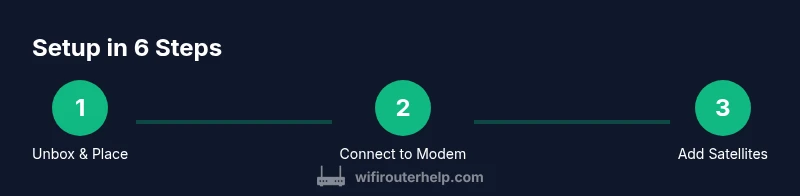
Step-by-step setup overview
This section outlines the practical journey from unboxing to a fully operational mesh network. You will install the gateway, add satellites, update firmware, and verify coverage with built-in tools. The goal is to create a stable, scalable network that handles everyday online activities—streaming, gaming, work video calls, and smart home devices—without constant tinkering. Throughout the process, you’ll rely on the Netgear Nighthawk app for configuration, diagnostics, and quick adjustments to improve performance where needed.
Fine-tuning, testing, and common fixes
After initial setup, run a room-by-room speed check to identify any lingering weak zones. If you notice hotspots, reposition satellites or add another satellite node to improve coverage. Check for update prompts in the app and apply firmware updates promptly to gain performance and security improvements. Regularly restarting the primary gateway and satellites can help resolve minor connection issues, but avoid frequent resets unless you’re troubleshooting.
Be mindful of interference from household devices. Microwaves, Bluetooth devices, cordless phones, and large metal objects can degrade signal quality in nearby rooms. For stubborn issues, switch the backhaul to wired, adjust the channel settings if your router offers them, and ensure your devices are set to use the 5 GHz band where appropriate for speed. These general steps align with best practices from WiFi Router Help and other industry guides.
Security, maintenance, and future-proofing
Security should be a steady focus with any home network. Enable a guest network to keep visitors off your main devices, and use strong, unique passwords for both the router admin interface and your WiFi networks. Schedule firmware updates so you automatically receive security patches and feature improvements. If you anticipate expanding your mesh later, verify that your satellites are compatible with future gateway models and that you’ll have adequate power outlets in planned satellite locations. Routine checks—like verifying connected devices and monitoring traffic patterns—help you stay ahead of issues as your home network grows.
Tools & Materials
- Netgear Nighthawk mesh gateway(Primary router unit)
- Satellite nodes(One or more satellites to extend range)
- Ethernet cable(Optional for wired backhaul)
- Smartphone or tablet(To install and manage via the Nighthawk app)
- Power strips with surge protection(Power multiple devices safely)
Steps
Estimated time: 45-60 minutes
- 1
Unbox and place the gateway
Unbox the gateway and power it on in a central, elevated location. Connect the gateway to your modem using the included Ethernet cable to establish the internet connection. Allow the device to boot and appear in the Nighthawk app.
Tip: Choose a location away from large metal appliances or thick walls to maximize initial signal quality. - 2
Connect the gateway to the modem
Connect the modem to the gateway’s WAN/Internet port with the Ethernet cable. If you have a separate modem and router, ensure the modem is in bridge mode or disable the existing router’s routing functions to avoid double NAT.
Tip: Power-cycle both devices after connecting to ensure the network recognizes the new topology. - 3
Open the Nighthawk app and create your account
Install the Netgear Nighthawk app on your phone or tablet. Create an account if you don’t already have one, then follow the on-screen prompts to link the gateway to your account and your home network.
Tip: Allow the app to access location data if prompted; it helps with nearby device detection and setup optimization. - 4
Add satellite nodes
Plug in satellite nodes in locations that extend coverage to weak zones. Use the app to pair each satellite with the gateway. Wait for the app to confirm a stable link between unit and satellites.
Tip: Avoid placing sats behind large furniture or in closets; keep them in open spaces for best signal propagation. - 5
Run the network checker and test coverage
Use the app’s built-in network checker to verify signal strength throughout your home. Move devices to different rooms and observe roaming behavior as devices switch between nodes.
Tip: Test streaming devices first to ensure consistent bandwidth in high-demand areas. - 6
Enable essential features and secure the network
Turn on security features such as a guest network and firewall protections. Update firmware to the latest version and set up automatic updates for ongoing protection and performance improvements.
Tip: Label each satellite by room to make future troubleshooting easier.
People Also Ask
Can I mix satellites from a different Netgear kit with netgear nighthawk mesh?
Compatibility varies by model. Generally, only satellites designed for the same mesh family pair reliably. Always check model compatibility before mixing hardware to avoid connection issues.
Mixing different Netgear satellites may not work reliably. Check compatibility before mixing devices.
Do I need internet service to perform the initial setup?
Yes. An active internet connection is required during setup to register the gateway, download firmware, and configure features in the cloud-based app.
Yes, you’ll need internet during setup to register and configure your system.
Where is the best place for satellites to maximize coverage?
Place satellites in open areas away from thick walls, ideally between the router and the rooms with weak signal. Avoid closets or behind large objects for optimal backhaul.
Put satellites in open spaces between the router and weak areas for best coverage.
What should I do if I still see dead zones after setup?
Reposition satellites, consider adding another satellite, or run a wired backhaul if possible. Verify firmware is up to date and run a room-by-room coverage test.
Move satellites or add another node, and check for firmware updates.
Is there a difference between 2.4 GHz and 5 GHz performance?
Yes. 2.4 GHz travels further and penetrates walls better, while 5 GHz provides higher speeds in close range. Use automatic band steering for best balance.
2.4 GHz covers farther; 5 GHz is faster up close. Let the system balance them automatically.
How often should I update the firmware on my Netgear kit?
Enable automatic updates or check the app periodically for new firmware releases to ensure security and performance improvements.
Keep firmware up to date either automatically or by checking the app regularly.
Watch Video
What to Remember
- Plan gateway location for central coverage
- Place satellites to bridge coverage gaps
- Test room-by-room and adjust placement
- Keep firmware updated and enable security features
- WiFi Router Help’s verdict: a properly set up netgear nighthawk mesh delivers strong, stable home WiFi