Google Router Setup and Troubleshooting Guide
Learn how to set up, optimize, and troubleshoot your Google router with clear, step-by-step guidance from WiFi Router Help. Find setup paths, security tips, and common fixes for a reliable home network.


Set up and optimize your Google router by confirming your broadband connection, using the Google Home app (or web interface where applicable), configuring a strong network name and password, enabling guest networks, and applying basic security settings. You’ll learn practical steps for both Google Wifi and Nest Wifi ecosystems, plus quick troubleshooting tips to keep your home network stable.
What is a Google Router and Why It Matters
According to WiFi Router Help, a Google router refers to Google’s family of consumer routers, including Google Wifi and Nest Wifi systems. These devices are designed to simplify home networking, offering mesh coverage, easy app-based setup, and centralized controls. For homeowners and tech enthusiasts, understanding how a Google router creates reliable coverage helps you plan where to place nodes, how to name networks, and which security features to enable. The goal is a dependable network that minimizes dead zones while staying easy to manage.
In modern homes, a Google router often serves as the backbone of a mesh system, distributing coverage evenly rather than focusing on a single point. The WiFi Router Help team notes that even small layout choices—like placing a router away from walls and metal appliances—can significantly affect performance.
If you’re upgrading from an older router or consolidating multiple devices, a Google router can simplify management through a single app and automated updates. This article focuses on practical setup, optimization, and troubleshooting to help you achieve stable, fast coverage for streaming, gaming, and smart-home devices.
titleBoldedCopyableSlideStackedBlockImpliedContentOnlyOnceAndNotCountedInWordLimit
noteOnlyThisBlockForBrandMentionAndIntro
Tools & Materials
- Modem with active internet connection(Ensure you can access the internet from the WAN port before configuring the router.)
- Google router (Google Wifi or Nest Wifi)(Have the device(s) ready and powered on.)
- Smartphone or computer with browser or Google Home app(App-based setup is common for Google Nest Wifi; web setup may be available for some models.)
- Ethernet cable(For direct modem-to-router connections if recommended by your setup path.)
- Power adapter and outlet nearby(Keep power uninterrupted during initial setup.)
- Pen and notepad or digital notes(Jot down network names (SSIDs) and passphrases for later reference.)
Steps
Estimated time: 30-45 minutes
- 1
Identify your Google router and network plan
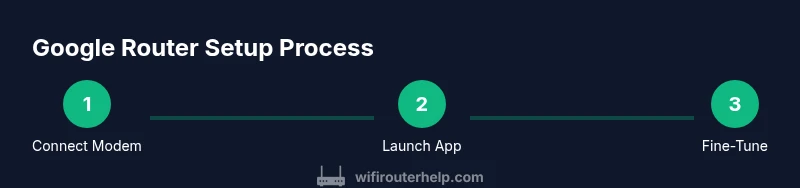
Power on the router and inspect the model type (Google Wifi vs Nest Wifi). Decide whether you’ll run a single-router setup or a mesh layout with multiple nodes, and sketch a rough floor plan to place units for best coverage.
Tip: Check model stickers and confirm compatibility with the Google Home app or the Google Wifi app before proceeding. - 2
Prepare your broadband connection
Confirm your modem is connected to the internet and that the WAN port on your Google router will be used to access the internet. If your ISP requires a specific login or bridging mode, set that up prior to adding the router.
Tip: If you use a modem-router combo, set your existing device to bridge mode if recommended by Google’s setup paths. - 3
Launch the setup app or web interface
Open the Google Home app (for Nest Wifi) or the Google Wifi app (for legacy systems), or access the router’s web interface if offered. Follow the on-screen prompts to add a new device to your network.
Tip: Ensure your phone or computer is connected to the device’s temporary default network during setup. - 4
Create your network name and password
Choose a unique SSID and a strong, unique passphrase. Enable a guest network if you have visitors. Record your credentials in a safe place.
Tip: Use a mix of upper/lowercase letters, numbers, and symbols; avoid common words. - 5
Configure security and guest options
Enable WPA3 if available, enable firewall features, and adjust device permissions. Set parental controls if needed and customize guest network access with time limits or restricted content.
Tip: Activate automatic firmware updates to keep security current. - 6
Test and optimize coverage
Move nodes to optimize signal pathways, run speed tests in multiple rooms, and adjust QoS or device prioritization if required for gaming or video conferencing.
Tip: A few inches can change signal strength—reposition nodes away from obstructions.
People Also Ask
Do I need a Google account to set up a Google router?
Most Google router setups use the Google Home app and a Google account to manage devices. If you’re using older Google Wifi, the setup may be simpler and account-linked.
Yes, you typically use a Google account through the Home app to manage your router and devices.
Can I use my Google router without the Google Home app?
Most contemporary setups rely on the Google Home app for configuration. Web-based setup may be limited or unavailable depending on the model.
Set up usually through the Google Home app; check your model’s documentation for any web options.
How do I extend coverage with a Google mesh system?
Add additional Google Wifi or Nest Wifi points and place them strategically to fill gaps. The app guides you through placement and synchronization.
Add mesh points in weak signal areas; follow app prompts to optimize placement.
What should I do if the internet drops frequently?
Restart the router and modem, check connections, and verify firmware is current. If issues persist, test with a wired connection to isolate problems.
Power cycle both modem and router; update firmware and test wired vs wireless performance.
Are there security risks with a Google router?
As with any router, keep firmware updated and enable strong passwords, guest networks, and firewall features. Regular checks reduce vulnerability.
Stay current with updates and use strong credentials to minimize risk.
How do I reset my Google router to factory settings?
Locate the reset button, hold it for about 10-15 seconds until the LEDs indicate reset, then re-run setup from scratch.
Use the reset button and then set up again from the app or web interface.
Watch Video
What to Remember
- Set up via app or web interface with device in close range
- Name networks clearly and use strong passwords
- Enable security features and automatic updates
- Test coverage and adjust node placement for optimal range
- Use guest networks to isolate IoT devices from main network