Google Wifi Setup, Optimization, and Troubleshooting Guide
A practical, step-by-step guide to setting up Google Wifi, expanding coverage with satellites, and troubleshooting common home-network issues for a stable, fast mesh network. Learn with clear steps from WiFi Router Help.


By the end of this guide you'll set up Google Wifi, optimize coverage across your home, and troubleshoot common issues. You'll need a Google account, a broadband connection, and the Google Home app. We'll cover initial setup, network optimization, satellite placement, and typical fixes for slow speeds, dropouts, and device limits.
Why google wifi remains a solid mesh option
google wifi introduces a simple mesh-networking approach that helps cover larger homes with reliable Wi-Fi by using multiple nodes rather than a single router. The system is designed for ease of use, with setup and ongoing management through the Google Home app. According to WiFi Router Help, google wifi excels at delivering predictable coverage in typical home layouts and reduces dead zones compared to single-router setups. This section outlines why many homeowners still choose google wifi, the core concepts behind mesh networks, and what to expect in real-world performance. You’ll learn how nodes talk to each other, what a strong backhaul looks like, and which home layouts are best suited for a google wifi deployment. While newer systems exist, google wifi remains a solid baseline for straightforward mesh networking and reliable guest access.
Core features and limitations you should know
A Google Wifi setup uses a modular approach: one primary unit connects to your modem, and one or more satellites extend coverage. The system emphasizes simplicity: install the main pod, then add satellites as needed, all managed from a single app. Key features include automatic channel selection, simple guest networks, parental controls, and basic quality-of-service controls. However, there are limitations to consider: some advanced enterprise features or granular per-device QoS may be less flexible than more robust systems. In many homes, the default configuration is perfectly adequate for streaming, video conferencing, and casual gaming. The goal is to eliminate dead zones while keeping the setup intuitive for non-technical users. If your home has unusually thick walls or multiple floors with far-flung rooms, you may need more satellite pods to maintain strong signal throughout.
Planning your mesh layout: pods, placement, and coverage maps
Effective mesh planning starts with measuring your home’s size, floor plan, and potential interference sources. Start with a single central pod connected to your modem, then add satellites to cover stairwells and distant rooms. Use simple in-app heat maps or your own room-by-room notes to identify dead zones. Place pods away from metal appliances, large mirrors, and dense bookcases that can block signals. In practice, you’ll typically aim for line-of-sight or minimal obstruction paths between pods, and you’ll test by walking through your home with a phone to confirm consistent speeds. A well-planned layout reduces the number of pods needed and keeps management straightforward.
Network basics you should know: SSIDs, guest networks, and device management
A clean, single SSID helps devices roam seamlessly between pods. The Google Home app makes it easy to create a guest network for visitors, set up parental controls, and view connected devices. Understanding IP addresses and local DNS basics can help with advanced tweaks, but for most homeowners the app provides sufficient visibility and control. As you expand, keep a simple naming convention and consistent password policy to reduce device confusion. Regularly review connected devices to spot unfamiliar connections and rotate passwords if security concerns arise.
Initial setup overview and prerequisites
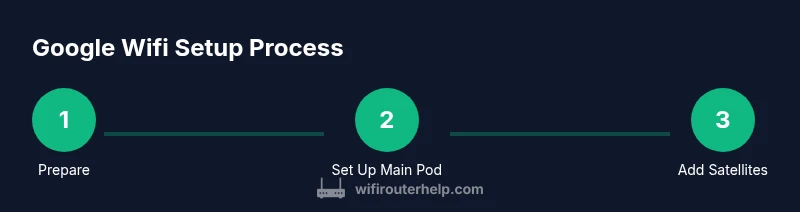
Before you begin, ensure you have a valid broadband connection and a device with the Google Home app installed. You’ll need to sign in with a Google account and have access to your modem’s Ethernet connection. The primary pod plugs into the modem via Ethernet and is then configured through guided prompts in the app. After the main pod is online, you can add satellite pods and place them strategically around your home. Keep your network name and password handy, and enable updates to ensure you receive the latest protections and improvements.
Optimizing performance: placement, backhaul, and settings
Placement is the single biggest lever for performance. Aim for central locations, elevated positions, and spacing that minimizes walls and obstacles. If your walls are thick or your home is multi-story, you may need more pods to maintain strong signal. Backhaul quality between pods matters; a wired Ethernet backhaul yields the best stability, but good wireless backhaul can be sufficient in most homes. In the app, enable features like band steering and QoS sparingly to prioritize essential devices (work computers, streaming boxes). Regularly test speeds in different rooms and adjust pod positions accordingly to close coverage gaps.
Common issues and troubleshooting steps
Most issues stem from placement, interference, or misconfigured settings. If speeds drop, try relocating a pod or adding a satellite in a weak area. Reboot the primary pod and refresh the app connection if devices fail to connect. For persistent issues, verify the modem–router connection is stable, check for firmware updates, and ensure there are no conflicting networks (duplicate SSIDs). If devices frequently drop from the network, re-run the setup prompts and rejoin the devices to the new network name. Document changes so you can revert if needed.
Security, privacy, and updates
Keeping firmware up to date is essential for security and reliability. Google pushes updates through the Home app; ensure you have automatic updates enabled and that the app itself is current. Use strong, unique passwords for your Google account and the guest network, and limit shared credentials. Review connected device permissions and guest network access periodically. As with any smart-home setup, monitor for unusual activity and consider a simple network map to track devices and pod locations.
Authority sources and further reading
- https://www.fcc.gov/consumers/guides/wireless-networking
- https://www.nist.gov/topics/wireless-networking
- https://www.cnet.com/how-to/how-to-set-up-google-wifi/
Tools & Materials
- Smartphone or tablet with Google Home app(iOS or Android, latest version installed)
- Modem with active internet connection(Bridged mode not required; direct connection to primary pod preferred)
- Ethernet cable(Cat 5e or better recommended)
- Additional satellite pods (optional)(Needed for larger homes or multi-floor layouts)
- Temporary room labels or a map(Helps plan placement and later maintenance)
Steps
Estimated time: 60-90 minutes
- 1
Unbox and prep
Unbox the primary pod and any satellites. Check that you have the modem on and ready. Make sure your phone or tablet is charged and has the Google Home app installed.
Tip: Keep the modem location accessible to simplify the initial connection. - 2
Connect the primary pod to the modem
Use an Ethernet cable to connect the primary Google Wifi pod to your modem. Power on the pod and wait for the LED to indicate readiness.
Tip: Avoid plugging into a UPS or surge protector if it causes latency in startup. - 3
Configure network in Google Home app
Open the Google Home app, sign in, and follow prompts to create your network name (SSID) and password. The app will guide you through basic security settings.
Tip: Use a strong, unique password and enable a guest network for visitors. - 4
Add satellite pods and place them
Add one or more satellite pods and place them around your home to fill coverage gaps. Start with midpoints between the main pod and far rooms, testing signal as you go.
Tip: Avoid placing pods behind furniture or inside cabinets to minimize signal loss. - 5
Run tests and adjust
Run the built-in signal tests in the app and walk through your house to verify consistent performance. Move pods if you notice dead zones.
Tip: Aim for speeds close to your ISP plan in common areas (living room, kitchen). - 6
Document settings and maintain
Record your network name, password, and pod locations. Periodically check for updates and re-test after updates or changes to your layout.
Tip: Schedule a quarterly check to ensure everything remains optimal.
People Also Ask
What is Google Wifi and how does it work?
Google Wifi is a mesh router system that uses multiple pods to blanket your home with Wi‑Fi. Pods communicate to enable seamless roaming with a single network name, managed through the Google Home app.
Google Wifi is a mesh router system managed through the Google Home app for seamless whole-home Wi‑Fi.
How many Google Wifi pods do I need for my home?
The number depends on your home size, layout, and walls. Start with one primary pod near the modem and add satellites roughly every 1–2 rooms or up to 2–3 rooms apart in larger homes.
Start with one main pod and add satellites as you test coverage.
How do I set up Google Wifi with the Google Home app?
Install the Google Home app, sign in, connect the primary pod to the modem via Ethernet, and follow prompts to create your network name and password. Then add satellites and verify coverage.
Use the Google Home app to set up and extend your network with satellites.
Can I mix Google Wifi with Nest Wifi or other mesh systems?
Mixing Google Wifi with Nest Wifi or other mesh systems is not officially supported. For the best roaming experience, stick to a single ecosystem.
Mixing systems isn’t officially supported; keep to one ecosystem for best roaming.
What are common reasons for slow speeds or drops with Google Wifi?
Common causes include pod distance, thick walls, interference from devices like microwaves, and ISP issues. Reposition pods, reduce interference, and run speed tests to confirm.
Usually it's placement, interference, or ISP issues; test and adjust.
How do I update Google Wifi firmware and maintain security?
Firmware updates are delivered automatically via the Google Home app when available. Keep the app updated to access the latest security fixes and improvements.
Updates come through the app; keep the app updated for security.
Watch Video
What to Remember
- Install google wifi via Google Home for a unified setup
- Place pods to minimize walls and maximize line-of-sight
- Test coverage room-by-room and adjust as needed
- Enable guest networks and maintain strong security
- Keep firmware and app updated for security and stability