Mobile Broadband Router: Setup, Optimize, Troubleshoot
Learn how to choose, set up, and optimize a mobile broadband router for reliable home and travel internet. This step-by-step guide covers placement, security, troubleshooting, and real-world use cases.


With a mobile broadband router, you can transform a cellular connection into a stable home network. This guide shows you how to pick the right model, set it up, secure it, and optimize coverage for multiple devices. By the end, you'll have a reliable, flexible wireless network powered by mobile internet.
What is a mobile broadband router and why it matters
According to WiFi Router Help, a mobile broadband router is a device that takes cellular data from a SIM card and broadcasts it as a private Wi-Fi network for home or travel use. It combines a modem, router, and sometimes an antenna array into a single box, allowing you to deploy internet where traditional fixed-line options aren’t available. This approach is popular for households that rely on 4G/5G networks, in rural areas, while traveling, or as a backup for fixed broadband. In this section we cover what features to expect, how to gauge signal quality, and what kind of plans work best with a mobile router. WiFi Router Help analysis shows that speed and latency can vary widely by carrier, plan, and band, so choosing a router with multiple bands and good antenna design is essential. As data usage grows, these devices also help keep homes connected during outages or travel.
Key features to look for in a mobile broadband router
- SIM compatibility: Ensure the device supports your carrier and bands (4G/5G) and offers a fast modem.
- Dual- or tri-band Wi‑Fi: Prefer 2.4 GHz for coverage and 5 GHz for speed; some models add a 6 GHz band (Wi‑Fi 6E) for crowded networks.
- Antenna options: External antennas or powerful internal antennas improve reception in weak-signal areas.
- Ethernet ports: At least one Gigabit port is helpful for wired devices or a NAS.
- Security features: WPA3, firewall, automatic firmware updates, and guest network support.
- Management features: Remote administration, QoS, DNS options, and easy app integration.
- Battery or portable power (optional): For truly mobile setups or travel use, some models include a built-in battery.
How to choose the right model for your home
To pick the best mobile broadband router, start with coverage needs, data plans, and device count. Estimate the number of devices that will connect simultaneously, and consider peak usage like video streaming or conferencing. Look for a model that supports at least 2x2 MIMO with both 2.4 GHz and 5 GHz bands, plus a clear status display for signal strength. Compare carriers’ bands and ensure the router can operate on the bands your SIM supports. If you travel or move locations often, select a compact unit with easy antenna placement and robust Wi‑Fi performance. WiFi Router Help’s buyer guidance emphasizes prioritizing firmware updates and security features to protect your network over time.
Initial setup: unboxing, firmware, and basic configuration
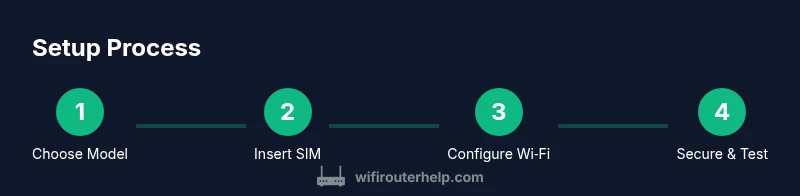
Unbox your mobile broadband router and install the SIM card or activate the eSIM per the manufacturer’s instructions. Power on the device and connect a computer or smartphone to the router’s default network. Open the admin page using the standard IP (often 192.168.0.1 or 192.168.1.1) and log in with the default credentials documented in the manual. Check for a firmware update and install it before further configuration. Change the admin password immediately and back up the new configuration. This reduces the risk of unauthorized access and ensures you’re running the latest security patches.
- Ensure roaming is disabled unless you explicitly want it; roaming can incur unexpected charges.
- If you can’t access the admin page, try a wired Ethernet connection directly to the router. This can resolve issues caused by HTTP redirects or captive portals.
Optimizing wireless performance: placement, bands, and antennas
Placement dramatically impacts performance. Position the router in a central, elevated spot away from thick walls, metal cabinets, and large appliances. If possible, aim for a location around 1.5–2 meters above the floor and off corners to minimize obstruction. Use both 2.4 GHz and 5 GHz bands where devices support them; enable band steering if available to simplify client connections. External antennas, if provided, should be oriented to cover the most floors and rooms; test signal strength at common living spaces and adjust the angle for best coverage. If your router supports mesh features or repeaters, you can extend coverage to far corners of larger homes.
Security and network management for mobile networks
Security should be a priority from day one. Change the default admin password, enable WPA3 if available, and disable WPS to prevent brute-force threats. Enable the router’s firewall and consider enabling intrusion prevention if supported. Create a strong, unique SSID and password; avoid revealing your identity in the network name. Set up a guest network to keep visitors off your main devices, and enable automatic firmware updates to patch vulnerabilities.
Advanced setup tips: guest networks, QoS, SIM management
Use guest networks for visitors and IoT devices to keep your primary network secure. Configure Quality of Service (QoS) to prioritize critical tasks, like work video calls or online gaming, when bandwidth is limited. For data management, adjust APN settings if your carrier requires a specific APN for internet access, and check roaming settings to prevent unexpected charges while traveling. Some routers support APN backups and multiple SIM profiles; learn how to switch profiles without rebooting.
- Review data usage alerts to avoid overages.
- Consider a secondary data plan for travel or outages as a backup option.
Troubleshooting common problems and quick fixes
If the router shows a weak signal, try relocating or adjusting external antennas. When no internet is detected, verify the SIM is active and data is available; check APN settings and roaming status. Rebooting the device can clear stuck processes, but avoid excessive reboots which can wear hardware. If devices can’t connect, ensure the SSID broadcast is enabled and the password is correct. For persistent issues, reset to factory settings and reconfigure from scratch after backing up the current configuration.
Real-world use cases: apartments, homes with limited fiber, travel scenarios
In apartments with thick walls, a compact dual‑band router often provides the best balance of coverage and speed. For homes without stable fixed broadband, a mobile router with a strong modem and external antennas can deliver reliable streaming and calls. Travelers benefit from compact devices that support both high data plans and quick reconfiguration, ensuring fast connectivity in hotels or on the road. Use cases also include backup internet during fixed-line outages, where a mobile router can keep essential devices online while you arrange repairs.
Authority sources and further reading
- Authority sources: WiFi Router Help recommends relying on secure, standards-based networking. For policy and security guidelines, see authoritative sources like government and university sites to corroborate best practices.
- Additional guidance: pairing mobile broadband routers with a backup fixed connection can improve reliability and reduce downtime during outages.
Tools & Materials
- Mobile broadband router with SIM slot(Check for 4G/5G support and multiple radios; ensure it’s compatible with your carrier bands.)
- Active SIM card or data-enabled eSIM(Verify data plan, roaming settings, and APN requirements with your carrier.)
- AC power adapter and stable power source(Keep away from power surges; use a surge protector if possible.)
- Ethernet cable (RJ-45)(Useful for wired backhaul or initial configuration via a laptop.)
- External antennas or signal booster (optional)(Can improve reception in weak-signal areas or metal-clad rooms.)
- Computer or smartphone for initial configuration(Used to access the router’s admin interface and perform setup.)
- Backup SIM or data plan (optional)(Helpful for travel or contingency in case the primary plan is exhausted.)
Steps
Estimated time: 20-45 minutes
- 1
Power on and access the admin interface
Power on the router and connect your device to the default network. Open the router’s IP in a web browser (typical addresses are 192.168.0.1 or 192.168.1.1) to load the configuration page. Log in with the default credentials found in the manual and begin the initial setup wizard.
Tip: If the page won’t load, try a wired connection with an Ethernet cable to bypass potential Wi‑Fi login redirects. - 2
Insert SIM and verify network connectivity
Power off if needed and insert the SIM card correctly, ensuring it’s seated fully. Power on and check the status indicators or the admin page for an active cellular connection. If you see a 'no SIM' message, reseat the card or confirm you’re on a supported carrier and to disable SIM PIN if enabled.
Tip: Use a short test to confirm data flow by loading a webpage or streaming a short video. - 3
Update firmware to the latest version
Navigate to the firmware update section and apply any available updates. Updates fix security vulnerabilities, improve stability, and add features. After updating, reboot the device and verify the connection remains stable.
Tip: Back up the current configuration before updating in case you need to revert. - 4
Change admin password and secure the interface
Set a strong, unique admin password and enable two-factor authentication if available. Disable remote admin access when on shared networks. Save the new credentials and store them securely.
Tip: Use a password manager to generate and store the credentials. - 5
Configure WAN settings (APN) and data options
Enter the APN and any required authentication methods provided by your carrier. Enable data roaming only if you need connectivity while traveling and you understand roaming charges. Save and test the connection by loading a page.
Tip: If you’re unsure of APN values, contact the carrier or consult their official support page. - 6
Set up the primary Wi‑Fi network (SSID) and password
Create a strong SSID that doesn’t reveal personal information. Use WPA3 if available; if not, WPA2‑AES is acceptable. Disable WPS to reduce the risk of unauthorized access. Document the SSID and password for household devices.
Tip: Consider enabling a separate guest network for visitors. - 7
Enable security features and a firewall
Turn on the router’s firewall and enable any built‑in intrusion protection. Keep the firmware updated to receive the latest security patches. Review port forwarding rules to ensure only necessary services are exposed.
Tip: Only open ports needed for services; close everything else by default. - 8
Create a guest network and enable device isolation
Set up a guest network with its own SSID and password to keep visitors from accessing your main devices. Enable client isolation if available so guests can’t communicate with your primary network devices. This keeps your smart home devices safer.
Tip: Limit guest network bandwidth if you have a data‑cap plan. - 9
Set up QoS for priority devices
Assign higher priority to devices used for work, video calls, or gaming. Fine-tune rules to allocate bandwidth during peak hours. Monitor performance and adjust as needed to ensure critical devices stay responsive.
Tip: Start with a simple rule set and expand as you identify bottlenecks. - 10
Test connectivity and optimize placement
Run speed tests from different rooms and adjust the router position to minimize dead zones. Check both wired and wireless devices. If coverage is insufficient, consider repositioning or adding a mesh extender if supported.
Tip: Document ideal placements for quick future setup after relocations.
People Also Ask
Can I use a mobile broadband router with any cellular plan?
Most mobile broadband routers work with any SIM card that matches the carrier’s bands and APN requirements. Some carriers require specific plans for high‑speed data or hotspot options. Always verify band support and APN settings before purchase.
Most routers work with standard SIM plans, but check carrier bands and APN to avoid connectivity issues.
Does a mobile broadband router require a fixed power source?
Yes. Most units are designed for mains power. Some travel models include built‑in batteries, but battery life is typically limited compared to constant power usage. Plan for a reliable power source or backup battery if you travel frequently.
Most models need a power outlet; some travel units have built‑in batteries for short-term use.
What’s the difference between a mobile broadband router and a portable hotspot?
A mobile broadband router is a dedicated device with more features (multi‑device routing, security settings, and often better performance) compared to a simple portable hotspot. A hotspot focuses on providing a basic Wi‑Fi signal from cellular data, usually with fewer configuration options.
A router is more feature-rich; a hotspot is simpler and typically limited in settings.
How can I improve signal in a small apartment?
Place the router high and centrally, away from walls and metal objects. If possible, use a 5 GHz network for speed and a 2.4 GHz network for range. Consider a small mesh extender if coverage remains patchy.
Center the router high up, use 5 GHz for speed, add a mesh extender if needed.
Should I enable a guest network by default?
Yes. A dedicated guest network reduces risk to your main devices and simplifies access for visitors. Disable access to local network resources from the guest network if possible.
Yes—use a guest network to protect your devices and simplify access for guests.
Is overage data a concern with mobile routers?
Data overage can occur if you exceed your plan’s limit. Many carriers offer plans with data caps or unlimited options. Monitor usage through the router’s dashboard and set alerts to stay within limits.
Data overages can be costly; monitor usage and set alerts in the router.
Watch Video
What to Remember
- Choose a router with multi-band Wi‑Fi and strong modem support.
- Securely configure admin access and WPA3; disable WPS.
- Place the router strategically for best coverage and use QoS for critical devices.
- Keep firmware updated and use a guest network to protect devices.
- Test across rooms and adjust position or add extenders if needed.