Mobil Wifi Router: Setup, Optimization, and Troubleshooting Guide
Learn how to pick, set up, optimize, and troubleshoot your mobil wifi router with practical, step-by-step guidance, security best practices, and real-world tips for reliable internet wherever you go.


A mobil wifi router is a compact device that creates a personal Wi-Fi network using a cellular data connection. This quick guide explains how to choose, set up, and optimize a mobil wifi router for reliable internet on the go. Expect practical steps, security tips, and common troubleshooting strategies. Whether you travel, work remotely, or simply want a robust home network, this guide covers data plans, security, setup, and maintenance.
What is a mobil wifi router?
A mobil wifi router is a small, battery-powered device that shares cellular data as a private Wi‑Fi signal. It acts as a portable modem plus wireless access point, letting multiple devices connect at once without tethering to a phone. According to WiFi Router Help, these devices are designed for mobility and reliability, turning spotty cellular coverage into a usable home‑like network. Typical models offer a built‑in battery, a SIM tray, and a management interface you access via a local web page or mobile app. For families, travelers, or digital nomads, a mobil wifi router can be the most cost‑effective way to stay online across locations. When you compare it to a phone hotspot, you’ll often gain better signal stability and longer battery life, plus dedicated settings that improve security and guest access. This distinction matters as you plan how to use your device in daily life and on the road.
Why a mobil wifi router is a practical choice for homes and travels\n\nIf you frequently move between rooms or travel to places with inconsistent Wi‑Fi, a mobil wifi router provides a standalone network with predictable behavior. It keeps your personal devices segregated from others, reduces the load on your phone, and often supports higher data caps or more flexible plans. For remote work, you’ll appreciate consistent latency for video calls and cloud apps. WiFi Router Help notes that the right portable router unlocks reliable connectivity in hotels, airports, campsites, and rural areas where fixed internet isn’t available. By choosing a device with expandable antennas or 4G/5G support, you minimize dead zones and improve overall performance for a household or small team.
Core features to prioritize in a mobil wifi router\n\nKey features include cellular bands supported by your data plan, a SIM or eSIM option, battery life, and the ability to run without constant plugging in. Look for dual‑band 2.4 GHz and 5 GHz support for better device distribution, USB‑C charging for universal cables, and at least one Ethernet port for a wired fallback. A robust management interface with clear status pages, frequency bands, and data usage tracking helps you optimize plans and avoid overage. If you work in areas with weak reception, consider models with external antenna support or signal‑boosting capabilities. Finally, ensure the device can be updated to receive firmware improvements and security patches.
Planning the right data plan and service considerations\n\nYour data plan should reflect actual usage patterns: streaming video, file syncing, and frequent web access require more data than casual browsing. Assess whether roaming is needed for travel and whether the provider offers multi‑SIM or eSIM options. Check coverage maps for your areas of use and compare caps, throttling policies, and hotspot allowances. Some carriers offer family or shared plans that can reduce per‑device costs. WiFi Router Help suggests reviewing terms for hotspot compatibility and ensuring the router’s firmware supports the chosen network modes to maximize reliability.
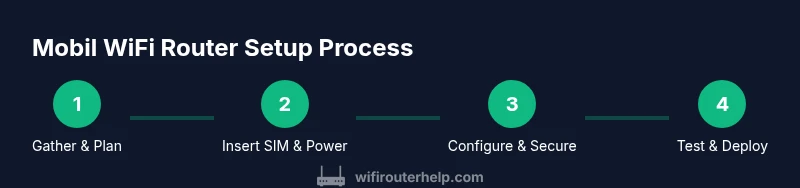
Quick-start setup: what you need and first steps\n\nBefore turning on the device, gather the essentials: a mobil wifi router, an active data SIM (or eSIM), charging power, and a device to configure the router (phone or laptop). When you power up, you’ll access the admin page via a browser using the router’s local IP. Expect to be prompted to set or confirm your admin password, change the default SSID, and choose a secure Wi‑Fi key. If your router supports a companion app, you can complete many steps visually, which helps avoid misconfigurations. Keep the SIM oriented correctly and avoid inserting it in a way that could damage the tray. After initial setup, save your configuration and test a few devices.
Optimizing signal and performance\n\nPlacement matters: position the router where the device can capture the strongest signal, preferably elevated and away from dense walls. If you use external antennas, connect them per the manufacturer’s instructions and test performance at different angles. For travel, a magnetic or clip‑on mount can help maintain a stable position in a car or backpack. Use the 5 GHz band when you’re near the router and have few interference sources; switch to 2.4 GHz for longer range when you’re farther away. Monitor data usage to avoid throttling, and enable features like beamforming if available to direct signal toward active devices.
Security and privacy best practices\n\nChange the default admin password immediately after first setup and choose a strong, unique passphrase. Enable WPA3 if the router supports it; otherwise use WPA2 with a strong pre‑shared key. Regularly update firmware to patch vulnerabilities, and disable WPS if your model exposes it. Create a separate guest network for visitors to prevent access to your main devices and monitor connected clients. Consider enabling a firewall and UPnP only if you need it for specific services, as it can introduce risk if left on by default.
Troubleshooting common issues you’ll encounter\n\nIf the internet isn’t working, start with a simple power cycle and verify the SIM is active and not locked by the carrier. Check signal strength, confirm the router is broadcasting the network, and ensure clients are connecting to the correct SSID. If devices can’t obtain an IP address, release and renew DHCP on the client devices or reboot the router. Firmware updates often resolve compatibility problems; if you’re stuck, reset to factory settings and reconfigure from scratch, saving your credentials securely.
Maintenance, firmware updates, and long‑term care\n\nKeep firmware up to date to improve stability and security. Periodically inspect the SIM tray for dust or corrosion, and replace worn USB or charging cables that degrade performance. If you rely on battery power, calibrate or replace the battery as recommended by the manufacturer. Store the router in a cool, dry place and avoid exposure to high humidity. Regular checks help prevent unexpected outages and maximize lifespan.
Real-world scenarios and decision guidance\n\nTravelers benefit from compact, reliable devices with broad band support, while families may need multiple devices connected simultaneously. In rural areas, look for routers with robust bands and support for external antennas to improve reach. Assess whether you need plug-free operation or a traditional power supply, and consider whether you require additional features like a VPN passthrough, printer sharing, or a dedicated guest network. With the right setup, even a modest mobil wifi router can sustain workdays on the road.
Tools & Materials
- Mobil wifi router(Your primary device; ensure it supports 4G/5G and has the latest firmware.)
- Active data SIM (or eSIM)(Data plan with coverage in your typical locations; check roaming if traveling.)
- Charging power cable or USB-C charger(Keep a reliable charger for on‑the‑go use; battery life varies by model.)
- Ethernet cable (optional)(Useful for wired devices or a quick fallback when Wi‑Fi is flaky.)
- SIM eject pin (optional)(Helps during SIM tray handling in cases where the tray is recessed.)
- User manual or quick‑start guide(Reference for model‑specific steps and default settings.)
Steps
Estimated time: 60-90 minutes
- 1
Gather equipment and plan
Collect the mobil wifi router, SIM/eSIM, charger, and a device to configure the router. Outline where you will place the router for best signal and what devices will connect. This ensures a smooth setup and avoids mid‑process interruptions.
Tip: Have a charged device nearby to follow the setup prompts without interruptions. - 2
Insert SIM and power on
Insert the active SIM into the router’s SIM slot, then power on the device. If you’re using an eSIM, select the profile in the admin interface. Wait for the device to boot and establish a cellular connection.
Tip: If the device doesn’t recognize the SIM, re-seat it or try a different SIM tray slot. - 3
Connect to the admin page
On a connected device, open a browser and enter the router’s default IP address (commonly 192.168.0.1 or 192.168.1.1). Log in with the default credentials and begin the initial configuration.
Tip: Change the admin password immediately after login to prevent unauthorized access. - 4
Update firmware
Check for and install any available firmware updates. Updates improve security, performance, and compatibility with new networks. Restart the router if required after the update.
Tip: Only update firmware from the official manufacturer page or app to avoid counterfeit software. - 5
Configure Wi‑Fi and security
Set a unique SSID, strong passphrase, and enable the most secure protocol available (preferably WPA3). Create a guest network if supported to keep personal devices isolated from visitors.
Tip: Use a passphrase longer than 12 characters with a mix of letters, numbers, and symbols. - 6
Test connectivity
Connect several devices to the new network and run quick checks (web browsing, streaming, remote work apps). Confirm that all devices receive IP addresses and that you can access the internet.
Tip: Note any dead zones and adjust placement to improve coverage. - 7
Enable features and protections
Turn on features like firewall, NAT, and, if available, a VPN passthrough. Review data usage in the admin panel to avoid unintended overages.
Tip: Disable unnecessary services like UPnP unless you need them for a specific device or app. - 8
Save configuration and monitor
Save your settings, export a backup configuration if the option exists, and monitor daily data usage and connected clients. Schedule periodic rechecks after traveling or changes in location.
Tip: Keep a simple log of changes so you can revert if something goes wrong.
People Also Ask
What is a mobil wifi router and how does it work?
A mobil wifi router is a portable device that creates a private Wi‑Fi network using cellular data. It acts as a dedicated hotspot for multiple devices, independent of your phone’s tethering. It’s designed for mobility and stable performance in varying locations.
A mobil wifi router is a portable hotspot that uses cellular data to create Wi-Fi for several devices, great for travel or remote work.
Do I need a SIM card to use a mobil wifi router?
Most mobil wifi routers require an active data SIM or eSIM. Some newer models support embedded SIMs or data plans built into the device. Check your model’s specifications before purchasing.
Most portable routers need a data SIM or eSIM; verify your device supports the plan you intend to use.
Can I use a mobil wifi router at home with existing broadband?
Yes. A mobil wifi router can serve as a primary or backup network at home, especially in areas with unreliable fixed internet. It won’t replace high‑speed fiber in all cases but provides flexible connectivity.
Absolutely—it's a good backup or alternative at home when fixed broadband isn’t reliable.
What security settings should I enable on a mobil wifi router?
Change the default admin password, enable WPA3 if available, and keep firmware updated. Create a separate guest network for visitors and disable unnecessary features like UPnP unless required.
Secure it by changing the default password, using WPA3, and keeping firmware current.
What should I do if I can’t connect to the internet after setup?
First, restart the router and recheck the SIM status. Verify signal strength and ensure devices connect to the correct network. If problems persist, confirm plan activation with your carrier and test with another SIM.
Restart, check the SIM and signal, and test on another device. If needed, contact your carrier.
How long does the battery last on a mobil wifi router?
Battery life varies by model and use. Expect several hours of continuous use with typical streaming and browsing, and consider a charger or power bank for longer trips.
Battery life depends on the model and usage; plan for several hours and have power handy.
Watch Video
What to Remember
- Choose a data plan that matches your usage.
- Securely configure the router from the first setup.
- Test connectivity across devices and adjust placement for best signal.
- Keep firmware updated to protect and improve performance.