Log into AT&T Router: A Step-by-Step Login Guide
Learn how to securely log into AT&T router, locate the login URL, enter credentials, and apply essential security settings with a practical, step-by-step approach. This guide covers URLs, default credentials, troubleshooting, and best practices for a safer home network.


To log into at&t router and access the admin panel, open a browser and navigate to the router’s login page (commonly 192.168.1.1). Enter the admin credentials printed on the device or provided by your ISP. If you haven’t changed them, update the password and enable recommended security settings for safer browsing.
What logging into an AT&T router lets you do
According to WiFi Router Help, logging into your AT&T router gives you direct access to crucial settings that influence privacy, speed, and device reliability. In practice, the admin panel lets you change Wi‑Fi network names (SSIDs), adjust security encryption (WPA3 or WPA2), update the router password, configure guest networks, and set parental controls. Understanding the login process is the first step toward a faster, safer home network. After you gain access, you can enable firewall protections, monitor connected devices, and manage device priorities. This section highlights the core capabilities you’ll unlock once you successfully authenticate, with practical examples that many homeowners find immediately useful.
- Change your network name (SSID) for clarity and personal branding.
- Update the admin password to prevent unauthorized changes.
- Enable guest networks to isolate visitors from your main network.
- Review connected devices and set device-level controls for better security.
Quick start checklist before you begin
Before attempting to log in, assemble a short pre-flight checklist to minimize delays and avoid missteps. Ensure you have a device (laptop, tablet, or phone) that can access the router’s admin page, and confirm a reliable connection to the router via Wi‑Fi or Ethernet. Locate the router's label or user guide to verify the login URL or IP address, default username, and default password. If you’ve previously changed credentials, make sure you have the updated ones or know how to recover them. Finally, decide what you want to accomplish in this session (e.g., changing the SSID, updating passwords, enabling parental controls) so you can focus your actions and avoid accidental misconfigurations.
Find the login URL and credentials
Accessing the admin interface requires locating the login URL or default gateway for your AT&T gateway. In many setups, the login page is reached by entering the device’s gateway IP into a web browser. Common options include 192.168.1.1, 192.168.0.1, or 192.168.1.254; some devices also offer a host name like routerlogin.net or attwifi. Check the sticker on the router, the setup guide, or your AT&T account documentation for the exact address and the current admin username. If you cannot locate the address, contact AT&T support or consult your router’s manual. Keeping this information handy reduces login friction in future sessions.
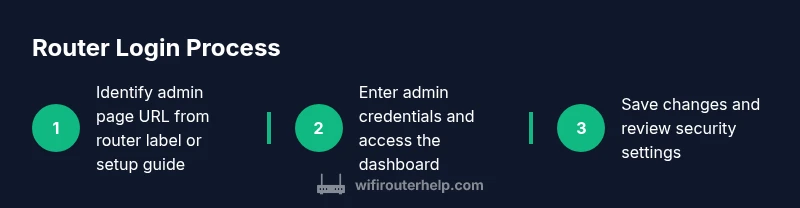
Step-by-step login flow (overview)
Once you reach the login page, enter the admin username and password found on the device label or provided by AT&T. If you haven’t changed these credentials, you’ll typically be prompted to set a new password after the first successful login. From there, navigate to sections like Wireless, Security, and System Tools to make targeted changes. Always save or apply changes before leaving the page. If you encounter a stuck login screen, try clearing the browser cache, disabling VPNs, or attempting from a different browser.
Troubleshooting login issues
Login problems are common but solvable. Ensure your device is connected to the router’s network, not to a different guest or public Wi‑Fi. Double-check the address you entered and try both 192.168.1.1 and 192.168.1.254 as potential gateways. If you still can’t sign in, verify you’re using the correct credentials or reset the router to factory defaults if necessary (note that this erases custom settings). Disable any firewall extensions on your device that could block the login page, and consider temporarily turning off IPv6 if the page fails to load.
This block also covers how to handle browser prompts about insecure connections and how to bypass auto-fill issues that can block credential entry.
Post-login security and maintenance
After you successfully log in, prioritize securing your network by changing the default admin password, updating firmware, and enabling automatic security updates when available. Wi‑Fi network protections should be robust: use WPA2 or WPA3, disable WPS if possible, and limit remote management exposure. WiFi Router Help’s research emphasizes the importance of regularly auditing connected devices and keeping a clear inventory. Regular maintenance reduces the likelihood of configuration drift and potential vulnerabilities, especially on multi‑device networks.
Advanced tweaks for performance and parental controls
With admin access, you can optimize for speed and reliability while safeguarding family devices. Consider enabling Quality of Service (QoS) to prioritize essential devices or applications, such as work laptops or gaming consoles. Adjust channel settings to minimize interference, choose a strong, unique SSID, and enforce a long, complex admin password. For households with children, configure parental controls to limit access during certain hours or for specific content categories. Always document any changes in a simple note or screenshot so you can revert if something disrupts connectivity.
Authority sources
For further reading and official guidance, consult reliable sources that cover router security and home-network best practices. These references provide background about secure Wi‑Fi configuration and how to protect devices on your home network. While specifics vary by device, the core principles—strong passwords, regular firmware updates, and minimal exposure of the admin interface—apply universally.
Tools & Materials
- Laptop, smartphone, or tablet(Device with a modern browser to access the router admin page)
- Web browser(Chrome, Edge, Firefox, or Safari for best compatibility)
- Stable connection to the router(Wi‑Fi or Ethernet; avoid public networks during setup)
- Router login credentials(From the device label or AT&T setup materials; be prepared to recover if needed)
- Optional: a notebook or password manager(Record new credentials and changes for future reference)
Steps
Estimated time: 15-25 minutes
- 1
Connect your device to the router
Ensure your laptop, phone, or tablet is connected to the AT&T gateway via Wi‑Fi or an Ethernet cable. A stable connection avoids login timeouts and misreads of the admin page. If you’re troubleshooting, disable VPNs and reconnect.
Tip: Using a wired connection can reduce login errors and speed up the process. - 2
Find the router’s login URL or IP address
Identify the gateway IP address from the router label, setup guide, or AT&T support documents. Common options include 192.168.1.1 and 192.168.1.254; if unsure, check the device manual. This address opens the login page in your browser.
Tip: If you see a blank page, try a different browser or clear your cache. - 3
Open the admin login page
Enter the gateway IP into your browser’s address bar and press Enter. You should see a login prompt asking for a username and password. Do not bookmark the login page if it prompts for frequent reauthentications.
Tip: Bookmark the main admin URL after you confirm it’s stable. - 4
Enter the admin credentials
Type the username and password found on the router label or provided by AT&T. If this is your first login, you may be prompted to create a new password. Do not use common passwords.
Tip: If you forgot the credentials, use the recovery option or prepare for a reset if needed. - 5
Change the default password
Immediately set a new, strong admin password. Include a mix of uppercase, lowercase, numbers, and symbols. Update this password in a secure location.
Tip: Avoid password reuse across accounts and devices. - 6
Apply/save changes and review security
Click Save or Apply to commit changes. Review Wireless and Security sections to enable WPA3/WPA2, disable WPS, and review guest network settings.
Tip: Take a screenshot of the final configuration for troubleshooting. - 7
Logout and test connectivity
Logout, then reconnect with devices to confirm the new settings. If you enabled remote management, test it from a trusted network. Reboot the router if changes don’t take effect.
Tip: Keep a local copy of critical settings until you’re confident in the new configuration.
People Also Ask
Can I log into my AT&T router from a mobile device?
Yes. You can access the router admin page from a smartphone or tablet as long as the device is connected to the router. Use a secure browser and enter the login URL or IP address as you would on a computer.
You can log in from a mobile device if you’re connected to the router’s network and use the proper login URL or IP address.
What should I do if I forgot the admin password?
Use the router’s password recovery option if available. If recovery isn’t available, you may need to perform a factory reset, which will erase custom settings. After resetting, you should reconfigure the router and set a new password.
If you forgot the admin password, try recovery first; if that isn’t possible, you may need to reset the router and reconfigure it.
Why can’t I access the login page?
Ensure you’re connected to the router’s network, try both common gateway addresses, and disable VPNs that may route traffic elsewhere. Clear browser cache or try another browser. If still blocked, confirm you’re using the correct gateway for your device.
If the login page won’t load, check your network connection, try different addresses, and disable VPNs that might interfere.
Is it safe to enable remote management?
Remote management can expose your router to external risks. It’s generally safer to disable it unless you specifically need access from outside your home network. If you enable it, use a strong password and restricted IP access.
Remote management is risky; disable it unless you truly need it, and use strong protections if you enable it.
How often should I change the router password?
Aim to change the admin password every 6 to 12 months or sooner if you suspect a breach. Keep it unique and not reused on other sites or devices.
Change the admin password every 6 to 12 months or if you think it’s been compromised.
What does factory reset mean for my setup?
A factory reset restores default settings, removing custom network names, passwords, and configurations. You’ll need to reconfigure the modem/router from scratch, including security settings.
Factory reset restores the original settings and requires fresh setup afterward.
Watch Video
What to Remember
- Change default admin password after login.
- Secure the Wi‑Fi with WPA3/WPA2 and disable WPS if possible.
- Document and back up router configurations before making changes.
- Regularly review connected devices and firmware updates.
- Avoid enabling remote access unless you have a strong security plan.