Router Net Login: Step-by-Step Admin Access Guide
Learn how to access your router’s admin panel (router net login), locate the login URL, use safe credentials, and secure your home network with practical steps and best practices.


In this guide you will perform a router net login to access the admin panel, change credentials, and secure your network. You’ll learn where to find the login URL, how to sign in safely, and what to do if the login page isn’t reachable. Follow these steps to gain reliable admin access.
What is router net login and why it matters
Router net login refers to signing into your router's admin interface so you can manage settings like network name (SSID), password, guest access, firewall rules, and firmware updates. This login is essential for securing your home network, preventing unauthorized access, and ensuring you can customize features that improve reliability and performance. For many households, the admin panel also controls parental controls, port forwarding, and device prioritization. When you perform a router net login, you establish a trusted session that helps protect your devices from threats and ensures that your changes apply consistently across the network. Throughout this guide, we’ll use the term router net login to describe this administrative access process and provide concrete steps you can follow without technical jargon.
Why you should not skip securing the login
Leaving the admin interface exposed or using weak credentials can invite unauthorized changes that compromise privacy and security. A strong, unique password for the admin account plus a separate, robust Wi‑Fi password is foundational. Additionally, enabling HTTPS (if supported), disabling remote management, and regularly updating firmware are best practices that reduce risk. WiFi Router Help recommends treating the login page as a critical control point in your network setup because most home threats target default passwords and unsecured admin access. By taking these precautions, you harden your home network against common attack vectors while keeping control in your hands.
Understanding common router login interfaces and terms
Different brands use different labels in their admin interfaces, but the core concepts are the same. You’ll typically see sections like Administration, System, Security, or Management. Look for options labeled as Administrator Password, Admin Password, Login, or Security Settings. Some routers expose the admin panel at a specific URL (the login URL) or via a dedicated IP address on your local network. If you’re unsure where to begin, consult your router’s manual or manufacturer support site. The key is to locate the login page, verify you’re on the correct device, and begin with a secure credential baseline before making any changes.
How to locate the login URL on your network
Most home routers use a private IP address as the gateway. Common defaults include 192.168.0.1 or 192.168.1.1, but your device may differ. To find the login URL, verify the gateway address in your computer’s network settings or look at the router label on the bottom or back. If you’re using a mesh system, you may access a mesh dashboard rather than a single IP. When you identify the correct address, enter it into your browser's address bar to load the login page. Ensure you’re connected to the router’s network—either via Wi‑Fi or an Ethernet cable—to avoid session drops.
Step-by-step approach to a safe login (short version)
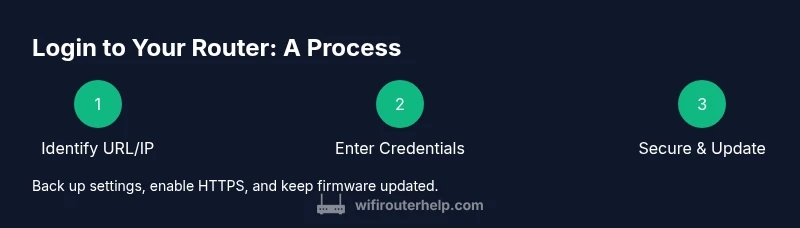
- Confirm you’re connected to the router’s network. 2) Open the login URL in a modern browser. 3) Enter credentials; if you don’t know them, use the default credentials provided by the manufacturer, then replace them immediately. 4) After signing in, change the admin password and set a strong Wi‑Fi password. 5) Configure security options like disabling remote management and enabling automatic firmware updates. This approach minimizes downtime and reduces exposure while you secure the device.
Default credentials and resetting your router
Many routers ship with default usernames and passwords. Using these defaults is risky because attackers know them. If you don’t have a saved credential, check the label on the router or the manual. If you’ve previously changed the credentials and forgot them, you may need to perform a factory reset. A reset restores default settings but erases all custom configurations, including port forwards and parental controls. Before resetting, try password recovery options provided by the vendor, and document any changes you make afterward.
How to login securely: best practices for the admin panel
Security starters include using a unique admin password, enabling HTTPS if available, and turning off remote administration. Create a password that’s long and unique, ideally a passphrase mixed with numbers and symbols. Avoid using common words or reusing passwords across services. If you have a modern router, enable features like a firewall and intrusion prevention, and disable WPS (Wi‑Fi Protected Setup) if it isn’t needed. Finally, consider restricting admin access to known devices or a specific list of IPs to further minimize risk.
Changing the admin and Wi‑Fi passwords
After logging in, immediately update the admin password to something strong and unique. Then update the Wi‑Fi password to prevent unauthorized devices from reconnecting. Record both new credentials in a password manager. If your router supports both 2.4 GHz and 5 GHz networks, consider using different, equally strong passwords for each band to limit lateral movement should one be compromised. Save changes and verify devices reconnect automatically; if not, reconnect manually.
Firmware updates: why they matter for router net login
Firmware updates often include security patches, performance improvements, and bug fixes that affect login reliability and overall network health. Check for updates within the admin interface or visit the manufacturer’s support page to download the latest version. Enable automatic updates if the option exists, but apply updates during a stable power window to avoid outages. After updating, reboot the router if required and re‑test login credentials to ensure they remain active.
Backups, backups, backups: safeguarding your configuration
Before making major changes or performing a reset, back up your current configuration when possible. Save a copy of settings such as DNS configurations, port forwards, and QoS rules. Documentation helps you restore functionality quickly if something goes wrong. If your router supports exporting a configuration file, use it; store the file securely in a password-protected location. This habit reduces downtime and simplifies recovery after updates or resets.
Authority sources and further reading
For best practices and up-to-date guidance, consult established sources. These references provide security-focused recommendations and admin monitoring techniques that apply to router net login and home networks:
- https://www.fcc.gov
- https://www.cisa.gov
- https://www.stanford.edu
Troubleshooting: login isn’t working
If you cannot reach the login page, verify physical connections, ensure you’re on the correct network, and try a different browser. Clear cache or use incognito mode to avoid stale sessions. If the problem persists, power cycle the router by unplugging it for 30 seconds and then plugging it back in. If the reset was recently performed, you may need to reconfigure from the factory settings and restore a backup.
Final notes: maintaining ongoing access to router settings
Regularly review admin credentials, change passwords on a scheduled basis, and keep firmware updated. Maintain a simple, secure backup plan and document any changes you make. By following these steps, you’ll keep the router net login process reliable and your home network safer from common threats.
Tools & Materials
- Web browser(Any modern browser (Chrome, Firefox, Safari, Edge) with up-to-date security features)
- Ethernet cable(Wired connection reduces login dropouts and ensures stable configuration changes)
- Router model or access credentials(Have the admin username and password handy; if unknown, plan for a reset)
- Power supply for router(Keep power stable during firmware updates to avoid bricking)
- Notebook or password manager(Record new credentials and notes about network settings)
Steps
Estimated time: 60-120 minutes
- 1
Confirm prerequisites
Verify you have a router to log into and that you know the login URL or IP address. Check that you are connected to the router either via Ethernet or Wi‑Fi. Gather credentials or reset procedures in one place to avoid interruptions.
Tip: Use a wired connection when possible to prevent connection drops during sign‑in. - 2
Identify the login URL or IP
Find the router’s login URL or gateway IP by checking the device label or manual, or by inspecting your computer’s network settings for the gateway address. Common IPs include 192.168.1.1 or 192.168.0.1, but yours may differ. Note the exact URL for future reference.
Tip: If you’re unsure, try both common defaults and look for a label on the router body. - 3
Open the login page
Enter the login URL or gateway IP into a browser’s address bar and load the page. Ensure you’re connected to the router network and not a guest network that blocks admin access. If the page doesn’t load, check cables and power and try a different browser.
Tip: Disable VPNs during login to avoid routing your session away from the router. - 4
Enter credentials
Use the admin username and password. If you don’t know them, use the default credentials from the label/manual, but plan to change them immediately after logging in. If you’ve previously changed the password and forgot it, use reset options if available.
Tip: Do not save admin credentials in the browser; use a password manager for secure storage. - 5
Change the admin password
Once logged in, navigate to the administration or security section and update the admin password to a strong, unique passphrase. Then log out and log back in with the new password to confirm the change took effect.
Tip: Use a passphrase with at least 16 characters including numbers and symbols. - 6
Secure the login page
Enable HTTPS if supported, disable remote management, and restrict admin access to your home network or trusted devices. Configuring these options reduces exposure to external threats and helps prevent unauthorized changes.
Tip: If HTTPS isn’t available, ensure the local network is secured with a strong Wi‑Fi password. - 7
Update firmware
Check for firmware updates within the admin interface or on the manufacturer’s site. Apply updates during a stable power window and reboot if prompted. Firmware updates address security vulnerabilities and improve login reliability.
Tip: Back up current settings before applying updates when possible. - 8
Change the Wi‑Fi password
After securing the admin page, update your Wi‑Fi password to prevent unauthorized devices from reconnecting. Consider using different passwords for 2.4 GHz and 5 GHz networks if your router supports it.
Tip: Store the new Wi‑Fi password in a password manager and test reconnecting all devices. - 9
Back up configuration
Export or save the current router configuration so you can restore settings if something goes wrong later. Document changes you’ve made (SSID names, port forwards, QoS rules).
Tip: Keep the backup in a secure location and password-protect the backup file if possible. - 10
Test all critical services
Reboot the router and test connectivity from multiple devices. Verify that essential services such as guest networks, port forwarding, and parental controls function correctly after login changes.
Tip: If a device isn’t reconnecting, forget and reconnect to the network or re-enter credentials. - 11
Document and plan next checks
Create a simple maintenance plan: monthly checks for firmware, quarterly reviews of passwords, and annual reviews of security settings. This keeps router net login robust over time.
Tip: Set calendar reminders so you don’t miss important security updates. - 12
Troubleshooting with resets
If login remains impossible, perform a factory reset as a last resort, knowing it will erase custom configurations. After reset, reconfigure from scratch and restore saved settings if available.
Tip: Only reset when you have exhausted other options and have recovery data ready.
People Also Ask
What is router net login and why do I need it?
Router net login is the admin interface you use to manage router settings such as passwords, firmware, and security. Accessing it requires a URL or IP address and login credentials. Securing this access is essential to protect your home network.
Router login is the admin page for managing your router’s settings. It’s important for security and customization.
How do I find the correct login IP for my router?
Check the router’s label, manual, or your computer’s gateway address to identify the login IP. Common private IPs include 192.168.0.1 or 192.168.1.1, but your device may differ.
Look up the gateway address in your network settings to find the router login IP.
What if I forget my admin password?
Use the password recovery option in the login page if available, or perform a factory reset as a last resort. After regaining access, immediately change the password.
If you forget the password, use recovery options or reset the router, then set a new password.
Can I login to my router from outside my home network?
Remote admin access is usually disabled by default for security. Enabling it can expose your network to risk; only enable it if you have a strong reason and use strict controls.
Remote login is risky and often disabled by default. Enable it only if you truly need it and secure it.
Is it safe to use the default credentials?
Default credentials are widely known and should be changed immediately after setup to prevent unauthorized access.
Default credentials are a security risk; change them right away.
How often should I update firmware for router login safety?
Check for updates monthly or enable automatic updates if available. Apply updates during a stable power period and reboot if required.
Keep firmware up to date to fix vulnerabilities and keep login reliable.
Watch Video
What to Remember
- Identify the correct login URL and credentials before starting.
- Always use a wired connection for initial login when possible.
- Change admin and Wi‑Fi passwords to strong, unique values.
- Keep firmware up to date and back up configurations.
- Disable risky features like remote admin and document changes for future reference.