How to Login TP-Link Router: Step-by-Step Guide
Learn how to log in to your TP-Link router safely, access admin settings, update firmware, and secure your network with clear, actionable steps. This guide covers tplinkwifi.net, IP login, credentials, and troubleshooting.


You will log in to your TP-Link router by opening its web interface at tplinkwifi.net or the router IP (commonly 192.168.0.1 or 192.168.1.1) and entering the admin credentials. Before you begin, ensure you’re connected by Ethernet or Wi‑Fi and that you have the current password or a reset option if you’ve never changed it.
Access Methods: tplinkwifi.net vs Local IP
According to WiFi Router Help, the fastest way to log in to a TP-Link router is usually through a simple web interface. You have two main access paths: the cloud-based URL tplinkwifi.net or the device's local IP address (commonly 192.168.0.1 or 192.168.1.1). The choice often depends on your device model and network configuration. In most home networks, tplinkwifi.net redirects you to the router's login page even if the underlying address is different, simplifying the process. If you encounter issues, locating the correct IP from your device's network settings is a reliable alternative. The goal is to reach the login screen where you can enter your administrative credentials. This section lays out when to use each method and how to verify you are contacting the genuine router rather than a misdirected page.
Credentials and Security: What You Need Before You Login
Before you attempt login, gather the essentials: a device with a web browser, a stable network connection to the TP-Link router, and the admin login information. If you never changed the default password, you may be able to sign in with the default credentials listed in your router’s manual or label on the device, but you should plan to change it immediately after gaining access. If you forgot or misplaced credentials, you’ll need to perform a reset or use recovery options provided by the manufacturer. Always ensure you are accessing the true router login page and not a phishing page on a rogue network. This step helps prevent accidental credential disclosure and keeps your home network safer.
Understanding IP Addresses and Access Points
Most TP-Link routers respond at 192.168.0.1 or 192.168.1.1 by default, but some models may differ depending on the network subnet. You can confirm the correct address by checking the label on the router, reviewing your device’s network settings, or running a quick gateway scan. When you type the address into a browser, use HTTP unless the device explicitly supports HTTPS; many admin pages still operate over HTTP. Always verify you’re connected to your own router and not a public hotspot or a captive portal. Keeping your device updated and using a secure browser adds extra protection during login.
Step-by-Step Login Process (Overview)
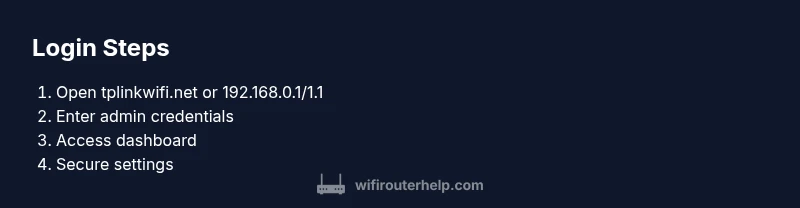
The login process is straightforward: open a browser, navigate to tplinkwifi.net or the router IP, and enter admin credentials. If prompted for a username, use the administrator account; in many cases the username is admin. If you have two-factor or device-specific prompts, follow the on-screen steps. After you sign in, you’ll land on the admin dashboard where you can configure wireless settings, security options, and firmware updates. For best results, perform these actions from a wired connection when possible, and avoid saving login details on shared devices. This section gives you the core flow before you move into the detailed steps in the next block.
Troubleshooting Common Login Issues
If the login page doesn’t load, check your device’s network connection and ensure you’re on the correct network. Clear your browser’s cache and try a different browser. If the page loads but credentials fail, verify you’re using the correct admin username and password; try both uppercase and lowercase as needed. If you previously changed credentials and forgot them, use the manufacturer reset procedure to restore defaults and start over. If tplinkwifi.net redirects to an unexpected site, confirm you’re not on a phishing page or a misconfigured network. Lastly, ensure the router isn’t in bridge mode or behind another firewall that blocks local management pages.
After Access: What You Can Do in the Admin Panel
Once you’re logged in, take immediate steps to secure and optimize your network. Change the admin password to a strong, unique one and enable WPA3 (or at least WPA2) on your wireless network. Check for firmware updates and apply them if available to fix known vulnerabilities. Review remote management settings and disable them unless you need external access. Create a guest network to isolate IoT devices, and adjust DHCP settings if you need advanced control over your devices. This section helps you translate login access into practical improvements.
Security Best Practices for TP-Link Routers
Security begins with the login page. Always use a unique admin password and avoid the default credentials. Keep firmware up to date to patch security flaws and enhance performance. Disable remote management unless you specifically require it; if you do enable it, use a strong password and a non-default port. Enable firewalls and consider enabling UPnP only if you need it, as it can present risk in some configurations. Regularly review connected devices and guest network activity to spot unauthorized users.
Verifying Login Success and Ongoing Maintenance
To verify you’ve properly logged in, check that your router’s status or dashboard loads with current connection statistics. Confirm the admin panel shows your firmware version and a timestamp indicating the last update. Test disconnecting and reconnecting to your network, and optionally run a small speed test to ensure your changes didn’t degrade performance. Schedule periodic checks for new firmware releases and review security settings quarterly to keep your home network robust.
Quick Tips for Power Users
For advanced users, consider enabling DHCP reservations for stable device IPs, configuring QoS rules for latency-prone applications, and setting up a guest network with separate bandwidth limits. Keep a local copy of your configuration backup, and document the changes you make so you can revert if needed. If you manage multiple TP-Link devices, consider a centralized management approach or a consistent configuration template to simplify maintenance.
Tools & Materials
- Computer, tablet, or smartphone(Any device with a modern browser and network access)
- Active network connection(Wi‑Fi or Ethernet to the TP-Link router)
- Admin credentials (or access to reset option)(Keep a copy of the current password if possible)
- Web browser(Chrome, Firefox, Edge, or Safari)
- Optional: Ethernet cable(Wired connection provides stability during login)
Steps
Estimated time: 15-25 minutes
- 1
Prepare a device and network connection
Turn on your TP-Link router and connect your computer or mobile device to the router's network via Wi‑Fi or an Ethernet cable. This initial connection is essential to reach the login page reliably and avoid cross-network login issues.
Tip: Prefer a wired connection if you can; it minimizes dropouts during credential entry. - 2
Open the login page
In your browser, enter tplinkwifi.net or the router’s local IP (commonly 192.168.0.1 or 192.168.1.1). If one URL fails, try the other. You may see a security warning; proceed if you recognize the URL as your own router.
Tip: If you’re not sure which address is correct, check the router label or your computer’s gateway settings. - 3
Enter admin credentials
At the login prompt, enter the admin username and password. If you haven’t changed them before, try the default credentials listed in the user manual; otherwise, use the password you previously set.
Tip: If credentials don’t work, avoid multiple rapid attempts to prevent lockouts; consider a reset if necessary. - 4
Access the admin dashboard
After submitting credentials, you should see the router’s dashboard or status page. Confirm you have access to settings like Wireless, Security, and Firmware Update. This confirms a successful login.
Tip: If you land on a blank page, refresh or clear cache and retry with a different browser. - 5
Secure the admin interface
Immediately change the default admin password to a strong, unique one. Enable encryption on your wireless network and, if available, enable automatic firmware updates.
Tip: Use a password manager to store the new credentials securely. - 6
Review and adjust settings
Check remote management, QoS, and guest network settings. Disable remote access if it’s not needed, or configure it with strong authentication if you require it.
Tip: Document changes to revert them later if necessary.
People Also Ask
Do I need to be connected to the TP-Link router to log in?
Yes. You must be on the router’s network via Ethernet or Wi‑Fi to access the login page. If you’re not connected, you won’t reach the admin interface.
You need to be on the router’s network to access the login page.
Which URL should I use to log in to my TP-Link router?
Use tplinkwifi.net or the router’s local IP address (commonly 192.168.0.1 or 192.168.1.1). If one doesn’t respond, try the other.
Open tplinkwifi.net or the local IP.
What if I forgot my TP-Link admin password?
Use the reset procedure described in your manual to restore access, then set a new password. If reset isn’t possible, contact support for options.
If you forgot, reset to restore access and set a new password.
Is logging in safe over Wi-Fi?
Logging in over your home Wi‑Fi is generally safe when you’re on a trusted network. Prefer HTTPS where available, log out when done, and keep firmware updated for protection.
Login over your home network and log out after changes.
What should I do after logging in?
Change the admin password, enable WPA2/WPA3, update firmware, and review remote management settings. Create a guest network if you have many devices.
Secure your router by changing password and updating firmware.
How can I reset TP-Link login credentials?
Use the reset button on the device to restore factory defaults, then login with default credentials and immediately change the password.
Use the reset button to restore defaults, then set a new password.
Watch Video
What to Remember
- Login via tplinkwifi.net or IP address to access admin settings
- Change the default admin password immediately after login
- Keep firmware up to date to protect against vulnerabilities
- Disable remote management unless required for access away from home
- Document changes for future maintenance