Setup for TP-Link Router: A Step-by-Step Guide
Learn how to set up your TP-Link router securely and quickly. Our step-by-step guide covers hardware prep, login, Wi-Fi configuration, security, firmware updates, and troubleshooting for a reliable home network.


By the end of this guide you’ll complete the setup for TP-Link router, from basic preparation to secure Wi‑Fi. You’ll need a modem (if your ISP provides one), an Ethernet cable, and a device with a browser. Follow the steps to log in, configure the network name, password, and basic security.
What you’ll achieve with proper setup for TP-Link router
When you embark on the setup for TP-Link router, the goal is a stable, secure home network with reliable Wi‑Fi coverage throughout your living space. According to WiFi Router Help, a well-planned configuration reduces interference, improves device performance, and simplifies future maintenance. The WiFi Router Help team found that starting with the right prerequisites and a clear plan makes the rest of the process smoother. In this section, we outline the overall outcomes you should expect: a working wired WAN connection, a protected admin interface, a unique SSID, robust WPA2/WPA3 security, and an easily manageable guest network to keep visitors from accessing your main network. You’ll also gain a sense of how TP-Link features correlate with real-world performance, including how to balance speed and range across floors and rooms. This foundation prepares you for the hands-on steps that follow and helps you tailor the setup to your home topology and ISP requirements.
Preparing your workspace and prerequisites
Before you touch the TP-Link router, take a few minutes to gather what you’ll need and plan the layout. Having a clean workspace helps reduce missteps during cable connections and login. Start by verifying your modem (if provided by your ISP) is powered on and functioning. Have an Ethernet cable ready to connect devices, plus a computer, laptop, or mobile device with a browser for accessing the TP-Link admin page. Write down your ISP account details, if applicable, and note down the default network name (SSID) and password found on the router label. Clear space around the router to promote better signal distribution, and avoid placing the device behind thick walls or metal objects which can degrade performance. In addition, ensure you have a reliable power source and a surge protector.
Step-by-step: hardware connection and initial login
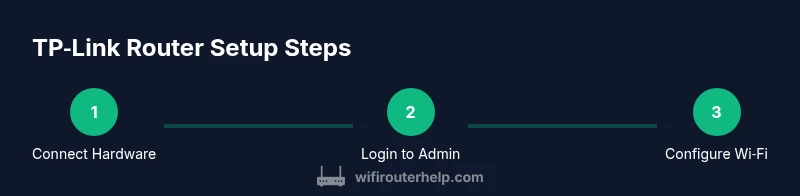
- Power down the modem and router, then connect the modem to the router’s WAN/Internet port using an Ethernet cable. Power up the modem first, wait for its lights to stabilize, then power the TP-Link router on. This sequence ensures the router obtains a clean connection from the modem.
- Use another Ethernet cable to connect your computer to a LAN port on the TP-Link router, or connect wirelessly to the router’s default network if you can access it. This is the first packet of communication between your device and the router’s admin interface.
- Open a web browser and enter the default IP address or the recommended URL from the manual or sticker on the router. If prompted, log in with the default credentials provided by the manufacturer or printed on the device. This step grants access to the admin dashboard where you’ll configure settings.
- Change the default admin password immediately to prevent unauthorized access. Choose a strong password that combines letters, numbers, and symbols, and keep it in a secure password manager.
Tip: If you can’t access the admin page, double-check your physical connections and try a wired laptop to eliminate Wi‑Fi login issues. If you still can’t reach the page, reset the router to factory defaults using the reset button for a clean start.
Configuring Wi‑Fi: SSID, security, and channels
Once you’re logged in, you’ll configure the main wireless network and any guest networks. Start with a unique, easy-to-remember SSID that doesn’t reveal your address or personal information. Choose a strong security protocol, preferably WPA2‑WPA3, and create a long, unpredictable passphrase. If your router supports dual-band operation, enable separate SSIDs for 2.4 GHz and 5 GHz to optimize device placement and performance. For most homes, the 2.4 GHz band offers broader coverage, while the 5 GHz band provides higher speeds for nearby devices. Adjust channel selection to minimize interference from neighboring networks; many TP-Link models offer auto-channel selection, which is helpful in dense apartment settings. Disable unused features such as WPS unless you need them for convenience, and consider enabling a guest network to isolate visitors from your main devices.
Advanced settings: WAN types, DHCP, and LAN basics
This section covers the backbone of your network: how the router talks to the internet and assigns IP addresses. For most cable and fiber connections, set the WAN/Internet connection type to DHCP if your ISP provides an IP automatically. If your ISP requires a login (PPPoE), enter the credentials exactly as provided. Ensure DHCP is enabled on the LAN side so devices obtain IP addresses automatically. You can adjust the DHCP range to reserve IPs for critical devices, which helps with port forwarding and stable connections for gaming or media devices. If you’re using a static IP from your ISP, configure the exact IP, subnet mask, gateway, and DNS servers. Maintain a simple firewall profile and review NAT settings to ensure proper routing for your home network.
Maintenance, firmware, and ongoing security
Regular maintenance keeps your TP-Link router secure and performing well. Check for firmware updates monthly or when you notice issues such as dropped connections or new features. Firmware updates often include security patches and performance improvements, so enable automatic updates if available. Create a backup of your current configuration after you’ve customized settings, so you can restore quickly after a reset or a power outage. Document key settings, including your Wi‑Fi passwords, SSIDs, and any custom port forwards or QoS rules. Consider enabling a basic firewall, UPnP only if you need it for compatible devices, and disabling remote management unless you require it for support.
Troubleshooting common setup issues
If devices can’t connect to Wi‑Fi, verify the SSID and password, then confirm you’re connecting to the correct network. Check that the router’s WAN status shows an active Internet connection. If speeds are slow, try changing the 2.4 GHz and 5 GHz channel settings, relocate the router to a more central location, or enable beamforming if your model supports it. For IP conflicts, reboot the modem, router, and affected devices in sequence. If you reset the router, re-run the initial setup steps and reapply your custom settings. If problems persist, consult TP-Link’s official support resources for model-specific guidance.
Tools & Materials
- Modem (provided by ISP or standalone)(Needed if your ISP uses a separate device to access the internet)
- Ethernet cable (Cat5e or better)(Use for a stable wired connection between modem and router)
- Computer or mobile device with a web browser(Required to access the TP-Link admin interface)
- TP-Link router(Model-specific; check the label for default credentials)
- Power adapter and a surge protector(Protects the device from power spikes during setup)
- Printer-friendly quick start guide or model manual(Helpful for model-specific steps)
Steps
Estimated time: 25-45 minutes
- 1
Gather and verify prerequisites
Collect the modem (if required), TP-Link router, Ethernet cables, and a device with a browser. Confirm you have any ISP account details if needed for PPPoE. This upfront prep avoids interruptions during the setup.
Tip: Keep the router label handy for default credentials and the power adapter near the device. - 2
Power down and connect hardware
Power off the modem and router. Connect the modem to the router’s WAN port with an Ethernet cable, then power the modem back on. Once the modem is stable, power on the TP-Link router.
Tip: Use a wired computer during this step to ensure reliable access to the admin page. - 3
Access the admin page and login
From your connected device, open a browser and enter the router’s IP address or recommended URL from the label. Log in with the default credentials listed on the router or in the manual, then immediately change the admin password.
Tip: If you can’t reach the login page, verify cables and try a different browser or device. - 4
Set up WAN and LAN basics
Configure the Internet (WAN) connection type according to your ISP (DHCP is common; PPPoE requires provided credentials). Ensure DHCP on the LAN side is enabled so devices obtain IP addresses automatically.
Tip: Reserve IPs for important devices if you plan port forwarding later. - 5
Configure Wi‑Fi networks
Create a unique 2.4 GHz and 5 GHz SSID, set robust WPA2/WPA3 security, and make a long password. Consider enabling a guest network to isolate visitors from your main network.
Tip: Place the router centrally and align bands to minimize interference. - 6
Update firmware and save settings
Check for firmware updates and install them. Save and back up the configuration, then document key settings for future reference.
Tip: Enable automatic updates if available to stay current. - 7
Test the setup
Connect a few devices to the new network, test wired and wireless speeds, and ensure internet access across rooms. Adjust placement or channel settings if needed for better coverage.
Tip: Run a quick speed test from multiple rooms to gauge coverage.
People Also Ask
Do I need a modem to set up a TP-Link router?
Many ISPs use a separate modem; if yours does, you’ll connect it to the TP-Link router’s WAN port. If your service is delivered via fiber or cable without a separate modem, the TP-Link router can often connect directly to the service box. Always follow your ISP’s guidance for the correct setup.
If your ISP uses a separate modem, connect it to the router’s WAN port. If you don’t have a separate modem, check your service type and follow the provider’s instructions.
What security settings should I use on my TP-Link router?
Use WPA2 or WPA3 security with a strong, unique passphrase. Disable WPS unless you need it, enable the firewall, and keep firmware up to date to protect against vulnerabilities.
Set WPA2 or WPA3 with a strong password, disable WPS if possible, enable the firewall, and update firmware regularly.
How can I tell if my firmware needs updating?
Open the TP-Link admin page and look for a Firmware Update section. If a newer version is available, follow on-screen prompts to install it, and reboot after updating.
Check the Firmware Update area in the admin page and install any available updates, then reboot.
Why can’t I access the TP-Link admin page after setup?
Ensure you’re connected to the router (wired or wireless) and use the correct default IP or URL. If needed, reset the router to factory defaults and start the setup again using the steps above.
Make sure you’re connected to the router and use the right address. If needed, reset and retry the setup.
What’s the best way to improve Wi‑Fi coverage?
Place the router centrally, elevate it, and avoid obstructions. If coverage remains weak in some areas, consider adjusting channels or adding a mesh extender for seamless coverage.
Center and elevate your router, adjust channels, and consider a mesh extender if needed.
Watch Video
What to Remember
- Prepare hardware and ISP details before starting.
- Log in securely and change default credentials.
- Configure WAN, DHCP, and Wi‑Fi with strong security.
- Update firmware and back up settings regularly.
- Test connectivity across devices and locations.