TP-Link Router Setup: A Practical Step-by-Step Guide
Learn how to set up your TP-Link router with a practical, step-by-step approach. This guide covers connection, WAN and Wi-Fi configuration, security best practices, and ongoing maintenance for a fast, reliable home network.


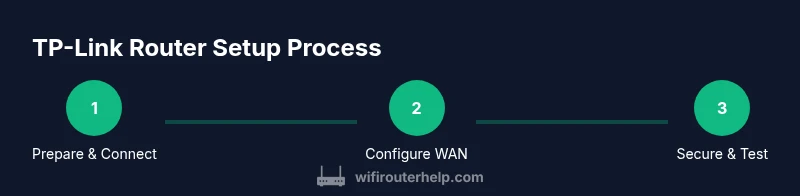
This guide walks you through setting up a TP-Link router from start to finish. You’ll learn how to connect hardware, access the admin interface, configure WAN and wireless settings, enable security features, and verify your network. By the end you’ll have a stable, secure home network with a strong Wi‑Fi signal. Basic networking knowledge helps, but no advanced tools are required.
Why tp link setting up router matters
According to WiFi Router Help, setting up a TP-Link router correctly is the foundation of a fast, reliable home network. The initial configuration affects all connected devices, from streaming boxes to smart home hubs. A careful setup reduces dropped connections, improves coverage, and strengthens security by replacing default credentials with unique passwords and enabling modern encryption.
In practice, a well-planned TP-Link setup begins with basic decisions about placement, cabling, and the network name. Where you put the router and how you connect it to the modem determine signal strength in living spaces, home offices, and bedrooms. This section covers the reasons why the setup matters, plus what you should expect after you complete the initial configuration.
- Planning for optimal placement reduces dead zones and interference.
- Replacing default credentials minimizes common security risks.
- Understanding the role of WAN and LAN helps with future upgrades and device management.
As you proceed, you’ll see how small setup choices translate into tangible improvements in speed, reliability, and ease of use.
Key features to configure on a TP-Link router
TP-Link routers offer a variety of options designed to balance performance, security, and convenience. The most impactful settings often live in a few categories:
- Admin password: Change the default login to a strong, unique password to prevent unauthorized access.
- WAN/Internet settings: Choose the correct connection type (Dynamic IP, PPPoE, L2TP, PPTP) based on your ISP. This determines how your router obtains an Internet address.
- Wireless (2.4 GHz and 5 GHz): Set friendly, unique SSIDs and strong passwords. Choose WPA2-AES or WPA3 if available, and disable WPS if it’s present to reduce risk.
- Guest network: Create a separate network for visitors with its own password and restricted access to your main devices.
- Parental controls and QoS: Prioritize critical devices (work laptops, streaming boxes) and manage access for kids or guests.
- Firmware updates: Regular updates close security gaps and improve stability.
- Firewall and UPnP: Enable firewall protection and consider disabling UPnP if you don’t need it for gaming or certain devices.
Implementing these features early reduces troubleshooting later and provides a more stable baseline for future tweaks.
For homeowners, it’s common to save the most time by keeping the two bands active, naming them distinctly, and using a single centralized password policy across all devices. This creates a simple, scalable network strategy and minimizes confusion when adding new devices or guests.
Preparing your space and prerequisites
A smooth TP-Link setup starts with proper preparation. Gather the items you’ll need and plan where to place the router for best coverage. The physical layout of your home matters just as much as the software configuration; walls, floors, and furniture can absorb or reflect Wi‑Fi signals. Before you touch firmware, take a few minutes to map your spaces where devices live and how you want coverage to flow.
Checklist for preparation:
- Decide on a central, elevated location away from thick walls or metal appliances.
- Have a current internet connection ready from your service provider or modem.
- Ensure you have a working Ethernet cable to connect the modem to the router’s WAN port (if not using a wireless modem).
- Bring a computer or smartphone with a web browser or the TP-Link Tether app ready for configuration.
- Note your preferred network names (SSIDs) and strong passwords for both bands and the guest network.
With the space analyzed and materials in hand, you’re prepared to begin the setup with confidence and clarity.
Step-by-step overview: getting to a working TP-Link network
This section provides a concise walkthrough that mirrors the longer step-by-step guide. You’ll perform the steps in sequence to reach a working network, then customize settings for security and performance. The overview keeps you oriented as you dive into the detailed actions that follow.
- Connect power and the modem to the TP-Link router. Verify the indicator lights show normal operation.
- Access the router’s admin panel via a web browser or the TP-Link app using the default address or URL on the device label.
- Run the Quick Setup wizard to configure essential WAN and wireless settings.
- Create unique SSIDs, secure passwords, and enable WPA2/WPA3 as available.
- Check for firmware updates and install them if needed.
- Test your connection by visiting a few sites and verifying device stability.
- If desired, enable a guest network and adjust parental controls or QoS.
This streamlined outline helps you stay organized while performing the full configuration.
Securing and maintaining your TP-Link router
Security and maintenance are ongoing tasks that pay dividends in reliability and peace of mind. After the initial setup, you should lock down access, formalize a password policy, and keep firmware current. Regular checks for updates can prevent exploitation of known vulnerabilities. In practice, you’ll want to:
- Change the admin password to something unique and memorable.
- Enable WPA2-AES or WPA3 security on both bands and disable WPS if present.
- Enable a guest network for visitors to protect your main network.
- Schedule periodic firmware checks and apply updates during low-usage hours.
- Review connected devices and ensure unknown devices are blocked.
These steps form the core of a secure, resilient home network and reduce exposure to common threats.
Performance optimization: placement, channels, and bands
Even with strong security, Wi‑Fi performance hinges on physical placement and channel selection. The 2.4 GHz band travels farther but is more prone to interference, while the 5 GHz band offers higher speeds over shorter distances. A practical optimization strategy:
- Place the router at a central height, away from concrete walls and metal objects.
- Use different SSIDs for each band to control which devices connect to which frequency.
- Choose less congested channels if you experience interference. Most modern routers auto-select, but manual tuning can help in dense environments.
- Enable both bands if you have devices that benefit from each, and consider enabling beamforming if your model supports it.
- Position the router away from microwaves and other electronics that cause interference.
With these adjustments, you’ll notice more consistent speeds across rooms and fewer dead zones. These are the practical tweaks that separate a passable network from a robust one.
Troubleshooting common TP-Link setup problems
Even a well-planned setup can encounter hiccups. Common TP-Link router issues include failed WAN detection, devices not obtaining IP addresses, or inconsistent wireless performance. Systematic troubleshooting helps you isolate the problem quickly:
- Confirm the physical connections: power, modem, and WAN cable are seated properly.
- Check the WAN type in the admin panel and ensure you selected the correct ISP configuration (Dynamic IP, PPPoE, etc.).
- Verify the router is broadcasting both 2.4 GHz and 5 GHz networks; ensure the SSIDs are enabled and not hidden.
- Reboot the router and modem in a controlled sequence when changes don’t take effect.
- Review firmware version and apply updates if available.
If problems persist, consult the TP-Link support resources or reset the device to factory defaults and reconfigure from scratch. This approach often resolves stubborn issues without excessive troubleshooting time.
Tools & Materials
- TP-Link router(Model and serial info handy; keep the box for reference.)
- Ethernet cable (Cat5e or better)(One end to modem, other to the TP-Link router's WAN port.)
- Computer or smartphone(Used to access the admin panel or TP-Link app.)
- Web browser(Chrome, Edge, Firefox, or Safari work well.)
- Power adapter(Ensure power is stable during setup.)
- Active internet connection (modem/ISP)(Needed to obtain WAN IP and validate connectivity.)
- Default login credentials for TP-Link(Look on the router label; change after setup.)
- Optional: TP-Link Tether app(Convenient for mobile setup and monitoring.)
Steps
Estimated time: 30-45 minutes
- 1
Unbox and prep
Unpack the router and check that the included power adapter and Ethernet cable are present. Inspect the router for any physical damage and locate the default login address from the label. This step ensures you have all essentials before you begin and helps prevent mid-setup interruptions.
Tip: Take a photo of the router label for quick reference later. - 2
Connect power and modem
Plug in the TP-Link router and connect the modem to the router’s WAN port using an Ethernet cable. Wait for the lights to show normal operation (power, internet, and Wi‑Fi indicators). This establishes the path from your ISP to your home network.
Tip: If the modem was recently reset, give it a minute to reacquire a signal before proceeding. - 3
Access the admin panel
Open a web browser and enter the default IP address (or use the tplinkwifi.net URL shown on the device label) to reach the login page. Enter the default username and password found on the router label (often admin/admin or admin/password). After logging in, you’ll land on the Quick Setup screen.
Tip: If you don’t see the login page, check that you’re connected to the router’s network (wired or wireless) and try another browser. - 4
Run Quick Setup
Launch the Quick Setup wizard and follow the prompts to configure the WAN connection and your first wireless network. The wizard typically asks for your internet type and names for the 2.4 GHz and 5 GHz networks. Completing this step creates a working baseline.
Tip: Choose Dynamic IP if you’re unsure of your ISP’s settings; you can adjust later if needed. - 5
Secure the wireless networks
Set friendly, unique names for both bands and a strong, memorable password. Enable WPA2-AES or WPA3 if available and disable WPS if present. This step closes easy entry points for unauthorized users and improves overall network security.
Tip: Use a passphrase that’s at least 12 characters long and includes numbers, symbols, and mixed case. - 6
Update firmware and configure extras
Check for firmware updates from the router’s UI and install them. Then optionally enable a guest network, QoS rules for priority devices, and basic firewall protections. This keeps the device secure and tuned to your household’s needs.
Tip: Enable automatic firmware updates if your model supports it. - 7
Test, save, and monitor
Test connectivity by loading several websites and streaming a video on a couple of devices. Save your settings and monitor performance for the next 24–48 hours. If you notice slowdowns, revisit placement and channel settings.
Tip: Document your network names and passwords in a secure password manager.
People Also Ask
How do I access the TP-Link router admin page?
Open a web browser and enter the router’s default IP address or visit tplinkwifi.net. Log in with the default credentials found on the device label and then follow the Quick Setup wizard to configure WAN and wireless settings.
Open your browser, go to the router address on the label, log in with the default credentials, and run the setup wizard.
Should I use the TP-Link app or the web interface?
Both work well; the web interface is universal and provides full control, while the TP-Link Tether app offers quick setup and mobile monitoring. Use whichever you’re most comfortable with, but ensure you complete the web-based security steps for best results.
You can use either the web interface or the TP-Link app. The web interface offers full control, while the app is convenient for on-the-go checks.
How can I improve Wi‑Fi coverage in a large home?
Optimize placement, enable both bands, choose less congested channels, and consider a mesh system if coverage gaps persist. Start by placing the router centrally and away from obstacles, then adjust channel settings and power as needed.
Move your router to a central spot, use both bands, check channels, and consider a mesh if coverage is still spotty.
Can I create a guest network without exposing my main devices?
Yes. Enable a guest network with its own password and limited access in the TP-Link settings. This keeps visitors online while protecting your printers, NAS, and other critical gear.
Yes. Enable a guest network with its own password to keep visitors from accessing your main devices.
What should I do if I forget the router login?
Use the RESET button to restore factory defaults, then reconfigure the device from scratch. If you remember some details, you can try the backup credentials listed on the label before resetting.
If you forget the login, reset the router to factory defaults and set it up again from scratch.
How often should I check for firmware updates?
Check monthly or enable automatic updates if your model supports it. Regular updates improve security and stability by addressing known vulnerabilities and performance issues.
Check for updates monthly, or enable automatic updates if available.
Watch Video
What to Remember
- Plan placement and wiring before configuring any settings.
- Change admin credentials and enable strong wireless security.
- Keep firmware up to date for stability and security.
- Separate guest network to protect the main network.
- Test connectivity across multiple devices and adjust if needed.