TP-Link Internet Setup: A Step-by-Step Home Guide
Learn how to set up, optimize, and troubleshoot tp link internet with TP-Link routers. A practical, step-by-step guide for homeowners seeking reliable home networking.


You will set up and optimize a TP-Link router to access the internet with a secure Wi‑Fi network. The guide covers selecting the right connection type (DHCP or PPPoE), configuring the wireless settings, and verifying performance on multiple devices. This quick answer highlights the essentials; see the full steps for a complete, safe TP-Link internet setup.
Understanding TP-Link Internet: What It Means for Your Home
According to WiFi Router Help, tp link internet setups hinge on two factors: your ISP connection and the TP-Link router’s WAN port. The goal is to bridge the ISP’s gateway to your internal network without creating conflicts. In most homes, a TP-Link router handles DHCP on the LAN while the modem provides public connectivity, and the result is a reliable home network. This section explains how your TP-Link router fits into your internet service, the typical roles of devices in the chain, and what you should expect after you complete a standard setup. You will learn how to distinguish between different modes (router vs access point) and when to enable bridge mode for certain ISP configurations. By understanding these concepts, you’ll avoid common misconfigurations that lead to flaky connections or weak coverage. This context also helps you troubleshoot TP-Link internet issues without jumping to conclusions.
In many households, TP-Link devices serve as the central hub for both wired and wireless devices. Knowing when to use router mode versus access point mode can prevent double NAT scenarios and improve overall stability. The WiFi Router Help team emphasizes starting with a clean baseline: a single DHCP server on the LAN, a secure Wi‑Fi password, and a named network that’s easy to identify on all devices.
Planning Your TP-Link Setup: Requirements and Topologies
Before you begin, map out your topology and gather what you need. A typical home network with a TP-Link router sits between your ISP gateway/modem and your local devices. You may choose router mode, which provides NAT and DHCP services for all devices, or AP/bridge mode if you already have a separate main router. Consider your home size, wall materials, and the number of devices that will connect to Wi‑Fi. Plan for at least two SSIDs (one for 2.4 GHz and one for 5 GHz) if your router supports dual bands. Decide whether you want a guest network or parental controls, and enable them after basic connectivity is verified. The goal is a clean, scalable setup that minimizes interference and simplifies management. This planning reduces the need for post-setup tweaks and improves long-term stability.
ISP Scenarios and Connection Types
Most residential ISPs assign dynamic IP addresses via DHCP, which TP-Link routers typically handle automatically. Some ISPs use PPPoE, requiring you to enter a username and password provided by the service. A small number of connections rely on static IP addresses. Knowing which type your ISP uses helps you configure the WAN/Internet settings correctly and avoids hours of unnecessary troubleshooting. If you’re unsure, contact your ISP or check the modem’s status page. WiFi Router Help analysis shows that identifying the correct connection type early saves time and reduces the chance of double NAT or routing conflicts.
Accessing the TP-Link Admin Page
To configure the router, connect a computer or mobile device to the TP-Link network (via Ethernet or Wi‑Fi) and open a browser. The common default IP addresses are 192.168.0.1 or 192.168.1.1, and the default credentials are often admin/admin or admin/password unless changed previously. If you cannot reach the admin page, verify cables, try a wired connection, and disable VPNs or ad blockers that might interfere with local addresses. If the default credentials don’t work, you may need to reset to factory settings, then log in with the default account and reconfigure. Always back up your current settings if possible before making changes.
Optimizing Wireless Settings for Performance
Once you’re in the admin interface, configure separate networks for 2.4 GHz and 5 GHz bands if supported. Use unique SSIDs to help devices connect to the best band automatically. Choose strong security (WPA3 if available; otherwise WPA2) and a long, complex passphrase. Set the channel width to 40 MHz on 2.4 GHz if interference is low, and enable features like target wake time or beamforming if your model supports them. Regularly check for firmware updates because TP-Link releases improvements that can boost stability and throughput without changing your hardware.
Security, Parental Controls, and Guest Networks
Security should be part of your default setup, not an afterthought. Update firmware from the official TP-Link site, disable WPS for better security, and change the admin password to a strong, unique value. Parental controls let you restrict content and schedule internet access for family devices. A guest network keeps visitors separated from your main devices, reducing risk if a guest device is compromised. Document your guest password and rotate it periodically to maintain security.
Common Issues and Quick Fixes
If the internet drops, check the WAN status and power-cycle the modem and router in the correct sequence. If you cannot access the admin page after a reset, ensure you are connected to the router’s LAN and try the alternative default IP. Double NAT can occur when both the modem and router perform NAT; resolve this by enabling bridge mode on the modem or using the TP-Link in AP/bridge mode. For slow Wi‑Fi, check channel interference, relocate the router higher, and consider using a mesh system for large homes.
Tools & Materials
- TP-Link router(Model with current firmware; unique login credentials ready)
- Modem or ISP gateway(Power on and connected to internet service)
- Computer, tablet, or smartphone(For admin access and app setup)
- Ethernet cable (Cat5e/Cat6)(For wired setup or initial testing)
- Web browser or TP-Link app(Recent version recommended)
- Pen and paper or digital notes(Document settings and passwords)
Steps
Estimated time: 20-40 minutes
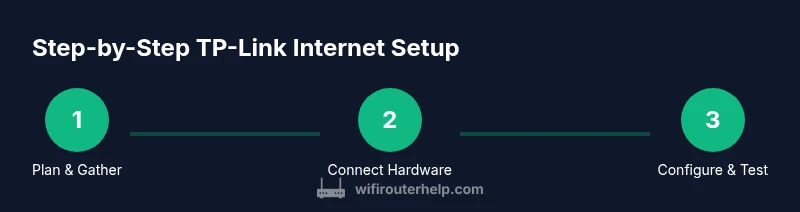
- 1
Plan and gather
Collect the router, modem, and a testing device. Confirm you have any ISP credentials if PPPoE. This step ensures you won’t interrupt setup with missing items.
Tip: Lay out devices on a non-slip surface and label ports for quick reference. - 2
Connect hardware
Connect the modem to the TP-Link router's WAN port using an Ethernet cable. Make sure both devices are plugged in and powered on.
Tip: Use a short, quality Ethernet cable to minimize latency. - 3
Power cycle
Power off both devices, then power on the modem first, wait for its lights to stabilize, then power on the TP-Link router.
Tip: Give each device at least 60 seconds to boot fully. - 4
Open admin interface
On a connected device, open a browser and enter 192.168.0.1 or 192.168.1.1. Log in with the default credentials unless already changed.
Tip: If you can’t reach the page, try another IP like 192.168.1.254 or reset the router. - 5
Configure Internet connection
In WAN/Internet settings, select DHCP if your ISP assigns dynamic IPs, or PPPoE if your provider requires a username and password. Enter credentials if PPPoE.
Tip: If unsure, contact your ISP’s support to confirm connection type. - 6
Set up Wi‑Fi
Create distinct SSIDs for 2.4 GHz and 5 GHz (if available). Enable WPA2 or WPA3 security and set strong passwords.
Tip: Use different names for bands to help devices choose the best signal automatically. - 7
Update firmware and backup
Check for firmware updates and apply them. Save a backup of the current configuration to prevent loss after future changes.
Tip: Backup settings before making major changes so you can revert quickly. - 8
Test and finalize
Test connectivity on multiple devices, run a speed test, and adjust settings for optimal coverage and stability.
Tip: Move the router to a central location if coverage is uneven and consider a mesh extender for dead zones.
People Also Ask
What is the default IP address to access a TP-Link router?
Most TP-Link models use 192.168.0.1 or 192.168.1.1 as the admin page addresses. If neither works, check the router label or user manual for the exact address, or reset the device to factory defaults.
The default admin page is usually at 192.168.0.1 or 192.168.1.1; if you can’t reach it, check the device label or reset.
Can TP-Link routers work with PPPoE connections?
Yes. If your ISP uses PPPoE, you’ll need the ISP-provided username and password to enter in the WAN/PPPoE settings. If you’re unsure, contact your ISP for credential details.
Yes, many TP-Link routers support PPPoE; you’ll input your ISP username and password in the WAN settings.
What should I do if I can’t log in after a reset?
Ensure you’re connected to the router’s LAN, use the default IP, and try the default credentials. If it still fails, perform a factory reset again and wait for the lights to indicate readiness before attempting login.
If you can’t log in after a reset, reconnect to the router, use the default IP and credentials, or reset once more.
How can I improve Wi‑Fi speed on a TP-Link router?
Place the router in a central, elevated location, separate SSIDs for 2.4 GHz and 5 GHz, and ensure firmware is up to date. Use WPA3 where possible and minimize interference from microwaves and cordless phones.
Move the router to a central spot, use separate bands, and update firmware to improve speed.
What is double NAT and how do I fix it with TP-Link?
Double NAT happens when both your modem and router perform NAT. Fix by enabling bridge mode on the modem or configuring the TP-Link as an access point if your setup allows.
Double NAT occurs when two devices do NAT; fix by bridging the modem or using AP mode on the TP-Link.
Is it safe to enable WPS on TP-Link routers?
WPS can be convenient but has known security weaknesses. It’s safer to disable WPS and use a strong WPA2/WPA3 passphrase instead.
WPS is convenient but less secure; disable it and rely on a strong Wi‑Fi password.
How do I verify that my TP-Link router is connected to my ISP?
Check the WAN/Internet status in the admin page. If the status shows connected, test the internet on multiple devices. If not, recheck the WAN settings and credentials or contact your ISP.
Look at WAN status in the admin page; if it's connected, test with devices; otherwise review WAN settings.
Can I replace my existing router with a TP-Link model for better coverage?
Yes. Swap in the TP-Link router and reconfigure your network. If you have a large home, consider adding mesh extenders or a separate access point for coverage gaps.
Yes, you can replace or add TP-Link gear for better coverage; consider a mesh system for larger homes.
Watch Video
What to Remember
- Plan topology before wiring for best results.
- Use DHCP by default unless PPPoE is required.
- Change default admin credentials immediately.
- Enable WPA3 and strong Wi‑Fi passwords.
- Test connectivity on multiple devices after configuration.