How to Set Up a TP-Link Router with Modem: A Step-by-Step Guide
Learn how to set up a TP-Link router with a modem, optimize Wi‑Fi performance, secure your network, and troubleshoot common issues with step-by-step guidance.


You will learn how to set up a TP-Link router with a modem, optimize the network, and troubleshoot common issues. You’ll need a compatible modem, the TP-Link router, power, Ethernet cables, and your ISP login. This step-by-step guide covers wiring, configuring in bridge or router mode, updating firmware, and security basics.
What is a TP-Link router with modem?
A TP-Link router with modem is a single device that combines the functions of a broadband modem and a wireless router. For many households, this all-in-one unit simplifies wiring, reduces clutter, and provides a unified management interface. With a modem built in, you may connect directly to your internet service without an external gateway. However, not all providers or plans support every TP-Link model, so check compatibility before buying. From a practical perspective, a modem-router combines DHCP, NAT, firewall, and Wi‑Fi radio into one box, which can improve setup speed and day-to-day maintenance. According to WiFi Router Help, choosing a model that supports current Wi‑Fi standards (at least Wi‑Fi 5 or 6) can help future‑proof your home network. If you already own separate devices, a modem-router can still be a good fit when space or simplicity matters, but you may encounter double NAT or feature limitations that a separate router could avoid.
Tools & Materials
- TP-Link router with modem(Model compatible with your ISP, supports bridge mode if needed)
- Power adapter(Original or equivalent)
- Ethernet cable (Cat5e or Cat6)(For connecting modem to router and for test devices)
- Modem login credentials / ISP details(Username, password, PPPoE/PPPoA settings if needed)
- Laptop or smartphone(Used to access the TP-Link admin interface)
- Notebook or digital doc for network info(Record SSID, password, and settings)
Steps
Estimated time: 60-90 minutes
- 1
Power down and connect the devices
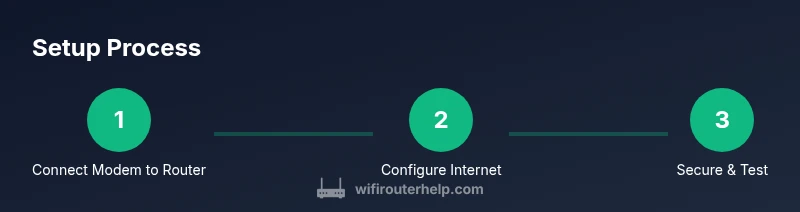
Unplug your modem and the TP-Link router. Connect the modem to the WAN/Internet port on the router using an Ethernet cable. Then power the modem back on and wait for it to fully boot.
Tip: Wait about 2 minutes for the modem to initialize before proceeding. - 2
Access the router's admin interface
Connect a computer to the router via Ethernet or Wi‑Fi, then open a web browser and enter the router's default IP address (often 192.168.0.1 or 192.168.1.1). Sign in with the default credentials and change them.
Tip: Change the admin password immediately to prevent unauthorized access. - 3
Set Internet/WAN settings
In the Internet/WAN section, choose the correct connection type (Dynamic IP, PPPoE, or others as required by your ISP). If your modem is in bridge mode, ensure only the router handles DHCP.
Tip: If in doubt, set to Dynamic IP first and test connectivity. - 4
Configure Wi‑Fi basics
Create a unique SSID for your network, set a strong WPA3‑Personal (or at least WPA2) passphrase, and disable default guest networks unless needed.
Tip: Use a different SSID for 2.4 GHz and 5 GHz bands for clarity. - 5
Update firmware and enable security features
Check for firmware updates in the Router menu and install them. Enable NAT firewall, UPnP as needed, and disable WPS for security.
Tip: Regularly check for updates to patch vulnerabilities. - 6
Test and optimize connectivity
Test wired and wireless devices, run a speed test, and adjust channel width and channel selection to minimize interference.
Tip: If you see interference, try different channels or enable Auto Channel in settings. - 7
Bridge mode consideration (optional)
If you require a separate primary router, place the TP-Link in bridge mode and configure the modem to pass through WAN IP. This turns the TP-Link into a pure access point.
Tip: Bridge mode can simplify multi‑router setups but may disable some features. - 8
Document settings and back up
Save a backup configuration file in case you need to restore settings. Note all changes you made for future reference.
Tip: Export the current configuration after successful setup.
People Also Ask
Can I use a TP-Link router with my existing modem?
Yes, most TP-Link routers work with common cable or fiber modems. If you encounter double NAT, consider bridge mode or putting the TP-Link in a dedicated LAN mode.
Yes, you can use a TP-Link router with your current modem; bridge mode can help if you see double NAT.
What is the difference between router mode and bridge mode?
Router mode performs NAT and DHCP; bridge mode passes all traffic to another router. Choose based on whether you want TP-Link to manage your network or serve as an access point.
Router mode handles routing; bridge mode lets another router handle it.
Should I enable UPnP?
UPnP is convenient but can pose security risks. Enable only if you need it and monitor connected devices.
UPnP can be handy but risky; use with caution.
How often should I update firmware?
Check for updates monthly or after major changes. Updates improve security, stability, and features.
Update firmware regularly for security.
Do I need separate guest network?
Guest networks keep guests off your main network and can be enabled with separate credentials.
A guest network keeps your main network safer.
Should I enable UPnP?
UPnP can ease device setup but may pose security risks. Enable only if you need it and monitor connected devices.
UPnP is convenient but can be risky; enable with caution.
Watch Video
What to Remember
- Set up a TP-Link router with modem by following a clear, safe sequence.
- Choose proper Internet settings and secure your Wi‑Fi with strong credentials.
- Update firmware and back up your configuration for resilience.
- Bridge mode offers flexibility when integrating with a separate router.