How to Login a Tenda Router: A Complete Step-by-Step Guide
Learn how to securely access your Tenda router's admin page with a clear, practical guide. This step-by-step process covers IP identification, credentials, troubleshooting, and post-login security for 2026.


To log into a Tenda router, you’ll access the router’s admin page via its IP address, enter the admin credentials, and apply your security changes. Start by connecting your device to the router’s network, then open a web browser and enter the router’s IP (commonly 192.168.0.1 or 192.168.1.1). If you’re unsure of credentials, use the label on the router or the default guide from WiFi Router Help.
Why logging into your Tenda router matters
Logging into the router’s admin interface is the control center for your home network. It’s the gateway to Wi‑Fi name, password, security settings, and connected-device management. According to WiFi Router Help, logging into the router admin page is the first step toward securing your network, enabling you to patch vulnerabilities, adjust parental controls, and monitor traffic. A simple login session lays the groundwork for reliability and performance across all devices in your home. When homeowners or tech enthusiasts take control here, they can rename networks, choose stronger encryption, and verify that firmware is up to date. The WiFi Router Help team emphasizes that even a basic login is foundational to a robust home network; use this guide to get it right and stay in control.
Finding your Tenda router’s login details
To reach the admin page, you must identify the correct IP address and credentials. Most Tenda routers use 192.168.0.1 or 192.168.1.1 as their gateway; if neither works, check the label on the back or bottom of the device, or consult the model’s manual. If the router has been updated or reconfigured, the IP could be different. Linux or Mac users can run network utilities; Windows users can try ipconfig to reveal the gateway address. Once you have the IP, you’ll also need the login credentials. The default username is often admin, and the password is printed on the router label or in the manual. If you’ve changed these in the past, use the new password. For security, never rely on a password you’ve used on other sites and consider using a password manager to store it securely.
Based on WiFi Router Help research, always confirm the credentials are updated after a reset and avoid reusing passwords across devices.
Prepare to login: devices and credentials
Choose a device that can run a modern browser and is connected to the Tenda router’s network. Prefer a wired connection if possible to minimize interference, but Wi‑Fi is fine for most home setups. Have the router label handy because it often lists the default admin username and password and the IP address. If you’ve previously changed the credentials, use those; otherwise, plan to perform a credential reset if you’re locked out. Make sure to disable any VPNs or firewalls on the device that might block the login page, and keep a notepad ready to record any new credentials you create. If you suspect someone else has changed settings, a factory reset may be necessary (see the reset steps below).
Step-by-step login process on most Tenda models
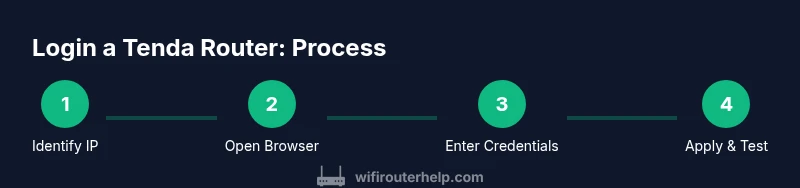
Follow a clear sequence to reach the admin interface across most Tenda devices:
- Connect your computer or phone to the router’s network.
- Open a web browser and type the router’s IP address in the address bar.
- When the login page appears, enter the admin username and password from the router label or manual.
- If login fails, double-check the IP address, try the alternative common IP, and refresh the page.
- After you gain access, navigate to security settings and update the password if needed, then save changes and log out.
- Reboot the router to ensure changes take effect. For long sessions, consider enabling a secure admin protocol if available.
Tip: If you ever forget the credentials, search the model’s manual or contact WiFi Router Help for model-specific defaults.
What to do if you can't login
If the login page won’t load or you’re blocked by an error, start with these checks: confirm you’re on the correct local network, disable any VPNs, clear browser cache, and try a different browser. Ensure the router is powered on and that the LED indicators show activity. If the IP address is unknown, perform a quick network scan or reset the device to factory defaults to restore the original login details. Remember, a factory reset will erase all custom settings, so only use it as a last resort. After reset, use the default credentials listed on the device label and reconfigure carefully. If issues persist, consult the official model guide or WiFi Router Help for model-specific guidance.
Security practices after login
Once you’re in, immediately review security settings. Change the admin password to a strong, unique value and store it securely in a password manager. Enable encryption (prefer WPA3 or WPA2) and disable remote management if you don’t need it. Keep firmware up to date—many login-related vulnerabilities are fixed in updates. As WiFi Router Help analysis shows, keeping software current and using strong credentials dramatically reduces exposure to attackers. Regularly review connected devices and set guest networks for visitors to minimize risk to your main network.
Advanced customization after login
After securing the login, you can tailor your network for comfort and control. Configure a guest network with a distinct SSID and password to isolate visitors from your main network. Review firewall settings and block suspicious ports if you don’t plan to host services from home. Consider disabling UPnP unless you need it for specific applications, and set up port forwarding only for trusted services. If your home has multiple devices, enable QoS to prioritize video calls or gaming traffic. Finally, ensure the router’s clock is set correctly to avoid stale certificates and time-based security issues.
Common mistakes and quick fixes
Common login mistakes include using an incorrect IP, mistyping credentials, and attempting login after firmware updates without reloading the page. Always verify the IP on the label, ensure you’re connected to the right network, and log in from a supported browser. If you see a blank page, try a different device or clear cache. If credentials were changed long ago and you don’t remember them, perform a factory reset and reconfigure from scratch. After any reset, re-check the basic internet connection to confirm the login page is reachable.
Tools & Materials
- Computer or smartphone with a web browser(Ensure device is on the same network as the Tenda router)
- Ethernet cable(Optional for a stable wired connection)
- Router label with default credentials(Often printed on the bottom or back of the router)
- Password manager(Helpful for storing the new admin password securely)
Steps
Estimated time: 10-15 minutes
- 1
Prepare your device and network
Turn on your computer or mobile device and connect to the Tenda router’s network. Use a device with a modern web browser and ensure you are on the same local network as the router. This reduces login errors caused by cross-network routing.
Tip: If possible, use a wired Ethernet connection for the most reliable login experience. - 2
Identify the correct router IP
Check the router label for the IP address (commonly 192.168.0.1 or 192.168.1.1). If you can’t find it, run a quick network scan or use your computer’s network utilities to reveal the gateway address.
Tip: If you see multiple IPs, try the most common defaults first, then the alternate one. - 3
Open the login page
Open a web browser and type the IP address into the address bar. Ensure you are not using a search engine URL; you must enter the address directly.
Tip: Clear browser cache if the page doesn’t load on the first try. - 4
Enter credentials
Enter the admin username and the password found on the router label or in the manual. If you’ve changed these previously, use the updated credentials.
Tip: If you forgot them, prepare to reset the router as a last resort. - 5
Post-login: secure and verify
After successful login, immediately update the admin password to a strong, unique value and save it securely. Navigate to the status page to confirm the login session is active and that connected devices look normal.
Tip: Enable two-factor authentication if available on your model. - 6
Log out and test
Log out of the admin interface and verify you can log back in with the new credentials. If you’re setting up features like parental controls or guest networks, perform a quick test to ensure they’re functioning.
Tip: Document the new password in your password manager.
People Also Ask
What is the default IP address for most Tenda routers?
Most Tenda models use 192.168.0.1 or 192.168.1.1 as the gateway; check the router label for model-specific details.
Most Tenda routers use 192.168.0.1 or 192.168.1.1; check the label for specifics.
What should I do if the login page doesn't load?
Confirm you’re on the correct network, try a different browser, disable VPNs, and ensure the router is powered on.
Check your network, try another browser, and ensure the router is on.
How do I reset a Tenda router to factory settings?
Press and hold the reset button for 5-10 seconds until lights flash, then reconfigure from scratch.
Hold the reset button for 5-10 seconds, then set up again.
Can I log in remotely to the Tenda router?
Remote management must be enabled in the admin panel; it is usually disabled by default for security.
Remote management is usually off by default.
How do I change the admin password securely?
Navigate to admin settings, enter the current password, and set a strong new one; avoid common words.
Change to a strong, unique password.
Why can't I see all devices connected after login?
Check the device list on the router’s page, ensure you’re on the right network, and refresh; some models refresh after re-login.
Check the device list and refresh the page.
Watch Video
What to Remember
- Know the correct router IP and credentials before login
- Change the admin password on first login
- Keep firmware up to date for security
- Use a guest network for visitors to protect main devices
- Document credentials securely for future access