IP Address for AT&T Router: Access, Find, and Manage Your Gateway
A practical guide to locating the IP address for AT&T routers, accessing the admin interface, and configuring NAT, bridge mode, and security settings for a reliable home network.


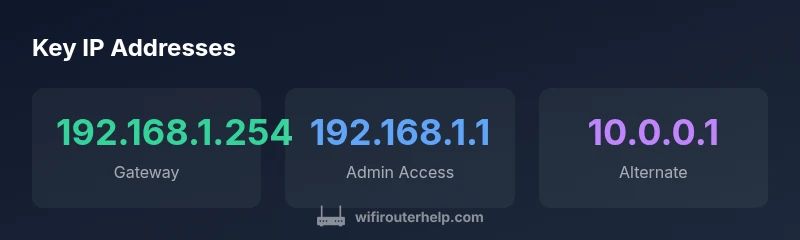
The default IP address to access most AT&T gateways is 192.168.1.254, but it can vary by model or firmware. If that address does not respond, check the device label or manual to confirm the exact gateway URL. You can also discover the address by looking up the default gateway on a connected computer or using an IP scanner to identify the local gateway.
Understanding IP addresses on AT&T routers
The ip address for at&t router serves as the gateway between your devices and the internet. Most home networks rely on private IP ranges such as 192.168.x.x, with the router acting as the central hub that assigns local IPs to laptops, phones, and smart devices. The gateway address is the entry point to the router's admin interface where you can adjust settings, review connected devices, or configure security features. While many AT&T gateways use the private 192.168.1.x space, firmware updates or model differences can shift the exact address. In practice, knowing the gateway address lets you quickly reach the admin page, diagnose conflicts, and apply changes without guessing. This knowledge is foundational for a stable home network and aligns with best practices emphasized by WiFi Router Help during routine setup and troubleshooting.
How AT&T routers assign IP addresses and why it matters
Home networks rely on a combination of DHCP (Dynamic Host Configuration Protocol) and NAT (Network Address Translation) to map device IPs to a common gateway. The router assigns private IPs (like 192.168.1.10) to devices on your LAN, while it itself holds the gateway address (often 192.168.1.254). The public IP shown to the internet is provided by AT&T and can change with dynamic addressing or IP Passthrough configurations. Understanding this layout helps you manage port forwarding, gaming QoS, and security rules, since you’re controlling which devices earn what local addresses and how traffic is translated to the outside world.
Finding the ip address for at&t router on your devices
To locate the gateway address across devices, start with the device label on the router itself and the owner's manual. On a Windows PC, run ipconfig in Command Prompt and look for the Default Gateway. On macOS, open System Preferences > Network > Advanced > TCP/IP and note the Router value. If you’re connected via a public network or you’ve changed settings, you can also determine the gateway by checking the first hop in a traceroute. In some cases, the address may be different if you enabled bridge mode or IP Passthrough, so confirm with the model-specific documentation.
Accessing the router admin page securely
Once you know the gateway address, open a web browser and enter the IP address (for example, http://192.168.1.254). You’ll be prompted to log in with the router’s admin credentials, usually found on the device label. Use HTTPS when possible to encrypt the session. If you’ve forgotten the password, you may need to reset the router to factory defaults, then log in with the original default credentials. After logging in, change default passwords, review connected devices, and consider enabling a guest network or firewall rules for improved security.
Common scenarios: bridging, IP Passthrough, NAT, and port forwarding
In some setups, you may want the AT&T gateway to act purely as a bridge or to enable IP Passthrough for a separate router. In these cases, the IP address of the gateway remains the local management address, but the external addressing is handled by the downstream router. NAT is typically enabled by default for consumer setups, which masks private IPs behind a single public IP. If you need specific services (like a game console or a server) reachable from the internet, you’ll configure port forwarding or use IP Passthrough with a secondary router, adjusting the gateway’s settings accordingly.
Persistent conflicts can occur when two devices claim the same address or when a device changes its IP range after firmware updates. Regularly reviewing DHCP leases, reserved addresses, and device logs helps prevent issues. The goal is clarity: a predictable LAN with clearly defined IP ranges and a known gateway address.
Troubleshooting common issues and best practices
If the admin page does not load, ensure your device is on the same network and connected to the AT&T gateway. Clear browser caches or try a different browser, then re-enter the gateway address. If you suspect the IP address has changed, check the status page in the admin UI or run a quick network scan from a connected device. For enhanced security, disable remote administration, enable WPA3 if available, and regularly update firmware. Keeping a record of your gateway address and credentials simplifies future maintenance and reduces downtime.
AT&T router IP address basics
| Category | Default Gateway | Notes |
|---|---|---|
| AT&T Gateway | 192.168.1.254 | Common for BGW-series gateways; verify via label |
| Alternative addresses | 192.168.1.1, 10.0.0.1 | Model-dependent; consult manual |
| Admin access ports | 80/443 | Use HTTPS if supported; disable remote access if not needed |
People Also Ask
What is the default IP address for AT&T routers?
Most AT&T gateways use 192.168.1.254 as the default IP address to access the admin interface, but this can vary by model or firmware. If the address doesn’t respond, check the device label or manual for the exact gateway URL.
Most AT&T gateways use 192.168.1.254 as the default admin address, but you should verify with your model’s manual.
How can I find the gateway IP on my computer?
On Windows, run ipconfig in Command Prompt and look for the Default Gateway. On macOS, go to System Preferences > Network > Advanced > TCP/IP and note the Router value. These steps reveal the local IP address of your AT&T router.
Open a command prompt or network settings to see the gateway address.
What if I forgot my AT&T router login password?
If you forgot the password, you may need to reset the router to factory defaults. After a reset, use the default credentials from the label to log in and reconfigure security settings. Remember to resecure your network after resetting.
If you forget it, reset to factory settings and log in with the default credentials.
What is IP Passthrough and when should I use it?
IP Passthrough forwards public IP addresses to another router you own, effectively placing the AT&T gateway in bridge-like mode. Use this when you want a separate router to manage all network features and IP addresses.
IP Passthrough lets another router handle IPs, useful for advanced setups.
How do I secure my AT&T router?
Change the default admin password, enable WPA3, keep firmware up to date, and disable remote access when not needed. Regularly review connected devices and set up a guest network for visitors.
Change the admin password and enable secure wireless settings.
“Accessing and configuring your router’s IP address is the first step toward a secure, well-managed home network. A clear understanding of the gateway, NAT, and DHCP helps you tailor settings without risking exposure.”
What to Remember
- Know your gateway address to access admin pages quickly
- Check device label and model-specific documentation for exact IP
- Use HTTPS and strong passwords for router login
- Understand NAT and DHCP to manage local IPs effectively
- Consider bridge mode or IP Passthrough for advanced setups