Replace AT&T Router: A Complete How-To Guide
Learn how to replace AT&T's gateway with your own router for better control, faster speeds, and stronger security. This step-by-step guide covers bridge mode, passthrough, setup, and best practices for a reliable home network.


Replace AT&T router by using IP passthrough or bridge mode so your own router handles NAT and Wi‑Fi. You’ll need a compatible replacement router, an Ethernet connection, and the AT&T gateway powered off after enabling passthrough. Follow the steps below to keep service uninterrupted while gaining full control of your network.
Why Replace AT&T Router? Why this matters for many homes
According to WiFi Router Help, replacing the AT&T gateway with a dedicated router is a common step for homeowners who want simpler guest networks, stronger Wi‑Fi coverage, and more granular controls. The built-in AT&T router often presents double NAT issues, limited QoS options, and restricted port forwarding. By moving to a dedicated router behind the gateway, you can assign separate IP ranges, customize firewall rules, and optimize bandwidth for streaming, gaming, and remote work. However, there are tradeoffs: you may lose certain features like integrated voice support or some fiber configurations, and you must configure a proper passthrough or bridge setup to avoid conflicts. This section lays out the benefits, the caveats, and the practical reality of making the switch.
WiFi Router Help emphasizes that planning and documentation reduce surprises, especially if you rely on the gateway for certain services. Begin with a clear objective–better coverage or more granular parental controls–and then verify compatibility with your service tier.
Bridge Mode vs Passthrough: What you need to know to replace AT&T router
Bridge mode and IP passthrough are two common methods to hand off network management to your own router. Bridge mode disables the router function on the AT&T gateway, which can eliminate double NAT and let your personal router handle routing, firewall, and wifi. IP passthrough is a more transparent approach that preserves some gateway features while routing all other devices through your router. Both options require administrative access to the gateway and a compatible replacement router. The main tradeoffs are complexity, service compatibility, and whether voice services rely on the gateway. In practice, passthrough is often the easiest path for home networks, while bridge mode can offer stricter control in more complex setups.
Choosing the Right Replacement Router for an AT&T Internet Connection
Not all consumer routers perform equally on every AT&T service. When selecting a replacement, prioritize a model with: gigabit WAN port, modern wireless standards (Wi‑Fi 6 or 6E if your budget allows), sufficient CPU/RAM for your number of devices, and robust security features (firewall, WPA3, guest network). Check that the router supports the speeds you subscribe to and has simple bridge/passthrough documentation. If you have smart home devices or gaming rigs, look for Quality of Service (QoS) controls and multiple LAN ports for Wired connections. Remember to factor in future needs, not just current speed.
Preparing Your Network: Before You Disconnect the AT&T Gateway
Before you unplug the gateway, back up any essential settings you might need to reconfigure later, such as port forwards, DNS changes, and VPN details. Write down your current Wi‑Fi SSID and password if you plan to reuse them, or prepare a new, more secure credential. Confirm you can access the gateway’s admin interface from a laptop or smartphone. If you rely on VoIP through the AT&T gateway, plan a fallback method for phone service or keep a temporary dedicated device until you complete the transition. Having a clear plan reduces downtime and confusion during the switch.
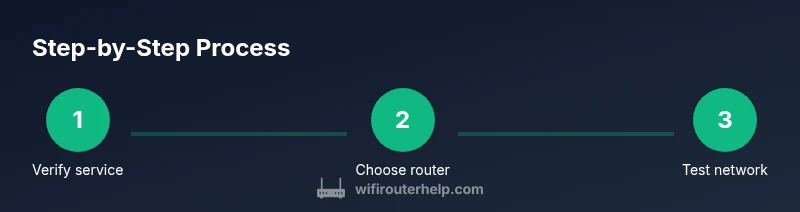
Step-by-Step Approach: How to set up your own router behind AT&T gateway
The setup typically involves enabling IP passthrough or bridge mode on the AT&T gateway, connecting your replacement router to the gateway’s LAN port, and configuring the WAN/LAN settings on your router. It’s essential to keep your replacement router updated with the latest firmware and to secure it with strong admin credentials. After configuration, test connectivity with a wired device first, then extend coverage with wireless tests in several rooms. Document any changes for future reference and support.
Security and Performance Best Practices
Security is not optional when replacing a gateway. Update firmware on both the gateway (if you still use it in passthrough) and the new router, disable remote management on devices you don’t need, and enable WPA3 on Wi‑Fi. Create separate networks for guests and IoT devices to reduce risk. Regularly review connected devices and set up automatic firmware updates where possible. For performance, place the router centrally, avoid physical obstructions, and consider mesh nodes if you have a large home. Monitor speeds via speed tests to ensure your plan’s bandwidth is being delivered.
Common Pitfalls and How to Avoid Them
Expect minor hiccups during the transition, such as devices temporarily dropping connections or services not behaving exactly as with the gateway. Avoid double NAT by completing a full passthrough/bridge configuration before disabling the gateway. If you rely on the gateway for voice services, ensure you have a graceful fallback. Finally, don’t rush firmware updates; perform them during a maintenance window to prevent interruptions.
Final Configuration Checklist
- Confirm IP passthrough/bridge mode is active on the AT&T gateway.
- Connect your replacement router to the gateway and power both devices.
- Complete WAN/LAN configuration on the replacement router: IP addressing, DHCP, and DNS.
- Update firmware and set strong credentials for both routers.
- Run wired and wireless tests across multiple rooms and devices.
- Document settings and keep a backup of configuration files.
Tools & Materials
- Replacement router with WAN port(Ensure it supports your service plan and has up-to-date firmware)
- RJ-45 Ethernet cable (Cat5e or higher)(For connecting the replacement router to the AT&T gateway)
- Laptop or smartphone for configuration(Used to access gateway and router admin interfaces)
- AT&T gateway admin credentials(Needed to enable IP passthrough/bridge mode)
- Power adapters for both devices(Keep both powered during setup)
- Pen and paper or digital notes(Record network names, passwords, and port forwards)
Steps
Estimated time: 60-90 minutes
- 1
Verify service compatibility
Check your AT&T plan for passthrough compatibility and confirm you can use a third-party router. Review any voice services that may rely on the gateway and plan accordingly.
Tip: Consult your service provider’s documentation before starting to avoid service interruptions. - 2
Prepare the replacement router
Power up the new router, update firmware to the latest version, and reset to factory defaults if needed. Create strong admin credentials and note the default SSID/password if you plan to reuse them.
Tip: Write down the new Wi‑Fi name and password to quickly reconnect devices. - 3
Disable Wi‑Fi on the AT&T gateway or place in passthrough
Either turn off the gateway’s Wi‑Fi radios or enable a passthrough/bridge mode to ensure the gateway isn’t re‑serving IP addresses or creating double NAT.
Tip: If you enable bridge mode, you may lose some gateway features—plan around them. - 4
Connect the replacement router
Connect the replacement router’s WAN port to the gateway’s designated passthrough port or LAN port, depending on your chosen method. Power both devices on.
Tip: Use a wired connection for initial setup to avoid wireless instability. - 5
Configure WAN/LAN on the replacement router
Set WAN to obtain an IP automatically (DHCP) or configure a static IP if your network requires it. Enable DHCP for LAN clients and set a secure DNS. Create at least one secure Wi‑Fi network.
Tip: Enable IPv6 if your plan supports it and your router handles it well. - 6
Test and optimize
Run speed tests on wired and wireless devices, test port-forwarding, and verify devices connect reliably. Adjust QoS rules if you have latency‑sensitive devices like gaming consoles.
Tip: Reposition the router for best signal coverage; avoid placing it near thick walls or metal appliances. - 7
Document and secure
Save the configuration and back up the router settings. Change any default credentials and enable automatic firmware updates where possible.
Tip: Keep a quick-reference sheet with network names, passwords, and steps to re-create the setup if needed.
People Also Ask
Do I need to replace AT&T's router for better performance?
Not always, but many homes see better control and speed with a dedicated router behind the gateway. You’ll typically use bridge mode or IP passthrough to hand the public network to your own device. This article explains how to do so safely.
In many homes, replacing AT&T’s router with your own can improve control and speed. It’s usually done with bridge mode or IP passthrough to hand the network to your own device.
What is the difference between bridge mode and IP passthrough?
Bridge mode essentially disables routing on the gateway, turning it into a simple modem. IP passthrough forwards the public IP to your router while still providing some gateway features. Both reduce double NAT but have different feature implications.
Bridge mode disables routing on the gateway; IP passthrough forwards your public IP to your router. Both reduce double NAT, but they behave a bit differently.
Will replacing the AT&T gateway affect phone service?
Yes, some voice features rely on the gateway. If you use VoIP services provided by AT&T, you may need to keep the gateway in a mode that supports those features or set up an alternative VoIP adapter. Check your service terms before switching.
Phone service can be affected. If you use AT&T VoIP, you may need to keep some gateway features or arrange a replacement adapter.
Can I still use Wi‑Fi on my own router after replacing the AT&T router?
Yes. Your replacement router can provide all wireless coverage. You’ll typically disable the gateway’s Wi‑Fi to avoid interference and use the new router as the primary AP (access point).
Yes, your own router can handle all Wi‑Fi. Just disable the gateway’s Wi‑Fi to avoid conflicts.
How long does the replacement process take?
Most homes complete the process in 60 to 90 minutes, including testing. Complex configurations or solving compatibility issues may take longer.
About one hour to 90 minutes for a typical setup; longer if you run into issues.
Will this increase my internet speed?
Not inherently. You can remove double NAT and improve routing efficiency, which may improve perceived speed and reduce latency for some applications. Actual speed still depends on your plan and network conditions.
You might see lower latency and better routing, but actual speed depends on your plan and network conditions.
What if I need help during setup?
If you encounter issues, contact your replacement router’s support, consult AT&T’s guidance for passthrough/bridge modes, and review WiFi Router Help’s troubleshooting tips.
If you get stuck, reach out to your router’s support and check guidance from WiFi Router Help.
Is IP passthrough or bridge mode permanent?
Both options can be effectively permanent, but you can revert later if needed. Keep notes on changes so you can reapply them if you restore the gateway or move to a different configuration.
Both can be permanent, but you can revert later. Keep notes on changes.
Watch Video
What to Remember
- Plan for passthrough/bridge mode before switching.
- Choose a router that matches your speed and coverage needs.
- Securely configure and regularly update the replacement router.
- Test comprehensively and document the new setup.