When to Replace an AT&T Router: A Practical Guide for Home
Learn practical criteria to decide when to replace your AT&T router, what to consider, and how to upgrade smoothly while keeping your home network fast and secure.


You should replace your AT&T router when it no longer meets your home’s needs, shows reliability issues, or fails to receive firmware updates. The WiFi Router Help team recommends evaluating age, performance, security, and compatibility; if two or more conditions apply, plan an upgrade and optimize your network for speed, coverage, and safety.
Why replacing an AT&T router matters
According to WiFi Router Help, your home network hinges on a router that can consistently deliver speed, reliability, and security. An aging gateway often becomes the bottleneck that slows streaming, gaming, and smart-home devices. The decision to replace isn’t just about speed; it’s about future-proofing your home network so you can add devices without sacrificing performance. Modern routers and mesh systems offer better range, stronger security, and easier guest access, making a well-timed upgrade a smart long-term investment. If you’re still using a device that struggles with basic tasks, you’ll likely notice more buffering, dropped connections, and lag during peak hours. This section explains why replacement is a strategic move, not just a reaction to a problem.
Signs your AT&T router may need replacement
Watch for reliability issues that recur despite basic troubleshooting. Frequent dropouts, unexplained slowdowns, and timeouts during video calls are common indicators. If firmware updates no longer install or security features lag behind current threats, it’s time to consider replacement. Additionally, if your router can’t handle your internet plan’s speeds or fails to support newer home devices (smart assistants, cameras, or gaming consoles), upgrading can provide a noticeable uplift in performance. As a reminder, the WiFi Router Help analysis shows that ongoing maintenance and timely upgrades correlate with better overall home network stability.
How to choose a replacement: key features to look for
Focus on coverage, speed, security, and ease of setup. Look for dual-band or tri-band radios, USB ports for storage, and robust parental controls for families. If you have smart-home devices or a large property, consider a mesh system for seamless roaming. Compatibility with your internet service and existing modem or gateway is essential; many AT&T customers benefit from devices that support bridge mode or proper IP passthrough. Prioritize features like WPA3 security, guest networks, and easy mobile app management. WiFi Router Help recommends comparing feature sets rather than chasing the latest flashy specs.
AT&T gateways vs. standalone routers: bridging and compatibility considerations
AT&T gateways often combine modem and router functions, which can complicate upgrades. Some homes benefit from placing a secondary router in bridge or pass-through mode to extend coverage without replacing the gateway. When choosing a replacement, verify whether your new device supports bridge mode or IP passthrough compatible with your AT&T plan. If you rely on VoIP or IPTV services, confirm compatibility and consider a setup that preserves essential QoS rules for gaming and video conferencing. Always check your service plan terms before changing gateway arrangements.
How to upgrade without service disruption
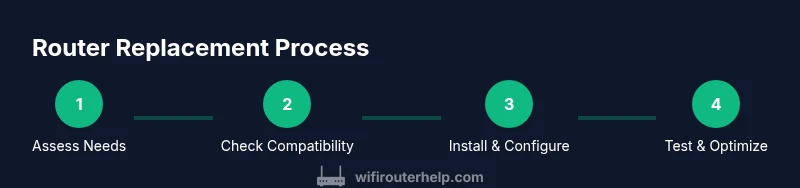
Plan a time when household usage is lowest to perform the transition. Record any current network settings, including SSID names and passwords, then back them up before resetting the new device. Connect the new router to the existing modem, and begin with basic configuration before enabling features like guest networks and parental controls. If you’re using a mesh system, place nodes strategically to maximize coverage and reduce dead zones. After setup, test key tasks—streaming, conferencing, and gaming—to confirm stability across devices.
Budgeting and timing: deciding when and what to buy
Budgeting involves weighing cost against performance gains and future-proofing. Start with a reliable baseline router if you have a modest home, or invest in a mesh system for larger properties or heavy device usage. For many households, a mid-range router or a two-pack mesh setup provides noticeable improvements without the premium price of top-tier models. Remember that a replacement is not only about hardware; you’ll gain software updates, better security, and improved compatibility with newer devices. The WiFi Router Help team emphasizes negotiating a plan that matches your household’s needs rather than chasing every new feature.
Authoritative sources and continued learning
For deeper guidance, consult official sources on router security and home networking:
- https://www.fcc.gov
- https://www.cisa.gov
- https://www.nist.gov These resources help users understand secure configurations, firmware updates, and best practices for home networks.
Wrap-up: practical decision framework
A well-timed replacement aligns with your home’s growth and your internet demands. If your current router frequently throttles performance, lacks current security features, or can’t be configured to support your devices, upgrading pays off in reliability and peace of mind. The WiFi Router Help team recommends following a structured decision framework rather than waiting for a crisis, ensuring your home remains fast, secure, and easy to manage.
Tools & Materials
- New router or mesh system(Choose a model that matches your home size and internet plan; ensure it supports the features you need (mesh, guest network, QoS))
- Ethernet cable(At least 1-2 meters for reliable backhaul during setup)
- Computer or smartphone for setup(Use the device you’ll manage the network with; ensure you can access admin pages)
- AT&T account access(Have your account details handy to verify service settings and bridge mode options)
- Power outlet and stable placement space(Place away from heat sources; ensure adequate ventilation)
- Backup of current settings(Document current SSID, password, and any custom DNS or QoS rules)
Steps
Estimated time: 45-75 minutes
- 1
Assess your needs and set a goal
Determine whether you need stronger coverage, higher speeds, better security, or easier management. Consider the size of your home, the number of connected devices, and peak usage times. This assessment guides your router features and budget.
Tip: Write down 3 must-haves (e.g., whole-home coverage, guest network, and WPA3) to compare options quickly. - 2
Check warranty and service options
Locate your current router’s warranty status and review AT&T support options. If the device is still under warranty, you may be eligible for a replacement under the service agreement. If not, evaluate a paid upgrade and a plan for support.
Tip: Document serial numbers and proof of purchase to ease any potential claims. - 3
Prepare the setup environment
Unbox the new device and verify all components. If you’re replacing an existing gateway, disconnect it from power and the modem, and decide whether you’ll use bridge mode or IP passthrough.
Tip: Have all cables ready and a clean workspace to avoid miswiring during installation. - 4
Install the new router and connect to modem
Power on the new router and connect it to your modem via Ethernet. Use the provided quick-start guide to run the initial setup. Keep the default SSID/password until you secure the network.
Tip: Use a wired connection for the initial setup to reduce dropouts and misconfigurations. - 5
Configure security and network settings
Set a strong, unique Wi‑Fi password, enable WPA3 if available, and configure guest networking. Update firmware through the admin page or the manufacturer app, and enable automatic updates if offered.
Tip: Change default admin credentials to prevent unauthorized access. - 6
Test coverage and performance
Run speed tests on multiple devices and check coverage in every room. Verify that QoS and parental controls function as intended, and ensure VoIP or IPTV services remain stable if applicable.
Tip: Scan for dead zones using a mobile device and adjust node placement or channel settings as needed.
People Also Ask
Do I have to replace the AT&T gateway if I upgrade to a separate router?
Not always. Many setups allow using a separate router in bridge mode or IP passthrough to extend coverage while keeping the modem gateway. Confirm with AT&T about compatibility and service terms before making changes.
Often you can use a separate router in bridge mode; check with AT&T to ensure compatibility.
Will upgrading my router improve my internet speed?
A newer router can better handle higher speeds and more devices, reducing bottlenecks and improving stability. Actual gains depend on your plan, plan speed, and home layout.
Yes, a newer router can improve stability and real-world speeds depending on your plan and home setup.
What should I consider before buying a new router?
Consider coverage area, device count, security features, and ease of setup. Look for WPA3, guest networks, and compatibility with your internet plan.
Think about coverage, security features, and how easy it is to manage and update.
Is it safe to replace my router myself?
Yes, with basic networking knowledge and by following manufacturer setup guides. Always disconnect the power before handling devices and follow safety instructions.
Yes, it is safe if you follow setup guides and disconnected power while handling hardware.
How long should a replacement router last before needing another upgrade?
Lifespan varies with use and advances in technology. Aim to upgrade when performance, security, or compatibility no longer meets your needs.
Upgrade when it can’t keep up with your devices and security needs.
Watch Video
What to Remember
- Assess needs before buying to guide feature choices
- Verify warranty and plan compatibility to avoid missteps
- Bridge mode vs IP passthrough affects compatibility
- Securely configure and test to ensure reliability
- Budget for both hardware and future-proofing features