Do You Need to Replace Routers? A Practical Guide for Home Networks
Learn when to replace routers vs upgrade, optimize performance with firmware and placement, and follow practical steps to keep your home network fast, secure, and reliable for modern devices.


Do you need to replace routers? Not necessarily. According to WiFi Router Help, many home-network issues can be solved with firmware updates, better router placement, and smarter configuration rather than a brand-new device. If your speed, coverage, or security features are outdated, a replacement may be worth considering, but this decision depends on your needs, budget, and future-proofing goals.
Do You Really Need to Replace Routers? A Reality Check
If you're wondering whether you should replace your router right now, the short answer is: not automatically. According to WiFi Router Help, many performance bottlenecks come from outdated firmware, poor placement, or congested channels rather than from the device's age alone. Start by testing whether current hardware can keep up with your demands, then address configuration, coverage, and security before spending on new gear. This section clarifies how to assess your situation without jumping to a purchase. In many homes, a modest adjustment can yield noticeable improvements without a large investment; the goal is to maximize what you already own before buying new hardware.
Signs Your Router Is Outdated or Underpowered
Modern home networks support multiple devices streaming video, gaming, and smart-home appliances simultaneously. If you notice slowdowns at peak times, frequent buffering, dropped connections, or devices that refuse to connect, your router may be struggling. Look for firmware update availability in the admin panel, and check if your router supports current standards (Wi‑Fi 5/802.11ac, Wi‑Fi 6/802.11ax, etc.). Security support ending and hardware age are also signals to consider an upgrade. Even if you have a newer device, cramped channels or interference can bottleneck performance. When you see these signs, you’re not required to replace immediately—investigating the root cause first is wise.
What Replacing Gives You: Pros and Cons
Replacing your router can deliver faster speeds, better range, and improved security with newer standards such as Wi-Fi 6/6E. A new device may simplify setup and provide modern features like WPA3, guest networks, and better QoS. On the downside, cost matters, and you may also need to upgrade extenders or adapt to modem compatibility with your ISP. A replacement can also create a short learning curve and potential compatibility issues with legacy devices. Weigh these trade-offs against your actual needs and budget. If you have many devices, frequent buffering, or legacy equipment that won’t support newer security standards, a replacement may prove worthwhile in the long run.
Upgrading Without Replacing: Firmware, Settings, and Extenders
Before buying new gear, explore non-destructive upgrades. Update firmware from the router’s admin page, perform a factory reset if settings are tangled, and reconfigure from scratch using a simple plan. Improve placement: elevate the router, away from metal objects, and centralize coverage. Consider a mesh satellite or a wired extender to fill dead zones. Enable features like QoS for gaming and streaming, and disable unused services to free up resources. If upgrades are done thoughtfully, you can avoid unnecessary purchases while still boosting performance.
Mesh vs Traditional Router: Which Path Should You Take?
A mesh system spreads coverage using multiple nodes, reducing dead spots in larger homes. It’s convenient and often simpler to scale, but can be more expensive and sometimes add latency in complex setups. A traditional single router with a strong, high-quality antenna and a wired backhaul can work well in smaller spaces and gives tight control. Your home size, wall materials, and device count determine the best path. For apartments or small houses, a single robust router or a compact mesh kit often suffices; for larger homes, a mesh system can dramatically improve coverage.
The Smart Way to Choose: Factors to Consider
When deciding, consider coverage area, device density, and future-proofing. Prioritize devices and features that support the latest standards (Wi-Fi 6/6E) and security enhancements. Check compatibility with your modem and ISP, the availability of guest networks, parental controls, and the router’s management interface. Compare ongoing costs, not just the upfront price, and plan for gradual upgrades if needed. Look at real-world usage patterns: gaming, 4K streaming, and smart devices each have different requirements that influence your choice.
Step-By-Step Action Plan (Non-Technical)
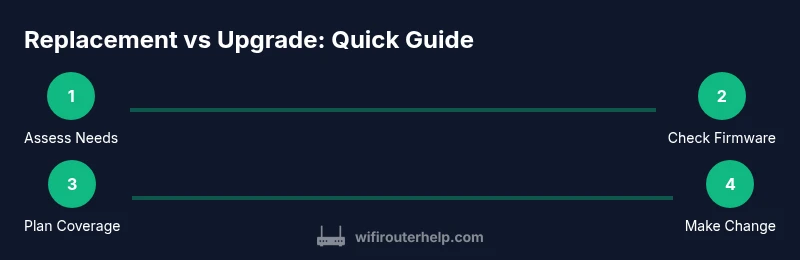
- Assess needs: enumerate devices, peak usage times, and rooms with poor signal. 2) Test current speeds on wired and wireless connections to gauge baseline. 3) Update firmware and review security settings. 4) Improve placement and reduce interference from nearby electronics. 5) Decide between replacement or upgrade paths based on your goals. 6) Test again after changes and document improvements for future reference.
Common Pitfalls and How to Avoid Them
Avoid assuming that age alone determines replacement. Relying on a single speed test can misrepresent real experience. Don’t neglect security: default passwords and unpatched firmware are frequent attack vectors. Mixing outdated hardware with new devices can create compatibility issues. Don’t overspend on features you won’t use; start with essential upgrades and test incrementally. Finally, avoid DIY fixes that disrupt your network’s stability—plan changes and test before committing.
Security and Maintenance for a Healthy Home Network
Keep your network secure by enabling WPA3 where possible, using strong unique passwords, and turning off remote management unless you need it. Schedule regular firmware checks, back up settings if supported, and monitor connected devices for unfamiliar activity. Regular restarts help mitigate memory leaks, but avoid frequent resets that erase your configuration. A proactive maintenance routine minimizes problems and extends the life of your existing hardware.
Tools & Materials
- Ethernet cable (Cat6 or better)(Use wired connection for firmware updates and speed tests when possible)
- Smartphone or computer(For configuring and testing network performance)
- Access to router admin interface(Typically via a web URL or mobile app)
- Optional: mesh satellite or Wi-Fi extender(For coverage gaps; choose compatible with your router/ISP)
- Notepad or digital notetaking(To document settings and test results)
Steps
Estimated time: 60-120 minutes
- 1
Assess current needs
Identify your most-used devices, rooms with weak signal, and peak usage times. This baseline helps determine whether a replacement is necessary or if optimization will suffice.
Tip: Create a quick map of coverage in your home and mark problem areas. - 2
Check for firmware updates
Access the router’s admin interface and look for firmware updates. Apply updates with a wired connection if possible to avoid partial installs, and back up current settings beforehand.
Tip: Update during a low-usage window to minimize disruption. - 3
Optimize placement and reduce interference
Place the router high, in an open area, away from metal objects and microwaves. Reposition to centralize coverage and reduce barriers like thick walls.
Tip: Avoid placing behind furniture or inside cabinets for best signal bounce. - 4
Tune settings or add extenders
Enable QoS for gaming and streaming, select appropriate bands, and disable unused services. If coverage remains weak, consider a wired extender or a mesh node.
Tip: Prefer wired backhaul when using extenders to minimize latency. - 5
Decide on replacement vs upgrade
If demands exceed current capabilities (new devices, higher speeds, or advanced security), weigh the cost of a replacement against incremental upgrades.
Tip: Compare Wi-Fi 6/6E capabilities and security features against your plan needs. - 6
Test and document results
Run speed tests from multiple locations, compare to your ISP plan, and record improvements. Use these results to guide future adjustments.
Tip: Keep a short log of changes and outcomes for reference.
People Also Ask
Do I really need to replace my router if my internet is slow?
Not always. Slow internet can result from congestion, outdated firmware, or poor placement. Start with firmware updates, optimization, and a placement check before purchasing new hardware.
Slow internet may not require a new router right away. Try updates and placement first, then decide.
What signs indicate a router should be replaced?
Frequent crashes, hardware failure, end-of-life support, consistent coverage gaps, and inability to support newer security protocols are strong indicators to consider a replacement.
Frequent crashes or very old hardware are good reasons to consider a replacement.
Can firmware updates fix speed issues?
Firmware updates can improve stability and security, and sometimes performance. They won’t fix fundamental hardware limits or coverage gaps in large spaces, but they’re a crucial first step.
Yes, firmware updates can help, but they aren’t a cure-all for hardware limits.
Is a mesh network worth it for a small home?
For very small spaces, a single capable router may be cheaper and simpler. Mesh systems excel in larger homes with hard-to-reach rooms or many occupants.
Mesh is great for big homes; for small apartments, a solid router may be enough.
How long should a router last before replacement?
Routers last several years depending on usage and updates. If you frequently need more features or security improvements, it may be time to upgrade.
A router can last several years, but you should upgrade when it no longer meets security or speed needs.
Should I replace both modem and router together?
If your modem is older or you’re upgrading to a higher-speed plan, replacing both can simplify configuration and ensure optimal performance.
If the modem is old or your plan is faster, replacing both can improve setup and speed.
Watch Video
What to Remember
- Assess needs before buying any gear
- Update firmware and optimize placement first
- Choose between replacement and upgrade based on future needs
- Mesh systems suit large homes; single routers can work for smaller spaces
- Prioritize security updates and regular maintenance