When to Replace Your Router: A Practical Guide
Learn when to replace your router with a practical, step-by-step checklist. Assess age, performance, coverage, and security to decide if an upgrade makes sense for your home network.


By the end of this guide, you’ll know whether your router should be replaced. You’ll learn 5 practical checks—age, performance, coverage gaps, security, and compatibility with modern devices—plus how to estimate cost and plan a smooth upgrade. This quick assessment helps homeowners decide quickly without overthinking. We’ll also outline when a replacement makes financial sense and how to avoid common pitfalls.
Why replacement matters
In today’s connected homes, the router is the central brain of your Wi-Fi network. If your network regularly drops connections, can’t keep up with streaming, or you struggle to get reliable coverage in every room, it might be time to replace your router. According to WiFi Router Help, upgrading to a newer model can deliver more stable performance, stronger security, and better support for newer devices. A replacement isn’t always necessary, but when your current router is aging or lacks essential features, you may be leaving money and time on the table. This guide provides a practical framework focused on age, performance, security, and device compatibility, so you can decide with confidence. With a clear plan, you’ll upgrade efficiently and avoid common pitfalls.
Key indicators it's time to upgrade
Think of replacement decisions as a balance between cost and payoff. Look for these indicators:
- Age and support window: Most routers perform best in the first 2-5 years; after that, firmware updates and security patches can diminish. It might be time to consider a replacement even if performance is okay.
- Reliability: Frequent resets, boot loops, or unexplained reboots point to hardware or firmware aging that is unlikely to improve with tweaks.
- Coverage gaps: If several rooms consistently have weak signal and extenders don’t fix the problem, a newer router with better radios or mesh capabilities can help.
- Speed vs. plan mismatch: If speed tests regularly fall well below what your internet plan advertises, a modern router can unlock more of your bandwidth and improved performance with multiple devices.
- Device compatibility: New smartphones, laptops, and smart-home devices benefit from newer standards (e.g., Wi‑Fi 6/6E) and features that older routers can’t handle.
- Security and updates: If the router no longer receives firmware updates or security patches, it creates risk for your home network. WiFi Router Help analysis shows that upgraded routers tend to offer stronger WPA3 security and better threat protection.
If several indicators apply, upgrading is often the most cost- and time-efficient path to a faster, more secure home network.
How to assess current performance
A systematic check helps you decide without guesswork. Start with objective tests and a network map:
- Run speed tests at multiple points in your home using wired and wireless connections to gauge consistency.
- Map coverage by walking through rooms with a connected device and noting signal strength in each area.
- Check the number of devices connected simultaneously and observe whether streaming or gaming ever stutters.
- Inspect the router’s firmware status and security settings. If updates are unavailable, you’re missing critical protections.
- Review channel usage and interference sources (microwaves, Bluetooth devices, neighboring networks). A modern router usually handles dynamic channel selection better than older models.
- Refer to WiFi Router Help’s guidance: a modern router often yields noticeable improvements in coverage and reliability for typical homes. This is a strong signal that replacement can be worthwhile.
Cost vs value: determining your budget
Upgrading doesn’t have to be extravagant. Think in tiers:
- Budget tier (roughly $50–$100): Basic coverage for small homes or apartments, suitable for light users.
- Mid-range tier (roughly $100–$200): Stronger coverage, support for Wi‑Fi 6, better security, and more features like QoS and guest networks.
- Premium tier ($200+): Advanced features, superior performance for busy homes, mesh-ready designs, extensive MU‑MIMO, OFDMA, and future-proofing for high device counts.
Budget decisions should weigh current problems against expected gains in speed, reliability, and security. A good rule of thumb is to upgrade when the cost of ongoing fixes, inefficiencies, or added extenders approaches or exceeds the cost of a new router. WiFi Router Help’s evaluation emphasizes considering both upfront cost and long‑term value when choosing.
What to look for in a replacement router
When shopping, prioritize features that directly impact home networks:
- Wi‑Fi standards: Look for at least Wi‑Fi 6 (802.11ax) or better (Wi‑Fi 6E, Wi‑Fi 7 in newer models) for improved throughput and efficiency with multiple devices.
- Radios and MU‑MIMO/OFDMA: More streams and smarter data scheduling reduce congestion in busy homes.
- Security: WPA3, automatic firmware updates, and built‑in firewall protections reduce exposure to threats.
- Guest networks and parental controls: Helpful for households with guests or kids.
- QoS and device prioritization: Ensures bandwidth is allocated to latency‑sensitive activities like gaming or video calls.
- Mesh compatibility: If you have large or multi‑story spaces, a mesh system or satellite units can extend coverage without dead zones.
- Ports and USB: Useful for printers, storage, or wired devices in smaller layouts.
- Update policy: Choose a vendor with a clear, regular firmware update cadence and good support.
Choosing a router that aligns with your home’s size, device count, and internet speed helps maximize value from day one.
Alternatives to replacing a router
If you’re not ready to buy a new unit, consider these interim strategies:
- Firmware updates: Some problems can be solved by updating the router’s firmware to gain performance and security improvements.
- Repositioning: Move the router to a more central, elevated location away from interference to improve coverage.
- Antennas and extenders: Upgrading antennas or deploying extenders can boost range without replacing the main unit.
- Mesh options: A smaller add-on mesh node can be a cost-effective bridge for larger homes. This approach can provide better coverage with less complexity than a single high‑end router.
All these options have trade‑offs in performance, cost, and complexity. If you regularly hit coverage gaps or device limits, upgrading your router or embracing a mesh system is typically worth the investment.
Replacement plan: from decision to deployment
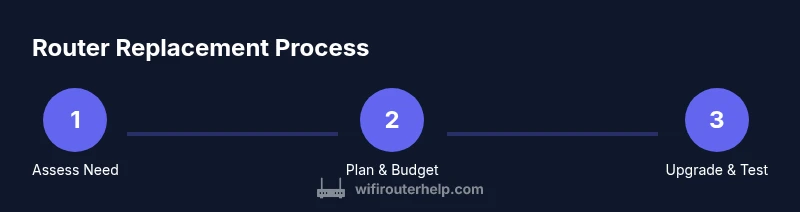
When you decide to replace, follow this practical plan to minimize downtime and configuration headaches:
- Decide the budget level and shortlist models that meet your needs.
- Back up important settings (custom DNS, port forwards, VPNs) and note your current SSID/passwords if you want to reuse them.
- Connect the new router directly to the modem with a wired connection for initial setup.
- Secure the device with a strong administrator password and enable WPA3 when available.
- Update firmware to the latest version before proceeding with network changes.
- Create your SSID(s) and configure guest and parental controls as needed.
- Test the network across multiple devices and locations, then iterate on placement and channel selection.
A measured plan reduces frustration and ensures your network runs smoothly after the swap.
Troubleshooting after upgrading
After replacement, take these steps to ensure optimal performance:
- Run a full speed test from wired and wireless devices to confirm alignment with your plan.
- Verify all devices reconnect cleanly and that essential services (printing, NAS, streaming) work as expected.
- Review security settings, enable automatic updates, and test the guest network and firewall rules.
- If coverage gaps persist, experiment with placement or consider adding a mesh node for larger homes.
- Keep a log of changes and monitor performance over the next 1–2 weeks to catch any subtle issues early.
With intentional setup and ongoing monitoring, you’ll sustain a solid home network and minimize post‑upgrade frustration.
Tools & Materials
- New router (Wi-Fi 6/6E/7 capable)(Ensure it supports your internet plan and device count)
- Ethernet cable (Cat6 or better)(For reliable wired setup to the modem)
- Power adapter(Match the router’s power specifications)
- Laptop or smartphone(To access the router admin UI)
- Modem (for separate device setups)(If you’re replacing a gateway device)
- Pen and paper or password manager(Record SSID, password, and port forwards)
- Screwdriver (small)(If securing a wall-mounted unit)
Steps
Estimated time: 60-90 minutes
- 1
Prepare and backup
Record current network details (SSID, password, and any custom DNS or port forwards). If you’re replacing a gateway device, note the modem login and PPPoE settings. This prevents you from losing essential access after the swap.
Tip: Have a wired connection during setup to avoid dropped links. - 2
Power down and disconnect
Power off the modem and old router. Unplug all cables and remove the old device from the network, keeping the modem accessible for the initial connection to the new router.
Tip: Label cables to make reassembly quick and reduce mistakes. - 3
Connect the new router
Connect the new router’s WAN/Internet port to the modem with the Ethernet cable. Leave devices disconnected for the first boot so you can access the admin UI without interference.
Tip: Use a wired computer to access the router’s setup page for stability. - 4
Configure basics
Access the router admin page via the connected device, set a strong admin password, enable WPA3, and create your primary SSID. Decide if you’ll reuse the old network name or start fresh for security reasons.
Tip: Avoid using the same SSID/password pairs if you’re changing security settings. - 5
Update firmware and tune
Check for and install the latest firmware. Enable automatic updates if available, adjust channels or enable smart/auto channel selection, and configure guest networks or parental controls as needed.
Tip: Do not interrupt firmware during updates; allow the process to complete fully. - 6
Test and optimize
Run speed tests from multiple rooms, verify device connections, and rearrange placement for best coverage. Save the new settings and monitor performance for a week.
Tip: If speeds are inconsistent, consider adding a mesh node or repositioning the router higher and more central.
People Also Ask
How often should I replace my router?
There isn’t a fixed schedule. Replacement is worth considering every 3–5 years, or sooner if security updates stop, performance drops, or coverage remains poor. Weigh ongoing hassles against the cost of a new unit.
There isn’t a fixed schedule. If security updates stop or performance drops, consider upgrading.
What features indicate a modern router is worth buying?
Look for Wi‑Fi 6 or newer, MU‑MIMO, OFDMA, WPA3 security, and the ability to update firmware easily. Also consider guest networks and built‑in QoS for prioritizing essential devices.
Modern routers should have Wi‑Fi 6 or newer, WPA3, and easy firmware updates.
Can I improve my network without replacing the router?
Yes. Try firmware updates, repositioning the router, adding extenders, or setting up a mesh system in parts of your home. These options vary in cost and complexity but can fix many coverage or reliability issues.
You can update firmware, reposition the router, or add extenders. Mesh is another option.
Should I upgrade to a mesh system or a single new router?
For large homes or multiple floors, a mesh system often provides more even coverage with simpler setup. For smaller homes, a single, high‑quality router can be sufficient.
Mesh is typically best for big homes; a single strong router can work well in smaller spaces.
How do I plan a replacement within budget?
Set a budget tier, list must‑have features, and compare models within that tier. Remember to factor in potential savings from improved efficiency and less time spent troubleshooting.
Set a budget, prioritize features, and compare within that range.
What is the risk of not updating firmware?
Outdated firmware exposes devices to security vulnerabilities and may cause compatibility issues with new devices or services. Regular updates reduce risk and improve stability.
Old firmware can be risky and cause compatibility issues. Update regularly.
Watch Video
What to Remember
- Assess age, performance, and security before buying.
- Weigh cost against expected gains in coverage and speed.
- Choose a router with modern standards and strong security features.
- Consider alternatives like extenders or mesh if you have a large home.
- The WiFi Router Help team recommends upgrading when your current router can’t meet needs.