How to know if you need a new router
Learn how to tell when your router needs replacing, how to test performance, compare upgrade options, and plan a smooth transition for better WiFi at home.


By the end of this guide, you’ll know exactly when to replace your router. You’ll assess speed, reliability, and features, and compare upgrade options. This quick answer highlights the key signs and the only essentials you’ll need: your current router, a speed test app, and a basic understanding of your home network. According to WiFi Router Help, upgrading can improve coverage, security, and performance when your needs outgrow your device.
Signs your current router is failing
If internet performance feels inconsistent, pages take ages to load, or streaming stutters in multiple rooms, your router could be the bottleneck. The question of how to know if you need a new router often boils down to three practical checks: speed, coverage, and reliability. According to WiFi Router Help, aging hardware and outdated firmware are common culprits behind gradual degradation. Start with a simple audit: map your home’s WiFi signals on a floor plan, test speeds on several devices in different rooms, and note where coverage drops. If the issue persists across devices and bands, it’s a strong signal that a newer device with better radios and newer standards would help. Remember that upgrades aren’t only about speed; modern routers offer stronger security, better guest networks, and smarter QoS controls that can dramatically improve day-to-day use. Document symptoms to guide your comparison.
When to start considering a replacement
There isn’t a single magic moment for replacement; it’s about cumulative issues and evolving needs. If you routinely run speed tests that don’t meet your ISP plan, or if you experience frequent disconnects during video calls or online gaming, these are practical signs to explore a newer model. Another telling factor is feature gaps: if your current router lacks WPA3 support, updates aren’t available, or it can’t support modern devices efficiently, upgrading makes sense. The brand guidance from WiFi Router Help emphasizes balancing cost with benefits—new hardware often includes better security, improved efficiency with multiple devices, and compatibility with newer internet standards. Consider the age of your router too; older hardware may struggle with mesh extenders or satellite systems, creating frustration and constant reconfigurations. Use these indicators to decide whether a replacement is warranted now or in the near term.
Performance benchmarks you can trust
Gather three simple data points to assess whether a replacement is warranted: baseline wired speed, baseline wireless speed, and coverage map quality. Run speed tests on both 2.4 GHz and 5 GHz bands across several rooms and times of day. Compare results against your ISP plan’s advertised speeds and your device capabilities. If you notice substantial gaps—especially wireless throughput under load, frequent buffering, or devices that fail to hold a stable connection—you have actionable evidence to justify an upgrade. WiFi Router Help’s guidance suggests also inspecting latency and jitter during peak usage. When multiple devices show sustained slowdowns, upgrading to a router with better processing power and modern radios becomes a sensible choice.
How to factor age, firmware, and security
Age matters because hardware Eventually reaches end-of-life for firmware support. If you can’t update firmware, or security patches are no longer provided, you risk vulnerabilities. A newer router often ships with the latest security standards (like WPA3), more robust firewalls, and automatic updates that keep you protected. If your current device still runs old encryption or has weak default settings, you’re not just sacrificing speed—you’re inviting risk. WiFi Router Help emphasizes that security isn’t optional; it’s foundational to a reliable network. Factor in the price of new hardware against the cost of potential data breaches or compromised devices in a household with smart devices.
Customer use-cases that justify upgrading
Think about how you use WiFi in everyday life. If you’ve added smart home devices, 4K streaming, or more work-from-home devices, a router upgrade often becomes essential. A modern router can handle more simultaneous connections, provide better beamforming, and extend coverage without dead zones. Mesh systems and updated single routers cater to large homes, multi-story layouts, or office spaces. The WiFi Router Help team notes that investing in a capable router becomes a long-term savings by reducing maintenance time, smoothing video calls, and enabling faster file transfers between devices. If your current setup struggles in common use scenarios, a replacement is likely worthwhile.
Putting it all together with a plan
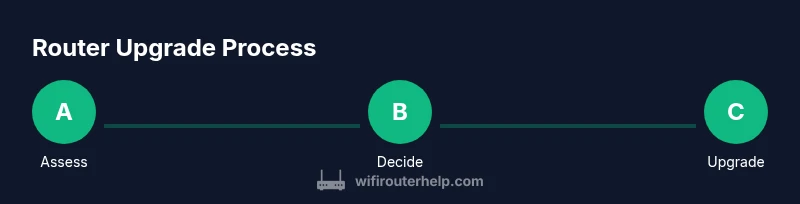
After you’ve collected symptoms, benchmark data, and coverage maps, summarize your findings into a simple upgrade plan. List preferred features (Wi‑Fi 6/6E, WPA3, better QoS, multiple Ethernet ports), your budget range, and whether you want a single router or a mesh system. Then compare a few models that match your criteria, focusing on real-world performance rather than marketing claims. The key is to balance cost and benefit: a modest upgrade can deliver noticeable improvements, while older devices may require a more substantial investment. By aligning your upgrade with concrete data, you’ll reduce buyer’s remorse and maximize your network’s long-term value.
Tools & Materials
- Current router(Make/model, firmware version if possible)
- Modem (if separate)(Know your ISP device and compatibility)
- Ethernet cable (Cat5e or better)(For stable testing and setup)
- Laptop, tablet, or smartphone(Used to reach admin interface and run tests)
- Speed testing app or website(Example: speedtest.net or fast.com)
- Admin credentials for the router(Have the username and password handy)
- Notepad or notes app(Record findings and upgrade plan)
Steps
Estimated time: 45-60 minutes
- 1
Inventory current setup
Gather model numbers, firmware versions, and any recent changes to your home network. Document the devices you rely on and where coverage is weakest. This baseline helps you compare future improvements against your current state.
Tip: Note firmware release dates and features supported by your router. - 2
Run baseline speed and coverage tests
Test wired and wireless performance across multiple rooms and at different times of day. Use both 2.4 GHz and 5 GHz bands to identify which band underperforms. Record results for reference.
Tip: Use at least three test points to capture variability. - 3
Check security and firmware status
Log into the router’s admin interface and verify firmware version. Check security settings, password strength, and encryption protocol. If firmware cannot be updated, treat as a red flag.
Tip: Enable automatic updates if available. - 4
Compare upgrade options
Research routers and mesh systems that fit your needs. Compare features like MU-MIMO, beamforming, number of Ethernet ports, and Wi‑Fi 6/6E support. Exclude devices that don’t clearly meet your requirements.
Tip: Prioritize compatibility with your internet plan and devices. - 5
Plan the upgrade path
Decide whether a single-router upgrade or a mesh system best suits your home. Create a budget and a rollout timeline, including steps for transporting and setting up the new device with minimal downtime.
Tip: Backup current settings and document any custom configurations.
People Also Ask
What are the most reliable signs I need a new router?
Common signs include consistently slower speeds than your plan, frequent outages, dead zones, devices failing to connect reliably, and firmware that cannot be updated. If these persist across devices and times of day, a replacement is warranted.
Look for slow speeds, outages, and coverage gaps across multiple devices. If you see these signals regularly, you likely need a router upgrade.
Can upgrading my router noticeably improve speed?
Yes. Upgrading can improve throughput, reduce latency, and expand coverage, especially with newer standards like Wi‑Fi 6/6E and improved QoS. The actual gains depend on your internet plan, device count, and home layout.
Upgrading often yields faster speeds and better coverage, particularly with newer router standards.
Should I replace my modem at the same time?
If your modem is separate and older, upgrading both can unlock full performance. Ensure the modem is compatible with your internet plan and router. This can eliminate bottlenecks caused by an aging combo device.
Consider upgrading both modem and router if you have an older setup and ongoing performance concerns.
Is a mesh system worth it for a large home?
Mesh systems provide smoother coverage across large or multi-story homes and simplify device handoffs. They’re typically worth it when signal quality drops in several rooms or floors.
For large homes, a mesh system often delivers more consistent coverage.
What steps should I take before buying a new router?
Assess current performance with tests, map coverage, and list must-have features. Set a budget, compare models with similar specs, and read reviews focusing on real-world performance.
Test what you have, map coverage, and plan features before buying.
How can I keep my new router secure?
Change default passwords, enable WPA3, update firmware regularly, and disable remote management if not needed. Regularly review connected devices and revise guest network settings as needed.
Secure your device with strong credentials and up-to-date firmware.
Watch Video
What to Remember
- Identify bottlenecks with concrete tests
- Security and firmware updates matter as much as speed
- Mesh systems help large homes, single routers fit smaller spaces
- Plan, test, and document to avoid buyer's remorse