When to Upgrade Router: A Practical Guide for Home WiFi in 2026
Learn how to recognize when your router needs an upgrade, what features to look for, and practical steps to boost home WiFi performance. A clear, step-by-step guide for homeowners and tech enthusiasts.


By upgrading your router, you’ll unlock faster speeds, stronger coverage, and more reliable connections for all your devices. This guide helps homeowners decide when to upgrade, what features to look for (Wi‑Fi 6/6E, better antennas, and QoS), and how to plan a smooth transition. If you’re seeing slow loads or dead zones, it’s likely time to upgrade router.
Why upgrading your router matters
When a home network grows, the bottleneck often shifts from the modem or internet plan to the router itself. Upgrading at the right moment can dramatically improve speed, coverage, and reliability for all devices—from laptops to smart home hubs. According to WiFi Router Help, a modern router with Wi‑Fi 6/6E capabilities, improved antennas, and smarter QoS management can reduce buffering and latency in busy households. A new router also brings up-to-date security features, better device prioritization, and easier management through intuitive apps. If you’ve recently upgraded your internet plan but still notice slow performance or dead zones, the router is a likely culprit—and upgrading is a worthwhile investment for long‑term stability and peace of mind.
In short, upgrading isn’t just about faster speeds; it’s about delivering consistent performance as your home network evolves. A capable router helps ensure that every device—from streaming boxes to work laptops—gets the bandwidth it needs when it needs it, without sacrificing latency on critical tasks. WiFi Router Help’s guidance emphasizes future‑proofing with newer standards, which can prevent you from replacing gear more often than necessary. This makes upgrading a strategic choice for modern homes with growing device footprints and increasingly demanding apps.
Signs you should consider upgrading now
If you’re wondering when to upgrade router, look for concrete signals rather than relying on guesswork. Common indicators include persistent dead zones in mid‑size rooms, noticeable slowdowns when multiple devices are active, or frequent buffering on high‑definition streams. Another cue is device sprawl: when more than a handful of gadgets connect at once—phones, tablets, laptops, smart speakers, security cameras—your old router may struggle to allocate bandwidth efficiently. Consider upgrading if your current router is more than three to four years old, if you’ve upgraded your internet plan, or if you’ve added new smart home gear that requires reliable, low‑latency connections. Lastly, if you notice extended setup times, frequent firmware prompts, or complicated guest networks, a newer router with streamlined management can simplify daily use and improve secure access for visitors.
How to evaluate your current setup
Begin by identifying the router’s capabilities: check the Wi‑Fi standard (is it Wi‑Fi 5, 6, or 6E?), the advertised maximum wireless throughput, and whether it supports features like MU‑MIMO, OFDMA, beamforming, and band steering. Next, map your coverage: walk around the home with a mobile device and note weak areas or dead zones, especially on lower floors or far corners. Review device load: count how many devices typically connect simultaneously and which activities consume the most bandwidth (4K streaming, online gaming, large file backups). Finally, audit security and maintenance: confirm that the router receives regular firmware updates and that default credentials have been changed. If your assessment reveals aging hardware, limited coverage, or insufficient speed for your devices, upgrading is a practical move.
When is the right time to upgrade
Timing your upgrade matters for value and performance. A general rule is to upgrade when your current router no longer meets your household needs: your internet plan has increased beyond what your router can handle, you experience frequent buffering, or you add devices that rely on reliable low‑latency connections. Another trigger is security: older routers may lack modern encryption methods and automatic updates. If you’re planning a major home upgrade—such as moving to fiber or increasing your smart‑home footprint—consider upgrading now to avoid reinstalling twice. Delaying too long can leave you with bottlenecks that negate the benefits of a faster internet plan.
Upgrade strategies for different homes
Small apartments or single‑story homes may get excellent coverage from a single high‑quality router with a strong antenna array and good beamforming. Medium homes often benefit from a mesh system or a router with robust mesh capability to eliminate weak spots between rooms. Large homes or homes with several floors typically require a mesh network or a tri‑band router with multiple backhaul options and expansive coverage maps. If your modem is separate, ensure the new router is compatible and consider enabling bridge mode on the old router if you plan to retire it. Finally, assess whether you need wired backhaul; using Ethernet to connect nodes or satellites dramatically improves stability in larger spaces.
Budgeting and ROI: making the upgrade count
Think about upgrade ROI in terms of real‑world gains: fewer buffering interruptions, quicker app performance, and more predictable device behavior. Budget options generally fall into a few tiers based on features and coverage, while premium models offer enterprise‑grade QoS, advanced security, and robust firmware support. When planning a purchase, compare what you get for the price—look for Wi‑Fi 6/6E, multi‑band support, good processor power, and sufficient RAM for future updates. Don’t overlook the cost of compatibility with your ISP, potential modem requirements, and the ease of setup. A well‑chosen router can extend the life of your network for several years, reducing the need for incremental upgrades and minimizing downtime during transitions.
Tools & Materials
- New router (Wi‑Fi 6/6E or newer, tri‑band recommended)(Look for MU‑MIMO, OFDMA, and robust QoS features; ensure compatibility with your ISP or modem.)
- Ethernet cable (Cat6 or better)(Used for wired backhaul or directly connecting devices for performance testing.)
- Existing modem (if you’re not using a gateway router)(Keep or replace as needed; confirm compatibility with the new router.)
- Power strip with surge protection(Protects the router and any connected devices from power surges.)
- Screwdriver (Phillips head)(Only if mounting to a wall or adjusting internal mounting options.)
Steps
Estimated time: 45-75 minutes
- 1
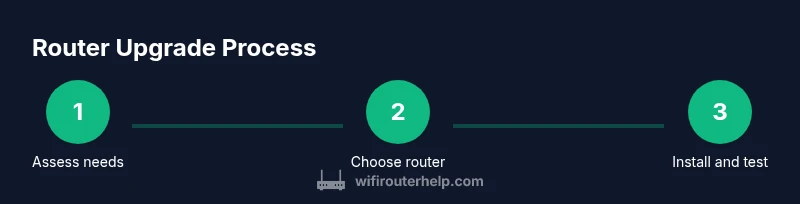
Assess current needs and plan
Document your internet plan, number of devices, and typical usage. Decide whether a single high‑quality router or a mesh system best fits your home. This sets the foundation for a smooth upgrade.
Tip: Write down your must‑have features (e.g., smooth gaming, smart-home reliability) to guide a focused purchase. - 2
Inventory devices and usage patterns
List the devices that connect most often and identify high‑bandwidth activities (4K streaming, gaming, video conferencing). This helps select appropriate speed and backhaul options.
Tip: Prioritize devices that most affect latency (gaming consoles, work laptops) when testing the new setup. - 3
Choose router type and confirm ISP compatibility
Decide between a standalone router or a mesh system based on home size and layout. Verify whether bridge mode or modem compatibility is needed with your service provider.
Tip: If you already have a fiber or gigabit plan, opt for a router with strong backhaul options and good cross‑band performance. - 4
Back up current settings
Log into your old router and export or document your network settings, including SSIDs, passwords, and port mappings. This makes restoration quick if you need to revert.
Tip: Take screenshots of important pages to reduce the chance of missing details during setup. - 5
Connect the new router and configure basics
Power off and unplug the old device, connect the new router to your modem with an Ethernet cable, and power it up. Access the setup wizard to configure SSID, password, and admin account.
Tip: Prefer wired backhaul where possible to maximize stability and speed. - 6
Update firmware and run initial tests
Apply the latest firmware, then run speed tests and device‑level checks to confirm fundamentals (LAN/WAN speeds, wireless throughput).
Tip: Enable automatic updates after the initial setup for ongoing protection. - 7
Tune security and QoS
Change default admin credentials, enable WPA3 if available, and configure QoS rules to prioritize critical devices or services.
Tip: Limit guest network access and consider separate networks for IoT devices. - 8
Fine‑tune placement and explore mesh if needed
Position the router to avoid interference and maximize coverage; add nodes or consider mesh for hard‑to‑reach areas.
Tip: Run coverage tests after moving nodes and adjust channel settings to minimize interference.
People Also Ask
What counts as 'too slow' for home Wi‑Fi?
There isn’t a universal threshold, but note persistent buffering on 4K streams, long page load times, or lag during video calls during peak usage. If your devices routinely underperform during normal activities, an upgrade is worth considering.
Persistent buffering or lag during common tasks indicates your current router may be limiting performance. Consider an upgrade to improve reliability.
Should I replace my modem and router together or use a gateway unit?
If your ISP provides a gateway device, evaluate whether its performance and features meet your needs. If you already own a capable modem, pairing it with a dedicated router often yields better customization and longer‑term value.
A dedicated router plus a compatible modem usually offers better control and future growth than a bundled gateway.
Is mesh better for large homes or multiple floors?
Mesh systems excel where single routers struggle to cover every room. They provide seamless roaming and easier expansion, though a well‑placed high‑end router can also meet many households’ needs.
Yes, mesh is typically the best option for large homes, but assess layout and budget before choosing.
Can I save money by renting equipment from my ISP?
Renting can be convenient but often costs more over time and limits control. Owning your own equipment gives full feature access and long‑term savings, especially if you upgrade regularly.
Owning typically saves money in the long run and gives you more control over features and security.
How long does an upgrade typically take?
Most households complete a basic upgrade in under an hour, with network testing and placement adjustments extending the process to about 45–75 minutes depending on home size and complexity.
Most upgrades take less than an hour, with a bit more time for testing and tuning.
What to Remember
- Upgrade when performance gaps appear and your devices demand more bandwidth.
- Choose Wi‑Fi 6/6E for future‑proofing and better multi‑device handling.
- Mesh systems suit large homes; single routers work well in small spaces.
- Back up settings and secure your network during the upgrade.
- Plan a test phase to verify speeds, coverage, and stability post‑upgrade.