Linksys Smart WiFi Setup, Optimization, and Troubleshooting
Learn how to set up, optimize, and troubleshoot Linksys Smart WiFi for a fast, stable home network. This step-by-step guide covers configuration, security, parental controls, and guest access.


With this guide, you will set up and optimize Linksys Smart WiFi in a few clear steps. Start by connecting the router, installing the mobile app, and creating a strong network name and password. Next, enable guest access, configure parental controls, and apply basic security settings. Following these steps will expand coverage, stabilize throughput, and simplify ongoing management of your home network.
Understanding the Linksys Smart WiFi ecosystem
Linksys Smart WiFi is a cloud-enabled router system designed to simplify setup, monitoring, and optimization of home networks. The main advantages include a centralized mobile app, remote access to settings, and guest network controls that can be managed from anywhere. For homeowners seeking a reliable, scalable solution, understanding how the ecosystem fits together helps in planning placement, security, and future upgrades. According to WiFi Router Help, starting with a clear map of devices and coverage goals will guide every configuration choice and help prevent blind spots. This approach reduces the trial-and-error period and speeds up getting everyone online with confidence.
Assessing your current network topology
Before you modify anything, take a quick inventory of your home network. Identify where the modem sits, how many access points you have, and which rooms experience weak signals. If you already own a Linksys router, note its model and current firmware version. WiFi Router Help analysis shows that most homes achieve better results by centralizing the primary router and limiting obstacles (dense walls, metal appliances) between the router and devices. With a clear map, you can set realistic coverage goals and create a plan for improvements over time.
Essential setup steps for a new router
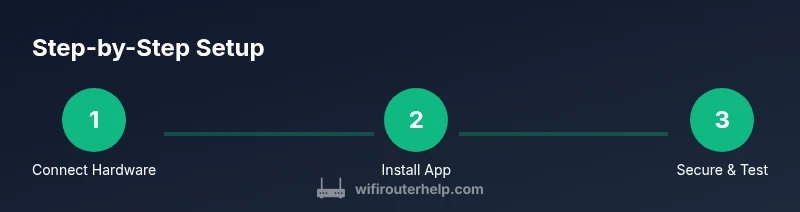
Begin by powering off your modem and router, then connect the router’s WAN port to the modem with an Ethernet cable. Power up the modem first, then the router, and wait for the LED indicators to stabilize. Install the Linksys app on a mobile device or connect to the router’s default Wi‑Fi to start setup. Sign in or create a Linksys account, then follow the prompts to claim your router and begin basic configuration. This initial step establishes a trusted management channel and ensures you can monitor activity from the app.
Create a strong SSID and password
Change the default network name (SSID) to a unique, memorable label, and set a strong password using a long passphrase. Prefer WPA2‑WPA3 mixed-mode security if available, and avoid common defaults. For best results, disable WPS and enable features like router firewall protection. A strong SSID/password combination reduces the risk of unauthorized access and makes it harder for neighbors or visitors to guess your credentials.
Security basics: firewall, updates, and access controls
Security is an ongoing task. Enable the built‑in firewall, ensure automatic firmware updates are turned on, and review UPnP settings to minimize exposure. Consider turning off remote admin access unless you truly need it, and keep the admin password unique and strong. Regularly check for new firmware to patch vulnerabilities and improve performance. These steps form the foundation of a resilient home network and align with best practices recommended for consumer routers.
Guest networks and parental controls
Guest networks isolate visitors from your main network, preserving security while still providing internet access. Create a separate SSID with its own password and limit access to local network resources. Parental controls let you filter content, set time limits, and pause internet access for specific devices or profiles. These features are especially valuable for households with children or shared devices, reducing friction while keeping your primary network safe.
Performance optimization: placement, channels, and QoS
Signal quality hinges on where you place the router and how you manage channels. Place the router in a central, elevated spot away from obstructions like walls, metal appliances, and microwaves. Use automatic channel selection or manually pick a less congested 2.4 GHz or 5 GHz channel based on neighborhood interference. Quality of Service (QoS) rules help prioritize video calls, gaming, or streaming for smoother experiences when bandwidth is tight. Regularly test speeds from multiple rooms to validate performance improvements.
Firmware updates and routine maintenance
Firmware updates fix bugs, add features, and patch security holes. Check for updates in the Linksys app and enable automatic updates when possible. Maintain a simple inventory of connected devices and keep notes of your network credentials in a safe place. Periodic reboots during maintenance windows can stabilize performance and clear temporary cache, especially after configuration changes. A disciplined maintenance routine reduces mystery and keeps your network healthy.
Troubleshooting common issues
If devices report no internet, verify the modem is online and the router’s WAN LED is lit. Check cables, reboot devices, and re-run the setup process if necessary. If coverage is inconsistent, experiment with placement, ensure antennas are positioned correctly, and consider a mesh option if your space is very large or has many dead zones. For persistent issues, consult the Linksys app help or firmware release notes for known problems and fixes.
Long-term management and advanced configurations
As your home grows, consider advanced options like setting up a separate guest network for visitors, configuring a static IP range for devices, or enabling bridge mode if you also use a separate modem/router combo. Document changes and maintain a consistent naming convention for devices. Advanced users may explore NAT settings, port forwarding for specific services, and rigorous access controls to balance usability with security. These practices help sustain a robust network as demands evolve.
Tools & Materials
- Linksys router and power adapter(Ensure you have the model serial and power supply.)
- Smartphone or computer with internet access(Needed for the Linksys app or web setup.)
- Ethernet cable (Cat5e or better)(Use for wired setup or recovery if Wi-Fi is unavailable.)
- Recent web browser or Linksys app(To configure settings and monitor the network.)
- Notebook for passwords and network details(Helpful for recording SSID, password, and guest codes.)
Steps
Estimated time: 60-90 minutes
- 1
Connect the hardware and power up
Place the router near your main modem, connect the WAN port to the modem with an Ethernet cable, then plug in the power adapter. Power on the modem first, then the router and wait for the LED indicators to stabilize. This ensures proper communication with your ISP and a reliable foundation for all following configurations.
Tip: If the router LED takes longer to stabilize, unplug and re-seat the cable connections and try again. - 2
Install and sign in to the Linksys app
Download the Linksys app from the App Store or Google Play, or connect to the router’s default network and open the setup URL. Sign in or create a Linksys account and follow the prompts to claim your device. This step establishes your management channel and unlocks remote monitoring features.
Tip: Have the router’s serial number handy in case you need to verify device identity. - 3
Create your network name and a strong password
In the app, set a unique SSID and a long, random password. Prefer WPA2‑WPA3 mixed mode if available. This step is critical for preventing unauthorized access and keeping your home network secure.
Tip: Use a passphrase of 12-16 characters including numbers and symbols. - 4
Configure security basics and firmware updates
Enable the built‑in firewall, turn on automatic firmware updates, and disable remote admin unless needed. Check for updates after setup to ensure you have the latest security patches.
Tip: Auto-update is your best defense against new vulnerabilities. - 5
Enable guest network and parental controls
Create a guest network with its own password and isolate it from your main network. Set parental controls to regulate screen time and content, adjusting filters as your household needs change.
Tip: Name the guest network clearly (e.g., “Home-Guest”) and keep the password separate. - 6
Configure QoS and device management
Prioritize bandwidth for critical devices or activities like video calls and gaming. Review connected devices in the app and remove unknown sensors or IoT devices that you don’t recognize.
Tip: Apply QoS rules to time-sensitive tasks first for best perceived performance. - 7
Test coverage and adjust placement
Run speed tests from different rooms to identify weak zones. If needed, relocate the router to a central, elevated spot and reduce obstructions to improve signal spread.
Tip: Elevate the router about 1–2 meters for better line-of-sight. - 8
Document settings and enable ongoing updates
Record important credentials and configuration choices in a safe place. Ensure auto-updates remain enabled so security patches are applied without manual intervention.
Tip: Keep a simple network inventory to simplify future changes.
People Also Ask
What is Linksys Smart WiFi and how does it help my home network?
Linksys Smart WiFi is a cloud‑managed router ecosystem that lets you configure, monitor, and secure your home network through a mobile app and web interface. It centralizes device management, supports parental controls, guest networks, and remote access for on‑the‑go administration.
Linksys Smart WiFi is a cloud-based system that makes it easy to manage your home network from your phone or computer.
Do I need the Linksys app to set up the router?
While you can perform basic setup via a web interface, the Linksys app provides a streamlined, centralized experience for configuring settings, monitoring devices, and applying parental controls. The app is highly recommended for ongoing management.
Yes, the app makes setup and ongoing management much simpler.
How do I reset the Linksys router to factory settings?
To reset, press and hold the Reset button on the back of the router for about 10 seconds until lights flash. This restores the device to factory defaults, after which you can run through a fresh setup.
Press the reset button for about 10 seconds until the lights flash to restore factory settings.
Can I create a guest network and limit access?
Yes. The Linksys app allows you to create a guest network with its own password and isolation from your main network. This limits device access and keeps your primary network more secure.
Absolutely—you can set up a separate guest network with its own password.
How can I improve Wi‑Fi range beyond the router’s reach?
Place the router higher and closer to the center of your home, reduce obstacles, and consider adding a mesh system or range extender if you have large or multi‑story spaces.
Move the router to a central high spot and consider a mesh system if your home is large.
Is parental controls available and how do I configure them?
Parental controls are available via the Linksys app. You can filter content, set time limits, and pause internet access for specific devices or profiles.
Parental controls are built in via the app; you can filter sites and set schedules.
Watch Video
What to Remember
- Set up a unique SSID and strong password
- Enable automatic firmware updates for security
- Use guest networks and parental controls for safer sharing
- Regularly test Wi‑Fi coverage and adjust placement for best performance