How to Set Up and Optimize Linksys Smart WiFi
A comprehensive, user-friendly guide to set up and optimize Linksys Smart WiFi using the official app, covering networks, QoS, guest access, and parental controls. Written by WiFi Router Help for homeowners and tech enthusiasts.


According to WiFi Router Help, setting up Linksys Smart WiFi securely improves coverage, prioritizes devices, and simplifies parental controls. You'll update firmware, install the Linksys app, create a strong admin password, and configure wireless settings. This guide walks you through the essential steps to get a stable, protected home network using Linksys Smart WiFi.
What is Linksys Smart WiFi
Linksys Smart WiFi is a cloud-managed router platform that makes it easier to control your home network from anywhere using a smartphone or tablet. In essence, it turns a physical router into a centralized hub you can manage via the Linksys Cloud account and the official app. You can see connected devices, create and rename WiFi networks, enable guest access, set parental controls, and assign device priority with QoS. The system is designed for households with multiple devices, streaming needs, and smart home gear. According to WiFi Router Help, a well-configured Smart WiFi setup also reduces common sources of interference and helps you recover from connectivity problems faster because you can adjust settings remotely. The following sections explain how to leverage these capabilities to build a reliable home network. In practice, the setup process emphasizes security, visibility, and ease of use, so you can manage network health without technical complexity.
Prerequisites and Setup Prep
Before you touch the app, confirm you have a working internet connection, an active modem, and a device to run the Linksys app. Gather items: your power adapter, ethernet cable, and your router's account login. Ensure your ISP has assigned you a dynamic IP (the default for most homes). You should also enable the phone's location services for best app performance. Create a Linksys account or log in to an existing one. If your device is currently connected to another network, you will want to disconnect from it during the initial setup to avoid confusion. The majority of configuration is performed through the mobile app, though you can use a browser for reference. Having a committed setup session with all items at hand reduces the chance of mid-setup interruptions and makes it easier to verify results as you go.
App-based Setup Overview
The Linksys Smart WiFi platform uses the mobile app as the primary interface for initial configuration and ongoing management. When you first sign in, the app guides you through connecting to the router, detecting your network, and launching security settings. You may be prompted to name your network (SSID), set a strong password, and choose whether to enable 2.4 GHz and 5 GHz bands. The app also provides a simple dashboard showing connected devices and real-time bandwidth usage. Other features include parental controls, a guest network, and device prioritization (QoS) to optimize streaming and gaming performance. WiFi Router Help analysis shows that most home users benefit from enabling a guest network and enabling automatic firmware updates. If you encounter issues, you can retry the setup, consult the app's help section, or perform a hardware reset to return the router to factory defaults.
Step-by-Step: App-driven Setup (overview)
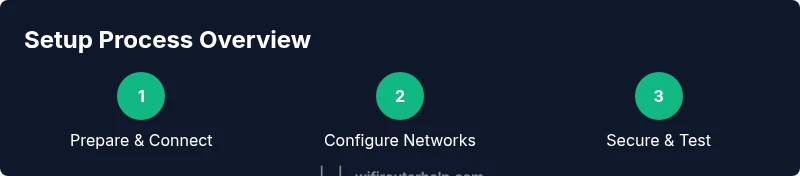
The steps below translate the app prompts into practical actions, with what to tap, what to enter, and what to expect on screen. Start by opening the Linksys app on your phone or tablet and selecting your router from the device list. Create or sign in to your Linksys cloud account, then follow the guided prompts to connect the router to your modem, verify internet connectivity, and set the initial admin password. Next, name your networks, choose security settings, and confirm the active bands. The app will signal when you are ready to proceed to feature configuration, including guest networking and parental controls. If the screen timing or prompts differ, use the on-screen help and retry the relevant step. Keep your device near the router during this process for the best signal strength.
Wireless Settings: SSID, Security, and Channels
Configure your primary networks with clear, memorable SSIDs and strong passphrases. Use WPA2-PSK or WPA3, depending on device compatibility, and disable WPS for better security. Create a distinct 2.4 GHz network (e.g., Home-2.4) and a separate 5 GHz network (e.g., Home-5) to reduce interference and improve performance for high-bandwidth devices. Use automatic channel selection when possible; if you see interference, manually set channels with minimal overlap. For homes with many smart devices, consider enabling band steering so capable devices can switch to the faster band automatically. Regularly review connected devices to spot unfamiliar clients and revoke access as needed. This is an important step for both range and security, and small changes here can yield noticeable improvements in reliability.
Guest Networks, Parental Controls, and Access Schedules
Guest networks isolate visitors from your main network, reducing risk to personal devices and data. Create a guest SSID with its own password and enable bandwidth controls if available. Parental controls allow you to set time-based access, filter content, and pause internet on selected devices. Schedule daily windows for kids’ study and screen time, and align with household routines. In practice, avoid super-long passwords on guest networks and update them periodically. Review the list of devices granted access regularly, and remove any that are no longer needed. These features help preserve security and provide family-friendly internet use without sacrificing performance on primary devices.
Quality of Service (QoS) and Band Optimization
QoS helps prioritize bandwidth for critical activities such as video calls, game sessions, and streaming. In Linksys Smart WiFi, you can assign priority levels to devices or apps, ensuring your most important tasks get smoother performance during peak usage. Consider setting higher priority for work devices during work hours and for gaming consoles or PCs during evenings. If you notice buffering during video calls, enable adaptive QoS or manual rules to allocate bandwidth to the affected device. Band steering and smart connect can improve performance by directing compatible devices to the appropriate band, while leaving legacy devices on the slower but broader 2.4 GHz band. Regular testing, using built-in speed tests or third-party tools, helps you gauge the impact of QoS rules and adjust as needed.
Firmware Updates and Security Best Practices
Keep firmware current to close security gaps and improve stability. In most cases, the Linksys app can check for updates automatically; enable this option if available. If you prefer, you can check for updates manually with a few taps. Enable automatic reboot after updates if the option exists, to apply changes with minimal user intervention. Use a strong admin password and avoid using the default credentials. Disable remote management if you don’t need to access the router from outside your network. Create a separate guest network for visitors and ensure devices connected to the main network follow your security rules. Regularly review logs if the app provides them; this helps detect unfamiliar access attempts.
Troubleshooting Common Issues
If your devices struggle to connect, start by rebooting the modem and router. Check the status LEDs for guidance; refer to the user manual if you see unusual colors. If the Linksys app cannot detect the router, ensure your phone is on the same network and the device is signed in. For slow speeds, run a speed test from a wired device to rule out Wi‑Fi issues; inspect wall construction and interference from neighboring networks. If you encounter persistent drops, consider factory resetting as a last resort, then re-run the setup from the beginning. For issues with the guest network or parental controls, verify that the features are enabled and that you are signed into the correct account.
Integrating with Mesh Extenders and Future-proofing
If your home needs wider coverage, consider using Linksys extenders or a compatible mesh system. The Smart WiFi platform makes it straightforward to add devices, share a single SSID, and manage roaming between nodes. When selecting a device, ensure it supports the same standards (802.11ac/ax) and that firmware is up to date. Plan ahead for future internet speeds by choosing hardware with ample RAM and flash storage, so firmware and features remain responsive for years. Keep an eye on energy consumption and heat, particularly in multi-bedroom setups. Regularly re-check your network map in the app to ensure all devices appear and that there are no rogue access points nearby.
Tools & Materials
- Smartphone or tablet with Linksys app(Install from App Store or Google Play; ensure OS is up to date.)
- Active internet connection(Modem connected to ISP, service active.)
- Power adapter(Plug into a reliable outlet near the router.)
- Ethernet cable(For wired initial setup if app-based config fails.)
- Linksys account login(Create or log in to your Linksys cloud account.)
- Optional laptop/PC(Used for browser-based reference during setup.)
Steps
Estimated time: 20-40 minutes
- 1
Prepare equipment and install the app
Gather the router, modem, power supply, and a device with the Linksys app installed. Ensure your device is charged and connected to a stable power source. Open the app and verify you can sign in or create a new account. This step sets the stage for a smooth configuration journey.
Tip: Have your device in reach of the router so you can test signal strength as you proceed. - 2
Create or sign in to your Linksys account
If you don’t already have an account, create one in the app. Sign in with a strong password and enable any available two-factor authentication options. This account will store your network settings and allow remote management.
Tip: Use a unique password and store it securely. - 3
Connect to the router and begin the guided setup
In the app, select your router from the device list. Follow the guided prompts to connect the router to your modem and verify internet connectivity. You’ll be prompted to set the admin password and name your primary network(s).
Tip: If the app can’t detect the router, try an ethernet connection first or perform a soft reset. - 4
Check for and apply firmware updates
Within the app, check for firmware updates and apply them if available. Enabling automatic updates is recommended for ongoing security and reliability.
Tip: Updating firmware may restart the router—plan to complete this step before heavy usage. - 5
Configure primary wireless networks
Create distinct 2.4 GHz and 5 GHz networks with clear names and strong passwords. Enable WPA2 or WPA3 security, and consider turning off WPS for better security. Decide whether to enable band steering for better device allocation.
Tip: Use memorable, unique SSIDs and ensure passwords are long and complex. - 6
Enable guest network and parental controls
Set up a guest network with its own password to keep visitors off your main network. Configure parental controls and time-based access if needed to manage family screen time.
Tip: Limit guest network access to essential services and change the password periodically.
People Also Ask
What is Linksys Smart WiFi?
Linksys Smart WiFi is a cloud-enabled routing platform that lets you manage your network from a mobile device. It includes features like device management, guest networks, parental controls, and QoS. These tools simplify setup and ongoing network optimization.
Linksys Smart WiFi is a cloud-enabled routing platform that you manage from a mobile device, with features like guest networks and QoS.
How do I reset my Linksys router?
To reset, press and hold the reset button on the router for about 10 seconds until the lights blink. This returns the device to factory settings. You will then need to go through the initial setup again.
To reset, hold the reset button for about 10 seconds until the lights flash, then re-run setup.
Can I use Linksys Smart WiFi with my existing modem?
Yes, Linksys Smart WiFi works with most standard modems. The router will serve as the gateway, while the modem provides the internet connection. If you switch to a new modem, re-run the setup to apply current settings.
Yes, it works with most modems; you may need to re-run setup when changing modems.
How do I update firmware on Linksys Smart WiFi?
Open the Linksys app, check for firmware updates, and apply them. You can enable automatic updates if available to keep the router current.
Update firmware from the app or enable automatic updates for ongoing protection.
What are best practices for securing Linksys Smart WiFi?
Use a strong admin password, enable WPA2 or WPA3, disable remote management if not needed, and create a separate guest network. Regularly review connected devices and logs for unusual activity.
Use strong passwords, enable modern security standards, and review devices regularly.
Watch Video
What to Remember
- Secure admin access with a strong password
- Update firmware regularly to reduce risk
- Create a separate guest network for visitors
- Test coverage and adjust QoS for priority devices