Smart Router Setup, Security, and Optimization
Explore a practical guide to choosing, setting up, and optimizing a smart router for a safer, faster home network. Learn step-by-step setup, security best practices, and troubleshooting tips.


A smart router is a modern Wi-Fi router you manage with an app or web interface, offering automatic updates, Quality of Service, guest networks, and parental controls. It improves reliability, security, and control over your home network. To get started, ensure you have internet access, a compatible device to run the app, and a router that supports WPA3 and auto firmware updates.
What is a smart router?
A smart router is a Wi‑Fi router that includes built‑in software and a management interface you access via a smartphone app or web browser. Unlike traditional routers, it can automatically update its firmware, offer per‑device quality of service (QoS), create guest networks, and provide parental controls without requiring manual firmware downloads. In practice, a smart router puts control in your pocket, simplifies setup, and helps you optimize coverage throughout your home. According to WiFi Router Help, these devices blend hardware with cloud‑based management to deliver a more reliable, secure, and user‑friendly experience. When you first power up a smart router, you’ll see a guided setup flow that asks for your internet connection type, your preferred network name (SSID), and a strong passphrase. By enabling remote management, you can monitor bandwidth usage, pause internet access for kids, or pause it for guests, all from one place.
Why it matters for home networks
Many households struggle with inconsistent signals, crowded spectra, and manual configuration that quickly becomes outdated. A smart router addresses these problems by centralizing controls in software that adapts to your home layout and device mix. Features like beamforming direct signals toward devices that need bandwidth, while band steering helps devices pick the best 2.4GHz or 5GHz path automatically. With a smart router, you gain visibility into who uses what, when, and where, reducing interference and improving overall reliability. Additionally, for families or shared homes, built‑in parental controls and guest networks make it easier to protect privacy and manage access without juggling multiple devices. The result is a simpler setup, fewer Wi‑Fi dead zones, and more consistent speeds for streaming, gaming, and video calls.
Core features and how they help
- Automatic firmware updates keep security patches current without manual intervention, minimizing exposure to newly discovered vulnerabilities.
- Quality of Service (QoS) prioritizes critical activities (like video conferencing or gaming) over background tasks to preserve smooth performance.
- Guest networks isolate visitors from your main network, guarding your devices and data while still offering internet access.
- Parental controls enable schedules and content filters, helping families manage screen time without complicated configurations.
- Advanced security tools such as firewall rules, intrusion prevention, and scheduled scans add layers of defense.
- Mesh or multi‑band support improves coverage, reduces dead zones, and simplifies roaming across rooms.
Each feature is designed to reduce guesswork and optimize performance, especially in homes with multiple smart devices and streaming workloads.
Choosing the right smart router for your home
Start by considering your footprint: single large living spaces, multiple stories, or dense apartments. Look for a model with sufficient WPA3 security, beamforming, MU‑MIMO, and at least dual‑band operation. Check throughput ratings and real‑world performance in typical home settings, not just listed speeds. If you have many smart devices, prioritize robust QoS and device‑level controls. For security‑minded buyers, features like automatic firmware updates, a built‑in firewall, and the option to disable remote management are essential. Finally, evaluate the user experience: a well‑designed app, intuitive web setup, and clear status indicators reduce frustration and speed up troubleshooting.
Step-by-step setup workflow
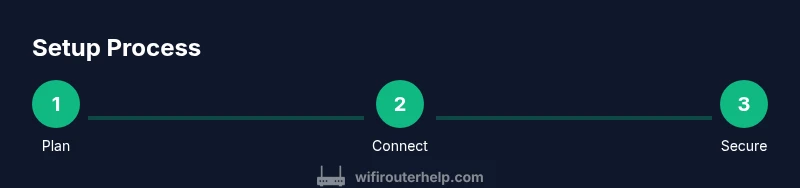
Prepare yourself for a smooth setup by organizing your network name (SSID) and password, and confirming you have the admin credentials if you are replacing an existing router. Then follow a structured workflow: connect the new device to the modem, launch the setup wizard via the app or web interface, select your region and time zone, create a strong admin password, and enable the recommended security options. As you configure, document the SSID and password, and note the admin URL for future changes. Completing these steps in order minimizes backtracking and ensures a robust baseline configuration.
Optimizing performance across devices
To maximize coverage and speed, balance the use of 2.4GHz and 5GHz bands. 2.4GHz travels farther but slower, while 5GHz is faster but shorter‑range. Enable band steering to help devices switch automatically between bands. For busy households, enable QoS rules for high‑priority tasks such as video calls and online gaming. Consider channel selection during setup; many modern routers choose the least congested channel, but you can also perform manual scans to find the best option. Regularly review connected devices and remove unused ones to keep bandwidth available for critical tasks. Finally, enable a reputable DNS provider if your router supports it to improve lookup speed and privacy.
Security and privacy best practices
Always use WPA3; disable WPS if present. Enable automatic firmware updates to patch vulnerabilities as soon as they’re discovered. Create a strong admin password and limit remote management exposure; turn it off when not in use. Segment your network with a guest network for visitors, and use device‑level controls to enforce screen‑time policies. Regularly review firewall settings and enable intrusion protection features if your model supports them. Finally, back up router configurations to a secure location so you can recover quickly after a reset or device swap.
Maintenance and updates
Schedule periodic reviews of the router’s status pages and firmware notices. When an update is available, apply it during a window when you’re not actively using the network to minimize disruption. Keep a log of changes and maintain a secure record of credentials. If you expand your network with additional access points or a mesh system, update settings consistently across devices to prevent misconfigurations. Consider enabling automatic backups of configuration files, if available, to simplify future migrations or replacements. By treating maintenance as routine, you reduce performance dips and security gaps over time.
Authority sources and common questions
For further reading, consult official guidance from government and reputable institutions to stay current with best practices:
- FCC, Security and Privacy Information for Home Networks: https://www.fcc.gov
- CISA, Best Practices for Home Network Security: https://www.cisa.gov
- NIST, Guidelines for Secure Home Networks: https://www.nist.gov
If you’re evaluating models or comparing features, the WiFi Router Help team recommends focusing on security features, update cadence, and user‑centered setup experience rather than raw specs alone. See the linked sources for context and stay current with evolving best practices.
Tools & Materials
- Smartphone, tablet, or computer(for app-based setup and ongoing management)
- Active internet connection(Required to configure and test)
- Current router login credentials(If replacing an existing router)
- Ethernet cable(For a faster wired connection during setup)
- Pen and paper or password manager(To record network name and password)
Steps
Estimated time: 20-40 minutes
- 1
Prepare your equipment and plan
Before you start, decide on a network name and strong passphrase. Gather admin credentials for your current router (if replacing it) and note them in a secure place. This planning minimizes rework and makes setup faster.
Tip: Have a backup of current settings and a written plan. - 2
Connect to the new router
Power cycle the modem and place the new router within line of sight of your devices. Connect your computer to the router with Ethernet for a stable initial setup, or join the default Wi‑Fi network.
Tip: Using Ethernet reduces errors during the initial setup. - 3
Run the setup wizard
Open the router’s app or web interface and follow the guided prompts to choose region, time zone, admin password, and an initial firmware update if offered.
Tip: If you see a factory reset prompt, choose it only if you suspect configuration issues. - 4
Choose name and security settings
Create a unique SSID and enable at least WPA3 security; disable WPS. Use a long, unpredictable passphrase and consider enabling guest networks for visitors.
Tip: Avoid using default credentials or names. - 5
Enable smart features
Turn on QoS, device prioritization, parental controls, and guest networking as needed. Configure per‑device rules if supported by the router.
Tip: Start with the devices that stream or game the most. - 6
Update firmware and test
Check for firmware updates and install them. Run a speed test and walk the house to verify coverage on 2.4GHz and 5GHz bands.
Tip: Enable automatic updates if available. - 7
Finalize and document
Record the new admin URL, Wi‑Fi names, and passwords. Back up the configuration if the router supports it.
Tip: Store backup securely or in a password manager.
People Also Ask
What is a smart router?
A smart router is a Wi‑Fi router with built‑in software for management via an app, automatic updates, and advanced features like QoS and parental controls.
A smart router is a modern router you manage with an app.
How do I set up a smart router?
Follow the step-by-step guide: connect to the device, use the setup wizard, configure security, and update firmware.
Use the setup wizard to guide you through the process.
Do I need a new modem when upgrading routers?
Not necessarily. If your existing modem is compatible, you can replace only the router. In some cases, you may need a modem‑router combo depending on your ISP.
It depends on your service plan and hardware compatibility.
Is WPA3 essential?
WPA3 provides stronger security than WPA2. Enable it on the router and disable older protocols like WPA2‑AES if possible.
Yes, WPA3 is the recommended standard for security.
Can I control kids’ internet with a smart router?
Yes. Most smart routers offer built‑in parental controls, time schedules, and content filtering to manage screen time.
You can set rules and schedules for devices.
Watch Video
What to Remember
- Choose a router that supports WPA3 and automatic updates
- Use QoS and guest networks to manage bandwidth and privacy
- Document credentials and backup configurations
- Keep firmware up to date for optimal security and performance