Linksys Mesh Setup & Optimization Guide
Learn how to install, configure, and optimize a Linksys mesh system for reliable whole-home WiFi. This step-by-step guide covers placement, optimization, troubleshooting, and essential security practices from WiFi Router Help.


By following this guide, you will confidently set up a Linksys mesh network, optimize coverage across your home, and troubleshoot common issues. You’ll learn how to choose the right kit, place nodes for strong signals, and secure the network to protect every connected device. This process emphasizes reliability, speed, and simple maintenance.
What is Linksys Mesh and why use it
Linksys mesh refers to a system of multiple wireless devices, also called nodes or satellites, that work together to blanket your home with WiFi under a single network name. Each node communicates with the others to route traffic efficiently, so you don't have to switch networks as you move around. According to WiFi Router Help, mesh networks are particularly effective for multi-story homes with thick walls, as signals can be relayed around obstacles rather than weakened at a single point. The WiFi Router Help team found that many homeowners underestimate the complexity of large spaces; a properly configured mesh reduces dead zones and improves reliability compared to a single router. A Linksys mesh system centralizes management in a single app, which simplifies monitoring, firmware updates, and guest access while preserving seamless roaming for mobile devices across rooms.
Coverage planning and site survey
Effective coverage begins with a simple site survey and thoughtful planning. Start by reviewing your floor plan and noting areas where signal drops or dead zones are common. Consider walls, large appliances, and floors that can hinder signals. WiFi Router Help analysis shows that performance improvements occur when you map or measure signal strength in critical zones—then adjust node placement to close gaps. In practice, plan to have your main router near the modem and position satellites to bridge two or more challenging zones. A quick, methodical approach—marking problem areas, testing signal with a phone as you move—will guide the next steps and prevent guesswork during setup.
Choosing the right Linksys mesh kit and nodes
Linksys mesh kits typically include a main router and one or more satellite nodes. When selecting a kit, prioritize coverage needs, number of devices, and the layout of your home. Dual-band options are common and can be sufficient for compact homes, while tri-band configurations may help in busier environments with many simultaneous devices. Parental controls, guest networks, and app-based management are valuable features that simplify ongoing maintenance. Avoid over-purchasing; start with a kit that matches your typical living space and expand later if dead zones persist. The goal is to balance ease of setup with reliable performance across everyday tasks like streaming and video conferencing.
Placement guidelines and topology
Placement is the single most impactful factor in mesh performance. Begin with the main router in a central location away from interference sources like microwaves and thick metal appliances. Position satellites roughly equidistant from the router and the farthest rooms, avoiding stairwells or closets that block signals. Keep nodes elevated—on shelves or stands—to reduce interference from furniture. If you encounter weak spots after an initial test, slightly adjust the satellite positions and re-run a quick signal test. A practical rule of thumb is to ensure each node has a clear line of sight to at least one other node.
Setup with the Linksys app: a practical workflow
The setup is designed to be quick and visual. Start by connecting the main router to your modem and powering it up. Open the Linksys app on your smartphone, create your admin account, and follow the prompts to add satellite nodes. During setup, name your network and configure a strong password, enabling WPA3 if supported. If prompted, update firmware to the latest version. The app provides guided steps, status indicators, and a dashboard for monitoring connected devices and bandwidth usage.
Performance tuning and ongoing maintenance
Once the system is up, tuning focuses on stable performance and secure access. Enable automatic firmware updates and review device connections periodically. Use Quality of Service (QoS) rules to prioritize work devices or gaming consoles during peak hours. Consider channel optimization for 2.4 GHz and 5 GHz bands, letting the system steer devices to the less congested band when appropriate. Regularly re-evaluate placement—moving satellites as your space evolves and adding a node if a new living area is introduced. Regular maintenance reduces faults and ensures long-term stability.
Tools & Materials
- Linksys mesh kit (main router + satellite nodes)(Choose a kit sized for your home and anticipated device load)
- Smartphone with Linksys app(iOS or Android; ensure the app is updated)
- Ethernet cable(Used for initial router-to-modem connection)
- Power outlets in key rooms(Ensure nodes can be placed with accessible power)
- Floor plan or room layout(Helps plan nodes placement and coverage zones)
- Measuring tape or room dimensions(Assist in approximate node spacing)
Steps
Estimated time: 60-90 minutes
- 1
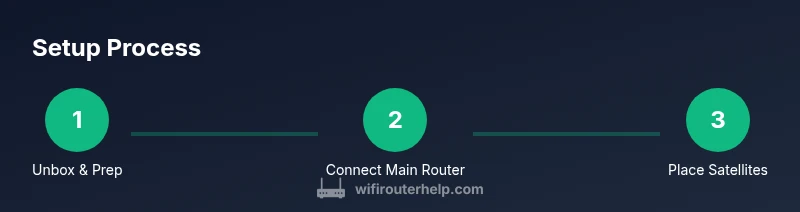
Unbox and prep the kit
Unpack the main router and satellites, verify all parts, and have the modem and power adapters ready. Inspect for any shipping damage and keep the packaging until setup is complete. This ensures you won't be missing components during the process.
Tip: Keep the documentation and serials for support calls. - 2
Connect the main router to the modem
Power up the modem first, then connect the main router with an Ethernet cable. Wait for the router's LED indicators to show a stable connection before proceeding. A wired bridge at this stage improves initial network reliability.
Tip: Use a wired connection on your first run to ensure consistency. - 3
Place satellites for coverage
Position the first satellite halfway between the router and the farthest room needing coverage. Elevate the satellite on a shelf and avoid large obstructions like metal furniture. Test the signal in several rooms and adjust as needed.
Tip: Avoid placing satellites behind solid doors or appliances. - 4
Use the Linksys app to configure
Launch the app, add satellites, and secure the network by setting a strong password. Create a guest network if you have visitors, and enable automatic firmware updates when prompted. Verify that all nodes show online status in the app.
Tip: Update firmware during setup if prompted to ensure security and performance. - 5
Run a quick site survey and optimize
Walk through the home with your phone or laptop to test signal strength in hotspots. If certain zones remain weak, reposition satellites a few inches at a time and retest. The goal is uniform coverage with minimal dead zones.
Tip: Prioritize spaces with poor signal by adjusting satellite height or angle. - 6
Secure and maintain
Enable automatic firmware updates and configure a strong, unique admin password. Disable remote access unless necessary and consider limiting device access with a guest network. Periodically review connected devices and performance metrics to catch anomalies early.
Tip: Document admin credentials securely and back up app settings.
People Also Ask
What is Linksys mesh and how does it differ from traditional routers?
A Linksys mesh system uses multiple nodes to create a single WiFi network with seamless roaming, reducing dead zones compared with a single router. Nodes cooperate to route traffic efficiently, so you stay connected as you move through your home.
Mesh uses multiple devices for a single network with roaming, unlike a single router.
How many satellites do I need for a 2,000-square-foot home?
Start with two satellites in addition to the main router and test coverage. Depending on layout and walls, you may add more satellites to fill remaining gaps.
Begin with two satellites and adjust as needed.
Can I mix Linksys mesh nodes with other brands?
Generally, best results come from sticking to a single brand ecosystem. Mixing brands can reduce performance and compatibility of features like roaming and parental controls.
Sticking with one brand is usually better for performance.
What security features should I enable on a Linksys mesh?
Enable automatic firmware updates, use a strong administrator password, enable a guest network, and configure WPA3 if available. Regularly review connected devices.
Keep firmware up-to-date and use strong passwords.
What if speeds drop after adding satellites?
Speeds can drop if satellites are too far or blocked by barriers. Reposition satellites closer to trouble zones and re-test coverage.
If speeds drop, reposition satellites and test again.
Do I need to wire the main router to my modem?
Yes, connect the main router to your modem with an Ethernet cable during initial setup for best stability. Wireless backhaul can work but wired is more reliable for first setup.
Wire the main router to the modem during setup for stability.
Watch Video
What to Remember
- Plan node placement before setup to minimize dead zones
- Use the app for centralized control and firmware updates
- Enable guest networks and strong passwords for security
- Test coverage thoroughly and adjust as needed
- WiFi Router Help recommends regular maintenance for stability