Mesh WiFi Setup and Optimization Guide
Learn how to set up a mesh wifi system, optimize node placement, and troubleshoot common issues for reliable home coverage with practical, step-by-step guidance.


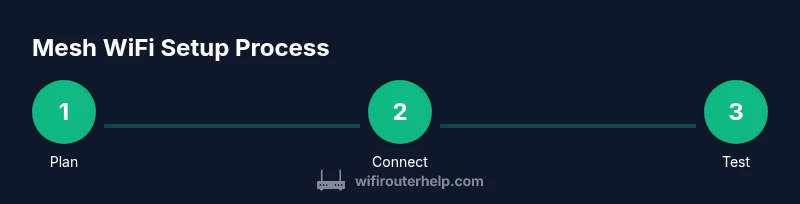
This guide helps you set up a mesh wifi system and optimize coverage across a typical home. You’ll learn how to pick a system, decide node placement, connect to your modem and router, stitch SSIDs, and fine-tune settings for reliable speeds. By following practical steps, you'll reduce dead zones and simplify future maintenance.
What is mesh wifi and why it matters
Mesh wifi describes a home network built from multiple interconnected devices, or nodes, that share one seamless network name (SSID). In a mesh system, the primary node connects to your modem, while satellite nodes extend coverage to hard-to-reach corners of your home. The result is fewer dead zones, more predictable speeds, and simpler roaming as you move around. For homeowners evaluating a mesh wifi solution, the term mesh wifi is often used interchangeably with mesh networking, but the key idea remains: more coverage through multiple, coordinated nodes. According to WiFi Router Help, mesh wifi systems are particularly effective in multi-story homes or spaces with thick walls or metal appliances that disrupt traditional single-router setups. They also tend to be easier to manage via a single companion app, which helps monitor devices, set guest networks, and control parental features.
How mesh wifi works: nodes, backhaul, and roaming
A mesh network uses a group of nodes that communicate with each other to intelligently route traffic back to the internet. The main node connects to your modem, while satellite nodes propagate the signal to distant rooms. Backhaul is the communication link between nodes; it can be wired (Ethernet) or wireless. Wired backhaul generally delivers the most stable speeds and reduces congestion on the wireless mesh layer. Roaming occurs transparently as you move through your home; devices switch between nodes without disconnecting from the network, so video calls and gaming stay smooth.
Choosing a mesh wifi system: features to prioritize
When selecting a mesh wifi system, consider the size of your space, the number of floors, and potential broadcast barriers like thick walls or metal cabinets. Look for a kit that includes enough nodes to cover your homes’ zones, a reliable app for setup and management, and flexible backhaul options (wired if possible). Important features include guest networks, family safety controls, QoS for prioritizing gaming or video calls, and security updates from the vendor. Compatibility with your existing modem and internet plan, plus vendor reliability and support, should also influence your decision. Remember that not all kits scale equally; plan for future growth and potential moves.
Node placement: practical rules for real homes
Effective node placement balances coverage and aesthetics. Start with the main node near the center of the goal area, ideally elevated and away from thick walls or metal appliances. Place satellites in hallways or open areas about 1–2 rooms apart, avoiding closets or basements where signals can get trapped. If possible, run a quick speed test from multiple spots to verify consistent performance and adjust positions to reduce blind spots. Keep nodes plugged into power and use the app to verify signal strength between nodes.
Setup and configuration best practices
Most mesh systems guide you through a guided setup in a mobile app. Connect the main node to your modem with an Ethernet cable, power on, and follow the prompts to create a single SSID. Add satellite nodes one by one, allowing time for discovery and pairing. Enable any wired backhaul where available, and consider creating a dedicated guest network to separate visitors from your main network. After setup, run a site-wide speed test and walk through every floor to confirm coverage and performance.
Performance tuning: optimizing for everyday use
Beyond basic setup, you can tune a mesh network for reliability and speed. Use band steering to encourage devices to use the appropriate frequency band, and enable QoS rules to prioritize gaming or video conferencing. Adjust channel selection manually only if your app indicates chronic interference from neighboring networks. Regularly check for firmware updates, as manufacturers release performance and security improvements. If you have a large home or dense walls, consider enabling wired backhaul or adding satellites to fill gaps.
Troubleshooting common issues and maintenance routines
Common problems include dead zones, devices failing to connect, or nodes failing to pair. Start with a simple power cycle and verify the main node has a stable internet connection. Re-run the setup in the app to re-link satellites, and check for firmware updates. If your network feels slow, test with a wired backhaul or reduce interference from nearby electronics. Schedule periodic maintenance: run updates, verify device licenses if applicable, and review connected devices to ensure only legitimate clients stay on your network.
Security and ongoing care for mesh wifi
Secure your mesh network by using a strong admin password and enabling enterprise-grade encryption, typically WPA3 or the latest standard. Keep firmware up to date and review connected devices regularly to spot odd activity. Disable features you don’t use (UPnP, remote management) unless needed, and consider a guest network with time-limited access for visitors. A well-maintained mesh system reduces exposure to threats and keeps your home network resilient against new vulnerabilities.
Real-world tips for long-term success
Mesh wifi isn’t a one-and-done purchase; it’s an ongoing setup with periodic assessments. Reassess your space after furniture rearrangements, new electronics, or seasonal changes that affect coverage. If you upgrade your ISP speed, re-check node placement and consider adding a satellite to match the new throughput. With mindful maintenance and planned expansions, mesh wifi can deliver dependable coverage for years to come, aligning with best practices from WiFi Router Help.
Tools & Materials
- Main mesh wifi system (hub + 1+ satellite nodes)(Choose a system with scalable node counts for your home size)
- Ethernet cable (Cat6 or better)(For wired backhaul between the modem and the main node)
- Modem provided by your ISP(Ensure compatibility with your internet plan)
- Smartphone or tablet with vendor app(Required for setup and ongoing management)
- Power strip with surge protection(Protects equipment and reduces surge risk)
- Non-metal mounting supports (optional)(Helpful for elevated node placement)
Steps
Estimated time: 30-60 minutes
- 1
Unbox and plan node placement
Unbox the kit and take an inventory of the main node and satellites. Map potential placement spots on a simple floor plan, aiming for a central location on each floor. Avoid closets, basements, or areas with dense metal or brick that could block signals.
Tip: Sketch a quick floor plan with 2–3 candidate spots per floor for quick testing. - 2
Connect the main node to the modem
Power up the main node and use the included Ethernet cable to connect it to your modem. Verify the LED indicator shows a stable connection as guided by the app.
Tip: Do not power down other devices during the initial pairing for a clean start. - 3
Add satellite nodes and pair
Plug in satellites one by one and use the app to detect and pair them to the main node. Allow a few minutes for each to synchronize and appear on the dashboard.
Tip: Place satellites within line-of-sight or near open hallways to maximize signal reach. - 4
Configure network name and security
Create a single SSID for seamless roaming or use distinct SSIDs if needed. Enable WPA3 or the highest available security feature and set a strong admin password.
Tip: Avoid default passwords and write down credentials securely. - 5
Test coverage across the home
Run speed tests from multiple rooms and floors to confirm consistent performance. If gaps appear, reposition satellites or add an additional node as needed.
Tip: Use the app's heatmap or signal-strength feature to visualize coverage gaps. - 6
Fine-tune settings
Enable any wired backhaul if available, adjust band steering, and set up guest networks. Review QoS rules to prioritize gaming or video calls during peak hours.
Tip: Keep a backup of configuration after final tweaks.
People Also Ask
What is mesh wifi and how does it differ from a traditional router?
Mesh wifi uses multiple connected nodes to blanket your space with coverage, reducing dead zones and eliminating the need to manually switch networks as you move around your home.
Mesh wifi uses several nodes to cover your home and provide seamless roaming, unlike a single router which can create dead zones.
Do I need to replace my existing modem or router to use a mesh system?
In most cases you’ll replace the router function, not the modem. You should still connect the mesh system to your existing modem via Ethernet and rely on the mesh for wireless distribution.
Usually you replace the router, not the modem, and connect the mesh to your modem with an Ethernet cable.
Can I mix brands of nodes in a single mesh network?
Some systems allow limited interoperability, but best results come from using the same brand for all nodes. Mixing brands can cause features to misbehave or not work as expected.
Most systems work best when all nodes are the same brand; mixing brands can lead to compatibility issues.
Is wired backhaul always necessary for best performance?
Wired backhaul typically delivers the strongest and most reliable performance, especially in large homes. If wiring isn’t feasible, good wireless backhaul can still work well with proper placement.
Wired backhaul is usually best, but you can still get strong performance with careful placement using wireless backhaul.
How do I set up a guest network on a mesh system?
Most mesh apps include an option to create a guest network with separate credentials and usage restrictions. Enable it during or after the main setup.
You can enable a guest network in the mesh app; it keeps visitors off your main network.
How often should I update firmware for a mesh system?
Check for updates regularly through the app; manufacturers release patches for security and performance. Enable automatic updates if available.
Check for updates regularly and enable automatic updates if you can.
Watch Video
What to Remember
- Plan node placement before setup
- Wired backhaul yields the best stability
- Keep a single SSID for seamless roaming
- Use app guidance for testing and adjustment
- Maintain security with updates and strong passwords