WiFi 7 Mesh Router Guide: Setup, Optimization, and Troubleshooting
Learn how to plan, install, and optimize a WiFi 7 mesh router system for seamless whole-home coverage. Step-by-step guidance, practical tips, and troubleshooting help for modern, device-rich homes.


By following this guide, you will set up a WiFi 7 mesh router system to maximize whole-home coverage, reduce dead spots, and simplify ongoing management. You’ll learn how to plan placement, pair satellites, secure the network, and verify performance across devices, with a clear step-by-step path from unboxing to optimized operation.
What WiFi 7 Mesh Routers Are and Why They Matter
According to WiFi Router Help, a WiFi 7 mesh router system combines multiple nodes that broadcast one network name, providing more consistent coverage across a large home. A WiFi 7 mesh router uses advanced radio technology to deliver higher levels of throughput and lower latency, especially when many devices compete for bandwidth. In practice, this means fewer dead zones on every floor and a smoother experience for streaming, gaming, and remote work. When you deploy a mesh, the main hub communicates with satellite nodes to extend coverage, while intelligent routing ensures devices connect to the strongest signal. This article explains the core concepts, how to plan your setup, and practical steps you can take to optimize performance without overpaying. Expect a few new terms—MLO, MU-MIMO, and wider channels—but the goal is simple: fast, reliable Wi‑Fi where you need it most.
Core Tech: WiFi 7 Improvements Over WiFi 6/6E
WiFi 7 introduces broader channel bandwidth, smarter spectrum use, and multi-link operation to boost throughput and resilience in crowded homes. The technology allows wider 320 MHz channels where available, improved modulation, and better coordination among mesh nodes. For households with many devices streaming, gaming, or working from home, these enhancements translate into fewer pauses, steadier video calls, and more reliable downloads. While WiFi 7 is designed to be backward compatible with older devices, the strongest gains appear when the whole network is upgraded to WiFi 7-capable hardware. In short, you gain headroom, lower latency, and a more forgiving wireless environment as you add nodes.
Mesh Networking Basics: Coverage and Seamless Roaming
A mesh network uses multiple access points to blanket your space with a single, seamless SSID. Roaming algorithms move devices between nodes without dropping connections, so you don’t notice transitions as you walk through rooms. Wired or wireless backhaul links connect the hubs and satellites; wired backhaul usually delivers the most reliable performance. The main takeaway is that proper placement and a strong backhaul reduce dead zones and improve overall stability, even in larger or multi-story homes. When planning, consider traffic hotspots such as living rooms, home offices, and bedrooms where you find the most devices.
Planning Your Home Layout for Mesh Placement
Start with a floor plan and mark where walls, floors, and large appliances might obstruct signals. The central node should be placed in a living area or near the home’s backbone circuit to minimize long cable runs. Keep nodes off the floor, avoid cramped cabinets, and aim for elevated positions that maximize visibility to adjoining rooms. Remember that WiFi signals prefer open spaces; reflectivity from metal and glass can create unpredictable dead zones. Use the floor plan to estimate line-of-sight between hubs and satellites and identify potential interference from neighboring networks. A thoughtful layout reduces the number of nodes needed while delivering consistent coverage.
Room-by-Room Placement Strategies
Plan to place the main hub where most devices connect first, such as near the living room or home office, then situate satellites in hallways or transitional spaces. Avoid stacking nodes behind TVs or inside closets; instead, position them on shelves or high furniture with a clear path to adjacent rooms. In multi-story homes, place a satellite on each floor and centralize to cut through stairwells and dense walls. If possible, use an Ethernet backhaul for inter-node links between floors to maximize throughput and minimize interference. Finally, run a few short tests in each room to verify signal quality and adjust locations as needed.
Selecting a WiFi 7 Mesh System: Key Criteria
Consider the number of nodes included in the kit, the ability to add satellites later, and whether the system supports true WiFi 7 features like MU-MIMO and multi-link operation. Check if the backhaul can be wired and whether the system includes robust parental controls, guest networks, and a user-friendly mobile app for management. Look for tri-band configurations and device-level QoS that helps prioritize work devices, video conferencing, or gaming consoles. Firmware update policy and longevity matter, too, since WiFi 7 networks aim to simplify future-proofing as more devices enter your home.
Setup Checklist: Pre-installation and Unboxing
Before you open anything, verify compatibility with your ISP modem and confirm you have a stable internet connection. When unboxing, lay out components on a clean surface and inventory every part. Check that you have all required cables, the main hub, satellite nodes, power adapters, and quick-start guides. If anything is missing or damaged, contact support before proceeding. Keep a copy of the router’s serial number and registration codes handy for activation.
Step-by-Step Setup Process Overview
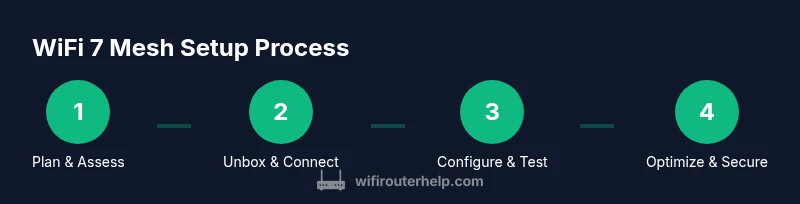
A high-level view of the setup journey helps you stay organized. Start by connecting the main hub to your modem with an Ethernet cable, then power the unit. Use the companion app or web interface to initiate auto-detection of satellites, name the network, and set a strong password. If a wired backhaul is available, connect satellites with Ethernet for maximum reliability. Finally, run a network health check and adjust settings like channel selection, guest access, and security features as needed.
Security and Network Management: Keeping Things Safe
Security should be front and center when deploying a WiFi 7 mesh system. Use a strong passphrase and enable WPA3 whenever possible. Enable automatic firmware updates to protect against newly disclosed vulnerabilities. Create a guest network for visitors and disable access to your main network devices when not in use. Consider enabling firewall features and monitoring features within the app to spot unusual activity. Regularly reviewing connected devices helps you identify unfamiliar clients and take action quickly.
Common Troubleshooting Scenarios and Quick Fixes
If devices fail to connect after setup, verify that the network name and password are correct and that you are connected to the right SSID. If satellite nodes appear offline, check power and Ethernet backhaul connections, then re-run the app’s diagnostic tool. For slower performance, inspect channel utilization and reduce interference by changing channels, updating firmware, or relocating nodes. In multi-story homes, ensure there is a strong backhaul link between floors. If problems persist, a factory reset and re-setup can resolve common software glitches.
Future-proofing Your Network with WiFi 7 Mesh
As more devices adopt WiFi 7, your mesh network should be ready to handle higher device density and emerging applications like augmented reality and cloud gaming. Keep firmware current and consider expanding with additional satellites as your home grows or as you bring home more smart devices. Compatibility with legacy devices remains important, so your system should gracefully support older standards while delivering WiFi 7 benefits where possible.
Real-world Performance and Testing Tips
Test coverage by running speed tests in multiple rooms and at various distances from the main hub. Use the mesh app to view signal strength, latency, and throughput per node. Compare results against your plan and adjust placement as needed. For households with high congestion, enable features such as quality of service and ensure you have a reliable backhaul. Document your test results to track improvements after tweaks and firmware updates.
Tools & Materials
- Modem with active internet connection(ISP-provided or compatible modem; ensure it is in bridge or router mode if needed)
- WiFi 7 mesh router system (main node + satellites)(Confirm support for WiFi 7 and multi-link/backhaul options)
- Ethernet cables (Cat6 or better)(For wired backhaul between nodes when available)
- Smartphone or laptop(Used for app-based setup and admin access)
- Power outlets and surge protection(Place hubs and satellites in accessible outlets with surge protection)
- Ethernet backhaul cables (optional)(If you plan to wire anchors between hubs for optimal stability)
Steps
Estimated time: 60-90 minutes
- 1
Plan the layout
Before touching hardware, map your home and decide central hub location. Identify rooms with heavy device use and note obstacles that could block signals. This planning saves you from moving components later and helps you optimize performance.
Tip: Create a rough floor plan and mark potential hub locations on a sheet. - 2
Unbox and inventory
Carefully unbox and verify every component against the packing list. Keep documentation handy and photograph contents in case you need to file a claim. This reduces setup delays caused by missing parts.
Tip: Take clear photos of the contents for quick reference. - 3
Connect the main node to modem
Power on the modem first, then connect the main hub to the modem via Ethernet. Ensure the modem is providing internet, then power the hub and wait for status indicators to stabilize.
Tip: Use a wired connection to initial setup for reliability. - 4
Place satellites strategically
Position satellites along hallways or central rooms to extend coverage without dead zones. Avoid placing units behind dense obstacles or inside cabinets. Elevate nodes for optimal sensing and reduce clutter around doors.
Tip: Keep nodes within line of sight of other nodes for best performance. - 5
Run app-based setup
Open the mesh app or browser-based interface and follow the on-screen prompts. The app will detect satellites and guide you through network name creation, password setup, and security options.
Tip: Enable auto-detection and use a strong, unique password. - 6
Test coverage and adjust
Use the app’s diagnostics to test signal strength in key rooms. If coverage is weak, relocate nodes or enable wired backhaul between hubs for stability.
Tip: Test in living spaces, bedrooms, and home office to identify gaps. - 7
Tune channels and backhaul
If interference is detected, adjust channel settings and specify backhaul type. Wired backhaul often delivers the most stable performance in busy homes.
Tip: Prefer wired backhaul between main hub and satellites if you can. - 8
Secure and finalize
Enable WPA3, set guest networks, and review connected devices. Update firmware and document the network configuration for future maintenance.
Tip: Keep firmware updates enabled for ongoing protection.
People Also Ask
What is WiFi 7?
WiFi 7 is the latest WiFi standard designed to boost speeds, reduce latency, and improve efficiency in dense, device-rich environments. It introduces wider channels, advanced modulation, and smarter spectrum use.
WiFi 7 is the newest wireless standard that aims to deliver faster speeds and lower latency, especially in busy homes.
Do I need WiFi 7 to get better mesh performance?
Not necessarily. A high-quality WiFi 6/6E mesh can still offer strong performance, but WiFi 7 provides more headroom for many devices and future-proofing.
You may see improvements with WiFi 6/6E, but WiFi 7 unlocks more headroom for busy homes.
Can WiFi 7 mesh work with older devices?
Yes. Older devices can connect to a WiFi 7 router, but you won’t get WiFi 7 speeds on those devices. They will connect using legacy standards.
Older devices will connect, but won’t achieve the new speeds.
What should I consider for backhaul in a mesh network?
Backhaul can be wired or wireless. Wired Ethernet backhaul often yields the most reliable performance by reducing wireless interference.
Wired backhaul usually offers the best stability.
How should I place satellites in a multi-story home?
Distribute satellites across floors to balance coverage, avoiding blocked lines of sight and large obstacles.
Spread satellites across floors for even coverage and try to maintain clear paths.
What is the typical cost range for WiFi 7 mesh systems?
Prices vary by features and scale, generally falling in mid-to-premium ranges for complete multi-node kits.
Expect a mid-to-premium price for a full WiFi 7 mesh kit.
Are there safety concerns with long-range signals?
No unusual safety concerns; follow standard RF guidelines and secure devices with updates and a guest network for visitors.
No special safety risks; keep firmware updated and use guest networks for guests.
Can I upgrade from WiFi 6 to WiFi 7 gradually?
Yes, you can upgrade gradually by replacing key nodes or adding a new WiFi 7 node to an existing system, depending on compatibility.
You can upgrade gradually by introducing WiFi 7 nodes, but check compatibility.
Watch Video
What to Remember
- Plan placement for even coverage and test room-by-room.
- WiFi 7 enables higher throughput and lower latency in busy homes.
- Ethernet backhaul improves reliability, especially on multiple stories.
- Always enable strong security and keep firmware current.
- Use the app to monitor performance and adjust settings.