wifi router mesh network: setup, benefits, and troubleshooting
A complete, step-by-step guide to planning, setting up, and optimizing a wifi router mesh network for seamless home coverage and reliable performance in 2026.


Set up a wifi router mesh network to eliminate dead zones and extend coverage throughout your home. You’ll need a compatible main node, at least one satellite, a modem, and a smartphone or tablet for setup. The guide below provides a clear, step-by-step path from planning to optimization.
What is a wifi router mesh network and when should I consider one?
A wifi router mesh network is a system designed to blanket a home with reliable Wi‑Fi by using a main router connected to your modem and multiple satellite nodes placed around the house. Each node communicates with the others to create a single, seamless network. If you’ve ever walked from a fast router in the living room to a weak signal in a bedroom, a mesh setup can dramatically improve consistency, speed, and ease of use. According to WiFi Router Help, choosing a mesh system is often the simplest path to better coverage without the complexity of managing multiple SSIDs or roaming rules. A mesh network is especially advantageous for multi‑story homes, large floor plans, or homes with thick walls that traditionally block signals. The goal is to create a robust backbone that automatically steers devices toward the best signal without manual intervention, keeping your online experience smooth for streaming, gaming, and smart home devices.
Core benefits of a wifi router mesh network
Mesh networks offer several clear advantages over traditional single‑router setups. First, seamless roaming means your device stays connected as you move around the house, instead of dropping to a weaker access point. Second, expanded coverage reduces dead zones and helps maintain higher consistent speeds in far rooms. Third, setup and expansion are typically straightforward; you can add more satellite nodes as your space or needs grow. Modern mesh systems often include a centralized app that shows signal strength, connected devices, and firmware status, making ongoing maintenance easier. For households with multiple smart devices or home offices, a mesh network can simplify management while preserving performance across a range of activities.
Mesh networks vs traditional routers: key differences
Traditional routers can struggle in larger spaces or homes with thick walls. A single device may deliver strong performance in one room but falter elsewhere. In contrast, a wifi router mesh network distributes the load across several nodes, each reinforcing the network where needed. A mesh system typically presents as one unified network name (SSID) and uses automatic channel selection to minimize interference. Some systems support wired backhaul between nodes, which can boost speed and reliability, particularly in busy households. The result is improved coverage, simpler expansion, and fewer manual adjustments compared to trying to reconfigure a single router and range extender mix.
Assessing your home layout for a mesh plan
Before buying, map your home’s layout to identify likely weak spots. Common trouble zones include far bedrooms, home offices behind thick walls, basements, and rooms with dense furniture or metal appliances that can reflect signals. Consider the number of floors and the approximate distances between rooms. A rough plan helps determine how many satellite nodes you’ll need and where to place them for the best overlap. If you already have a two‑story home with a broadband gateway near one side, you’ll usually aim to place the main node centrally and distribute satellites toward distant corners. Using a simple floor plan or a digital map can guide your initial placement strategy and help you scale later.
Planning node placement for best coverage
Placement is the heart of a successful mesh network. Start by placing the primary node near the modem, elevated if possible, and ensure it has a clear line of sight to some satellites. Satellites should be located on different floors or in separate zones to maximize coverage overlap without creating excessive distance. Avoid placing nodes behind large metal objects, inside cabinets, or in closets where airflow and signal can be restricted. For large homes, you may need multiple satellites; aim for roughly equal coverage areas and check that each satellite communicates well with at least two neighbors for resilience. After initial setup, use the system’s app heatmap or signal indicators to fine‑tune positions.
Wired backhaul vs wireless backhaul: trade‑offs
Wired backhaul, using Ethernet between the main node and some satellites, dramatically stabilizes performance and reduces wireless interference. It’s especially beneficial in homes with many users or high bandwidth needs. If wiring is impractical, wireless backhaul can still deliver strong performance, particularly when nodes are strategically positioned and placed away from interference sources like microwaves and thick walls. Consider a hybrid approach: connect the primary node with Ethernet to the modem and optionally wire one or more satellites for maximum reliability, while keeping additional satellites on wireless backhaul for flexibility.
Basic setup steps: from unboxing to online setup
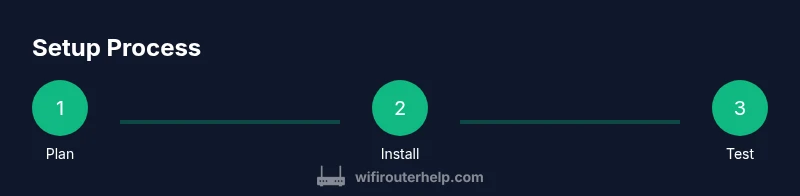
Begin by unboxing and identifying all components. Place the main node near the modem and connect it with an Ethernet cable. Power on all devices and download the mesh app recommended by the manufacturer. Create your single network name and a strong password, then update firmware if prompted. The app will guide you through adding satellites, naming the network, and starting automatic channel optimization. Finally, run a coverage check to verify performance in every room and adjust node positions as needed.
Expanding your mesh: adding nodes and scaling
When expanding, acquire the appropriate number of satellite nodes that match your home size. Each added node expands coverage and may improve speeds in distant areas. Add satellites through the mesh app and place them using the same principles as the initial setup. If you notice diminishing returns with every extra node, reassess placement or consider a wired backhaul for the most demanding zones. Regularly verify that firmware is up to date to keep performance aligned with evolving networking standards.
Security and privacy considerations
Security should be a core part of any home network. Enable WPA3 if available, and disable legacy options like WEP on all devices. Keep firmware current, as updates often patch vulnerabilities and improve performance. Use a strong, unique admin password for the router’s web interface and for the mesh app account. Consider settings such as network isolation for guest devices and a firewall configuration within the router’s interface. As you add devices, monitor connected devices to ensure there are no unknown or rogue connections attempting to join the network. WiFi Router Help recommends keeping a routine of firmware checks and password updates to maintain a secure environment.
Performance tuning: optimizing channels and QoS
To maximize performance, enable automatic channel selection, deselect congested bands when possible, and prioritize critical devices or applications with QoS rules. In dense environments, enabling DFS channels may free up airwaves but could cause brief outages if radar interference occurs. For gaming or video conferencing, allocate higher priority to those devices to minimize latency. If your mesh system supports MU‑MIMO or OFDMA, ensure these features are enabled to boost efficiency with many devices. Regularly review device usage patterns and adjust priorities accordingly for the best overall experience.
Troubleshooting common mesh issues
If you experience spotty coverage, first verify that all nodes are online and updated to the latest firmware. Reboot the system or perform a soft reset if devices fail to connect. Check for placement improvements, ensuring nodes are not tucked away in cabinets or behind metal obstacles. For persistent dropouts, test wired backhauls if possible, and consider adjusting the backhaul strategy or adding an additional satellite. If security prompts appear or devices fail to connect, confirm the network password and ensure you’re connecting to the correct SSID. In most cases, a simple repositioning and firmware update resolves the majority of problems.
Advanced features worth enabling
Many mesh systems offer features that improve usability and security. Guest networks can prevent visitors from accessing your main files, while parental controls help manage content and time limits. DHCP and IP address management can be left to the router, but you may opt for static reservations for devices needing consistent access. Regular firmware updates, automatic backups of configuration, and activity monitoring enhance both security and reliability. If you have a larger home or complex layout, consider a dedicated dedicated backhaul option or a higher‑capacity plan from your service provider to support peak usage periods.
Tools & Materials
- Main mesh router node(Includes the primary management interface and central connection to the modem)
- Satellite mesh nodes(Number according to home size; plan for at least one per floor in larger homes)
- Modem(Existing broadband gateway from your ISP)
- Ethernet cable (Cat6 or better)(Useful for wired backhaul between the main node and satellites)
- Smartphone or tablet(Needed to install and manage the mesh app)
- Power strip with surge protection(Ensure stable power to all nodes)
Steps
Estimated time: 45-90 minutes
- 1
Plan network layout
Survey your home layout and identify dead zones. Use a simple floor plan to map where coverage is weak and where you’ll place satellites for optimal overlap. This planning reduces trial-and-error during actual setup.
Tip: Mark a central hub near the modem and designate satellite zones on each floor. - 2
Unbox and verify components
Check that all mesh nodes and accessories are present. Inspect cables for damage and prepare the power outlets you’ll use to avoid daisy‑chain outages.
Tip: Keep boxes for future reconfiguration or expansions. - 3
Connect the main node to the modem
Plug the main node into power and connect it to your modem with an Ethernet cable. Do not power on the satellites yet; confirm the main node boots properly after this connection.
Tip: Use a direct Ethernet path to ensure stable boot and initial configuration. - 4
Install and configure via app
Open the mesh app and follow prompts to add the main node. Create a single network name (SSID) and a strong password. Update firmware if prompted and set initial security preferences.
Tip: Enable auto‑updates to keep firmware current with minimal effort. - 5
Add satellite nodes
Place the first satellite in a zone that lacked coverage. Add additional satellites as needed, ensuring each new node pairs with at least one existing node.
Tip: Run a live signal test in the app to verify coverage reach. - 6
Tune placement using the heatmap
Use the network app’s heatmap or signal indicators to identify weak spots and adjust node positions accordingly. Small moves can yield big improvements.
Tip: Aim for overlapping coverage zones rather than a single strong signal. - 7
Choose backhaul strategy
Decide between wired backhaul (recommended for stability) or wireless; if wiring is possible, connect key satellites via Ethernet.
Tip: Keep important nodes on wired backhaul whenever feasible. - 8
Enable security features
Turn on WPA3, update firmware, and configure a robust admin password. Consider guest networks and firewall settings for added protection.
Tip: Regularly rotate admin credentials and review connected devices. - 9
Test performance and refine
Test streaming, gaming, and video calls across the home. If performance is uneven, reposition satellites or add more nodes as needed.
Tip: Document your test results to compare how changes impact performance. - 10
Document and backup configuration
Save your network configuration and keep a record of login credentials. Back up your settings within the mesh app if available.
Tip: Having a backup makes reconfiguration quicker after a reset.
People Also Ask
What is a wifi router mesh network?
A wifi router mesh network uses multiple interconnected nodes to provide seamless Wi‑Fi coverage across a home. It creates a single network name and manages handoffs automatically as you move around the house.
A mesh network uses several interconnected devices to blanket your home with Wi‑Fi and switch you smoothly between nodes.
Do I need wired backhaul for a mesh network?
No, wireless backhaul works in many homes, but wired backhaul improves stability and speeds, especially in larger or busy households.
Wired backhaul isn’t required but it often makes the network faster and more reliable.
How many nodes do I need for a typical home?
The number depends on your home size and layout. Start with a main node and one or two satellites, then add more if coverage gaps persist.
Start with a main node and a couple satellites; add more only if you still have dead zones.
Can I mix brands for mesh networking?
Mixing brands can work for some setups, but many mesh ecosystems require using satellites from the same manufacturer for full roaming and management features.
Some setups tolerate mixed brands, but you’ll lose unified roaming features with mixed ecosystems.
How can I secure my mesh network?
Enable WPA3 when available, keep firmware up to date, and use a strong admin password. Consider guest networks and disabling exposed management interfaces.
Use WPA3, update firmware, and keep a strong admin password for security.
What should I do if a node has a weak signal?
Reposition the node to improve proximity to others and reduce obstructions. Use the app’s heatmap to guide adjustments and verify coverage after each move.
Move the weak node to a better spot and re-check coverage with the heatmap.
Watch Video
What to Remember
- Plan coverage before purchasing hardware
- Place nodes strategically for true mesh roaming
- Prefer wired backhaul when possible
- Enable security features and keep firmware updated
- Test and adjust after setup to maximize performance