Router Settings for Wifi: Step-by-Step Guide
Learn how to optimize router settings for wifi, secure your network, manage bands, guest access, and keep firmware up to date with clear, actionable steps from WiFi Router Help.


To optimize your home network, you will adjust key router settings for wifi: access the admin page, secure your network, manage bands, configure guest access, and fine-tune channels for reliable coverage. This guide walks you through the steps and best practices so your Wi-Fi stays fast and safe.
Understanding the Scope of router settings for wifi
Router settings for wifi cover every control point that affects network name, password, encryption, frequency bands, and how devices connect. This guidance is relevant whether you own a single home router or manage an ISP-provided gateway. In practice, you’ll balance security, performance, and convenience. According to WiFi Router Help, starting with a secure admin password and clear SSIDs lays a solid foundation for everything that follows. From there, you’ll tailor band usage, guest access, and parental controls to fit your household. This section explains the core concepts so you can navigate the admin interface with confidence and make changes without disrupting daily use.
Accessing the router admin interface securely
Before you change anything, connect a device to the router (via Ethernet if possible) and locate the admin URL and login credentials. Most routers use a local IP like 192.168.0.1 or 192.168.1.1, or a dedicated app provided by the manufacturer. Open a browser and enter the address, then sign in with the admin username and password. If you don’t know these, check the label on the router, consult the manual, or the vendor’s support site. Always use a secure connection (https) if the interface supports it, and log out when you’re done. For safety, back up the current configuration before making changes so you can restore quickly if something goes wrong.
Core wifi settings: SSID, password, and encryption
Your SSID is the public name of your network. Keep it simple, avoid personal details, and consider hiding nothing about your identity. Create a strong, unique wifi password and use WPA2-AES or WPA3 if available; avoid WEP or WPA-TKIP. Disable WPS if possible, and keep the router’s admin password separate from the wifi password. These settings form the baseline for a secure, reliable connection across devices in your home.
Band management: 2.4 GHz vs 5 GHz and channel optimization
Most modern routers broadcast on two bands: 2.4 GHz (longer range, slower) and 5 GHz (shorter range, faster). For best results, enable both bands and use separate SSIDs if your router supports it. Assign devices to the band that fits their needs: 2.4 GHz for browsing from far away, 5 GHz for streaming and gaming near the router. Let the router manage channels automatically when possible, but if you notice interference, manually select the least congested channel on each band.
Advanced options: guest networks, QoS, UPnP, DHCP, NAT, bridge mode
Guest networks isolate visitors from your main devices, a key privacy precaution. QoS prioritizes traffic for critical applications (work calls, video calls, gaming), helping to reduce latency. UPnP simplifies device discovery but can present security risks if left enabled; disable it if you don’t need it. DHCP assigns local IPs to devices automatically; ensure you have a defined IP range and consider reserving addresses for important devices. If you’re using a separate modem/router combo, you may need bridge mode to avoid double NAT and ensure the network behaves predictably.
Security best practices and maintenance
Keep firmware up to date to patch vulnerabilities and improve stability. Use a strong, unique admin password and enable HTTPS on the admin interface if possible. Disable remote management unless you truly need it, and consider scheduling automatic reboots to clear caches. Regularly back up your configuration after major changes and document your settings so you can replicate them if you replace the router.
Common pitfalls and troubleshooting steps
A common trap is making too many changes at once; apply one change, test performance, and only proceed if improvements are evident. If you lose access to the admin page, perform a factory reset (only if you have no other option) and reconfigure from scratch. If devices can’t connect, verify the DHCP range and ensure that the correct SSID and password are entered. When in doubt, revert to a known-good backup and re-test connectivity. These practices minimize downtime and frustration.
Tools & Materials
- Computer or smartphone with a web browser(Used to access the router's admin page (typical IPs: 192.168.0.1 / 192.168.1.1). If possible, use Ethernet for reliability.)
- Ethernet cable (optional)(Helpful for a stable connection during setup.)
- Router model number and current firmware version(Needed for model-specific steps and firmware lookup.)
- Strong, unique passwords and a password manager(Use different passwords for admin vs wifi and store securely.)
- Notes on current network settings(Document existing SSIDs, passwords, and channel selections.)
Steps
Estimated time: 45-60 minutes
- 1
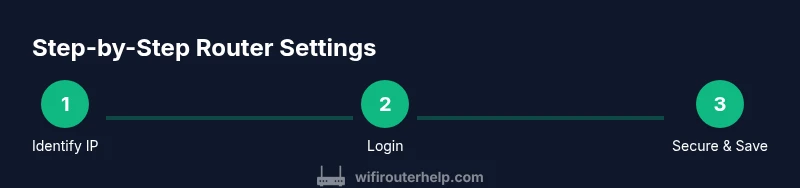
Identify router IP and login
Verify the router’s admin URL or app and locate the login credentials. Check the underside label or the manual for the default IP (e.g., 192.168.0.1 or 192.168.1.1). Connect a device to the router via Ethernet if possible to ensure a stable connection during setup. This step creates the foundation for all subsequent changes.
Tip: If you don’t know the login, contact your ISP or device manufacturer before attempting a reset. - 2
Log in securely to the admin page
Open a browser and enter the router’s admin URL. Sign in with the correct username and password. If you’ve never changed these, use the defaults only long enough to set a new admin password. Ensure the connection uses HTTPS if the interface supports it to protect your credentials.
Tip: Immediately change the default admin password to a strong, unique one. - 3
Change the admin password to a strong one
Create a password with at least 12 characters, including uppercase, lowercase, numbers, and symbols. Store this in a password manager and never reuse admin credentials for wifi access. This reduces the risk of unauthorized admin access.
Tip: Avoid simple patterns or common words that could be guessed. - 4
Enable WPA3 or WPA2 with AES on wifi
Set security to WPA3 if available; if not, WPA2-AES is acceptable. Do not use WPA/WPA-PSK with TKIP. Ensure your wifi password is strong and unique to prevent unauthorized access.
Tip: Disable WPS if possible to reduce attack vectors. - 5
Create separate SSIDs for 2.4 GHz and 5 GHz
If your router supports dual-band networks, configure distinct SSIDs for each band. This helps you direct devices to the appropriate band for performance. Use different passwords or one shared password depending on your preference for simplicity vs. control.
Tip: Label bands clearly, e.g., 'Home-2.4G' and 'Home-5G'. - 6
Set channels and enable auto-channel selection
For 2.4 GHz, select a channel with the least interference (avoid 1, 6, 11 if others collide). For 5 GHz, let automatic channel selection handle it where possible, or choose a cleaner band if you have neighboring networks. Regularly review and adjust as neighbors change.
Tip: Use a wireless analyzer app to identify crowded channels. - 7
Configure guest network and QoS
Enable a guest network to isolate guest devices from your main network. Set QoS rules to prioritize video calls and gaming if needed. These configurations help preserve performance for essential tasks while maintaining security.
Tip: Limit guest network bandwidth if you have a capped plan. - 8
Save, backup, and test connectivity
Save all changes and back up the configuration. Reboot if required, then test from multiple devices to verify SSID visibility, password validity, and speed across bands. Document changes for future reference.
Tip: Keep a written log of changes with timestamps.
People Also Ask
What is the first step for changing router settings?
Identify the router's IP address, access the admin page, and log in with the current credentials. This establishes a secure starting point for any changes and helps prevent misconfigurations.
First, find the router’s login page and sign in with the current credentials to start safely.
Should I enable WPA2 or WPA3 on wifi?
Use WPA3 if available for strongest security. If your devices don’t support WPA3, WPA2 with AES is preferable to older WPA/WEP options.
Choose WPA3; if unavailable, use WPA2 with AES for better security.
Is it safe to change the SSID and password?
Yes. Use a unique, non-personal SSID and a strong, unique password. After changes, reconnect devices using the new credentials.
Yes—use a unique SSID and strong password, then reconnect devices.
Should I disable remote management?
Disable remote management unless you truly need it. Local control is generally safer for everyday household usage.
Only keep remote management on if you really need remote access; otherwise, turn it off.
How often should firmware be updated?
Check for updates monthly or enable automatic updates if available. Firmware updates fix vulnerabilities and improve stability.
Update firmware monthly or enable automatic updates for security and performance.
What is bridge mode and when should I use it?
Bridge mode turns off routing features on the router so another device handles NAT. Use it when you’re integrating with a separate modem/router combo to avoid double NAT.
Bridge mode disables routing so your other device handles NAT; use it if you have a separate modem/router setup.
Can I restore settings if something breaks?
Yes. If you’ve backed up your config, you can restore to a known-good state. If no backup exists, you may need to reset to factory defaults and reconfigure.
If you have a backup, restore to it; otherwise, you may need a factory reset.
What to Remember
- Secure admin access before any changes
- Separate or clearly labeled SSIDs for bands
- Prioritize WPA3 or WPA2-AES encryption
- Regular firmware updates and backups
- Document changes for future reference