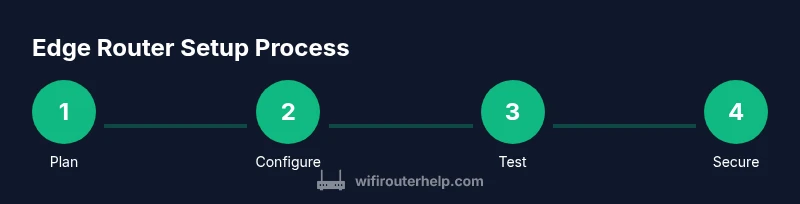
How to Route Edges: Edge Router Setup Guide
Learn how to set up and optimize edge routing in a home network. Step-by-step VLANs, NAT, firewall basics, and security practices for a reliable, scalable edge router.


Goal: Set up an edge router to manage traffic between your home network and the internet, segment guest and IoT devices, and improve security. Requirements: a capable edge router, an active internet connection, admin access, and a basic understanding of subnetting. This quick answer provides the starting framework; full, step-by-step instructions appear in the body blocks.
Edge routing at the network edge
In a modern home network, the edge router stands at the boundary between your local devices and the wider internet. It is responsible for routing traffic, enforcing security rules, and isolating sensitive devices from everyday guests and IoT gear. A well-designed edge routing plan helps minimize interference, reduces broadcast domains, and provides a clear path for monitoring and troubleshooting. By focusing on the edge, you can implement scalable subnetting, simple firewall policies, and robust NAT behavior that protects your devices while preserving performance. This section lays the groundwork for understanding how to route edges effectively, including essential concepts like subnetting, NAT, VLANs, and firewall basics. According to WiFi Router Help, practical edge routing emphasizes containment of potential vulnerabilities and clearly defined traffic boundaries to simplify ongoing maintenance.
Core concepts: subnets, VLANs, NAT, and firewall
Subnets divide a network into smaller, manageable parts. In home networks you typically separate devices into at least two subnets: one for everyday devices (phones, laptops) and another for IoT gear and smart devices. VLANs operate at the data-link layer to keep these subnets isolated even if devices share the same physical switch. NAT translates private addresses to a public one, letting you hide devices behind a single external address. The firewall enforces rules that govern which devices can talk to the internet, and which devices on your network can be reached from outside. A good edge-router strategy uses these tools to create clear boundaries, minimize risk, and simplify day-to-day management. WiFi Router Help emphasizes that clear segmentation reduces attack surfaces and makes monitoring easier, especially when guests connect or IoT devices behave unpredictably. WiFi Router Help also notes that a disciplined edge routing approach supports easier incident response and future growth.
Choosing an edge router: features that matter
When selecting an edge router, prioritize features that directly impact edge routing effectiveness. Look for robust VLAN support, multiple LAN/WAN interfaces (or at least two isolated networks), strong firewall capabilities, and clear NAT rules. Throughput should meet your internet speed with headroom for peak usage, especially if you have streaming, gaming, or smart-home devices. A responsive admin interface and reliable firmware updates are essential for long-term stability. If possible, choose a device with good documentation and a history of timely security patches. WiFi Router Help’s experience suggests favoring devices with proven subnet planning tools, easy backup/restore options, and intuitive port-based access control for scalable edge setups.
Planning your home network map: layout and segmentation
Before touching any settings, sketch a simple map of your home network. Identify primary devices (desktop, laptop, smart TV), IoT gear (light bulbs, cameras), and guest devices (phones of guests). Decide which subnets or VLANs will host each group, along with routing paths between subnets. Label devices with expected traffic patterns (e.g., IoT devices mostly talk to cloud services; guests access the internet via a firewall rule). This planning helps you build a scalable edge topology that can grow without breaking existing rules. Include a rollback plan and a clear naming convention for subnets and VLANs to reduce confusion during maintenance.
Before you configure: prerequisites and safety
Prepare by updating firmware to the latest stable version, collecting admin credentials, and backing up any existing router configuration. Confirm you have physical access to the edge device and a test device (laptop or tablet) for admin UI access. Collect your current IP addressing range (for example, 192.168.0.0/24) to avoid conflicts. Document the baseline network performance so you can measure improvements after setup. Finally, ensure you can reconnect to the device if you misconfigure something; a reset plan minimizes downtime and avoids frustration.
Edge routing design patterns: centralized vs decentralized
A centralized pattern puts edge policies on a single device, simplifying management but potentially bottlenecking traffic. A decentralized approach distributes rules across multiple devices (for example, separate firewall appliances or managed switches) to improve scalability and fault tolerance. For most home networks, a centralized edge router with clear VLAN boundaries is a good balance of simplicity and control. If you run a smart home with many IoT devices, consider delegating isolated subnets to dedicated gateways while keeping core routing centralized. This hybrid approach helps you test changes safely and roll back if needed.
Operational considerations: monitoring, backups, and updates
Set up basic monitoring to track uptime, traffic load, and failed connections. Regularly back up configurations after each major change and store backups offline or in a cloud-encrypted location. Schedule firmware updates during low-usage windows and verify that important features like DHCP, NAT, and VLANs survive the update. Enable logging for firewall events, and consider alerting if a device suddenly spends an unusual amount of time on a subnetwork. A disciplined maintenance routine reduces surprises and keeps edge routing reliable over time.
Troubleshooting common edge-routing issues
Common problems include inconsistent device IPs after reboot, devices escaping VLAN boundaries, or sessions failing during firmware updates. Start by verifying physical connections and rechecking VLAN tag configurations. Confirm the DHCP server is handing out correct subnets, then test inter-subnet routing with a controlled device. If IoT devices lose connectivity, check firewall rules and NAT translations to ensure expected paths are allowed. When in doubt, revert to a known good backup and reapply changes incrementally to isolate the issue.
Authority sources and further reading
For foundational concepts, refer to trusted public resources and professional organizations that discuss edge networking, subnets, NAT, VLANs, and firewall best practices. You’ll find detailed explanations, diagrams, and configuration examples that complement this guide. The following sources provide context and depth to the concepts discussed here, and can be used to expand your edge-routing knowledge beyond home networks. This section also includes links to official guidance and standards bodies to support best-practice configurations.
Tools & Materials
- Edge router with VLAN/subnet support(Prefer models that support multiple internal subnets and basic firewall features)
- Ethernet cables (Cat6 or better)(At least two; for WAN and LAN connections)
- A computer or tablet for admin UI(Access the router's web interface; ensure browser compatibility)
- Active internet service(Working ISP connection for test traffic)
- Network map or plan(Optional but helpful to design subnets)
- Basic subnetting reference sheet(Helps with VLAN/subnet planning)
Steps
Estimated time: 45-75 minutes
- 1
Power on edge router and connect to admin UI
Power up the device and connect your computer to the router's default LAN port using an Ethernet cable. Open the router's default IP address in a web browser and log in with the default credentials. For security, prepare to change credentials and document the new login details.
Tip: Tip: Note the default IP and credentials from the user manual in case you need to reset. - 2
Check for and apply firmware updates
Navigate to the firmware update section and verify you’re running the latest stable version. If an update is available, apply it following the on-screen prompts and wait for the router to reboot. Back up the current configuration before applying updates.
Tip: Tip: Enable automatic updates if the device supports it, but review what each update changes first. - 3
Configure WAN connection and basic LAN
Set the WAN connection to match your ISP type (dynamic IP, static IP, PPPoE, etc.). Create a primary LAN network (e.g., 192.168.1.0/24) and ensure the DHCP server is enabled for that network. Test connectivity from a wired client to confirm Internet access.
Tip: Tip: Reserve a few DHCP IPs for network printers or servers to keep them stable. - 4
Create subnets or VLANs for device groups
Define at least two subnets or VLANs: one for general devices and one for IoT/guest devices. Assign the corresponding ports and wireless SSIDs to the appropriate VLANs. Ensure inter-VLAN routing is controlled with firewall rules.
Tip: Tip: Use descriptive names and maintain a simple mapping between devices and their VLANs. - 5
Set up firewall rules and NAT behavior
Configure basic firewall rules to block unsolicited inbound traffic, allow outbound Internet access, and restrict IoT devices to necessary cloud services. Review NAT rules to ensure devices on the IoT and guest networks share a single external address while remaining isolated.
Tip: Tip: Start with conservative rules and tighten them gradually while testing connectivity. - 6
Enable monitoring and logging
Enable firewall and router logs, set up basic alerts for anomalies, and verify that traffic between VLANs follows your rules. Test from multiple devices to ensure consistent policy enforcement.
Tip: Tip: Save log exports regularly for auditing and troubleshooting. - 7
Secure admin access and back up configuration
Change all default passwords, enable two-factor authentication if available, and back up the new configuration. Store backups in a secure location and document the backup date and contents.
Tip: Tip: Keep a rain-check plan to restore from backup if the router becomes unreachable. - 8
Document the topology and verify performance
Create a concise document showing VLANs, IP ranges, and firewall rules. Run a quick performance test to ensure throughput meets your needs and adjust QoS policies if required.
Tip: Tip: Revisit your documentation after any significant change.
People Also Ask
What is an edge router and why do I need one?
An edge router sits at the boundary between your LAN and the internet, routing traffic and enforcing security policies. It provides network segmentation and a controlled point for firewall rules, which improves security and manageability in homes with many connected devices.
An edge router sits at your network boundary to route traffic and enforce security. It helps you segment devices and control access for a safer home network.
How do I set up VLANs on a consumer router?
Many consumer routers support basic VLANs or multiple LAN segments. If yours does, enable VLANs, assign ports and SSIDs to each VLAN, and implement inter-VLAN routing rules. If not, consider upgrading to a router that supports VLANs or using a dedicated switch and separate APs.
Some consumer routers support VLANs; enable them and assign devices to the right VLANs. If not, you may need an upgrade or a separate managed switch.
Should I enable bridge mode on my edge router?
Bridge mode disables NAT and routing on the parent device, placing all routing duties on your edge router. This is only appropriate if you understand the implications and have a compatible setup because it can disable parental controls and QoS features on the ISP gateway.
Bridge mode turns your ISP gateway into a dumb modem and lets the edge router handle routing. Use it only if you’re comfortable with the changes.
How long do firmware updates take?
Firmware updates vary but typically take a few minutes to download and apply. Plan for a brief downtime and ensure you have a backup in case you need to revert.
Updates usually take a few minutes, but always back up first in case you need to revert.
What are best practices for edge security?
Use strong admin passwords, enable two-factor authentication if available, restrict remote management, segment networks with VLANs, and log firewall events for auditing.
Use strong passwords, enable MFA if possible, limit remote access, and keep logs for security.
What should I do if IoT devices lose connectivity?
Check VLAN assignments, firewall rules, and NAT settings for the IoT subnet. Confirm the devices are reaching the router and that their DNS and gateway configurations are correct.
Check your VLAN and firewall settings first, then verify DNS and gateway for IoT devices.
Watch Video
What to Remember
- Plan edge topology before changing settings
- Use VLANs to isolate devices and simplify management
- Keep firmware and credentials secure and up to date
- Document changes for future maintenance
- Monitor edge router health and performance regularly