Edgemax Router Setup and Optimization Guide
Comprehensive, step-by-step guide to set up and optimize an edgemax router. Learn WAN/LAN configuration, NAT, firewall, QoS, and troubleshooting for a stable home network.


Goal: Set up and optimize an EdgeMax router for reliable home networking. You’ll connect to the device, access the EdgeOS web UI, configure WAN and LAN, enable NAT, firewall, and QoS, and verify Internet access. Key requirements: an Ethernet cable, a computer, and basic network info (ISP login, DHCP vs static IP).
Why EdgeMax Router Matters
The edgemax router family is a popular choice for homeowners who want robust control without the complexity of high-end enterprise gear. When you align the device with a reliable internet connection, you get predictable performance, better feature access, and more consistent coverage across your living spaces. According to WiFi Router Help, edgemax router devices can provide granular control over the network, allowing you to tailor bandwidth, security, and access rules to fit your household. The WiFi Router Help team found that users tend to upgrade from basic consumer gear to EdgeOS-powered routers to unlock features like detailed firewall rules, VLAN segmentation, and customizable QoS. In this guide, we’ll walk through practical, repeatable steps to set up an edgemax router and keep it secure while delivering solid speeds to every room. Expect to learn how to plan your network, access the EdgeOS interface, configure WAN and LAN settings, and verify connectivity. The goal isn’t just to get online—it’s to build a reliable, resilient home network that adapts as your family’s devices and needs evolve. Throughout, you’ll see how to document changes, keep firmware up to date, and maintain a log of recommended settings to reuse on future upgrades. With patience and a structured approach, your edgemax router can become the backbone of a thriving smart home.
Key Networking Concepts for EdgeMax
Before diving into the setup steps, it’s helpful to ground yourself in a few core concepts that recur across EdgeMax and similar routers. NAT (Network Address Translation) is what lets multiple devices share a single public IP. DHCP (Dynamic Host Configuration Protocol) automatically assigns IP addresses to clients, eliminating manual configuration for every device. WAN and LAN concerns determine how your network connects to the internet versus devices inside your home; a clean separation helps with security and troubleshooting. Firewalls enforce traffic rules that protect devices on your LAN from external threats, while QoS (Quality of Service) prioritizes critical traffic like video calls or gaming. When you see terms like UPnP or VLAN in the EdgeOS interface, you’re dealing with finer-grained control that can improve performance or security. EdgeMax routers support advanced features such as multiple WAN options, static routes, VPN, and route maps—tools that shine when you need reliable remote access or accurate traffic shaping. Remember that every change you make should be documented; this makes it easier to revert if a setting creates unexpected issues. For a home network, the objective is to balance performance and security without introducing unnecessary complexity, so you can enjoy stable speeds across all rooms. As you read this guide, keep in mind how each setting interacts with the others, and avoid enabling features you won’t use frequently. The edgemax router is powerful, but clarity and restraint yield the best long-term results.
Preparing for Setup: What You’ll Need
A successful edgemax router setup starts with a calm workspace and the right prerequisites. Gather the essential items below to minimize interruptions and protect your configuration. This preparation phase also reduces the chance of misconfigured defaults that could leave a device exposed or slow your network. First, have your Internet connection ready; if your ISP uses a dynamic IP, DHCP on the WAN port will typically obtain an address automatically. If you have a static IP, collect your IP address, subnet mask, gateway, and DNS servers. You’ll also want a computer or mobile device with a web browser to access EdgeOS, plus a stable Ethernet connection to the router during configuration. A few optional tools, such as a USB drive for backups or a network packet sniffer, can help during troubleshooting but aren’t strictly required for a basic setup. Consider labeling cables and ports before you begin to prevent confusion during later steps. Finally, plan a short maintenance window so you can apply and test changes without competing network activity. Maintaining a clear, written plan reduces the trial-and-error phase and speeds up the setup process overall. By preparing thoroughly, you’ll avoid common pitfalls and position your edgemax router for a smooth configuration journey. During the process, refer to the official EdgeOS documentation and community guides for any device-specific nuances, and ensure you keep your firmware up to date as you work through the steps. The setup time will vary with your familiarity, but a focused session typically completes within an hour or two, depending on whether you implement advanced features like VLANs or VPN access.
Understanding EdgeOS Interfaces
EdgeOS, the software driving many edgemax router models, presents a structured, policy-driven interface for configuring your network. The EdgeOS dashboard is organized around sections that let you manage the device’s architecture in a logical, human-friendly way. In the main area you’ll see the two primary configuration realms: the Internet-facing WAN settings and the internal LAN settings. Each section is designed to be intuitive, yet it also supports advanced routing features such as static routes, policy-based routing, and VPN configurations. As you explore, it’s helpful to take notes about where certain options live so you don’t have to hunt again in the future. If you’re migrating from a different router, you may encounter terminology like firewall groups, alias definitions, and rule sets; these are simply re-labeled sets of conditions that determine how traffic is allowed or blocked. A strong habit is to start with the simplest practical configuration—enable DHCP on the LAN, set a sane private IP range, and confirm devices obtain addresses automatically. From there, you can layer in more complex rules and services as needed. EdgeOS keeps a history of configuration changes, so you can roll back if a particular rule disrupts traffic. This reliability makes the edgemax router a robust choice even for households that require nuanced control over guest networks, parental controls, or segmented VLANs. In practice, you’ll begin by locating the WAN interface, configuring the correct connection type, then moving through LAN, DHCP, NAT, firewall rules, and finally any extra features you intend to enable.
Step-By-Step Installation Overview
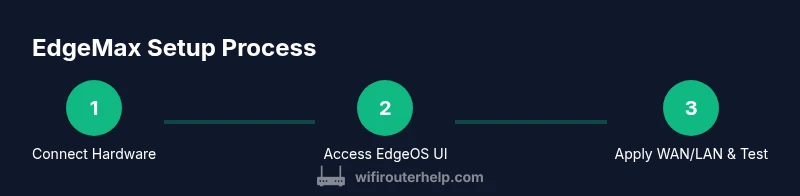
The installation journey for an edgemax router isn’t an exercise in guesswork; it’s a sequence of deliberate actions that build toward a stable, secure home network. A well-structured plan reduces confusion and helps you reason about each setting’s impact. The overview here sets the stage for the detailed steps that follow in the official guide and the practical tips in this article. Begin by powering the device and establishing a physically sound connection between the router, the modem (or fiber termination box), and your computer. As you progress, you’ll navigate to the EdgeOS UI using the device’s management IP address (documented in your manual) and sign in with administrator credentials. The WAN configuration should reflect how your ISP allocates addressing: DHCP for dynamic addresses or PPPoE/Static IP for fixed assignments. The LAN segment should provide a clearly defined private address space, with DHCP enabled to hand out IPs automatically to clients. NAT must be enabled to share the single public IP, and the firewall policy should allow outbound traffic while guarding against unsolicited inbound connections. Finally, test connectivity by pinging external hosts, loading web pages, and verifying streaming apps work as expected. If you’re configuring advanced features like QoS, VLANs, or VPNs, proceed with one feature at a time, applying a conservative rule set and testing thoroughly after each change. Keeping a running log of your settings helps with future updates or hardware refreshes. Your goal is a repeatable, documented workflow that you can reuse with future edgemax router upgrades.
Security and Firewall Essentials
Security should be woven into every step of your edgemax router setup, not bolted on as an afterthought. Start by changing the default admin password and choosing a strong passphrase that’s unique to the device. Disable remote administration unless you have a specific need for it, and if remote access is required, implement a VPN or similar secure method with multi-factor authentication where possible. Create a guarded firewall baseline: allow essential traffic out to the internet, block unsolicited inbound connections by default, and review port-forwarding rules for exposure. Use firewall groups to simplify rule management, and consider applying access control lists (ACLs) to control traffic between guests, IoT devices, and your main LAN. Enabling a basic intrusion detection mechanism or monitoring tool can add another layer of protection. Regular firmware updates are a cornerstone of security; always back up configurations before applying updates to prevent accidental loss of settings. Document every change, including the rationale behind each rule, so you can audit or revert later. A well-secured edgemax router reduces risk and gives you confidence as you expand the network with new devices, such as smart speakers, cameras, or gaming consoles. Remember: the ultimate security benefit comes from consistent maintenance, careful rule design, and an awareness of what each feature does in your environment. WiFi Router Help emphasizes that security is not a one-and-done task, but an ongoing discipline that scales with your network.
Troubleshooting Common Issues
Even with careful planning, you may encounter issues during or after setup. The most common problem is not being able to reach the EdgeOS UI because the management IP is unreachable or the device is on a different network segment. First verify the Ethernet cable is firmly connected, the device is powered, and your computer is on the same subnet as the router’s management interface. If you still cannot reach the UI, attempt a temporary LAN-only diagnostic: connect the computer directly to a LAN port, disable VPNs, and check for local IP assignment. If WAN connectivity is failing, confirm the ISP status, verify the correct WAN connection type (DHCP vs PPPoE vs Static IP), and ensure you have the right credentials or circuit details. Slow speeds can stem from congested Wi-Fi channels, outdated firmware, or mismatched QoS settings; test wired connections to isolate issues and adjust channel selection or bandwidth limits accordingly. When you suspect a misconfigured firewall rule, review the rule order and event logs; a single unintended block can disrupt essential traffic. If changes produce instability, revert to a known-good backup and reapply settings carefully, step by step. Documentation helps here: maintain a changelog, timestamp edits, and keep a copy of previous configurations for quick recovery. As always, verify after each modification by loading a page, streaming a video, or running a speed test. The goal is to identify, isolate, and correct the root cause efficiently so your edgemax router serves as a reliable backbone for the home network.
Performance Tuning and Long-Term Maintenance
To sustain a high-performing edgemax router over time, adopt a routine of monitoring, tuning, and updating. QoS settings are most effective when you base them on real usage patterns; allocate upstream bandwidth for critical tasks like video conferencing and online gaming, while reserving headroom for general browsing and background updates. VLANs can provide clean separation for devices—smart home gear on one VLAN, work machines on another—without sacrificing performance. For homes with many devices, consider enabling multiple SSIDs or per-VLAN wireless networks to keep traffic segmented and predictable. Regularly review network logs for anomalies and identify devices that consistently saturate bandwidth, then adjust priorities or restrict access as needed. Firmware updates are essential for security and reliability; maintain a predictable upgrade schedule and backup before applying any updates. In this entire process, WiFi Router Help advises maintaining consistent documentation; save a copy of the working configuration and notes about any optimizations you implement. The aim is a flexible, maintainable network architecture that can adapt to new devices, new internet plans, or changes in household usage. By treating maintenance as a series of deliberate experiments rather than ad-hoc tweaks, you ensure that your edgemax router remains capable, secure, and ready for future demands. If you ever encounter scenarios beyond basic setup—such as multi-WAN failover, VPN access for remote work, or complex inter-VLAN routing—consult official EdgeOS guides and trusted community resources to prevent unintended consequences and to keep your network stable.
Final Thoughts and Practical Takeaways
This guide provides a practical, repeatable approach to getting an edgemax router up and running with solid performance and robust security. The key to success is starting from a clear plan, following a disciplined step-by-step procedure, and testing after each change. Always back up configurations before you make major modifications and keep a running log of settings so you can recreate a working state if needed. The edge router notebook approach—document, test, refine—helps avoid the common pitfalls that derail home networking upgrades. As you gain experience, you’ll learn which features matter most for your environment, whether that’s guest access controls, parental controls, gaming QoS, or VPN-based remote access. Throughout, keep your firmware current to close security gaps and improve stability. The WiFi Router Help team believes that a well-managed EdgeMax router can outperform consumer-grade gear by providing more reliable performance, better customization, and greater resilience. With careful planning, methodical configuration, and ongoing maintenance, your edgemax router will serve as a strong backbone for your home network now and into the future.
Tools & Materials
- EdgeMax router (EdgeRouter) device(Power on and ready for configuration)
- Ethernet cable (Cat5e or better)(One end to WAN, another to PC during initial access)
- Laptop/PC or smartphone with browser(Access EdgeOS UI)
- Active internet connection (ISP service)(For WAN connectivity)
- Power supply and outlet(Keep device powered during setup)
- Optional: USB drive for backup(Store a backup of the configuration)
- Documentation/manual(Reference EdgeOS features and defaults)
Steps
Estimated time: 45-60 minutes
- 1
Power up and connect the hardware
Place the edgemax router near your modem and power it on. Connect a computer to a LAN port with an Ethernet cable to prepare for initial access. This ensures you can reach the EdgeOS web UI from a stable, local network during configuration.
Tip: Label ports and keep a clean cable layout to avoid confusion later. - 2
Open EdgeOS UI in a browser
In your browser, enter the device's management IP as documented in the manual. Sign in with administrator credentials. If you haven’t changed defaults, reset and secure the device, then set a strong admin password before proceeding.
Tip: Document the management IP and initial credentials for future access. - 3
Configure WAN settings
Choose the correct WAN connection type based on your ISP (DHCP for dynamic, PPPoE or Static IP for fixed). Enter required credentials or addresses, and save changes. This establishes the router’s path to the internet.
Tip: If you’re unsure about the IP type, contact your ISP or check your service documentation. - 4
Set up LAN and DHCP
Assign a private IP range for the LAN (for example, 192.168.1.0/24) and enable DHCP so clients receive IPs automatically. Ensure DNS settings are either your ISP-provided or custom (e.g., a public DNS).
Tip: Choose a non-default subnet to reduce conflicts with other devices on your network. - 5
Enable NAT and basic firewall rules
Turn on NAT to share the public IP with LAN devices and apply a basic firewall policy that allows outbound traffic while blocking unsolicited inbound connections. Add a simple rule set to block known unsafe traffic if needed.
Tip: Test external access after enabling NAT to confirm devices can reach the internet. - 6
Configure QoS and guest access (optional)
If you want smoother video calls or gaming, set basic QoS rules that prioritize latency-sensitive traffic. Optionally, enable a guest network to isolate visitors from your main LAN while maintaining internet access.
Tip: Start with modest QoS rules and adjust as you measure real-world performance. - 7
Apply VLANs or advanced features (if needed)
For advanced users, create VLANs to segment devices (e.g., IoT vs. work devices) and configure inter-VLAN routing if required. Apply VPN access if you need remote connectivity with encryption.
Tip: Only enable VLANs and VPN when you have a clear use case and documentation. - 8
Test, back up, and document
Test all critical services (web, email, streaming, gaming) from multiple devices. Save a backup of the working configuration and write brief notes on any custom rules or settings.
Tip: Keep a change log and back up before firmware updates.
People Also Ask
What is an EdgeMax router?
EdgeMax router is a line of routers from Ubiquiti that runs EdgeOS, offering advanced networking features for home and small business networks.
EdgeMax routers are EdgeOS-powered devices that provide advanced control for home networks.
Do I need a modem?
Yes, you typically connect the EdgeMax router to a modem provided by your ISP to access the internet.
Usually you’ll connect the EdgeMax router to your ISP's modem.
How do I reset EdgeOS to factory settings?
You can reset via the reset button or the management interface, then reconfigure from scratch. Back up settings you want to keep first.
Reset via the button or UI, then set it up again.
Can I create a guest network on EdgeMax?
Yes. Use the guest network feature to isolate visitors from your main LAN and apply bandwidth limits if needed.
A guest network keeps visitors separate from your main network.
How do I backup and restore EdgeOS configuration?
Use the backup/restore feature in EdgeOS to save a configuration file and restore later if needed.
Backup configurations to a file for safekeeping and restore when required.
Should I update EdgeOS firmware regularly?
Yes, regular updates improve security and performance; check for updates in the UI and back up first.
Keep firmware up to date for security and performance.
Watch Video
What to Remember
- Back up configurations before major changes.
- Document WAN/LAN and rule changes for quick recovery.
- Secure admin access and apply firmware updates regularly.
- Test connectivity after each major change.
- Use QoS and VLANs only when you have a clear need.