Ethernet Router Setup and Optimization: A Practical Guide
Learn how to install, configure, and optimize an ethernet router for a reliable home network. Step-by-step setup, security best practices, troubleshooting tips, and maintenance guidance from WiFi Router Help.


You will set up an ethernet router to provide wired network access and a stable WiFi presence across your home. You’ll need a router, a modem, Ethernet cables, and a computer or mobile device for the initial configuration. This guide covers setup, secure access, performance tweaks, and essential troubleshooting to get your network running smoothly.
Why Ethernet Router Matters
In a modern home, the ethernet router is the backbone of your network. A reliable device that handles both wired and wireless connections reduces dropouts and improves overall performance. According to WiFi Router Help, a well-configured ethernet router delivers consistent wired speeds and simpler network management for homes. By prioritizing stability, security, and scalability, you create a network that supports work-from-home, streaming, gaming, and smart devices without constant tweaking. Because most households rely on multiple devices, a solid ethernet router helps you allocate bandwidth where it’s most needed and keeps latency low for real-time applications.
This guidance focuses on practical, actionable steps you can take without expensive gear. You’ll learn how to pick the right model, run cables cleanly, secure administrative access, and tune settings to maximize reliability. Remember: the goal is a dependable core network that supports all your devices, not just a fast upload or download speed alone.
Key Differences: Ethernet vs Wi‑Fi Performance
When you compare wired (ethernet) and wireless connections, the ethernet router serves as the central controller for both. A wired link typically delivers lower latency, fewer interruptions, and more consistent bandwidth than WiFi, especially in crowded homes or environments with many walls and obstacles. For gaming, video conferencing, or large file transfers, a wired connection through the ethernet ports on your router often outperforms wireless links. The ethernet router also simplifies network management by offering predictable performance for connected devices and easier QoS configuration to prioritize traffic.
However, WiFi remains essential for devices that move around the house or don’t have Ethernet ports. A practical setup uses wired connections for desktops, consoles, and smart hubs, while WiFi serves mobile devices and guests. Your choice of router should balance wired stability with robust wireless coverage, ensuring all critical devices stay responsive while minimizing interference.
Choosing the Right Ethernet Router
Selecting the right ethernet router means matching features to your home’s needs. Look for a model with a stable WAN port and multiple Gigabit LAN ports to support wired devices. Consider the following criteria:
- WAN/LAN ports: At least 1 WAN port and 4 LAN ports for flexible wired layouts.
- Speed capability: Gigabit Ethernet on all usable ports; if future-proofing matters, a router offering 2.5G WAN or LAN may be worthwhile.
- Security features: Built-in firewall, regular firmware updates, and strong default protections.
- Firmware and management: User-friendly admin interface, remote management options, and automatic updates.
- QoS and features: Quality of Service to prioritize latency-sensitive apps, plus guest networks and parental controls if needed.
Before buying, map your home layout and the number of wired devices you intend to support. This helps you decide whether you need more LAN ports, a mesh-ready unit, or a single high-performance router. The goal is a balance between speed, reliability, and manageability for your specific environment.
Basic Setup: Unbox, Connect, and Power On
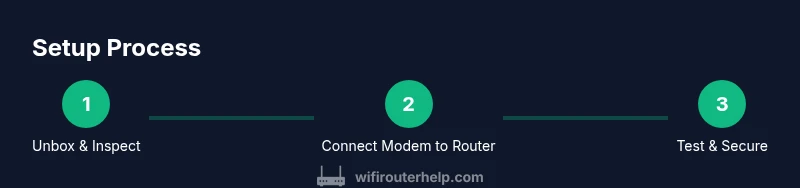
Unbox your router and verify you have the power adapter, Ethernet cable, and any documentation. Connect the modem from your ISP to the router’s WAN/Internet port using an Ethernet cable. Then power on the modem first, followed by the router. Wait for the status lights to indicate a stable connection before proceeding. This sequence ensures the router receives a valid internet signal and can initialize correctly. If your router has a reset option, keep it available but use it only if something goes wrong with the initial setup.
During boot, connect a computer or mobile device to the router via Ethernet or its default WiFi network. Access the admin interface using the default address provided in the manual (often 192.168.0.1 or 192.168.1.1) and log in with the default credentials. You’re ready to begin configuring your personalized network from a secure baseline.
Accessing the Admin Interface Securely
Change the default admin password immediately after first login. Enable HTTPS if available to encrypt your management traffic. Disable remote administration unless you have a compelling reason to keep it on, and create a strong, unique password for the admin account. Configure the internet connection type (DHCP, PPPoE, or static IP) according to your ISP’s requirements. Save changes, then reboot if prompted. This stage establishes a secure foundation for ongoing network management and prevents common entry points for attackers.
Wire Your Network: Mapping Cables and Devices
Organize your physical network by mapping where cables run and which devices connect to which ports. Run longer cables along baseboards or behind furniture to reduce trip hazards and keep spaces tidy. Label each end of critical cables to simplify future maintenance. For a clean wired backbone, run desk-to-switch or wall-to-router cables with minimal bends. At this stage, connect essential wired devices—PCs, gaming consoles, and network-attached storage (NAS)—to the router’s LAN ports to confirm stable connections before expanding.
Optimizing Performance: QoS, Channel Width, and Band Steering
Tuning performance begins with Quality of Service (QoS) rules that prioritize latency-sensitive traffic like video calls and online gaming. Enable QoS and assign higher priority to work devices if you work from home. For wireless performance, select 20/40 MHz channel widths for crowded environments, or use 80 MHz where interference is low and you have compatible devices. If the router supports band steering, enable it to automatically guide devices to the best band. Regularly reassess these settings as your household device mix changes and new rooms or floors are added.
Troubleshooting Common Issues
If you encounter no internet after setup, verify the modem is online and the router’s WAN port is correctly connected. Slow speeds, buffering, or dropped connections can result from outdated firmware, misconfigured QoS, or interference. Check cables for damage, try different ports, and run a quick speed test wired to the router to establish a baseline. If wireless coverage is patchy, reposition the router higher and away from thick walls or metal appliances. A factory reset and reconfiguration can resolve stubborn issues, but only after you’ve documented your settings.
Security Best Practices for Ethernet Routers
Security should be a core part of your setup. Use a strong admin password, enable automatic firmware updates, and disable features you don’t use, such as WPS or remote management. Create a separate guest network for visitors and IoT devices to prevent main network access from compromised devices. Enable firewall protections and consider enabling UPnP only if you need it, then disable it when not in use. Regularly audit connected devices and monitor for unfamiliar activity, updating credentials if any device is decommissioned or lost.
Maintenance and Firmware Updates
Firmware updates fix bugs, close security gaps, and improve performance. Set a regular maintenance window to check for updates, and apply them promptly after validation. Back up your router configuration if the option exists, so you can restore quickly after any update. For a resilient home network, document settings, wireless names (SSIDs), and passwords in a secure location. By treating maintenance as a routine, your ethernet router remains reliable and responsive for years to come. The WiFi Router Help team recommends establishing a quarterly review of settings and firmware status to keep your network secure and efficient.
Tools & Materials
- Router(Any ethernet router that supports at least 1 WAN port and 4 LAN ports.)
- Modem(ISP-provided or standalone modem that connects to the internet service.)
- Ethernet cables (Cat5e/Cat6)(Choose CAT6 for future-proofing and reduced interference on longer runs.)
- Computer or mobile device(For initial setup and admin access to the router’s interface.)
- Web browser(Prefer a modern browser with JavaScript enabled (Chrome, Edge, Safari).)
- surge-protected power strip(Optional, protects equipment from surges and helps organizing cables.)
Steps
Estimated time: 30-60 minutes
- 1
Power off and disconnect devices
Shut down the modem and router, then unplug power for all devices involved. This minimizes electrical or firmware conflicts during initial wiring.
Tip: Wait 30 seconds after unplugging before reconnecting to ensure capacitors discharge. - 2
Connect the modem to the router WAN port
Use an Ethernet cable to link the modem’s port to the router’s Internet/WAN port. This creates the primary path for your internet signal.
Tip: Make sure the cable is fully seated and the WAN/Internet light on the router indicates a link. - 3
Power on the modem, then the router
Plug in the modem first and wait for its lights to stabilize (usually 1–2 minutes). Then power on the router and allow it to boot completely.
Tip: If the router LEDs remain off after several minutes, try a different power outlet or perform a soft reset. - 4
Access the admin interface
From a connected device, open a browser and enter the router’s default IP address (often 192.168.1.1 or 192.168.0.1). Log in using the default credentials.
Tip: Change the admin password immediately after first login. - 5
Configure WAN and LAN settings
Follow the setup wizard or manual steps to set the internet connection type (DHCP/PPPoE/static IP) and basic LAN IP addressing.
Tip: Save changes before exiting and reboot if prompted. - 6
Secure the admin account
Create a strong admin password and enable HTTPS to protect management traffic. Consider disabling remote management if not needed.
Tip: Use a password manager to store and generate a unique password. - 7
Create a Wi‑Fi network and test wired connections
Set a unique SSID and robust passphrase. Connect a wired device to confirm a stable, fast link and then test wireless devices.
Tip: Enable a guest network if you have visitors or IoT devices that don’t need access to your main network. - 8
Document and back up your settings
Record the essential network details and export a configuration backup if the router supports it. This makes future resets easier.
Tip: Keep the backup in a secure place and note any custom DNS or QoS rules you created.
People Also Ask
What is the difference between WAN and LAN ports on a router?
WAN ports connect to your modem and provide internet access to the network. LAN ports are used to connect devices within your home network. Understanding this helps you organize wired devices efficiently.
WAN ports are the internet input, while LAN ports serve your local network; this helps you plan cable layouts.
Do I need both a modem and a router?
Yes. The modem connects you to your ISP, converting the signal into a usable form. The router creates your home network, manages traffic, and provides wired and wireless access.
A modem connects you to the internet; a router builds and manages your home network.
How do I reset my ethernet router to factory settings?
If things go wrong, locate the reset button on the back, press and hold for about 10 seconds, and release. This restores default settings but will erase custom configurations.
Hold the reset button for about 10 seconds to restore defaults; you’ll need to reconfigure afterward.
How can I improve wired and wireless performance?
Prioritize critical devices with QoS, use wired connections for desktops and storage devices, and ensure firmware is up to date. Reduce interference by placing the router away from large metal objects and appliances.
Use QoS and wired connections for reliability; keep firmware current to boost performance.
Is it safe to enable remote management?
Remote management is convenient but increases exposure to external threats. Disable it unless you have a specific need and strong security controls in place.
Remote management can be risky; disable it unless you must access the router from outside your network.
Watch Video
What to Remember
- Plan your layout before wiring
- Use wired connections for stability
- Secure admin access with a strong password
- Keep firmware up to date
- Back up configuration for easy recovery