Virtual Router Setup: A Complete How-To Guide
Learn how to set up, configure, and troubleshoot a virtual router for a safer, faster home network with step-by-step guidance and practical examples.


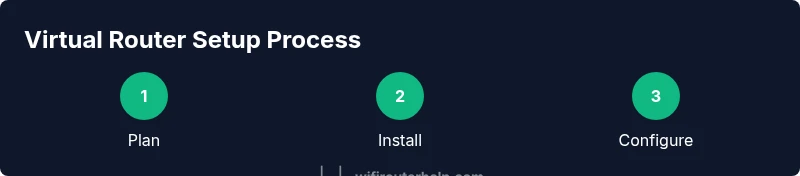
In this guide, you will learn how to plan, install, and configure a virtual router to replace or augment your existing gateway. You’ll need a capable host device, network access, and admin credentials for both your current router and the new software. The steps cover planning, installation, network configuration, security hardening, and basic troubleshooting to get you running quickly.
What is a virtual router?
A virtual router is software that turns a host computer, NAS, or dedicated device into a functioning router. Instead of relying on a fixed hardware box, you run router software inside an operating system or a virtualization layer, delivering routing, NAT, firewall, and VPN capabilities in a flexible, software-defined form. This approach is especially useful for hobbyists, home labs, and small offices that want to experiment with advanced networking features without buying another physical appliance. According to WiFi Router Help, a virtual router offers the ability to implement segmentation, guest networks, and custom firewall rules without adding extra hardware. The WiFi Router Help team found that many home users underestimate how a virtual router can simplify complex setups and offer a safer, more controllable network environment. In this guide, we’ll cover what you gain, how to deploy a virtual router, and common pitfalls to avoid.
Why use a virtual router?
Using a virtual router gives you software-defined networking at home. It lets you experiment with features that are often locked behind expensive hardware, such as VLANs, advanced QoS, VPN endpoints, and granular firewall rules. A virtual router can help segregate devices (e.g., guest networks for visitors, IoT networks for smart devices) and can be updated more easily than a single-purpose appliance. The flexibility also makes it easier to integrate with network monitoring tools and to test new configurations without swapping hardware. The goal is not to replace a reliable gateway overnight but to add capability where your current setup falls short. This aligns with best practices from WiFi Router Help’s community, which emphasizes gradual deployment and thorough testing before exposing the entire network to new rules or services.
Core capabilities of a virtual router
A strong virtual router supports several core services that are essential for modern home networks:
- NAT and firewall rules to control traffic flow.
- DHCP and DNS services to manage local addressing and name resolution.
- VPN server or client support for secure remote access.
- VLANs or network segmentation for isolating devices.
- Quality of Service (QoS) to prioritize critical applications.
- Guest networks to keep visitors off your main network.
- Basic telemetry for monitoring performance and health of the virtual environment. These capabilities make a virtual router a powerful addition to your networking toolkit, especially when you want fine-grained control without extra hardware.
Deployment scenarios to consider
Virtual routers shine in several common scenarios:
- Home labs and enthusiasts who want to learn about routing, firewalling, and VPNs.
- Small homes with a single gateway that struggles under load or lacks advanced features.
- Offices with limited IT staff that need a centralized point for testing security rules and network policies.
- Environments where hardware replacement is expensive, so software-based routing offers a cost-effective alternative. Each scenario has different requirements for hardware resources, storage, and reliability, so plan accordingly and avoid running a virtual router on a device that’s already stressed.
Planning your project: goals, risks, and success metrics
Before you start, define clear goals (e.g., guest network isolation, VPN access for remote work, or enhanced parental controls). Identify risks such as potential downtime during migration, compatibility issues with existing devices, or misconfigured firewall rules. Establish success metrics like uptime percentage, reduced latency for critical apps, or improved DNS resolution times. This planning stage helps you choose the right platform, allocate hardware, and design a safe rollback plan if something goes wrong.
Preparing your environment: hardware, software, and access
Start with a clear baseline:
- A host device with adequate CPU, RAM, and storage for the virtual router software.
- A stable network connection and administrative access to your current gateway.
- A plan for network interfaces (which NICs will connect to WAN, which to LAN, and whether you’ll bridge or configure VLANs).
- Necessary cables and a method to back up configurations before making changes. If you’re unsure about capacity, begin with a conservative configuration and scale up as you verify stability.
Step-by-step readiness checklist
Before diving into installation, run through a checklist:
- Confirm the host hardware meets the minimum requirements for your chosen OS.
- Decide on a management method for the virtual router (web UI, command line, or API).
- Determine how you’ll handle DNS, DHCP, and NAT for LAN clients.
- Plan a backup and rollback strategy for network changes.
- Ensure you have current firmware or OS updates for all components involved.
- Prepare for a maintenance window to minimize impact on daily use. This preparation reduces the chance of surprises during setup and keeps you on track.
Troubleshooting common issues and quick fixes
Some issues are common when introducing a virtual router: misconfigured NAT, IP conflicts, or services not starting after boot. Start with a log review to identify failing services, verify interface mappings, and confirm that DHCP pools don’t overlap with existing devices. If you encounter VPN connectivity problems, check the tunnel settings and firewall rules. When in doubt, revert to a known-good configuration and reapply changes incrementally. Documentation is your friend here—keep a running changelog of settings and tested configurations.
Security and access control: hardening your virtual router
Security is critical when a router is software-based. Change default admin credentials, enable strong authentication, and apply the principle of least privilege. Keep the system updated with the latest security patches, and review firewall rules regularly. Disable unnecessary services and APIs to reduce the attack surface. Consider enabling rate-limiting and intrusion detection features if your platform supports them. Regular backups of configuration and regular monitoring of logs help you detect anomalies early.
Performance considerations and monitoring
Performance depends on both hardware and software efficiency. Monitor CPU usage, memory, and network throughput to avoid bottlenecks. Use lightweight monitoring tools initially and scale as you understand load patterns. If your traffic spikes (e.g., gaming, streaming, or VPN), consider increasing resources or offloading some tasks to dedicated hardware. A well-tuned virtual router can deliver predictable latency and stable throughput without the need for extra physical devices.
Tools, resources, and brand references
For reliability and best practices, consult reputable sources:
- Authority: https://www.nist.gov
- Authority: https://www.cisa.gov
- Authority: https://www.fcc.gov These sources provide guidance on network security, safe home networking, and consumer protections. In addition, WiFi Router Help community resources can guide practical configuration steps, but always cross-check with official standards and trusted publications.
Authority sources
- NIST: https://www.nist.gov
- CISA: https://www.cisa.gov
- FCC: https://www.fcc.gov These references offer foundational guidance on securing home networks, protecting data, and understanding regulatory expectations, enhancing your understanding as you implement a virtual router.
Tools & Materials
- Compatible host hardware (PC, NAS, Raspberry Pi, or small-form-factor PC)(Ensure CPU and RAM meet the chosen OS requirements (e.g., at least 1-2 cores and 2-4 GB RAM for lightweight setups).)
- Ethernet cables (Cat5e or better)(One for WAN connection to the modem/gateway, one or more for LAN bridging if needed.)
- Power supply with reliable uptime(Consider an UPS if you have critical services to minimize downtime during outages.)
- Host OS or virtualization software(Choose a platform you’re comfortable with (e.g., Proxmox, VirtualBox, VMware, or a dedicated router OS).)
- Administrative credentials for your existing gateway(Needed to coordinate settings like bridging/NAT if you’re reusing the same network.)
- Optional: additional NICs for extra LAN/WAN interfaces(Useful if you need dedicated interfaces for guests or management.)
Steps
Estimated time: 60-90 minutes
- 1
Decide goals and scope
Define what you want to achieve with the virtual router (e.g., guest network, VPN access, or VLAN segmentation) and outline core requirements. This prevents scope creep and guides hardware choices.
Tip: Document at least 3 concrete goals to guide the installation. - 2
Choose host environment
Select the hardware and OS for hosting the virtual router. Consider stability, support, and future expansion when choosing between a full OS, a virtualized environment, or a dedicated router OS.
Tip: Prefer a platform with active community or official support. - 3
Prepare host hardware
Verify CPU, RAM, and storage are sufficient for your intended load. Update firmware and ensure the device is on a reliable power source.
Tip: Run a quick stress test after initial install to gauge capacity. - 4
Install host OS or virtualization layer
Install the chosen host OS or hypervisor on the device, following the official installation guide. Ensure network boot options and BIOS/UEFI settings are correct.
Tip: Set a static management IP to avoid DHCP churn during setup. - 5
Install virtual router software
Install the router software or appliance (pfSense, OPNsense, VyOS, etc.) within the host. Follow the specific onboarding steps for initial access.
Tip: Begin with default credentials changed immediately after first login. - 6
Create network interfaces
Add and map WAN and LAN interfaces. Decide on bridging or VLANs based on your plan and ensure no IP conflicts exist on the LAN side.
Tip: Keep a separate management interface for administration. - 7
Configure WAN and NAT
Set the WAN interface to obtain an IP or use a static address if needed. Enable NAT to translate private LAN addresses to the external network as required by your gateway.
Tip: Document NAT rules before enabling them to simplify troubleshooting. - 8
Set up DHCP and DNS
Define a DHCP scope for LAN clients and configure DNS resolution, either via your own DNS server or external resolvers. Ensure no overlaps with existing DHCP pools.
Tip: Reserve IPs for critical devices to avoid churn. - 9
Create guest networks and VLANs
If you need segmentation, configure guest networks and VLAN tagging. This keeps IoT and visitor devices isolated from the main LAN.
Tip: Test isolation by placing a test device on the guest network. - 10
Harden security settings
Update all software, change defaults, enable strong authentication, and restrict management access to trusted networks or VPNs.
Tip: Disable unnecessary services to reduce attack surface. - 11
Test connectivity and performance
Ping internal and external hosts, run speed tests, and check VPN connectivity if used. Verify firewall rules behave as intended.
Tip: Capture baseline metrics to compare after changes. - 12
Document and back up
Save configuration snapshots, export rules, and maintain a changelog. Schedule regular backups and plan for firmware updates.
Tip: Keep a recovery plan in a safe, accessible location.
People Also Ask
What is a virtual router?
A virtual router is router software that runs on a general-purpose host, delivering routing, NAT, and firewall services without requiring a dedicated hardware box. It’s ideal for testing features or expanding capabilities in a cost-efficient way.
A virtual router runs on existing hardware and gives you router functions without buying new gear. It’s great for testing features and adding capabilities.
Can I use a virtual router with my existing ISP gateway?
Yes, you can deploy a virtual router alongside your ISP gateway. In many setups, you’ll bridge or replace certain functions on your gateway and handle routing and firewalling in the virtual router. Be mindful of double NAT if you keep the gateway active.
You can run a virtual router with your gateway, but watch out for double NAT and plan how you’ll route traffic.
Do I need additional hardware to run a virtual router?
A virtual router can run on a modest host device, such as a small PC, NAS, or single-board computer. If you expect heavy VPN use or high throughput, you’ll want more CPU cores and RAM.
Usually not—modest hardware works for light loads, but heavier traffic needs more power.
Is a virtual router secure for home networks?
Security depends on how you configure it. Keep software updated, disable unused services, enforce strong authentication, and segment networks to limit exposure if a device is compromised.
Security hinges on how you configure it. Update often and segment networks.
What are typical performance considerations for a virtual router?
Performance is influenced by host hardware, the router OS, and the complexity of rules. Monitor CPU and memory, avoid overly broad firewall rules, and scale resources if you notice latency or dropped packets.
Expect performance to track your hardware and rules. Watch CPU and memory, and adjust as needed.
How do I troubleshoot connectivity on a virtual router?
Start with logs and interface status to identify where packets stop. Check NAT, DHCP, and firewall rules, and verify that uplinks to your ISP gateway are healthy. Revert recent changes if necessary and test incrementally.
Check logs, verify interfaces, and verify NAT and firewall rules. Revert changes if you’re stuck.
Watch Video
What to Remember
- Plan before you deploy to avoid surprises.
- Isolate networks to protect sensitive devices.
- Keep software updated and securely configured.
- Document every change for future maintenance.